Introduction
Thank you for choosing the UBOTIE Dual Mode Colorful Wireless Keyboard. This keyboard combines a retro typewriter aesthetic with modern dual-mode connectivity (Bluetooth and 2.4GHz USB) to support multiple devices including PCs, laptops, tablets, and phones. Its unique round keycaps and satisfying click provide a distinctive typing experience. This manual provides essential information for setting up, operating, maintaining, and troubleshooting your new keyboard.
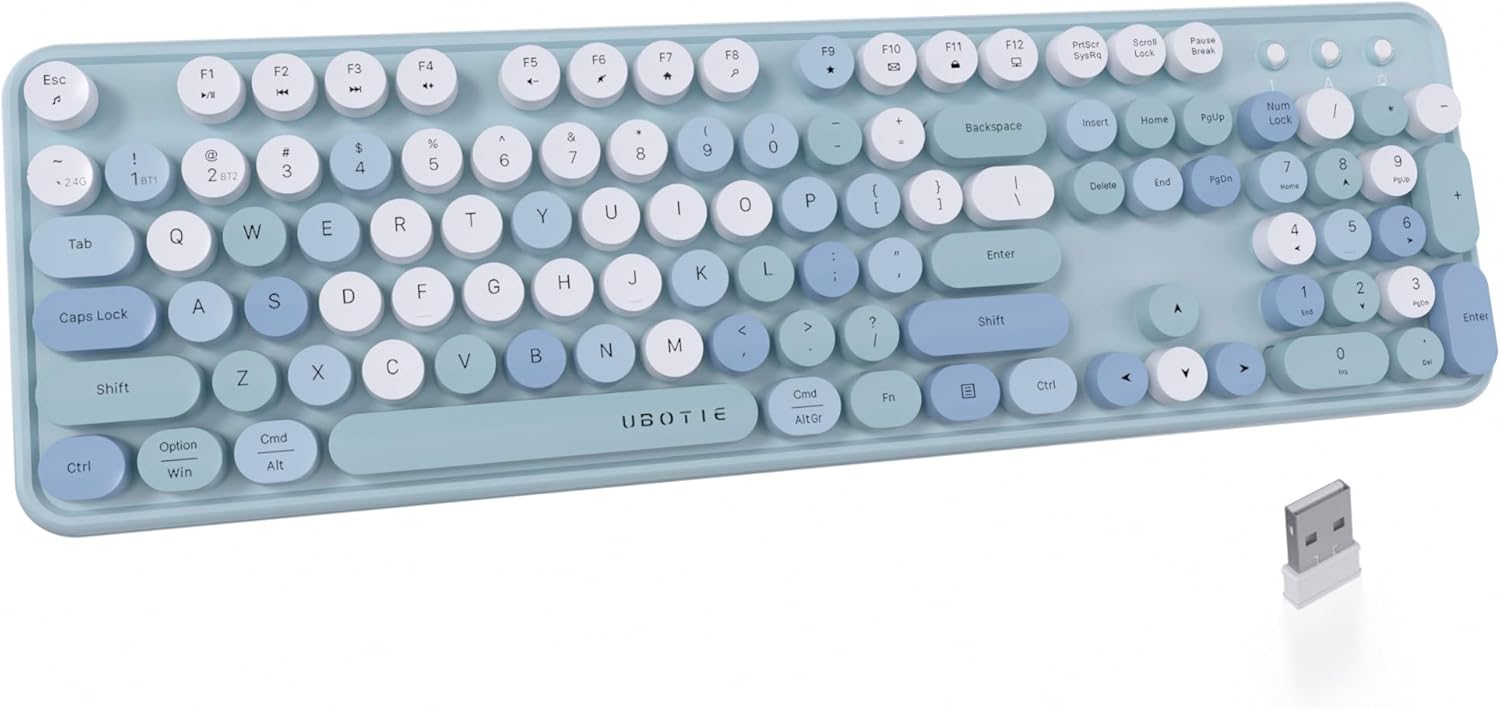
The UBOTIE Dual Mode Colorful Wireless Keyboard, showcasing its unique round keycaps and vibrant blue and white color scheme.
Setup
Your UBOTIE keyboard offers flexible connectivity options: 2.4GHz USB receiver or Bluetooth. Follow these steps to get started.
1. Battery Installation
The keyboard requires one AA battery. The battery compartment is located on the underside of the keyboard. The mouse also requires batteries, typically AA or AAA, located in its base.

The underside of the keyboard, revealing the battery compartment and the dedicated slot for the USB receiver.
2. Connecting Your Keyboard
You can connect the keyboard using either the 2.4GHz USB receiver or Bluetooth.
2.1. USB Receiver Connection (Plug and Play)
- Locate the USB receiver, usually stored in the battery compartment of the keyboard or mouse.
- Insert the USB receiver into an available USB port on your computer, laptop, or compatible device.
- Turn on the keyboard using the power switch, typically located on the side or underside. The keyboard should automatically connect.

The compact USB receiver is easily plugged into a laptop's USB port for instant wireless connection.
2.2. Bluetooth Connection
The keyboard supports two Bluetooth channels (BT1 and BT2) for connecting to multiple devices.
- Turn on the keyboard.
- Press and hold the Fn key along with either the 1! (BT1) or 2@ (BT2) key for a few seconds until the indicator light flashes, indicating pairing mode.
- On your device (computer, tablet, phone), go to Bluetooth settings and search for available devices.
- Select "BT1 Keyboard" or "BT2 Keyboard" from the list to pair.
- Once paired, the indicator light on the keyboard will stop flashing.

The keyboard seamlessly connects to multiple devices, such as a tablet and smartphone, via Bluetooth.
This video demonstrates the dual-mode connectivity of the UBOTIE keyboard, showing both USB and Bluetooth pairing processes.
Operating Instructions
The UBOTIE keyboard is designed for intuitive use with its retro-style round keycaps and full layout.
1. Typing Experience
The round keycaps provide a unique tactile feedback, reminiscent of a classic typewriter, with a satisfying click sound.

The UBOTIE keyboard integrated into a modern desk setup, highlighting its aesthetic appeal.
2. Switching Between Modes/Devices
To switch between the 2.4GHz USB connection and Bluetooth channels (BT1/BT2), press the corresponding keys:
- For 2.4GHz USB mode: Press Fn + ~ (2.4G)
- For Bluetooth Channel 1: Press Fn + 1! (BT1)
- For Bluetooth Channel 2: Press Fn + 2@ (BT2)
This allows for quick switching between up to three connected devices.
3. Compatibility
The keyboard is compatible with Windows 7, Windows 8, Windows 13, and Mac operating systems, as well as various devices like PCs, laptops, tablets, and smartphones.
4. Multimedia and Hotkeys
The keyboard includes hotkeys and media keys for convenient control of your media playback and system functions. These are typically accessed by pressing the Fn key in combination with the F1-F12 keys.
Maintenance
Proper care will extend the life of your UBOTIE keyboard.
1. Cleaning
- Use a soft, dry cloth to wipe down the keyboard surface regularly.
- For deeper cleaning, use a can of compressed air to remove dust and debris from between the keys.
- Avoid using harsh chemicals or abrasive materials that could damage the finish or keycap legends.
2. Battery Replacement
When the keyboard's performance degrades or it fails to connect, it may be time to replace the AA battery. Ensure you use a fresh, high-quality AA battery for optimal performance.
3. Power Saving
The keyboard is designed with an auto power-saving feature. Additionally, utilize the power switch on the keyboard to turn it off when not in use for extended periods to conserve battery life.
Troubleshooting
If you encounter issues with your UBOTIE keyboard, try the following solutions:
1. Keyboard Not Connecting
- Check Batteries: Ensure batteries are correctly installed and have sufficient charge. Replace if necessary.
- Power Switch: Verify the keyboard's power switch is in the 'ON' position.
- USB Receiver: If using USB, ensure the receiver is firmly plugged into a working USB port. Try a different USB port.
- Bluetooth Pairing: If using Bluetooth, ensure your device's Bluetooth is enabled. Re-enter pairing mode on the keyboard (Fn + 1!/2@) and re-pair with your device.
- Device Compatibility: Confirm your device's operating system is compatible (Windows 7/8/13, Mac).
2. Keys Not Responding or Lagging
- Battery Level: Low battery can cause intermittent key response. Replace batteries.
- Interference: Move the keyboard closer to your device. Avoid placing it near other wireless devices that might cause interference.
- Clean Keys: Ensure no debris is lodged under the keys. Clean as per the Maintenance section.
3. Accidental Disconnection
- Re-establish Connection: For USB, unplug and replug the receiver. For Bluetooth, try switching channels (Fn + ~ / 1! / 2@) or re-pairing.
- Power Cycle: Turn the keyboard off and then on again.
Specifications
| Feature | Detail |
|---|---|
| Brand | UBOTIE |
| Model | B0CS26PJZQ |
| Product Dimensions | 17.4 x 5.2 x 1.06 inches |
| Item Weight | 1.7 pounds |
| Connectivity Technology | Bluetooth, RF (2.4GHz USB) |
| Keyboard Description | Membrane |
| Number of Keys | 104 |
| Style | Retro |
| Compatible Devices | Projector, Laptop, PC, Tablet, Smartphone |
| Special Feature | Round Key, Hotkeys and Media Keys, USB and Bluetooth Dual Mode Connection |
| Color | Blue Colorful |
Warranty and Support
Your UBOTIE Dual Mode Colorful Wireless Keyboard comes with a one-year product support. Should you encounter any issues or require assistance, please consult our 24-hour support team for a satisfactory solution.
For further assistance, please refer to the contact information provided with your product packaging or visit the official UBOTIE website.

