
1. Introduction
This manual provides comprehensive instructions for the GOWENIC ME-MPP303 Active Stylus Pen. It covers product specifications, setup, operation, maintenance, and troubleshooting to ensure optimal performance and user experience. Please read this manual carefully before using the stylus.
2. Product Overview
The GOWENIC ME-MPP303 is an active stylus designed for touch-screen devices, offering a natural writing and drawing experience. It features 4096 levels of pressure sensitivity and two customizable buttons for enhanced control.

Figure 2.1: Side view of the GOWENIC ME-MPP303 Active Stylus Pen, showcasing its sleek design and integrated clip.
Key Features:
- 4096 Levels of Pressure Sensitivity: Provides precise and responsive feedback for a natural writing and drawing experience.
- Two Customizable Buttons: Allows for personalized control and quick access to functions.
- Durable Construction: Made from aluminum alloy for a comfortable and robust feel.
- Natural Pen-like Feel: Designed to mimic the experience of writing on paper.

Figure 2.2: Close-up view of the stylus, highlighting the two customizable buttons on the side and the fine pen tip.
3. Specifications
| Feature | Detail |
|---|---|
| Model | ME-MPP303 |
| Material | Aluminum Alloy |
| Color | Deep Sky Gray |
| Pressure Sensitivity | 4096 Levels |
| Battery Type | 1 x AAAA Alkaline Battery (not included) |
| Compatible Devices | Laptop, 2-in-1 (Specific HP models listed in Section 6) |
4. Setup
4.1 Battery Installation
The GOWENIC ME-MPP303 stylus requires one AAAA alkaline battery (not included) for operation.
- Unscrew the top cap of the stylus to reveal the battery compartment.
- Insert one AAAA battery with the positive (+) end facing towards the tip of the stylus.
- Screw the top cap back on securely.

Figure 4.1: The stylus disassembled, showing the battery compartment (gold section) and replacement tips.
4.2 Initial Use
Once the battery is installed, the stylus is ready for direct use. No pairing or complex setup is typically required for compatible devices. Simply touch the stylus tip to your device's screen to begin interaction.
5. Operating Instructions
5.1 Basic Operation
The stylus functions like a traditional pen, allowing you to interact with your touch-screen device with precision.
- Writing and Drawing: Apply light pressure with the stylus tip to the screen for editing, drawing, writing, and doodling. The 4096 levels of pressure sensitivity will register varying line thickness and opacity depending on the application.
- Navigation: Use the stylus to tap, swipe, and select items on your screen, similar to using your finger but with greater accuracy.

Figure 5.1: A user demonstrating the stylus in action on a tablet, illustrating its use for creative tasks.
5.2 Customizable Buttons
The stylus features two buttons on its side that can be customized for various functions depending on your device's operating system and installed applications. Refer to your device's settings or application preferences to configure these buttons for shortcuts, eraser functions, or other commands.
6. Compatibility
The GOWENIC ME-MPP303 Active Stylus Pen is compatible with a range of HP devices that support MPP (Microsoft Pen Protocol) 3.03. Please verify your device's compatibility before use. Compatible models include, but are not limited to:
- For ENVY 17 Aexxx
- For ENVY X2 12 E0xx
- For ENVY X2 12 G0xx
- For ENVY X360 13z Ag0xxx
- For ENVY X360 15 Ar0xxx
- For ENVY X360 15 Bp0xx
- For ENVY X360 15 Bq0xx
- For ENVY X360 15 Cn0xxx
- For ENVY X360 15 Cp0xxx
- For ENVY X360 15 Dr0xxx
- For ENVY X360 15 Ds0xxx
- For Pavilion X360 11 Ap0xxx
- For Pavilion X360 11m Ad0xx, 11 Ad0xx
- For Pavilion X360 14 Dh0xxx
- For Pavilion X360 14m Ba0xx, 14 Ba0xx
- For Pavilion X360 14m Cd0xx
- For Pavilion X360 15 Br0xx
- For Pavilion X360 15 Cr0xx
- For Pavilion X360 15 Dq0xxx
- For Spectre Folio 13 Ak0xxx
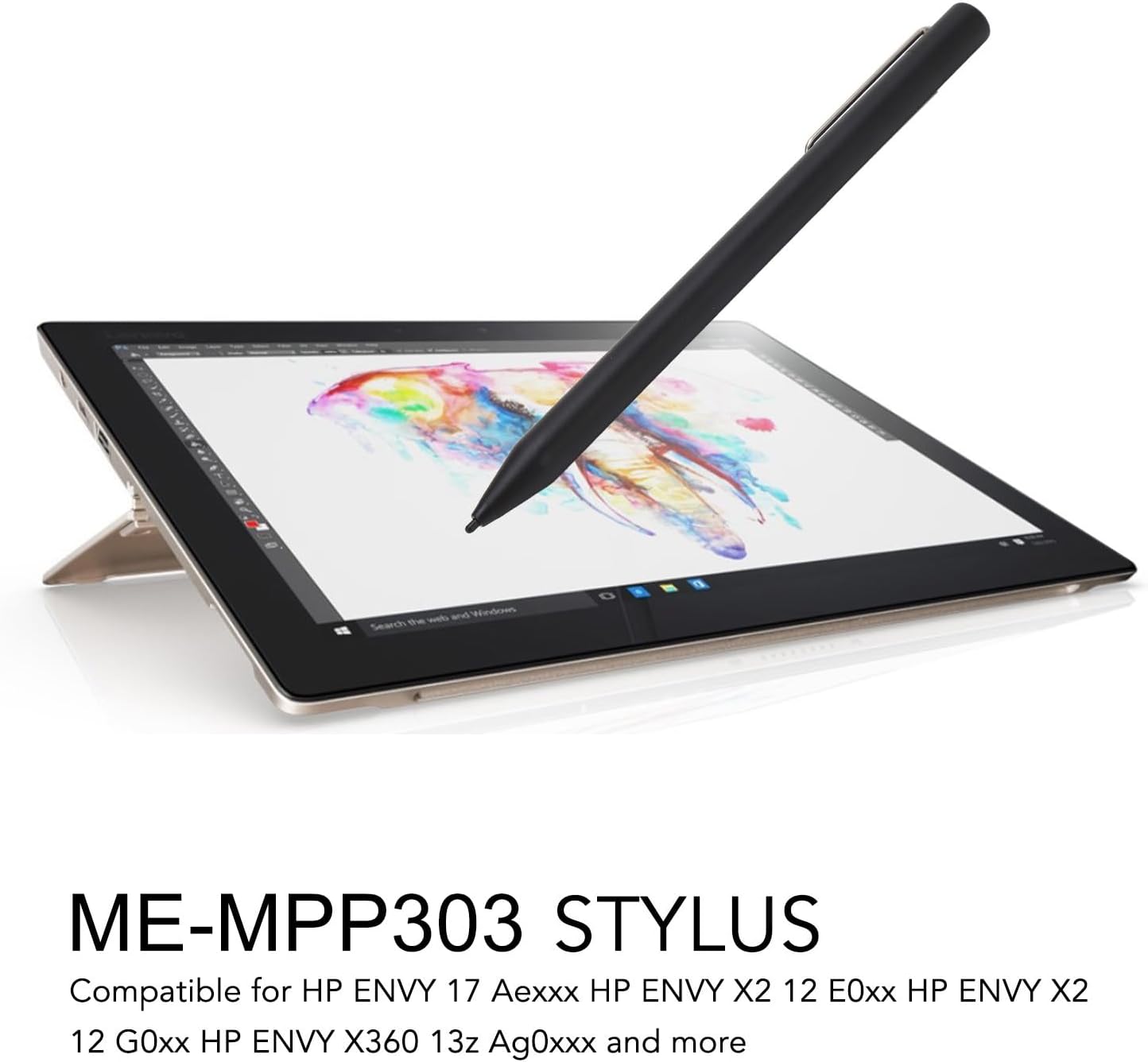
Figure 6.1: The stylus positioned on a compatible tablet, illustrating its intended use with HP devices.
7. Maintenance
7.1 Cleaning
To maintain the stylus's performance and appearance, gently wipe the body with a soft, dry cloth. Avoid using harsh chemicals or abrasive materials, as these may damage the finish or internal components.
7.2 Replacing Stylus Tips
Over time, the stylus tip may wear down. The product package includes replacement tips. To replace a tip:
- Gently pull the old tip straight out from the stylus.
- Insert a new tip firmly into the stylus until it is securely seated.
Ensure the tip is fully inserted to prevent damage or improper function.
8. Troubleshooting
- Stylus not responding:
- Check if the AAAA battery is correctly installed and has sufficient charge. Replace the battery if necessary.
- Ensure your device is compatible with the ME-MPP303 stylus (refer to Section 6).
- Restart your device.
- Inaccurate or inconsistent input:
- Ensure the stylus tip is clean and free from debris.
- Check if the stylus tip is worn and replace it if needed.
- Verify that your device's screen is clean.
- Buttons not functioning:
- Confirm that the buttons are configured in your device's settings or the application you are using.
- Ensure the stylus has power (check battery).
9. Warranty and Support
The GOWENIC ME-MPP303 Active Stylus Pen comes with a 2-year manufacturer's warranty. For warranty claims or technical support, please contact your retailer or the manufacturer directly. Keep your proof of purchase for warranty validation.
