
1. Introduction
This manual provides detailed instructions for the installation, operation, and maintenance of your NineLeaf 3 Gang Outdoor Smart Switch Box. This device is designed for heavy-duty outdoor electrical applications, offering smart control for various equipment such as pool pumps, garden lights, and patio heaters via the Tuya/Smart Life app, Amazon Alexa, and Google Home.
The switch box features an IP66 waterproof rating, ensuring safe and reliable operation in diverse outdoor conditions. Please read this manual thoroughly before installation and use to ensure proper functionality and safety.
Video: Overview of the NineLeaf Upgraded Smart Heavy-Duty 3 Gang Outdoor Switch Box, demonstrating its features and applications.
2. Safety Information
WARNING: Risk of Electric Shock. Installation should be performed by a qualified electrician or in accordance with local electrical codes.
- Always disconnect power at the circuit breaker before installing or servicing the device.
- Ensure all wiring connections are secure and properly insulated.
- Do not exceed the maximum load ratings of 13A total input, 8A for Gland I, and 2.5A for Gland II and Gland III.
- The device is IP66 rated for outdoor use, protecting against dust and powerful water jets. However, do not submerge the device in water.
- Use appropriate personal protective equipment (PPE) during installation.
- Verify voltage compatibility (110V-240VAC) before connecting.
3. Package Contents
Please check the package for the following items:
- NineLeaf 3 Gang Outdoor Smart Switch Box (1 unit)
- M20*1.5mm Cable Glands (4 units)
- User Manual (This document)
4. Product Overview
The NineLeaf 3 Gang Outdoor Smart Switch Box is a robust and intelligent solution for managing your outdoor electrical devices. It features three independently controllable outlets and is built to withstand harsh outdoor conditions.
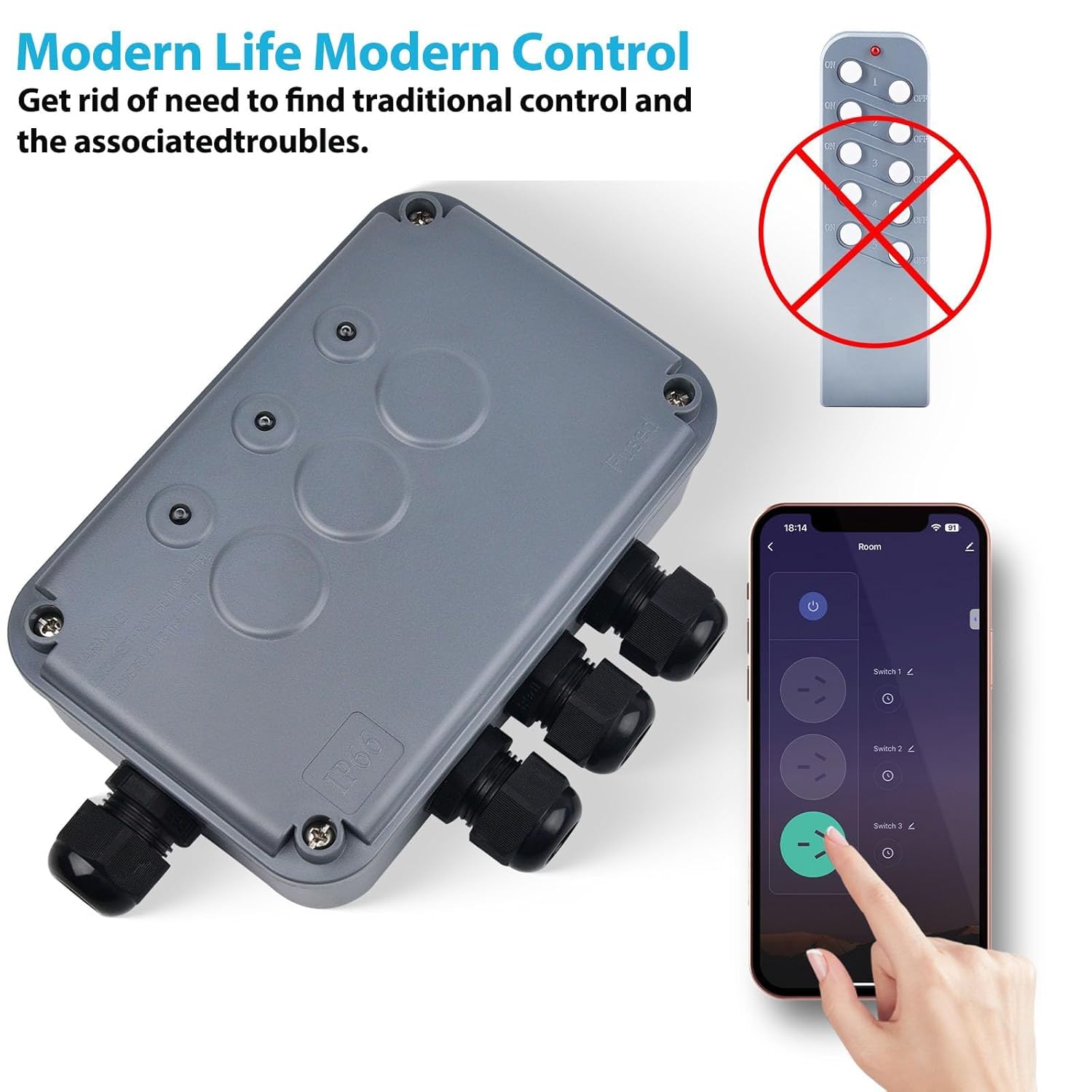
Image: A general view of the NineLeaf 3 Gang Outdoor Smart Switch Box, showcasing its design and the mobile app interface for modern control.
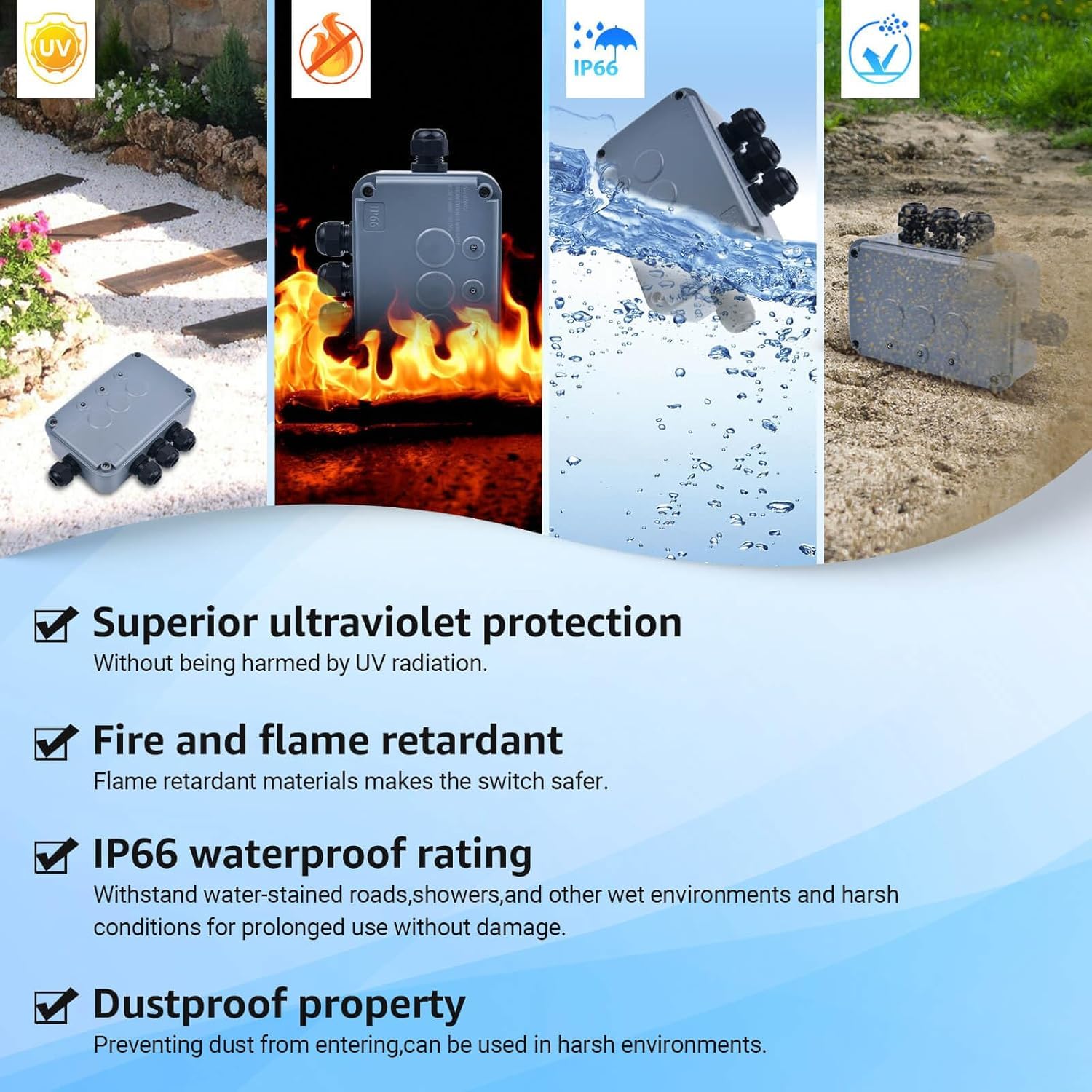
Image: This image illustrates the durability features of the NineLeaf Outdoor Switch Box, including superior ultraviolet protection, fire and flame retardant materials, IP66 waterproof rating, and dustproof properties, ensuring reliable performance in various outdoor environments.
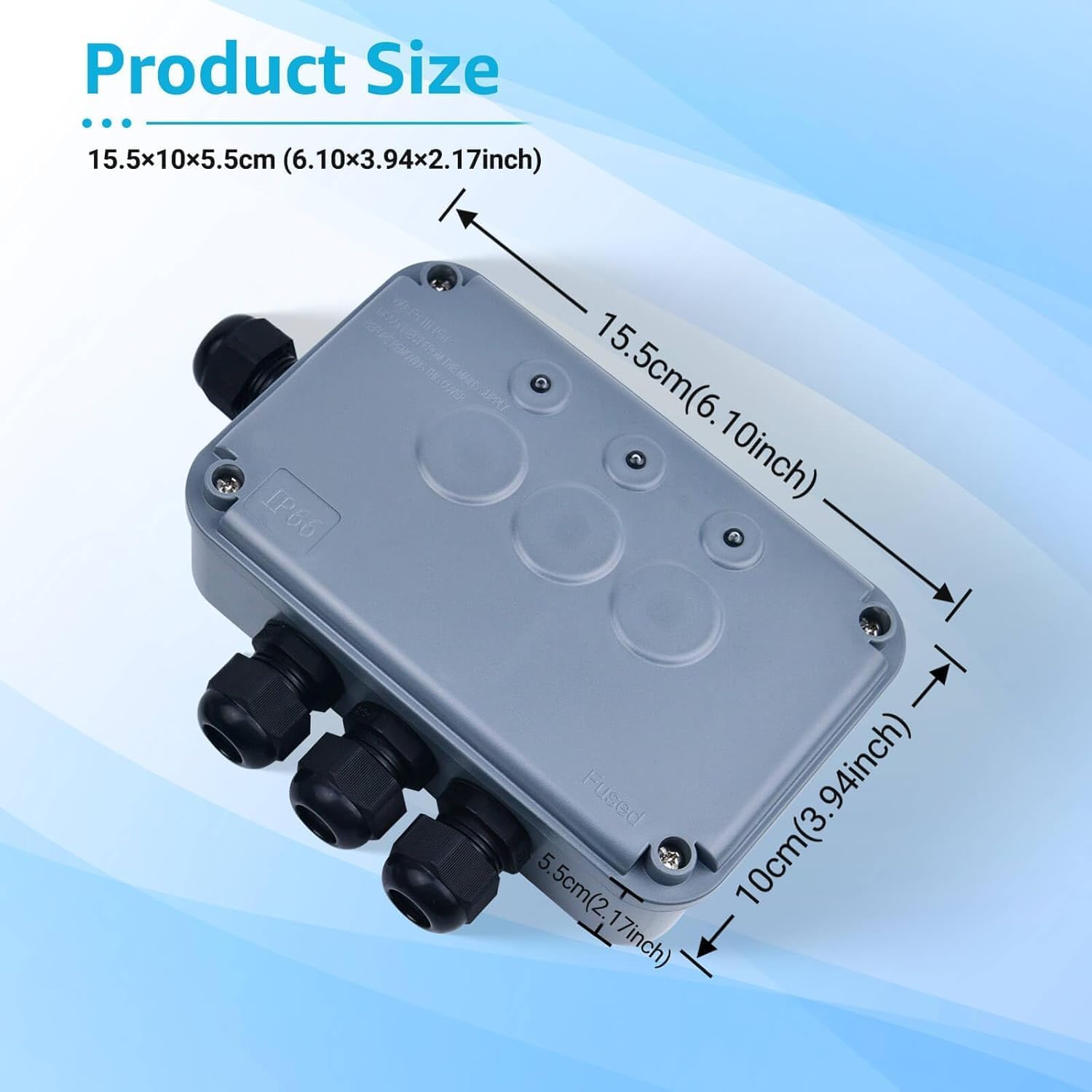
Image: This image provides the physical dimensions of the NineLeaf Outdoor Switch Box, showing its compact size of 15.5 x 10 x 5.5 cm (6.10 x 3.94 x 2.17 inches) for easy installation.
5. Setup
5.1 Electrical Installation
Important: Ensure power is OFF at the main circuit breaker before proceeding with any wiring.
- Open the switch box cover by unscrewing the four corner screws.
- Identify the "Live In", "Neutral In", and "Ground" terminals for the main power input.
- Connect your main power supply wires to the corresponding input terminals.
- For each of the three output glands (Gland I, Gland II, Gland III), connect your outdoor device's "Live Out", "Neutral Out", and "Ground" wires to the respective terminals. Note the circuit ratings: Gland I (8A), Gland II (2.5A), Gland III (2.5A).
- Utilize the included M20*1.5mm cable glands to ensure proper cable management and maintain the IP66 waterproof seal. Tighten them securely around the cables.
- Once all wiring is complete and secure, replace the switch box cover and tighten the screws.

Image: This image displays the internal wiring connections of the NineLeaf Outdoor Switch Box, showing the "Live In", "Neutral In", "Ground", and the three output glands (Gland I, Gland II, Gland III) with their respective current ratings (8A, 2.5A, 2.5A).
5.2 App Connection (Tuya/Smart Life)
To connect your NineLeaf Smart Switch Box to the Tuya or Smart Life app:
- Download the Tuya Smart or Smart Life app from your smartphone's app store (available on Google Play and Apple App Store).
- Register or log in to your account.
- Restore power to the switch box at the circuit breaker.
- Initiate Pairing Mode: You have two options:
- Toggle the input power switch ON and OFF three times, with each toggle lasting 0.5 seconds.
- Alternatively, long-press the power button inside the switch box (visible when the cover is open) until the signal indicator light begins to flicker rapidly.
- In the Tuya/Smart Life app, tap "Add Device" or the "+" icon. The app should automatically discover the device. If not, select "Electrical" then "Socket" or "Power Strip (Wi-Fi)".
- Follow the on-screen prompts to connect the device to your 2.4GHz Wi-Fi network. Enter your Wi-Fi password when requested.
- Once connected, you can rename the device and individual switches within the app.
Video: Step-by-step guide on how to connect the NineLeaf Outdoor Smart Switch Box with the Tuya Smart Life application, including pairing instructions and initial setup.
6. Operating Instructions
6.1 App Control
After successful pairing, you can control your outdoor devices directly from the Tuya/Smart Life app:
- On/Off Control: Tap the main power button to turn all connected devices on or off. Tap individual switch icons (Switch 1, Switch 2, Switch 3) to control each device independently.
- Scheduling: Set specific times for devices to turn on or off. Access the "Schedule" feature within the app to create daily, weekly, or one-time schedules.
- Timer: Use the "Timer" function to set a countdown for a device to turn off after a specified duration.

Image: This image displays the Tuya/Smart Life app interface for controlling the NineLeaf Outdoor Switch Box, demonstrating individual switch control and the ability to set schedules and timers for connected devices.
6.2 Voice Control (Alexa/Google Home)
Integrate your NineLeaf Smart Switch Box with Amazon Alexa or Google Home for convenient voice control:
- Ensure your Alexa or Google Home device is set up and connected to the same Wi-Fi network as your switch box.
- Open the Alexa or Google Home app.
- Enable the "Tuya Smart" or "Smart Life" skill/service.
- Link your Tuya/Smart Life account to Alexa/Google Home.
- Discover devices. Your NineLeaf Smart Switch Box and its individual switches should appear.
- You can now use voice commands such as:
- "Alexa, turn on [Device Name]"
- "Hey Google, turn off [Device Name]"
- "Alexa, set [Device Name] to turn on at 6 PM"

Image: This image demonstrates the voice control capability of the NineLeaf Outdoor Switch Box, showing how users can command connected outdoor lights or other appliances using Amazon Alexa.

Image: An overview image highlighting both remote control via the mobile app and voice control capabilities with Amazon Alexa and Google Assistant for the NineLeaf Outdoor Switch Box.
7. Maintenance
- Cleaning: Periodically wipe the exterior of the switch box with a damp cloth to remove dirt and debris. Do not use abrasive cleaners or solvents. Ensure the power is off before cleaning.
- Inspection: Regularly inspect the cable glands and the housing for any signs of damage, cracks, or wear that could compromise the IP66 rating. Ensure all screws are tight.
- Firmware Updates: Check the Tuya/Smart Life app for any available firmware updates for your device to ensure optimal performance and security.
8. Troubleshooting
- Q: The device cannot connect to the app.
- A:
- Ensure your Wi-Fi network is 2.4GHz. The device does not support 5GHz Wi-Fi.
- Verify that the device is in pairing mode (signal indicator flickering rapidly). If not, re-initiate pairing mode as described in Section 5.2.
- Check your Wi-Fi password for accuracy.
- Ensure the switch box is within range of your Wi-Fi router.
- Restart your Wi-Fi router and try again.
- Q: Voice control is not working.
- A:
- Confirm that your NineLeaf Smart Switch Box is successfully connected to the Tuya/Smart Life app.
- Ensure the "Tuya Smart" or "Smart Life" skill/service is enabled and linked in your Alexa or Google Home app.
- Try rediscovering devices in your Alexa/Google Home app.
- Check that your voice commands are clear and match the device names set in the app.
- Q: One of the outlets is not working.
- A:
- Check the app to ensure the specific switch is turned on.
- Verify that the connected device is functioning correctly by plugging it into a standard outlet.
- Ensure the load connected to the outlet does not exceed its rated current (8A for Gland I, 2.5A for Gland II/III). Overloading can trip internal protection.
- Inspect the wiring for that specific outlet for loose connections (ensure power is off before inspection).
9. Specifications
| Model Number | NL-DE03-HO-053-1PK |
| Brand | NineLeaf |
| Input Voltage | 110V-240VAC |
| Max Total Current | 13A |
| Output Current (Gland I) | 8A |
| Output Current (Gland II & III) | 2.5A each |
| Waterproof Rating | IP66 |
| Connectivity | 2.4GHz Wi-Fi (Tuya/Smart Life App) |
| Voice Assistants | Amazon Alexa, Google Home |
| Material | Rubber (gasket), PC+ABS (fireproof case) |
| Color | Grey |
| Dimensions | 9.88 x 7.76 x 2.72 inches (Package) / 15.5 x 10 x 5.5 cm (Product) |
| Item Weight | 14.4 ounces |
10. Warranty and Support
NineLeaf products are designed for reliability and performance. For warranty information, please refer to the product packaging or contact NineLeaf customer support directly.
If you encounter any issues or have questions regarding your NineLeaf 3 Gang Outdoor Smart Switch Box, please contact our customer support team for assistance. Our team is available to help you with installation, troubleshooting, and general inquiries.
Contact Information: Please visit the official NineLeaf website or refer to your purchase documentation for the most up-to-date contact details.