
1. Introduction
Thank you for choosing the Syinix 55 Inch FHD Smart LED TV, Model 55U51. This manual provides essential information for the safe and efficient use of your new television. Please read it thoroughly before operating the device and retain it for future reference. This television combines a Full High Definition (FHD) display with smart functionalities and a built-in receiver, offering a complete entertainment solution.

Image 1.1: Front view of the Syinix 55 Inch FHD Smart LED TV displaying a vibrant landscape. The TV features a slim bezel and two stand feet.
2. Important Safety Instructions
To ensure safe operation and prevent damage, please observe the following safety guidelines:
- Power Source: Connect the TV only to an AC power outlet of the specified voltage (refer to the label on the back of the TV). Ensure the power cord is not damaged or pinched.
- Ventilation: Do not block ventilation openings. Allow adequate space around the TV for proper airflow. Avoid placing the TV on beds, sofas, rugs, or similar surfaces that may block ventilation.
- Heat: Keep the TV away from heat sources such as radiators, heat registers, stoves, or other appliances that produce heat.
- Water and Moisture: Do not expose the TV to rain or moisture. Do not place objects filled with liquids, such as vases, on the TV.
- Cleaning: Unplug the TV from the wall outlet before cleaning. Use a soft, dry cloth for cleaning. Do not use liquid cleaners or aerosol cleaners.
- Object and Liquid Entry: Never push objects of any kind into the TV through openings as they may touch dangerous voltage points or short-out parts that could result in a fire or electric shock.
- Mounting: When mounting the TV on a wall, ensure the wall mount is securely installed and capable of supporting the TV's weight. Follow the wall mount manufacturer's instructions.
- Children: Do not allow children to climb on the TV or stand. Ensure the TV is stable and cannot be easily tipped over.
3. Package Contents
Please check that all items listed below are included in your package. If any items are missing or damaged, contact your retailer.
- Syinix 55 Inch FHD Smart LED TV (Model 55U51)
- Power Cable
- Remote Control
- TV Stand (2 pieces)
- Screws for Stand Assembly
- User Manual (this document)

Image 3.1: Side view of the Syinix 55 Inch FHD Smart LED TV, highlighting its slim profile and stand design.
4. Setup Guide
4.1 Attaching the Stand
- Carefully place the TV screen-down on a soft, flat surface (e.g., a blanket or foam) to prevent scratches.
- Identify the left and right stand feet.
- Align each stand foot with the corresponding screw holes on the bottom of the TV.
- Secure each stand foot using the provided screws. Tighten firmly but do not overtighten.
- Carefully lift the TV to an upright position and place it on a stable, level surface.
4.2 Mounting the TV (Optional)
If you intend to wall-mount your TV, you will need a VESA-compatible wall mount (not included). Consult a professional for installation to ensure safety and proper mounting. Refer to the wall mount manufacturer's instructions for specific details.
4.3 Connecting Peripherals
Your Syinix TV offers various ports for connecting external devices. Refer to the image below for port locations.
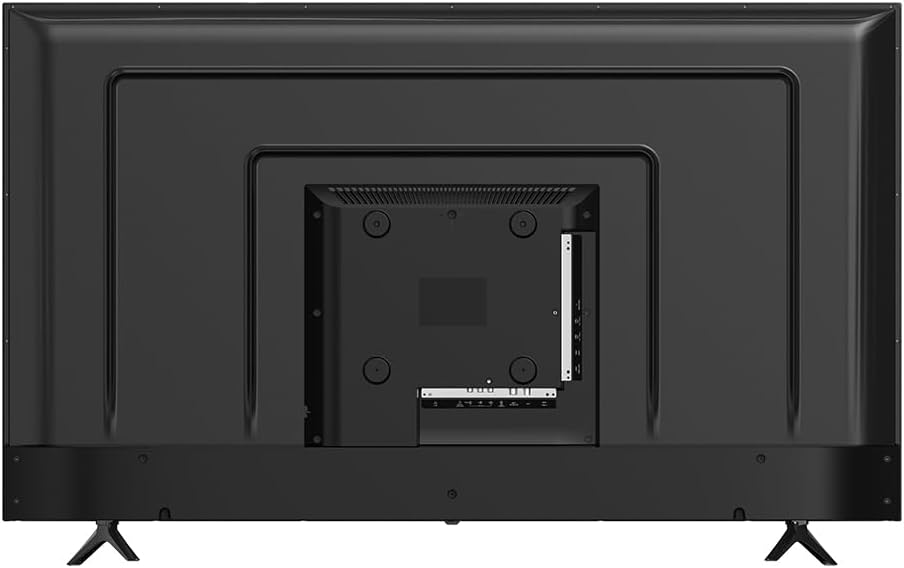
Image 4.1: Rear view of the Syinix 55 Inch FHD Smart LED TV, illustrating the arrangement of connectivity ports including HDMI, USB, and antenna input.
- HDMI Ports: Connect Blu-ray players, game consoles, set-top boxes, or other HDMI-enabled devices.
- USB Ports: Connect USB storage devices to play media files (photos, videos, music).
- Antenna/Cable Input: Connect an antenna or cable TV signal for the built-in receiver.
- Ethernet Port: Connect an Ethernet cable for a wired internet connection.
- Audio Output: Connect external audio systems or soundbars.

Image 4.2: Side profile of the Syinix 55 Inch FHD Smart LED TV, showing accessible side-mounted ports for convenience.
5. Operating Your Syinix Smart LED TV
5.1 First-Time Setup
- Plug the power cable into the TV and then into a wall outlet.
- Press the Power button on the remote control or on the TV.
- Follow the on-screen instructions to select your language, country, and time zone.
- Connect to your Wi-Fi network by selecting your network and entering the password, or connect via an Ethernet cable.
- Complete the initial setup steps, which may include signing into a Google account for Smart TV features.
5.2 Remote Control Overview
The remote control allows you to navigate the TV's functions. Familiarize yourself with the main buttons:
- Power: Turns the TV on/off.
- Source: Selects input sources (HDMI, AV, TV).
- Navigation Buttons (Up/Down/Left/Right/OK): Navigate menus and confirm selections.
- Volume +/-: Adjusts volume.
- Channel +/-: Changes channels.
- Home: Accesses the Smart TV home screen.
- Back: Returns to the previous screen.
- Netflix/YouTube/Other App Buttons: Direct access to streaming services.
5.3 Smart TV Features
Your Syinix Smart LED TV runs on an Android operating system, providing access to a wide range of applications and services.

Image 5.1: The Syinix Smart TV home screen, showing a user-friendly interface with quick access to popular streaming applications and search functions.
- Home Screen: Access your favorite apps, recommended content, and settings from the customizable home screen.
- App Store: Download and install additional applications from the Google Play Store.
- Casting: Use built-in casting features to stream content from your smartphone or tablet to the TV.
- Voice Control: If your remote supports it, use voice commands for search and control.
5.4 Built-in Receiver
The integrated receiver allows you to access free-to-air digital television channels without an external set-top box. Connect a suitable antenna to the "ANT IN" port on the TV. Navigate to the TV's settings menu to perform a channel scan and discover available channels.
6. Care and Maintenance
Proper care will extend the life of your television.
- Screen Cleaning: Gently wipe the screen with a soft, lint-free cloth. For stubborn marks, slightly dampen the cloth with water or a specialized screen cleaner (never spray directly onto the screen).
- Body Cleaning: Use a soft, dry cloth to wipe the TV's casing. Avoid abrasive cleaners or solvents.
- Dusting: Regularly dust the ventilation openings to prevent overheating.
- Power Cord: Periodically check the power cord for any signs of damage.
- Storage: If storing the TV for an extended period, unplug it and cover it to protect against dust. Store in a cool, dry place.
7. Troubleshooting
Before contacting customer support, try the following solutions for common issues:
| Problem | Possible Solution |
|---|---|
| No power |
|
| No picture, but sound is present |
|
| No sound, but picture is present |
|
| Remote control not working |
|
| Cannot connect to Wi-Fi |
|
8. Technical Specifications
Below are the key technical specifications for the Syinix 55 Inch FHD Smart LED TV, Model 55U51:
| Feature | Detail |
|---|---|
| Model Number | 55U51 |
| Screen Size | 55 Inches (140 cm visible diagonal) |
| Display Technology | LED FHD (Full High Definition) |
| Resolution | 1080p |
| Refresh Rate | 240 GHz (Note: This value seems unusually high for a 1080p TV and might refer to a motion processing rate rather than native panel refresh rate. Please refer to product packaging for exact native refresh rate.) |
| Special Features | Smart Android TV, HDR support, A+ Panel, Built-in Receiver, Wi-Fi |
| Connectivity Technology | USB, HDMI, Ethernet, Wi-Fi |
| Aspect Ratio | 16:9 |
| Product Dimensions (D x W x H) | 25.7 x 123 x 76.9 cm (with stand) |
| Item Weight | 11.2 kg |
| Included Components | Power Cable, Remote Control, Stand |
| Manufacturer | Transsion Group |
9. Warranty and Support
Syinix products are manufactured to high-quality standards. This product is covered by a limited warranty from the date of purchase. Please refer to the warranty card included in your package for specific terms and conditions, including the warranty period and coverage details.
For technical support, service inquiries, or to report a problem, please contact your local Syinix authorized service center or the retailer from whom you purchased the product. Have your product model number (55U51) and purchase receipt ready when contacting support.


