
Introduction
The BROLEO Trackpoint Keyboard is a versatile input device designed for precision cursor control. It features a detachable trackpoint pointer, left and right mouse buttons, and a mouse wheel, offering an intuitive navigation experience. This device is ideal for various applications, including design work, engineering, and general laptop use, providing a convenient plug-and-play solution.
Setup
Setting up your BROLEO Trackpoint Keyboard is straightforward. It is designed for plug-and-play functionality, requiring no additional drivers for most operating systems.
- Connect the USB Cable: Locate an available USB port on your laptop or computer. Insert the USB-A connector of the Trackpoint Keyboard's cable into the USB port.
- System Recognition: Your operating system should automatically detect and install the necessary drivers for the device. This process usually takes a few seconds.
- Ready for Use: Once recognized, the Trackpoint Keyboard is ready for immediate use.

Image: The BROLEO Trackpoint Keyboard with its USB cable, illustrating the plug-and-play connection.
Video: A brief demonstration of connecting the BROLEO Trackpoint Keyboard to a laptop and its immediate functionality.
Operating Instructions
The Trackpoint Keyboard provides precise cursor control and mouse button functionality.
- Trackpoint Pointer: Use the red trackpoint pointer to move the cursor on your screen. Apply gentle pressure in the desired direction to control cursor speed and movement.
- Left Mouse Button: The button labeled "K1" (or the leftmost button) functions as the standard left mouse click.
- Right Mouse Button: The button labeled "K3" (or the rightmost button) functions as the standard right mouse click.
- Mouse Wheel (Scroll Function): The button labeled "K2" (or the middle button) acts as a mouse wheel. Press and hold this button, then move the trackpoint pointer up or down to scroll through documents or web pages.
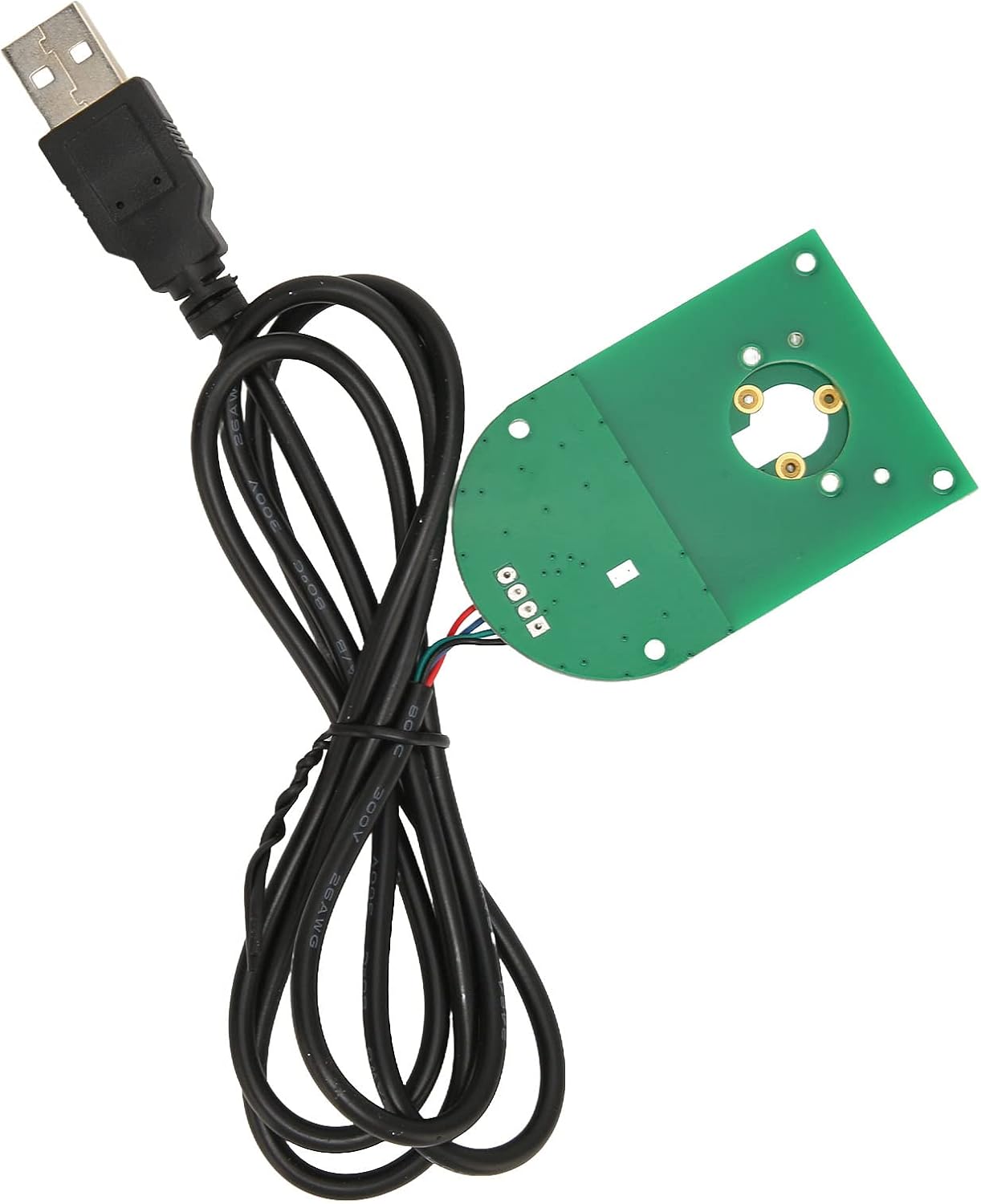
Image: A detailed view of the Trackpoint Keyboard's control surface, highlighting the trackpoint and its associated buttons.
Maintenance
To ensure the longevity and optimal performance of your Trackpoint Keyboard, follow these simple maintenance guidelines:
- Cleaning: Use a soft, dry cloth to gently wipe the surface of the device. For stubborn dirt, a slightly damp cloth with mild soap can be used, ensuring no liquid enters the internal components.
- Detachable Cap: The trackpoint cap is detachable. If it becomes loose or needs cleaning, it can be carefully removed and reattached. Store the cap in a safe place if removed for an extended period.
- Storage: When not in use, store the device in a clean, dry environment away from extreme temperatures and direct sunlight.

Image: The detachable trackpoint cap, illustrating its removable design for maintenance or replacement.
Troubleshooting
If you encounter issues with your BROLEO Trackpoint Keyboard, refer to the following common solutions:
| Problem | Possible Cause | Solution |
|---|---|---|
| Device not recognized / Not working | Loose USB connection, faulty USB port, or temporary system glitch. |
|
| Cursor movement is erratic or unresponsive | Dust or debris under the trackpoint cap, or a software issue. |
|
| Buttons are not responding | Software conflict or hardware malfunction. |
|
Specifications
| Feature | Detail |
|---|---|
| Model Name | BROLEOy67ukhexz4 |
| Brand | BROLEO |
| Connectivity Technology | USB |
| Keyboard Description | Trackpoint Keyboard |
| Special Feature | Integrated Trackpoint Pointer |
| Material | Plastic |
| Item Weight | 2.01 ounces |
| Package Dimensions | 7.09 x 1.97 x 1.97 inches |
| Working Voltage | 1.5V |
| Photoelectric Resolution | 1600dpi |
| USB Cable Length | Approx. 1 meter (1.1 yd) |
Warranty and Support
For warranty information or technical support, please refer to the documentation included with your purchase or contact BROLEO customer service through their official channels. Keep your purchase receipt for warranty claims.