
Arcadenia PlayingStation 520-in-1
PlayingStation 520-in-1 Retro Games Handheld Instruction Manual
Model: PlayingStation 520-in-1 | Brand: Arcadenia
Introduction
Thank you for purchasing the Arcadenia PlayingStation 520-in-1 Retro Games Handheld. This console offers a vast collection of classic arcade games in a portable format, designed for entertainment on the go or connected to a larger display. This manual provides essential information for setup, operation, and maintenance of your new gaming device.
Important Safety Information
For external use only. Keep away from water and fire.
- Do not disassemble or attempt to repair the device yourself.
- Avoid exposing the device to extreme temperatures or direct sunlight.
- Keep the device out of reach of small children to prevent choking hazards from small parts.
- Use only the provided or recommended accessories and power sources.
What's in the Box
Upon opening your package, please ensure all the following items are present:
- PlayingStation 520-in-1 Handheld Console
- Additional Wired Controller (for two-player mode)
- AV Cable (for TV output)
- Micro USB Charging Cable
- User Manual (this document)

Image: Contents of the PlayingStation 520-in-1 package, including the main handheld console, a secondary wired controller, AV cable, and USB charging cable.
Product Overview
The PlayingStation 520-in-1 Handheld Console is designed for portability and ease of use, featuring a compact 2.5-inch color display and an ergonomic grip. It comes pre-loaded with 512 retro games.
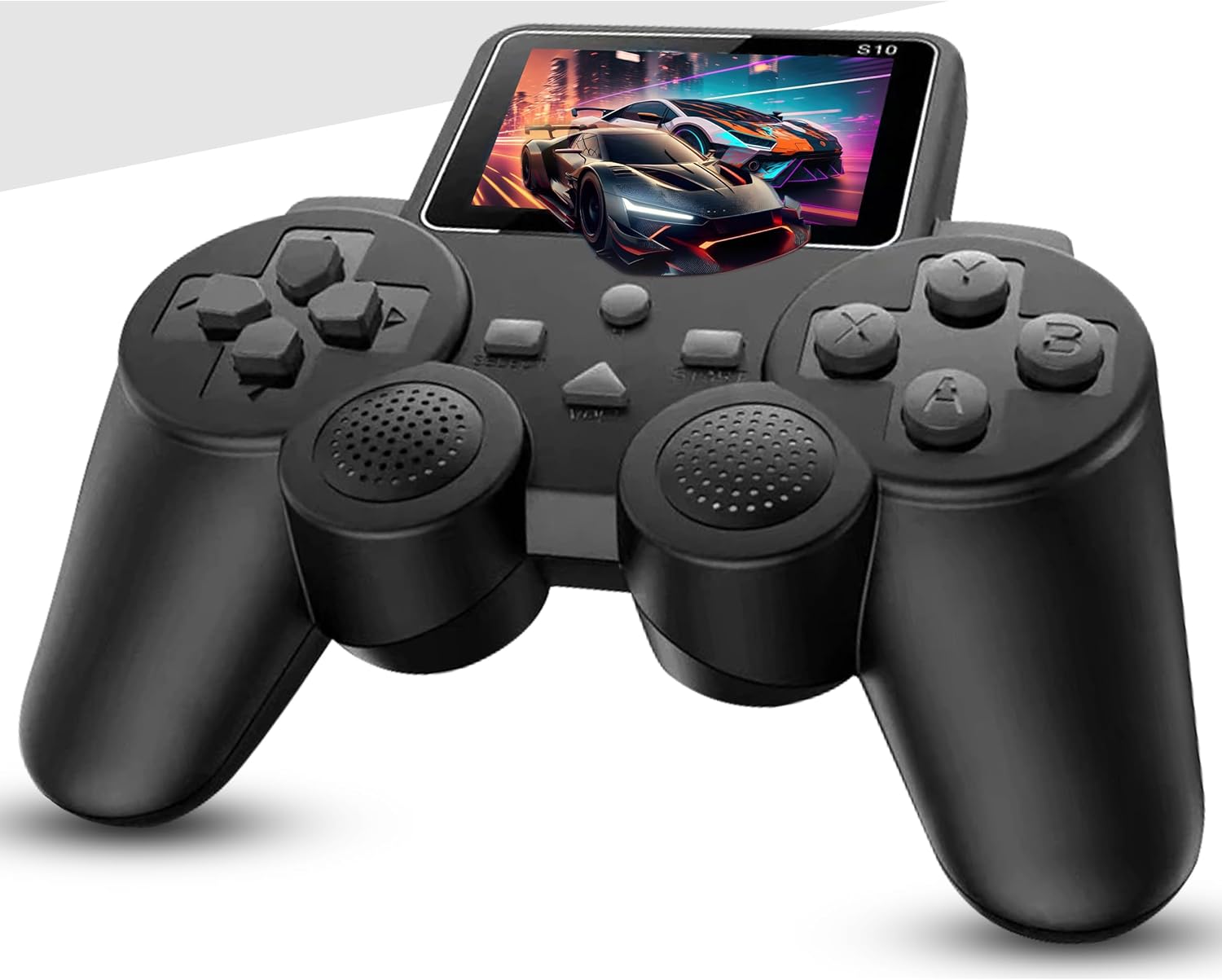
Image: The PlayingStation 520-in-1 Handheld Console in use, showcasing its compact design and color display.
Key Features:
- 512 Preloaded Games: A wide variety of classic arcade titles.
- 2.5-inch Color Display: Compact screen for portable gaming.
- Ergonomic Design: Comfortable grip for extended play sessions.
- Two-Player Support: Connect an additional controller for multiplayer fun.
- TV Connectivity: Output games to a larger screen via AV cable.
- Multiple Power Options: Built-in rechargeable battery, AAA batteries, or Micro USB.

Image: Visual representation of the console's features, including game count, TV connectivity, and portability.

Image: Detail of the console's ergonomic grip, designed for comfortable handling.
Setup Guide
1. Powering the Console
The PlayingStation console offers flexible power options:
- Built-in Rechargeable Battery: The console comes with a built-in lithium battery. Charge it using the provided Micro USB cable connected to a USB power adapter (not included) or a computer USB port.
- AAA Batteries: For extended play or when a power outlet is unavailable, you can insert AAA batteries into the designated compartment (location varies by model, typically on the back or bottom).
- Micro USB Connection: The console can also be powered directly via the Micro USB cable, even without batteries.
Ensure the console is fully charged before first use for optimal battery life.
2. Connecting the Second Controller (Two-Player Mode)
To enable two-player gaming, connect the included wired controller to the designated port on the main console. This port is typically located on the side or bottom of the main unit.

Image: The main console and the secondary controller, illustrating the two-player capability.
3. TV Connectivity
For an enhanced gaming experience on a larger screen, connect the console to your TV, projector, or monitor using the provided AV cable.
- Locate the AV OUT port on the PlayingStation console.
- Connect one end of the AV cable to the console's AV OUT port.
- Connect the other end of the AV cable (red, white, yellow RCA connectors) to the corresponding AV IN ports on your TV or display.
- Switch your TV's input source to the correct AV channel.
- The game display will automatically transfer to your connected screen.

Image: The console connected to a television, demonstrating the TV output feature.
Operating Instructions
1. Turning On/Off
- To turn on the console, locate the power switch (usually on the side or top) and slide it to the "ON" position.
- To turn off the console, slide the power switch to the "OFF" position.
2. Navigating Games
The console comes with 512 preloaded games.
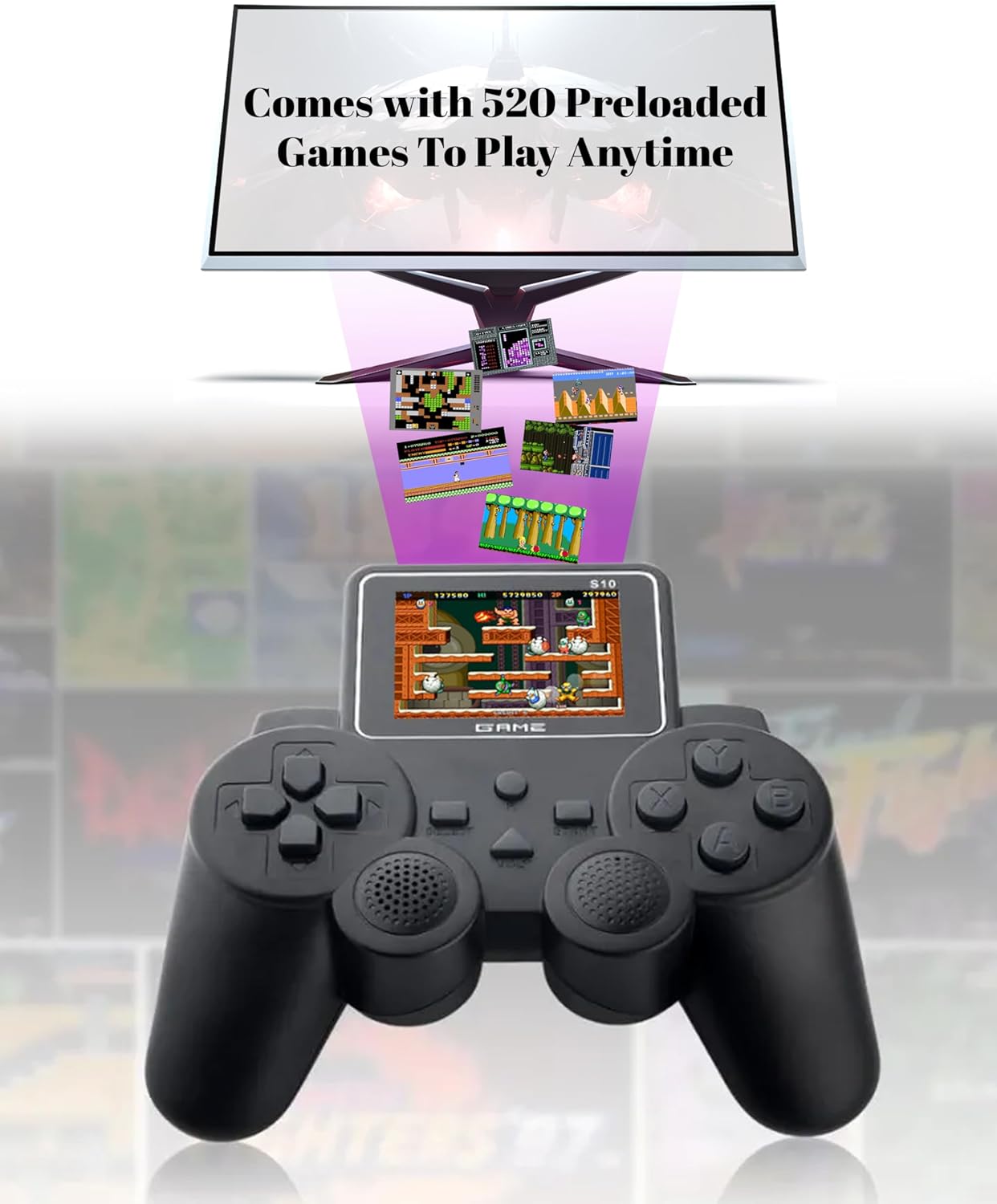
Image: A visual representation of the console's extensive library of preloaded games.
- Use the directional pad (D-pad) to scroll through the list of available games on the main menu.
- Press the "START" or "A" button to select a game and begin playing.
- To return to the game selection menu, press the "RESET" or "SELECT" button during gameplay (functionality may vary by game).
3. Basic Controls
The console features standard gaming buttons:
- Directional Pad (D-pad): For movement and menu navigation.
- A, B, X, Y Buttons: Action buttons, their function varies by game (e.g., jump, shoot, confirm).
- START Button: To pause games or confirm selections.
- SELECT Button: Often used for in-game options or to return to the main menu.
- Volume Control: Adjust the sound level using the dedicated volume buttons or dial.
4. Two-Player Gaming
Once the second controller is connected, select a game that supports two players from the menu. The game will automatically recognize the second controller for simultaneous play.
Maintenance
- Cleaning: Use a soft, dry cloth to clean the console's surface. Do not use liquid cleaners or abrasive materials.
- Storage: Store the console in a cool, dry place away from direct sunlight and extreme temperatures.
- Battery Care: If not using the console for an extended period, it is recommended to fully charge the built-in battery periodically to maintain its health. If using AAA batteries, remove them if the console will not be used for a long time to prevent leakage.
Troubleshooting
| Problem | Possible Cause | Solution |
|---|---|---|
| Console does not turn on. | Low battery or no power. | Charge the console using the Micro USB cable. Ensure AAA batteries (if used) are inserted correctly and have charge. |
| No image on TV when connected. | Incorrect AV connection or TV input. | Ensure AV cable is securely connected to both console and TV. Select the correct AV input source on your TV. |
| Second controller not responding. | Controller not properly connected or defective. | Ensure the wired controller is firmly plugged into the console's port. If issues persist, the controller may be defective. |
| Screen is dim or hard to see. | Low battery or viewing angle issue. | Charge the console. Adjust the viewing angle of the screen for better visibility. |
| Games are slow or glitchy. | Software issue or low power. | Try turning the console off and on again. Ensure the battery is sufficiently charged. |
Specifications
| Brand | Arcadenia |
| Model | PlayingStation 520-in-1 |
| Platform | PlayStation (Retro Games) |
| Screen Size | 3 Inches (Note: Product description states 2.5", specification states 3". Using 3" as per specification.) |
| Display Type | LCD |
| Controller Type | Button Control |
| Power Source | Electric/Battery (Built-in Lithium Ion, AAA compatible, Micro USB) |
| Battery Life | Up to 6 Hours |
| Hardware Interface | AV Port |
| Material | Plastic |
| Product Dimensions | 6 x 5.5 x 2.5 inches |
| Item Weight | 9.6 ounces |
| Recommended Age | 3 years and up |
Warranty and Support
For warranty information and customer support, please refer to the official Arcadenia website or contact the retailer from whom you purchased the product. Keep your purchase receipt as proof of purchase.
For further assistance, please visit: Arcadenia Official Support
Ask a question about this manual
Ask about setup, troubleshooting, compatibility, parts, safety, or missing instructions. Manuals+ will review the question and use this page’s manual context to help answer it.