
Introduction
This manual provides instructions for the ENJOY-UNIQUE 9.7-11 inch Tablet Case with an integrated USB-C QWERTY Keyboard. This product is designed to protect your tablet and enhance its functionality by providing a physical keyboard for efficient typing. Please read this manual thoroughly before use to ensure proper operation and care.
Product Overview
The ENJOY-UNIQUE tablet case is a universal accessory compatible with most 9.7-11 inch Android tablets featuring a USB-C port. It includes a built-in QWERTY keyboard for improved typing experience.
Key Features:
- Universal design for 9.7-11 inch Android tablets with USB-C port.
- Integrated QWERTY layout external keyboard.
- Durable PU leather material for protection.
- Plug-and-play USB-C connectivity.
- Case dimensions: 285mm (H) x 190mm (W) / 11.2 inches x 7.48 inches.
Compatibility:
This case is compatible with various tablets including, but not limited to, Samsung Galaxy Tab, Lenovo Tab 10, ASUS, Teclast, Fire HD, Googee U10, Blackview, and Nokia T20, provided the tablet has a USB-C port and fits within the case dimensions.

Image: A tablet securely placed within the case, demonstrating the keyboard's integration and the overall setup for use.
Setup
- Insert Your Tablet: Gently slide your tablet into the case. Ensure the tablet's corners are secured by the stretchable clips inside the case. The case is designed to hold tablets with dimensions up to 285mm (H) x 190mm (W).
- Position the Tablet: Adjust the tablet's position so that the screen is visible and accessible, and the USB-C port aligns with the keyboard's connector.
- Connect the Keyboard: Locate the USB-C cable extending from the keyboard. Plug the USB-C connector firmly into your tablet's USB-C port. This is a plug-and-play device, so no additional drivers or software installation should be required.
- Set Up the Stand: Utilize the integrated stand feature on the back of the case to prop up your tablet for comfortable viewing and typing.
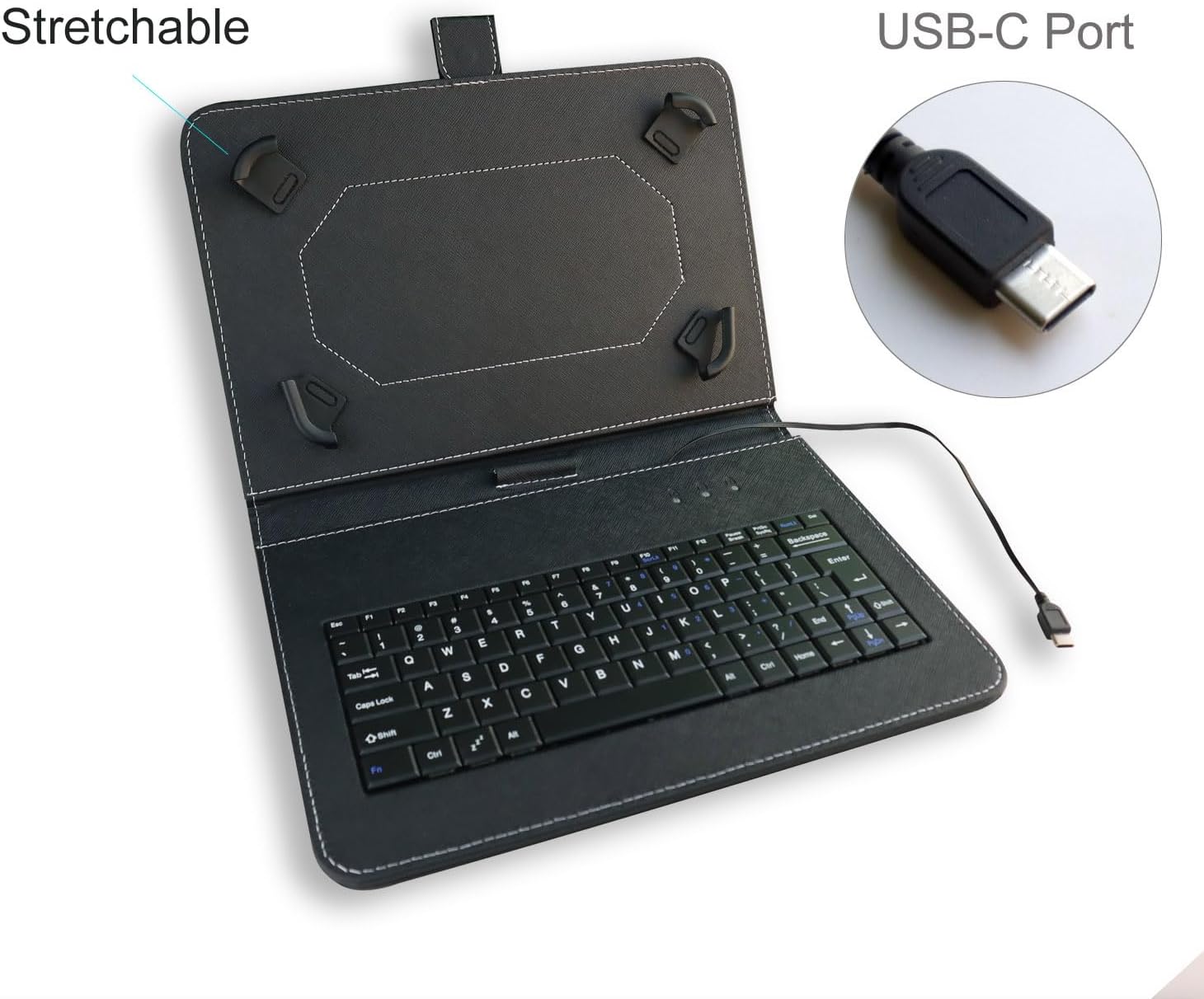
Image: The interior of the case highlighting the stretchable corner clips that secure the tablet and a detailed view of the USB-C port for connection.

Image: A clear view of the USB-C connector from the keyboard, emphasizing its plug-and-play design for compatible tablets.
Operating Instructions
Once the keyboard is connected to your tablet via the USB-C port, it should be recognized automatically. You can then use the physical QWERTY keyboard for typing, navigation, and executing commands on your tablet.
- Typing: Use the keys as you would on a standard computer keyboard.
- Function Keys (Fn): Some keys may have secondary functions (e.g., media controls, volume, brightness). These are typically accessed by holding down the Fn key and pressing the corresponding function key.
- Special Characters: Access special characters by using the Shift key or the Fn key in combination with other keys, as indicated on the keycaps.

Image: The tablet case in its stand configuration, providing an ergonomic angle for typing and viewing.
Maintenance
Proper care will extend the life of your tablet case and keyboard.
- Cleaning the Case: Wipe the PU leather exterior with a soft, damp cloth. Avoid harsh chemicals or abrasive cleaners.
- Cleaning the Keyboard: Use a soft brush or compressed air to remove dust and debris from between the keys. For stubborn grime, lightly dampen a cotton swab with isopropyl alcohol and gently clean the keycaps. Ensure no liquid enters the keyboard mechanism.
- Storage: When not in use, keep the case closed to protect both the tablet and the keyboard from dust and accidental damage.
- Avoid Liquids: The keyboard is not water-resistant. Keep it away from liquids to prevent damage.
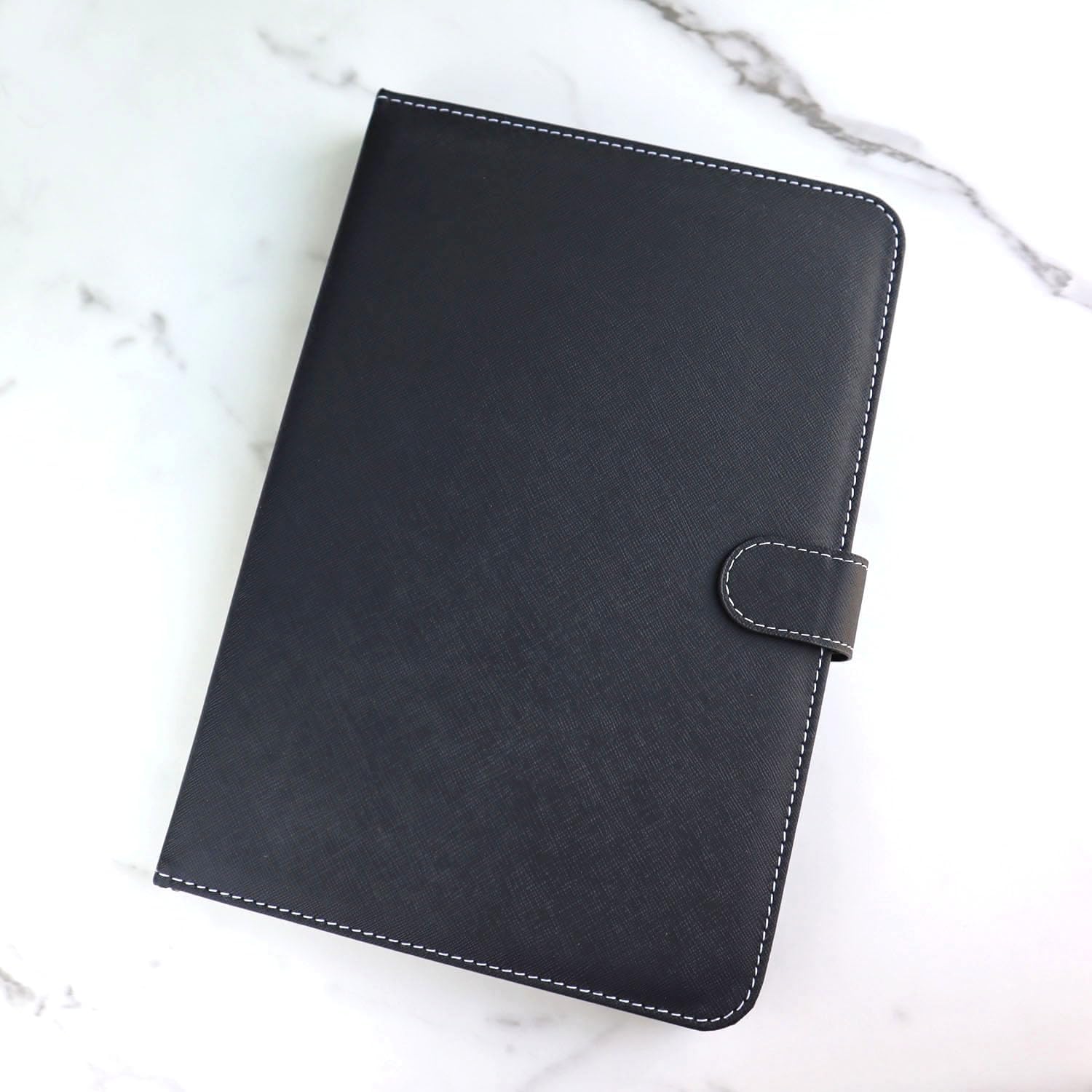
Image: The tablet case in its closed position, demonstrating its compact and protective form factor.

Image: The rear of the closed case, illustrating the design of the stand mechanism.
Troubleshooting
If you encounter issues with your tablet case and keyboard, refer to the following common solutions:
- Keyboard Not Responding:
- Ensure the USB-C connector is fully and securely plugged into your tablet's port.
- Try unplugging and re-plugging the keyboard.
- Restart your tablet.
- Verify that your tablet's USB-C port is functional by testing it with another USB-C device if possible.
- Check your tablet's settings for external keyboard recognition.
- Keys Not Working or Incorrect Output:
- Clean the keyboard to ensure no debris is obstructing the keys.
- Ensure the keyboard layout setting on your tablet matches a QWERTY layout.
- If specific keys are not working, it might indicate a hardware issue.
- Tablet Does Not Fit Securely:
- Confirm your tablet's dimensions are within the specified range (Length 10.23"-10.82" x Width 6.3"-6.88"). The case itself is 285mm(H)x 190mm(W).
- Ensure the stretchable clips are properly positioned around all four corners of your tablet.
Specifications
| Product Dimensions | 28.5L x 19W x 28.5H Centimetres (Case) |
| Weight | 420 g |
| Material | Polyurethane (PU) |
| Color | Black |
| Compatible Devices | 9"-10.8" Tablets with USB-C port |
| Connectivity Technology | USB-C (Wired) |
| Keyboard Layout | QWERTY |
| Number of Keys | 104 |
| Power Source | USB power (from tablet) |
| Special Feature | Universal design, Integrated Stand |
| Manufacturer | ENJOY-UNIQUE |
| Country of Origin | China |
Warranty and Support
For warranty information and customer support, please refer to the documentation provided at the time of purchase or contact the seller directly. Keep your proof of purchase for any warranty claims.