
1. Introduction
Thank you for choosing the VXE Dragon Fly R1 PRO MAX Gaming Mouse. This manual provides detailed instructions for setting up, operating, and maintaining your new wireless gaming mouse. Please read this manual thoroughly before use to ensure optimal performance and longevity of your device.

Image 1: The VXE Dragon Fly R1 PRO MAX Gaming Mouse. This image displays the sleek, black design of the mouse from a top-down perspective.
2. Package Contents
Ensure all items are present in your package:
- VXE Dragon Fly R1 PRO MAX Gaming Mouse
- USB-A Wireless Dongle
- USB-C to USB-A Charging/Data Cable
- Grip Tape (pre-cut for mouse sides and buttons)
- Extra PTFE Mouse Skates/Sliders

Image 2: Contents of the VXE Dragon Fly R1 PRO MAX package. This image shows the black mouse, its USB-A wireless dongle, the braided USB-C charging cable, and sheets of grip tape and extra mouse feet.
3. Product Overview and Features
The VXE Dragon Fly R1 PRO MAX is engineered for high-performance gaming and productivity, featuring a lightweight design and versatile connectivity options.
Key Features:
- Ultra-Lightweight Design: Weighing approximately 48 grams, minimizing wrist fatigue during extended use.
- Ergonomic Shape: Designed for comfortable grip and control.
- 5 Programmable Buttons: Left click, right click, clickable scroll wheel, and two side buttons.
- Versatile Connectivity: Supports 2.4G wireless (via dongle), Bluetooth, and wired (USB-C) modes.
- High Polling Rate: Up to 4K polling rate for ultra-responsive tracking (requires separate 4K receiver).
- Long Battery Life: Up to 75 hours of wireless usage on a single charge.
- Durable Coating: Features a 'Delicate Ice Feeling Coating' for a smooth, dirt-resistant, and easy-to-clean surface.

Image 3: An exploded view of the VXE Dragon Fly R1 PRO MAX mouse, highlighting its internal components such as the PAW3395/SE sensor, Kaihua GE Upgrade/TTC Silver Wheel, and Kaihua White Blade switches, along with its lightweight design and 2.4G storage. The image also indicates the weight of different R1 series models.
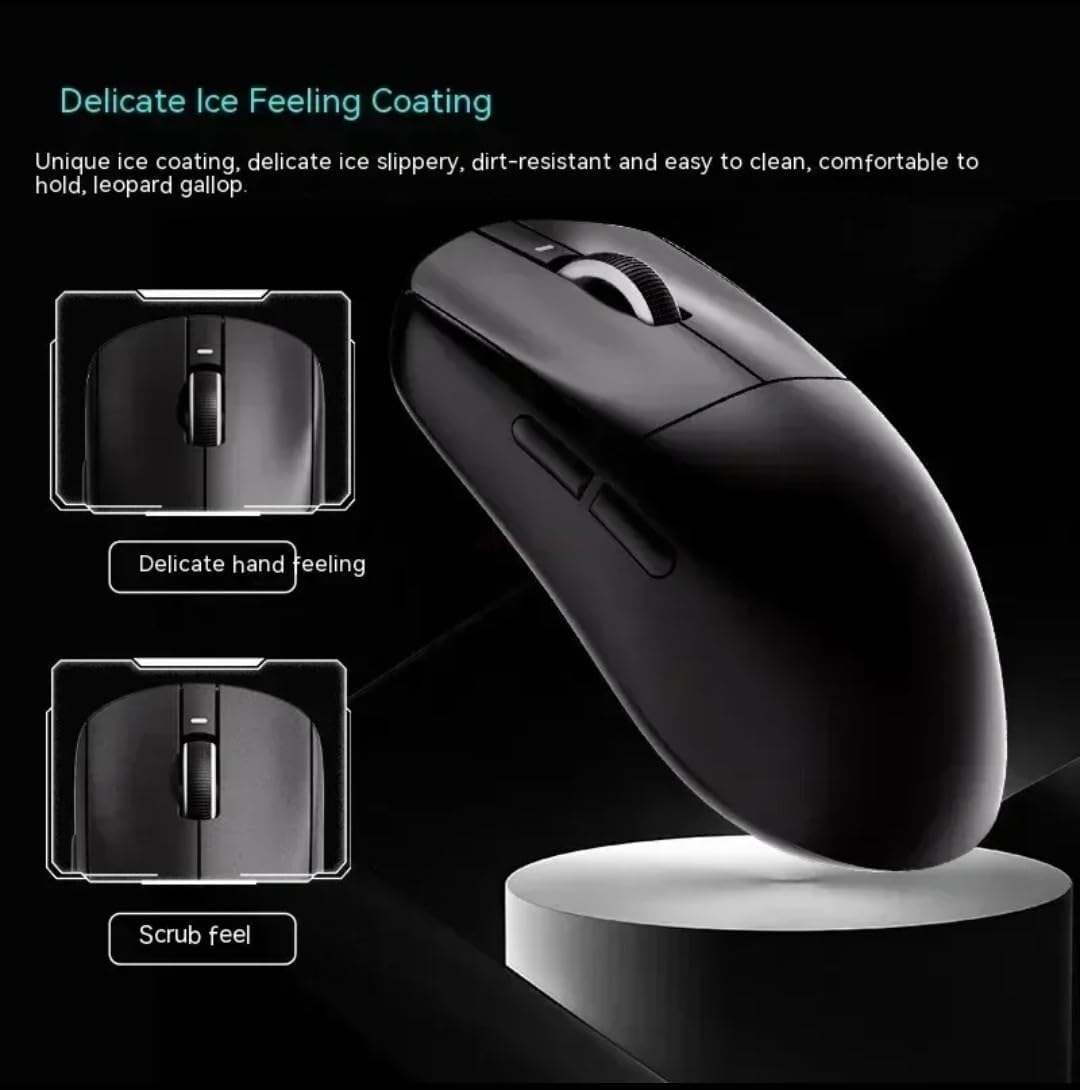
Image 4: Close-up of the VXE Dragon Fly R1 PRO MAX mouse, illustrating the 'Delicate Ice Feeling Coating' for a smooth, slippery, and dirt-resistant feel, alongside a 'Scrub feel' option.
4. Setup
4.1 Powering On/Off
Locate the power switch on the underside of the mouse. Slide it to the 'ON' position to power on the mouse. To power off, slide it to the 'OFF' position.
4.2 Connectivity Options
Your mouse supports three connection modes:
- 2.4G Wireless Mode:
- Remove the USB-A wireless dongle from its storage compartment on the underside of the mouse.
- Plug the dongle into an available USB-A port on your computer.
- Slide the power switch on the mouse to the '2.4G' position. The mouse should connect automatically.
- Bluetooth Mode:
- Slide the power switch on the mouse to the 'Bluetooth' position.
- On your computer, navigate to Bluetooth settings and search for new devices.
- Select 'VXE Dragon Fly R1' (or similar) from the list of available devices to pair.
- Wired Mode:
- Connect the provided USB-C to USB-A cable to the USB-C port on the front of the mouse and to a USB-A port on your computer.
- The mouse will function in wired mode and charge simultaneously.
4.3 DPI Adjustment
The mouse features a DPI adjustment button on its underside. Press this button to cycle through different DPI settings. An indicator light will change color to show the current DPI level (e.g., 400, 800, 1600, 3200 DPI). For more precise control, use the dedicated software.

Image 5: This image illustrates the 2K and 4K polling rate capabilities of the VXE Dragon Fly R1 PRO MAX mouse, indicating its high responsiveness for gaming.
5. Operating the Mouse
5.1 Button Functions
The mouse has 5 buttons:
- Left Click: Standard primary function.
- Right Click: Standard secondary function.
- Scroll Wheel: Scrolls up/down, and acts as a middle click button.
- Side Buttons: Default to forward/backward navigation in web browsers. These can be customized using the VXE software.
5.2 Battery Management
The mouse features a built-in rechargeable battery. When the battery is low, the LED indicator may change color or flash. Connect the USB-C cable to charge the mouse. You can continue to use the mouse in wired mode while it charges.
6. Maintenance
- Keep the mouse clean by wiping it with a soft, dry cloth.
- Avoid exposing the mouse to extreme temperatures, humidity, or direct sunlight.
- Do not disassemble the mouse, as this may void the warranty.
- Ensure the mouse feet are clean for optimal gliding performance. Replace extra PTFE mouse skates as needed.
7. Troubleshooting
- Mouse not responding: Ensure the mouse is powered on and correctly connected via 2.4G dongle, Bluetooth, or USB-C cable. Check battery level.
- Lag or Disconnection: Ensure the wireless dongle is close to the mouse and not obstructed. Avoid interference from other wireless devices. For Bluetooth, ensure your computer's Bluetooth is enabled and the mouse is paired.
- DPI not changing: Press the DPI button firmly. If using software, ensure settings are applied correctly.
- Charging issues: Ensure the USB-C cable is securely connected to both the mouse and the computer/charger.
8. Specifications
| Feature | Specification |
|---|---|
| Brand | VXE |
| Color | Black |
| Connectivity Technology | USB, Wireless (2.4G, Bluetooth) |
| Movement Detection Technology | Optical or Laser |
| Number of Buttons | 5 |
| Compatible Devices | Personal Computer |
| Operating System | Windows |
| Hardware Platform | PC |
| Range | 10.0 meters |
| Are Batteries Included | No (Rechargeable internal battery) |
| Manufacturer | VXE |
| Mfr Part Number | VEX R1 |
| Unit Count | 1.0 Count |
9. Warranty and Support
For warranty information, technical support, or further assistance, please refer to the official VXE website or contact their customer service directly. Keep your purchase receipt for warranty claims.