
1. Introduction
Thank you for choosing the Astrum SU030 Bluetooth Multimedia Speakers. These speakers are designed to provide a high-quality audio experience with versatile connectivity options, including Bluetooth, TF card playback, and 3.5mm AUX input. They also feature dynamic RGB LED lighting to enhance your listening environment. Please read this manual carefully to ensure proper setup and operation.

Figure 1.1: Front view of the Astrum SU030 speakers, showcasing the RGB LED lighting.
2. Package Contents
Please check the package for the following items:
- 2 x Astrum SU030 Multimedia Speakers
- 1 x Integrated USB Power Cable
- 1 x Integrated 3.5mm Audio Cable
- 1 x Wired Volume Control Knob with Mic & Headphone Jacks
- 1 x User Manual (this document)
3. Setup
Follow these steps to set up your Astrum SU030 speakers:
- Placement: Place the two speakers on a stable surface, ensuring they are positioned for optimal sound distribution.
- Connect Audio: Plug the integrated 3.5mm audio jack into the audio output port of your device (e.g., computer, laptop, smartphone, tablet, monitor, TV).
- Connect Power: Plug the integrated USB power cable into a USB port on your device or a USB power adapter (5V). The speakers will power on automatically.
- Volume Control: The wired control knob allows for easy volume adjustment. Ensure it is connected to the speakers.
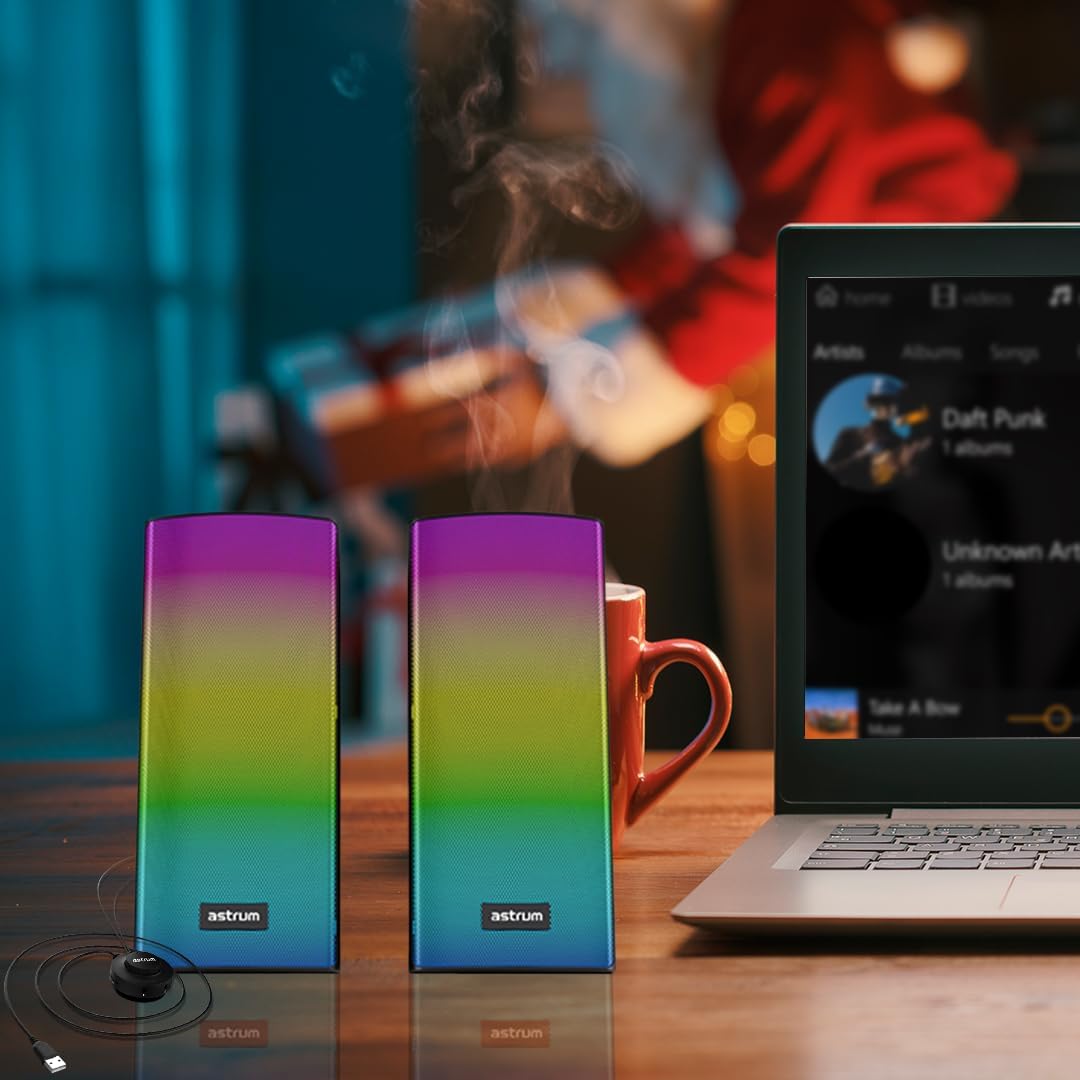
Figure 3.1: Rear view of a speaker illustrating the integrated USB power and 3.5mm audio cables.
4. Operating Instructions
4.1. Power On/Off and Volume Control
- The speakers power on automatically when the USB cable is connected to a power source.
- Use the wired control knob to adjust the volume. Rotate clockwise to increase volume and counter-clockwise to decrease.
4.2. Bluetooth Connectivity
To connect via Bluetooth:
- Ensure the speakers are powered on.
- On your device (smartphone, tablet, etc.), enable Bluetooth and search for available devices.
- Select "Astrum SU030" from the list of devices.
- Once paired, the speakers will emit a confirmation sound, and you can stream audio wirelessly.
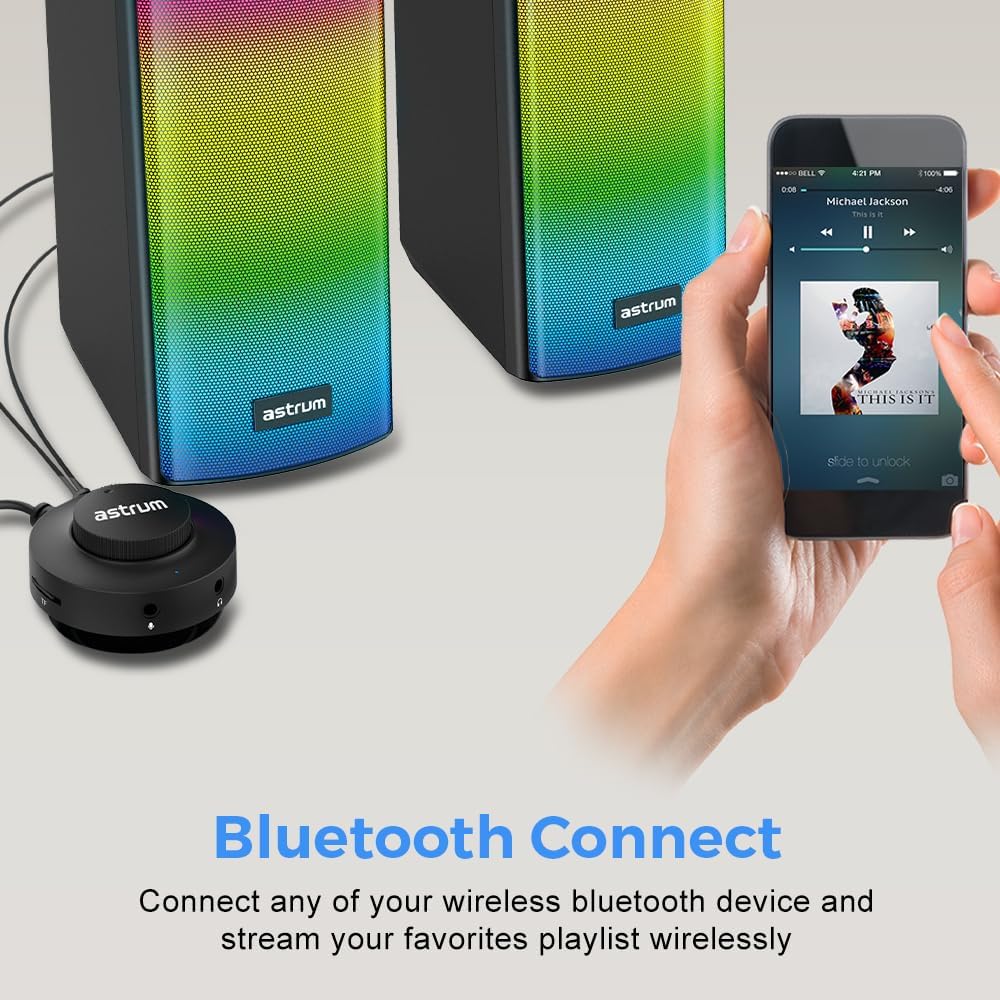
Figure 4.1: Speakers wirelessly connected to a smartphone via Bluetooth.
4.3. TF Card Playback
Insert a TF (MicroSD) card containing audio files into the designated slot on the speaker. The speakers will automatically switch to TF card mode and begin playback. Use the controls on the speaker or connected device (if applicable) to manage playback.
4.4. Microphone and Headphone Inputs
The wired control knob includes 3.5mm AUX input jacks for a microphone and headphones. Plug your microphone or headphones into the respective ports for direct use.
4.5. RGB LED Lighting
The speakers feature an ambient RGB LED lighting display. This lighting activates automatically when the speakers are powered on, providing a dynamic visual effect. There are no user-adjustable controls for the RGB lighting patterns or colors.

Figure 4.2: Speakers displaying RGB lighting in a desktop gaming environment.
5. Maintenance
- Cleaning: Use a soft, dry cloth to clean the speaker surfaces. Do not use liquid cleaners or abrasive materials.
- Storage: Store the speakers in a cool, dry place away from direct sunlight and extreme temperatures.
- Handling: Avoid dropping the speakers or subjecting them to strong impacts.
- Water Exposure: These speakers are not waterproof. Avoid exposure to water or high humidity.
6. Troubleshooting
- No Sound:
- Ensure the USB power cable is securely connected and receiving power.
- Verify the 3.5mm audio cable is fully plugged into both the speakers and the audio source.
- Check the volume level on both the speakers (via the control knob) and your connected device.
- If using Bluetooth, ensure the speakers are paired correctly and selected as the audio output on your device.
- Bluetooth Disconnection/Failure to Pair:
- Ensure the speakers are within the effective Bluetooth range (typically 10 meters) of your device.
- Turn off Bluetooth on your device and then turn it back on.
- Remove "Astrum SU030" from your device's paired device list and attempt to pair again.
- Restart both the speakers (by unplugging and replugging USB) and your device.
- RGB Lighting Not Working:
- Ensure the speakers are powered on via the USB connection.
- If the speakers are powered but the lights are off, try unplugging and replugging the USB power cable.
7. Specifications
| Feature | Specification |
|---|---|
| Model Number | SU030 |
| Output Power | 6W RMS |
| Driver Unit | 3" x 2 |
| Frequency Response | 90Hz - 20kHz |
| Impedance | 4 Ohms |
| Connectivity Technology | Bluetooth, USB (power), 3.5mm AUX |
| Additional Inputs | TF Card, 3.5mm Mic, 3.5mm Headphone |
| Power Input | USB 5V |
| Dimensions (W x H x D) | 78 x 95 x 173mm (approx.) |
| Weight | 700g (approx.) |
| Color | Black |
| Material | Plastic |
8. Warranty Information
The Astrum SU030 Multimedia Speakers come with a 12 MONTHS limited warranty from the date of purchase. This warranty covers manufacturing defects and workmanship under normal use. It does not cover damage caused by misuse, accidents, unauthorized modifications, or normal wear and tear. Please retain your proof of purchase for warranty claims.
9. Support
For further assistance, technical support, or warranty inquiries, please visit the official Astrum store or contact customer service through the retailer where you purchased the product.
Official Astrum Store: Visit the ASTRUM Store