
Introduction
This manual provides detailed instructions for the installation, operation, and maintenance of your Wyze Lifestyle Light Strip 16.4ft. Please read this guide thoroughly before use to ensure proper functionality and safety.
What's in the Box
Verify that all components are present in your package:
- Wyze Light Strip 16.4ft x 1
- Adhesive Clips x 10
- Controller x 1
- Power Adapter x 1
- Quick Start Guide x 1
- Alcohol Wipe x 2
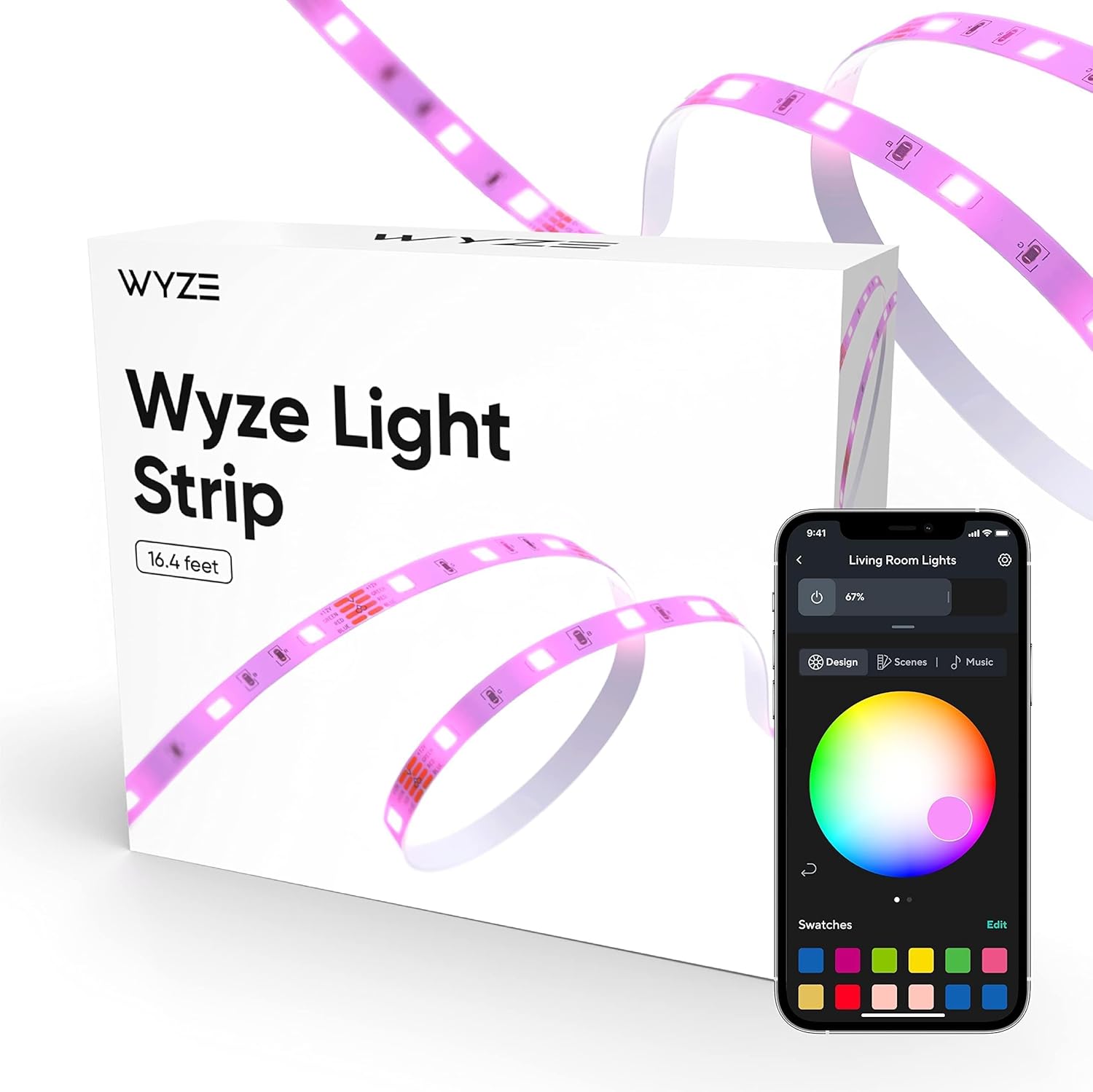
Image: Wyze Light Strip packaging and mobile app interface.
Video: Unboxing and initial setup of the Wyze Light Strip, showing included components and basic connections.
Setup and Installation
1. Prepare the Installation Surface
- Ensure the installation location is smooth, clean, and dry. Use the provided alcohol wipes to clean the surface thoroughly.
- Allow the cleaned surface to dry completely before proceeding.
2. Connect the Components
- Connect the light strip to the controller.
- Connect the power adapter to the controller.
- Plug the power adapter into a nearby electrical outlet. The strip should begin pulsing blue, indicating it's in pairing mode.
3. Mount the Light Strip
- Uncover the adhesive backing on the light strip.
- Firmly press the strip into place along your desired path.
- Use the provided adhesive clips to reinforce the strip, especially around corners or areas where it might experience stress.
- Avoid sharply bending the strip at an LED.
- Do not mount strips in locations where they may be crushed or hit.

Image: Wyze Light Strip installed behind a bar, demonstrating ambient lighting.
4. Trimming the Strip
- The light strip can be trimmed at designated cutting marks (indicated by a scissor icon).
- Ensure the power adapter is unplugged from the outlet before trimming.
- Note: Cut strips cannot be reattached directly. Plan your length carefully before cutting.

Image: Scissors demonstrating where to safely trim the light strip.
5. App Setup
- Download the Wyze app from the App Store or Google Play and create an account if you don't have one.
- Open the Wyze app and tap the '+' sign in the top left corner.
- Select 'Add Device' and then choose 'Power & Lighting' -> 'Wyze Light Strip'.
- Follow the on-screen prompts to connect the light strip to your 2.4GHz WiFi network.
- If the strip is not pulsing blue, press and hold the side button on the controller for 7 seconds to enter pairing mode.
- Name your light strip and complete the setup.
Video: Detailed guide on setting up the Wyze Light Strip using the Wyze app, including pairing and naming.
Operating Instructions
1. Color and Brightness Control
- Use the Wyze app to select from 16 million colors, including RGB and tunable white.
- Adjust the brightness level to suit your preference for any occasion.

Image: Mobile app interface displaying the color wheel for light strip customization.
2. Voice Control
- The Wyze Light Strip is compatible with Amazon Alexa and Google Assistant.
- Link your Wyze account to your preferred voice assistant app.
- Use voice commands to turn lights on/off, adjust brightness, or change colors (e.g., "Alexa, turn on Wyze Light Strip").
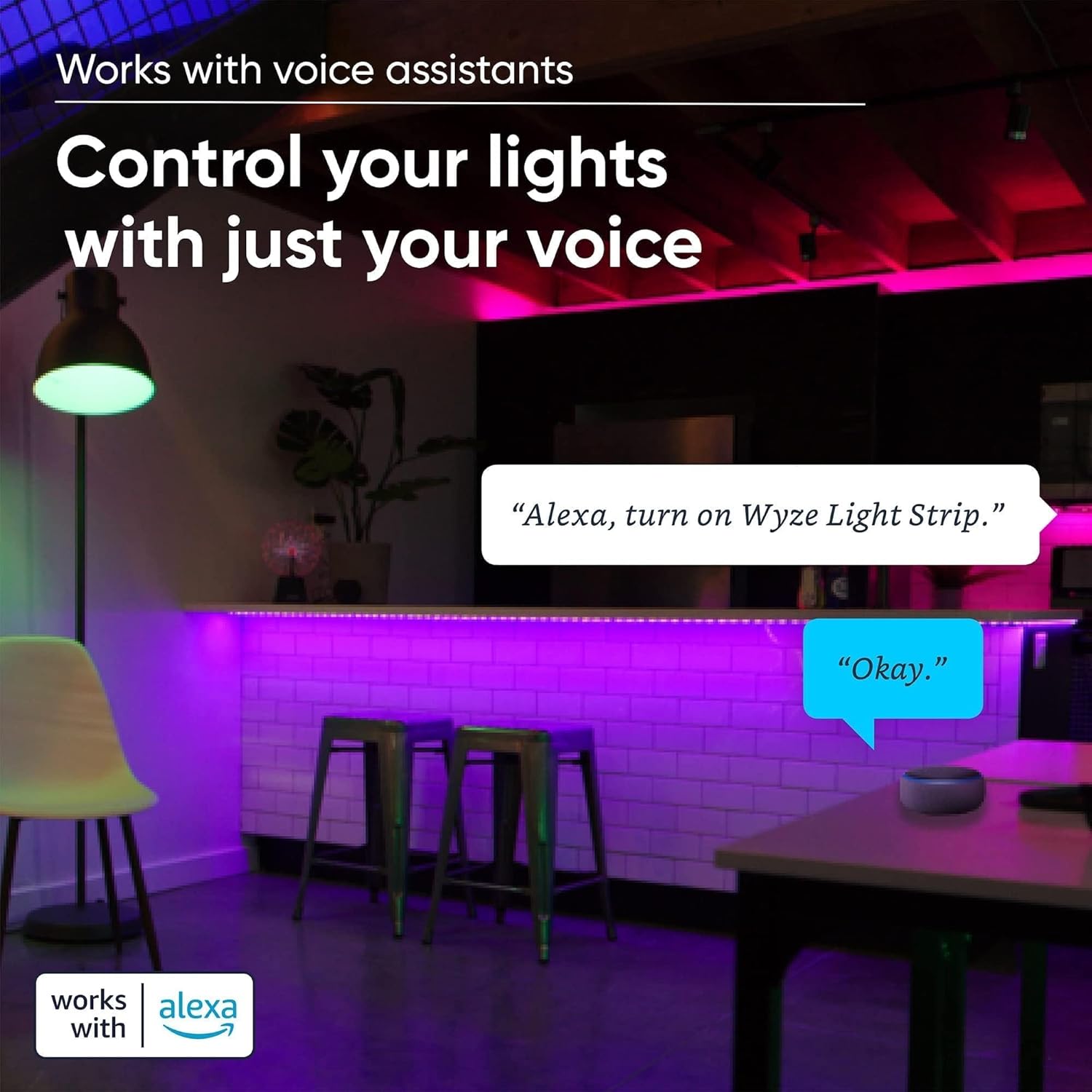
Image: A room with Wyze Light Strips, demonstrating voice control via Alexa.
3. Music Sync Mode
- Activate Music Mode in the Wyze app. The built-in microphone in the controller will sync the light strip's colors and effects to the beat of your music.
- Photosensitive Warning: Music Mode contains strobing effects which may trigger seizures for people with photosensitive epilepsy. Do not use if you suffer from photosensitive conditions.

Image: Wyze Light Strips in Music Sync Mode, creating a dynamic atmosphere.
4. Sun Mode
- Enable Sun Mode in the Wyze app to mimic the natural light cycle of the day. This feature adjusts the light strip's color temperature and brightness to align with sunrise and sunset patterns.

Image: A bedroom scene illustrating the light strip's Sun Mode, showing morning and evening light.
5. Timer and Schedule
- Set timers to automatically turn the light strip on or off at specific times.
- Create custom lighting routines, such as a "Sleep Routine" for gradual dimming or brightening.
6. Group with Wyze Bulb
- Seamlessly combine your Wyze LED Light Strip with Wyze Bulbs for simultaneous control via the Wyze app.
- Create vivid, dynamic lighting scenes effortlessly, tailoring the ambiance to your preferences.
Maintenance
- Keep the light strip and controller clean and dry.
- Avoid exposing the light strip to extreme temperatures or direct sunlight for prolonged periods.
- Do not immerse the light strip or controller in water.
Troubleshooting
Light Strip Not Turning On or Pairing?
- Ensure all connections (strip to controller, adapter to controller, adapter to outlet) are secure.
- Verify the electrical outlet has power.
- If the strip is not pulsing blue, press and hold the side button on the controller for 7 seconds to enter pairing mode.
Connectivity Issues?
- The Wyze Light Strip requires a 2.4GHz WiFi network. It will not communicate over a 5GHz WiFi network.
- Ensure your WiFi router is within range and providing a stable connection.
Cut Strip Not Working?
- Cut strips cannot be reattached directly. Ensure you cut only at designated cutting marks.
Specifications
| Feature | Detail |
|---|---|
| Brand | Wyze Lifestyle |
| Model Number | 16.4ft-Pro |
| Item Length | 16.4 Feet |
| Indoor/Outdoor Usage | Indoor |
| Light Source Type | LED |
| Power Source | Corded Electric |
| Wattage | 18 watts |
| Voltage | 12 Volts |
| Number of Light Sources | 150 |
| Color Temperature | 2700 Kelvin |
| Control Method | App, Voice, Button |
| Special Features | 16 Million Colors, Music Sync, Scenes Mode, Voice Control, Trimmable Design, Sun Match, Sleep Routine, Vacation Mode, Dimmable, Timer |
| Item Weight | 12 ounces |
| Ingress Protection Code Rating | IP20 |
Warranty and Support
Information regarding product warranty and customer support is not available in the provided data. Please refer to the product packaging or the manufacturer's official website for details.