
1. Introduction
This manual provides detailed instructions for the setup, operation, and maintenance of your ProElite Wireless Bluetooth Backlit Keyboard Case for the Samsung Galaxy Tab S9 FE Plus 12.4 inch. Please read this manual thoroughly before using the product to ensure optimal performance and longevity.
2. Package Contents
- ProElite Keyboard Case
- USB Charging Cable
- User Manual (this document)
3. Product Overview and Key Features
The ProElite Keyboard Case is designed to enhance your Samsung Galaxy Tab S9 FE Plus 12.4 inch experience by providing a protective cover and a functional wireless Bluetooth keyboard with backlighting. It features a magnetic detachable design and multiple viewing angles for versatility.
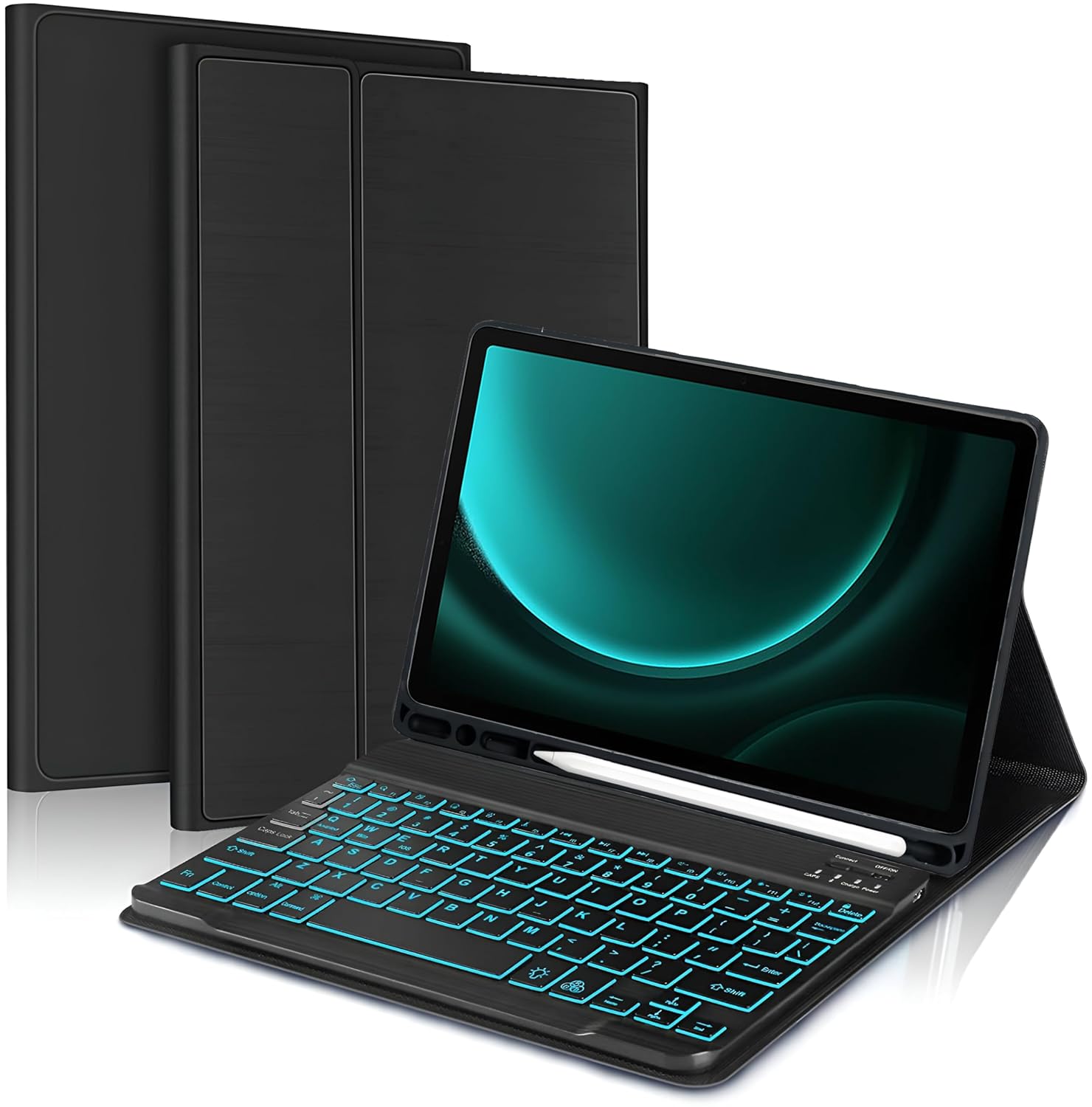
Figure 1: ProElite Keyboard Case with Samsung Galaxy Tab S9 FE Plus 12.4 inch, showcasing the backlit keyboard and tablet in a functional stand position.
3.1 Detachable Wireless Bluetooth Keyboard
The integrated keyboard connects wirelessly via Bluetooth, offering a stable connection. It features mechanical scissor keys for a tactile response, promoting faster and more accurate typing. The U.S. Chipset ensures reliable performance. The keyboard is rechargeable, providing extended wireless operation.

Figure 2: Close-up view of the ProElite 7-color backlit keyboard, detailing the key layout and construction from quality ABS material.
3.2 7-Color Backlit Keyboard
The keyboard includes a 7-color LED backlight with two adjustable brightness levels, facilitating typing in low-light conditions or at night. The backlight colors can be customized.
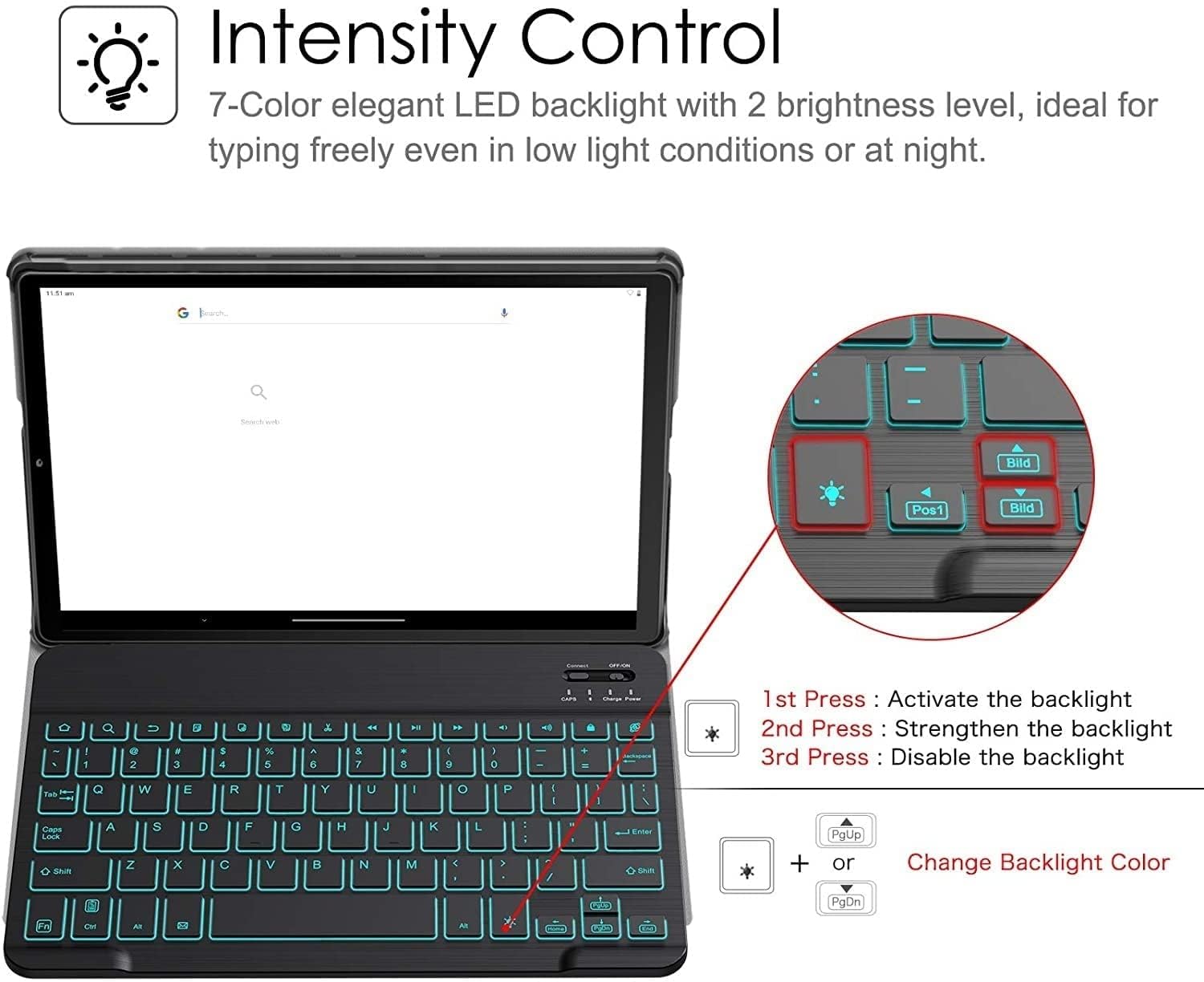
Figure 3: Diagram illustrating the controls for activating, adjusting brightness, and changing the 7-color backlight on the ProElite keyboard.

Figure 4: Visual representation of the 7 distinct backlight colors available for the ProElite keyboard.
3.3 Multiple Viewing Angles
The case is designed to convert into a convenient stand, allowing for multiple viewing angles to suit various tasks such as typing, watching videos, or browsing.

Figure 5: The ProElite keyboard case configured to provide multiple stable viewing angles for the tablet.
3.4 Magnetic Detachable Design
The keyboard is magnetically attached to the case, allowing for easy detachment when not needed. This provides flexibility for different usage scenarios.

Figure 6: An illustration highlighting the magnetic detachment feature of the keyboard from the case.
3.5 Complete Protection
The tablet case is constructed from soft PU material and features a flexible TPU inner shell, offering protection against drops and scratches. The design ensures a secure grip and full access to all tablet features.
4. Setup Instructions
4.1 Charging the Keyboard
- Locate the charging port on the keyboard.
- Connect the provided USB charging cable to the keyboard and a compatible USB power source (e.g., computer, wall adapter).
- The charging indicator light will illuminate. Allow the keyboard to charge fully before first use.
4.2 Pairing the Keyboard via Bluetooth
- Ensure the keyboard is charged.
- Turn on the keyboard using the power switch, usually located on the side or top edge.
- Press the 'Connect' button on the keyboard (if available) or a specific Bluetooth pairing key combination (refer to keyboard markings). The Bluetooth indicator light will start blinking, indicating it is in pairing mode.
- On your Samsung Galaxy Tab S9 FE Plus, go to Settings > Connected devices > Bluetooth.
- Ensure Bluetooth is enabled on your tablet.
- Your tablet will search for available devices. Select the keyboard (e.g., 'Bluetooth Keyboard' or 'ProElite Keyboard') from the list of discovered devices.
- Follow any on-screen prompts to complete the pairing process. Once paired, the Bluetooth indicator light on the keyboard will stop blinking and remain solid or turn off.
5. Operating Instructions
5.1 Using the Backlight
- Activate Backlight: Press the light bulb icon key once.
- Adjust Brightness: Press the light bulb icon key a second time to increase brightness.
- Disable Backlight: Press the light bulb icon key a third time to turn off the backlight.
- Change Backlight Color: Press Fn + light bulb icon key to cycle through the 7 available colors.
5.2 Adjusting Viewing Angles
The case allows you to position your tablet at various angles for comfortable viewing and typing. Simply adjust the tablet's position within the case's grooves or folds to achieve your desired angle.

Figure 7: A user actively typing on the ProElite backlit keyboard, demonstrating the ergonomic setup with the tablet in its case.
6. Maintenance
- Cleaning: Use a soft, dry cloth to clean the keyboard and case. For stubborn dirt, a slightly damp cloth can be used, ensuring no moisture enters the keyboard's electronic components.
- Storage: Store the keyboard case in a cool, dry place away from direct sunlight and extreme temperatures.
- Battery Care: To prolong battery life, avoid fully discharging the keyboard frequently. Charge it regularly, even if not in constant use.
7. Troubleshooting
- Keyboard not connecting: Ensure the keyboard is charged and powered on. Verify Bluetooth is enabled on your tablet and the keyboard is in pairing mode. Try unpairing and re-pairing the device.
- Backlight not working: Ensure the keyboard is powered on and charged. Press the backlight activation key multiple times to cycle through settings.
- Keys not responding: Check if the keyboard is properly connected via Bluetooth. Recharge the keyboard if the battery is low. If specific keys are unresponsive, contact customer support.
- Short battery life: Ensure the keyboard is fully charged. Excessive use of the backlight at high brightness levels can reduce battery life.
8. Product Specifications
| Feature | Specification |
|---|---|
| Brand | ProElite |
| Model Number | BacklitKeyboardcaseS9FEPlus |
| Compatible Devices | Samsung Galaxy Tab S9 FE Plus 12.4 inch |
| Connectivity Technology | Bluetooth |
| Keyboard Description | Wireless |
| Special Features | Backlit, Rechargeable |
| Color | Black |
| Item Weight | 550 g |
| Batteries | 1 Lithium Ion battery (included) |
| Lithium Battery Energy Content | 5 Watt Hours |
| Included Components | USB Cable |
9. Warranty and Support
9.1 Warranty Information
This ProElite Keyboard Case comes with a 3-month warranty from the date of purchase. This warranty covers manufacturing defects. Please retain your proof of purchase for warranty claims.
9.2 Customer Support
For technical assistance, troubleshooting, or warranty inquiries, please contact ProElite customer support through the retailer's platform or the official ProElite website. Provide your product model number and purchase details for efficient service.