
Introduction
This manual provides detailed instructions for the setup, operation, and maintenance of your PULWTOP USB C Hub for iPad Pro Docking Station. Please read this manual thoroughly before using the product to ensure optimal performance and longevity.

Image: The PULWTOP USB C Hub for iPad Pro Docking Station, illustrating its design and various connection ports.
Key Features
- 9-in-1 Connectivity: Expands your device's capabilities with multiple ports.
- 4K@60Hz HDMI Output: Supports high-resolution video output for external displays.
- SSD Enclosure: Integrated slot for M.2 PCIe NVMe SSDs (up to 2TB) for expanded storage.
- 100W Power Delivery (PD): Provides fast charging for your connected device (89W output).
- High-Speed Data Transfer: Includes 1x USB-A 3.2 Gen2 (10Gbps), 1x USB-C 3.2 Gen2 (10Gbps), and 1x USB-A 2.0.
- Card Reader: SD and TF card slots for simultaneous read and write operations.
- Adjustable Stand: Offers multiple viewing angles (45°, 60°, 65°) for ergonomic use.
- Compact and Foldable Design: Easy to transport and store.
Compatibility Note: This docking station is designed for devices with a full-featured USB-C port that supports data, charging, and video (DP Alt Mode). It does not support iPad/iPad Pro models with a Lightning port or Lightning to USB-C adapters. It is also not recommended for use with tablets in thick protective cases that may obstruct the USB-C connection.

Image: A visual representation of compatible devices, including various iPad Pro, iPad Air, iPad Mini, and Samsung Galaxy Tab models, along with important compatibility warnings.
Setup Instructions
1. Connecting the Docking Station to Your Device
- Unfold the docking station to your desired viewing angle (45°, 60°, or 65°).
- Locate the integrated USB-C cable on the docking station.
- Connect the USB-C cable firmly into the USB-C port of your compatible iPad or tablet. Ensure a secure connection.
2. Installing an M.2 NVMe SSD (Optional)
The docking station supports M.2 PCIe NVMe SSDs (2230/2242/2260/2280 sizes) up to 2TB. SATA SSDs are not supported.
- Gently open the SSD enclosure cover on the docking station.
- Insert your M.2 NVMe SSD into the designated slot, ensuring it is correctly aligned.
- Secure the SSD with the provided silicone plug or fastener.
- Close the enclosure cover.
- Important: If you are using a new SSD, it must be formatted to "exFat" or "apfs" format on a computer before your iPad/tablet can recognize it.

Image: A detailed view of the SSD enclosure, demonstrating how to install an M.2 NVMe SSD and highlighting supported sizes.
3. Connecting Power (Optional, for PD Charging)
- Connect a USB-C power adapter (65W or higher recommended) to the PD 100W input port on the docking station.
- This will provide pass-through charging to your connected iPad/tablet. The PD port is for charging only, not data transfer.

Image: Illustration of connecting a power adapter to the docking station for pass-through charging, indicating power input and output.
Operating Instructions
1. HDMI Video Output
- Connect an HDMI cable from the docking station's HDMI port to an external monitor or TV.
- The docking station supports up to 4K@60Hz resolution.
- For Windows systems, you can extend or mirror your display. For iOS systems, it supports SST mirror mode.

Image: An iPad connected to the docking station, displaying its screen on a larger external monitor via the HDMI port, suitable for presentations or extended workspace.
2. Data Transfer
Utilize the various data ports for connecting peripherals and transferring files:
- USB-A 3.2 Gen2 (10Gbps): For high-speed external drives, flash drives, or other USB-A devices.
- USB-C 3.2 Gen2 (10Gbps): For high-speed USB-C peripherals.
- USB-A 2.0: For keyboards, mice, or other standard USB-A devices.
- SD/TF Card Slots: Insert SD or microSD cards for direct file access. Both slots can be used simultaneously.
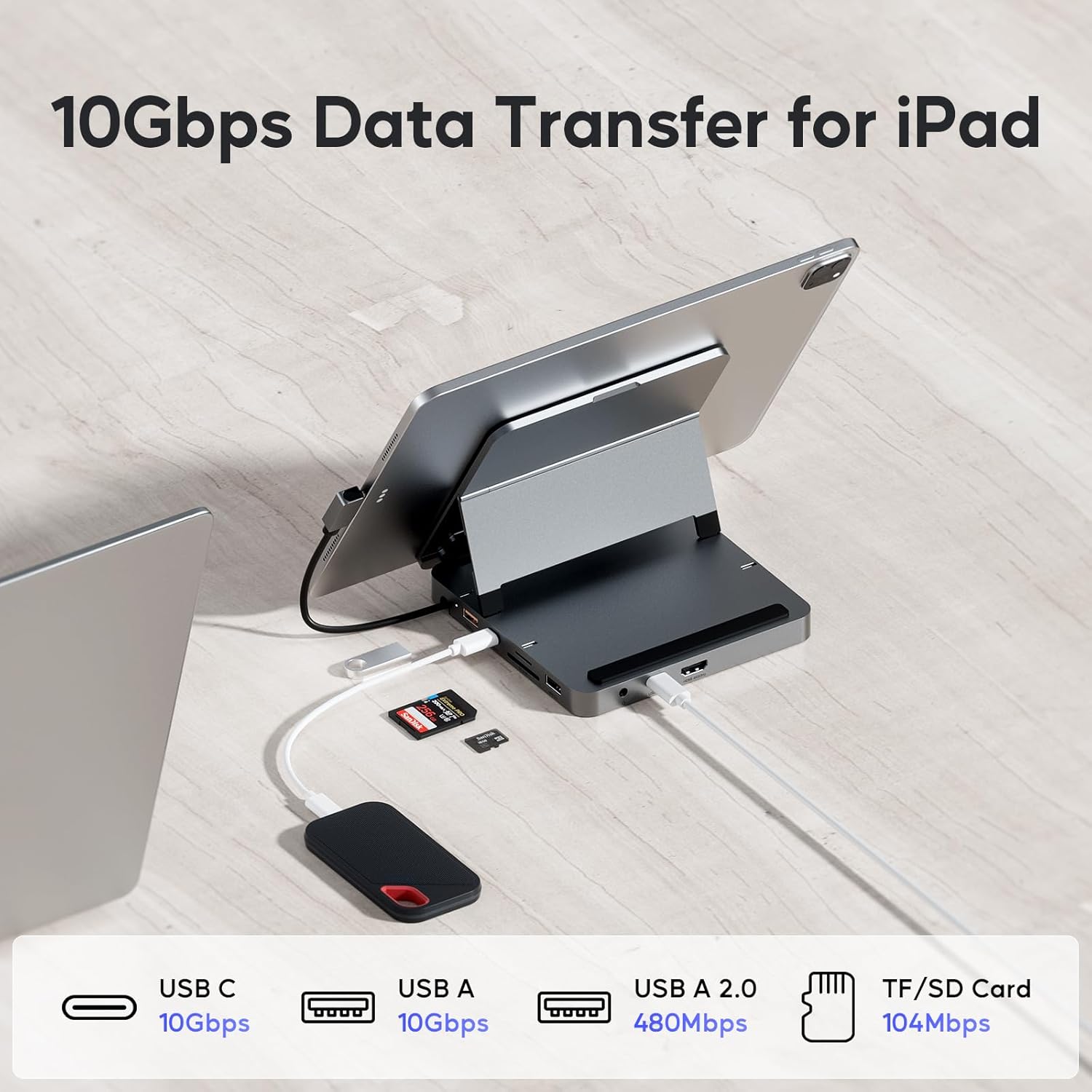
Image: The docking station connected to an iPad, demonstrating simultaneous use of its USB-C, USB-A, and SD/TF card ports for data transfer with various external devices.
3. Adjustable Stand Functionality
The integrated stand allows you to position your iPad/tablet at three different angles for comfortable viewing or interaction:
- 45° Angle: Ideal for drawing or writing with a stylus.
- 60° Angle: Suitable for typing or general browsing.
- 65° Angle: Best for video calls or watching media.
Gently adjust the stand to click into the desired angle. Ensure the tablet is securely seated.

Image: An iPad positioned on the docking station at a 45-degree angle, illustrating the adjustable stand feature with three distinct angle options.
Maintenance
Cleaning
- Disconnect the docking station from all devices and power sources before cleaning.
- Use a soft, dry, lint-free cloth to wipe the exterior surfaces.
- Avoid using abrasive cleaners, solvents, or aerosol sprays, as these may damage the finish or internal components.
- Do not allow moisture to enter any openings.
Storage
- When not in use, fold the docking station into its compact form for easy storage.
- Store in a cool, dry place away from direct sunlight and extreme temperatures.
Troubleshooting
| Problem | Possible Cause | Solution |
|---|---|---|
| No display on external monitor via HDMI. | Incorrect cable connection; device not compatible; display settings. | Ensure HDMI cable is securely connected. Verify your device's USB-C port supports video output (DP Alt Mode). Check display settings on your device to mirror or extend the screen. |
| SSD not recognized. | Incorrect SSD type; unformatted SSD. | Ensure it is an M.2 PCIe NVMe SSD, not SATA. If new, format the SSD to "exFat" or "apfs" on a computer. |
| Device not charging or charging slowly. | Insufficient power adapter; device USB-C port does not support PD. | Use a power adapter of 65W or higher. Confirm your device's USB-C port supports Power Delivery. |
| Data transfer speeds are slow. | Using USB 2.0 port for high-speed devices; cable quality. | Ensure high-speed devices are connected to the USB 3.2 Gen2 ports. Use high-quality cables. |
| Docking station does not connect to iPad/tablet. | Incompatible device; physical obstruction. | Verify your device has a USB-C port and supports DP Alt Mode. Remove any thick protective cases that might prevent a full connection. Ensure your iPad does not have a Lightning port. |
Specifications
- Model: B0CQZD3QJC
- Brand: PULWTOP
- Package Dimensions: 7.05 x 5.31 x 1.18 inches
- Item Weight: 15.6 ounces (441.69 Grams)
- Hardware Interface: HDMI, SATA 6.0 Gb/s (for SSD enclosure compatibility, though NVMe is specified), USB
- Total USB Ports: 4 (1x USB-A 3.2 Gen2, 1x USB-C 3.2 Gen2, 1x USB-A 2.0, 1x USB-C PD)
- Number of Ports: 9 (HDMI, SSD Enclosure, PD, USB-A 3.2, USB-C 3.2, USB-A 2.0, SD, TF, Audio/Mic 3.5mm)
- Total HDMI Ports: 1
- Wattage (PD Input): 100W (Max)
- Wattage (PD Output): 89W (Max)
- SSD Compatibility: M.2 PCIe NVMe SSD (2230/2242/2260/2280 sizes), up to 2TB. SATA SSDs not supported.
- Video Output: 4K@60Hz via HDMI
- Data Transfer Speed: Up to 10Gbps (USB 3.2 Gen2 ports), 104Mbps (SD/TF cards)
Warranty Information
Specific warranty details for the PULWTOP USB C Hub for iPad Pro Docking Station are typically provided with your product packaging or can be found on the official PULWTOP website. Please refer to these resources for information regarding warranty coverage, terms, and conditions.
Customer Support
For technical assistance, troubleshooting not covered in this manual, or general inquiries, please visit the official PULWTOP website or contact their customer support directly. Contact information can usually be found on the product packaging or the brand's online store.
PULWTOP Official Store: https://www.amazon.com/stores/PULWTOP/page/98EF84B7-CB01-4D7D-8027-43335D729B5B