
Introduction
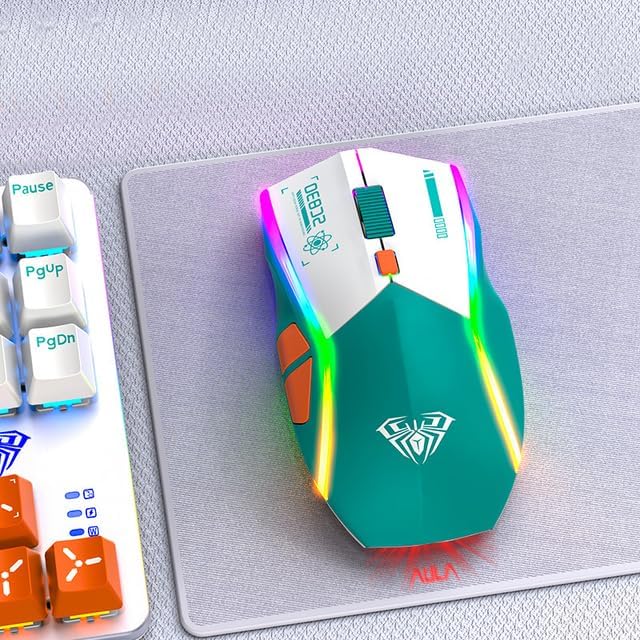
Image: The Aula SC830 Three-Mode Wireless Gaming Mouse, showcasing its design and RGB lighting.
This manual provides detailed instructions for the setup, operation, and maintenance of your Aula SC830 Three-Mode Wireless Gaming Mouse. Please read this manual thoroughly before using the product to ensure optimal performance and longevity.
The Aula SC830 mouse offers versatile connectivity options including 2.4G wireless, Bluetooth, and wired modes, making it suitable for various computing environments and gaming needs.
Package Contents
- Aula SC830 Three-Mode Wireless Gaming Mouse
- USB 2.4G Receiver
- USB-C Charging Cable
- User Manual
Setup
1. Charging the Mouse
Before first use, it is recommended to fully charge the mouse. Connect the provided USB-C charging cable to the mouse's charging port and the other end to a USB power source (e.g., computer USB port, USB wall adapter).
The mouse features a rechargeable battery. An indicator light will typically show charging status and turn off or change color when fully charged.
2. Connectivity Modes
The Aula SC830 mouse supports three connection modes: 2.4G Wireless, Bluetooth, and Wired.
2.1. 2.4G Wireless Mode
- Locate the USB 2.4G receiver, usually stored in a compartment on the underside of the mouse.
- Plug the USB receiver into an available USB port on your computer.
- Switch the mode selector on the underside of the mouse to the "2.4G" or wireless icon position.
- The mouse should automatically connect to your computer.
2.2. Bluetooth Mode
- Switch the mode selector on the underside of the mouse to the "Bluetooth" icon position.
- Press and hold the Bluetooth pairing button (refer to "Operating Instructions" for button layout) until the indicator light flashes, indicating pairing mode.
- On your computer or device, go to Bluetooth settings and search for new devices.
- Select "Aula SC830" (or similar name) from the list of available devices to pair.
- Once paired, the indicator light will become solid or turn off.

Image: Underside view of the Aula SC830 mouse, highlighting the Bluetooth mode switch key and other controls.
2.3. Wired Mode
- Connect the USB-C charging cable to the mouse's port.
- Connect the other end of the cable to a USB port on your computer.
- The mouse will automatically switch to wired mode and function as a standard USB mouse.
Operating Instructions
Button Functions
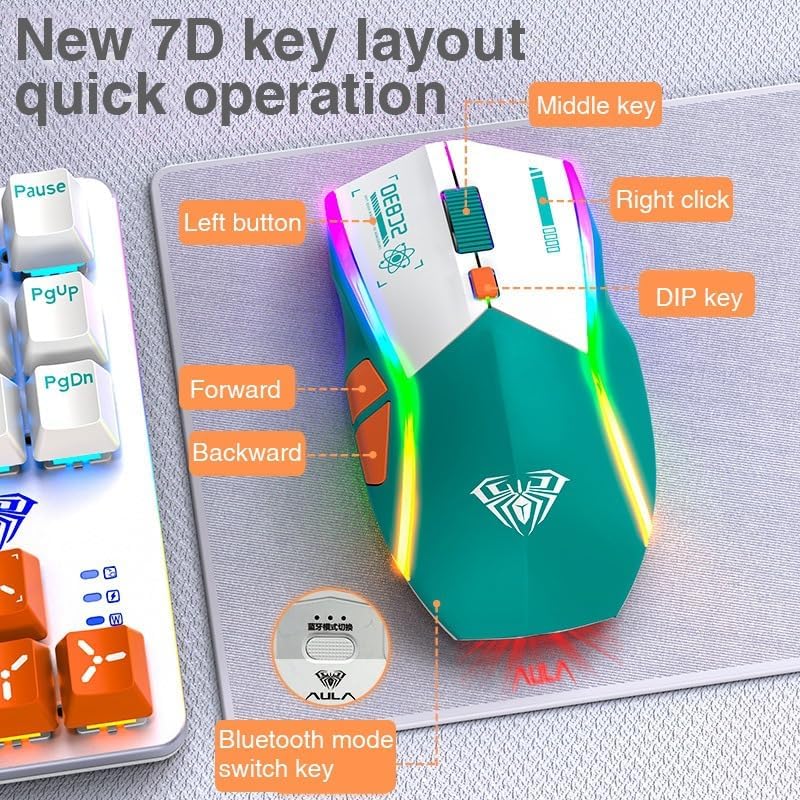
Image: A diagram illustrating the 7-button layout of the Aula SC830 mouse, labeling the Left Button, Right Click, Middle Key (scroll wheel), DIP Key, Forward, Backward, and Bluetooth Mode Switch Key.
- Left Button: Standard primary click function.
- Right Click: Standard secondary click function.
- Middle Key (Scroll Wheel): Scrolls content up/down. Pressing it typically acts as a middle click.
- DIP Key (DPI Switch): Cycles through different DPI (Dots Per Inch) sensitivity settings. Press to adjust cursor speed.
- Forward Button: Navigates forward in web browsers or file explorers.
- Backward Button: Navigates backward in web browsers or file explorers.
- Bluetooth Mode Switch Key: Used for initiating Bluetooth pairing (as described in Setup).
Ergonomic Design
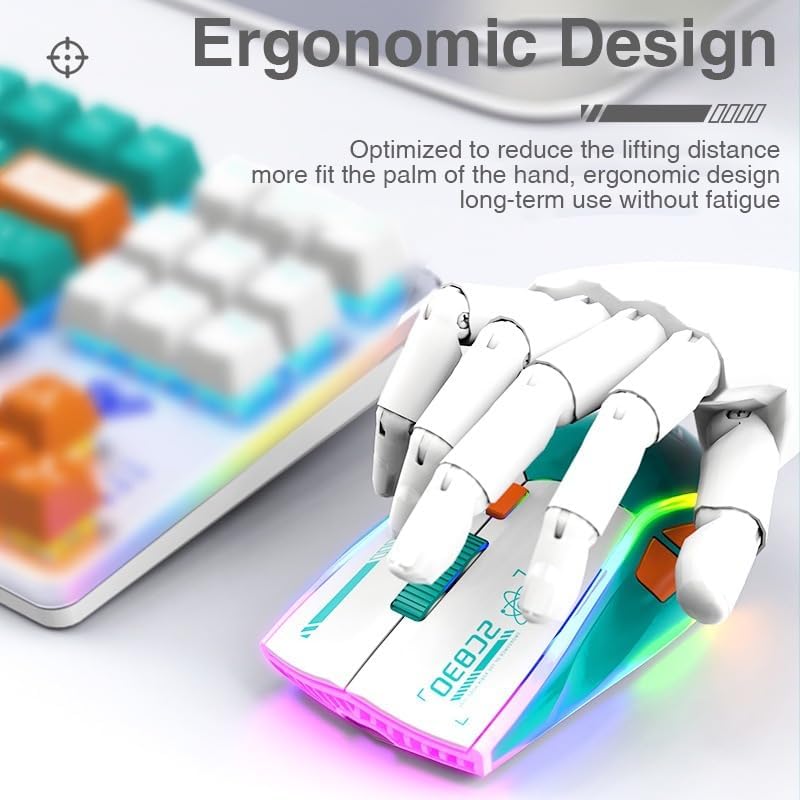
Image: A hand comfortably gripping the Aula SC830 mouse, illustrating its ergonomic design optimized for reduced lifting distance and comfortable long-term use.
The Aula SC830 is designed with an ergonomic shape to fit the palm of your hand, reducing fatigue during extended use. Its symmetrical design allows for comfortable use by both left and right-handed users.

Image: Top-down view of the Aula SC830 mouse, showcasing its newly defined shape and symmetrical design suitable for both hands.
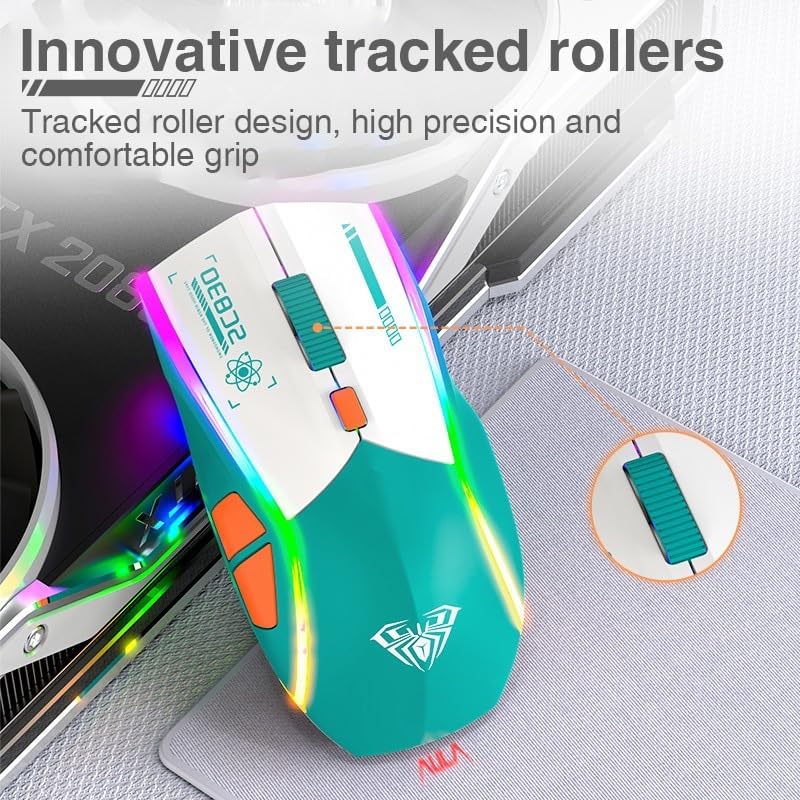
Image: A close-up view of the Aula SC830 mouse, emphasizing its innovative tracked roller design for high precision and comfortable grip.
Maintenance
- Cleaning: Use a soft, dry cloth to clean the mouse. For stubborn dirt, slightly dampen the cloth with water or a mild cleaning solution. Avoid harsh chemicals or abrasive materials.
- Battery Care: To prolong battery life, avoid fully discharging the mouse frequently. Charge the mouse when the low battery indicator appears. Store the mouse in a cool, dry place when not in use for extended periods.
- Storage: When transporting or storing the mouse, ensure the USB receiver is securely placed in its storage compartment to prevent loss.
Troubleshooting
- Mouse not responding:
- Ensure the mouse is charged.
- Check the mode switch on the underside of the mouse to ensure it's set to the correct connection mode (2.4G, Bluetooth, or Wired).
- For 2.4G mode, ensure the USB receiver is securely plugged into a working USB port. Try a different USB port.
- For Bluetooth mode, ensure Bluetooth is enabled on your device and the mouse is properly paired. Try re-pairing.
- For wired mode, ensure the USB-C cable is securely connected to both the mouse and the computer.
- Cursor movement is erratic or slow:
- Clean the optical sensor on the underside of the mouse.
- Ensure you are using the mouse on a suitable surface (e.g., a mouse pad).
- Adjust the DPI setting using the DIP key.
- Bluetooth pairing fails:
- Ensure the mouse is in Bluetooth pairing mode (indicator light flashing).
- Remove any previous pairings of the mouse from your device's Bluetooth settings and try again.
- Ensure your device's Bluetooth is enabled and discoverable.
Specifications
| Model | SC830 |
| Operation Mode | Opto-electronic |
| Power Type | Rechargeable |
| Number of Buttons | 7 |
| Number of Rollers | 1 |
| Hand Orientation | Both Hands (Symmetrical Design) |
| Connectivity Technology | 2.4Ghz Wireless, Bluetooth, Wired |
| Material | Other |
Warranty and Support
Your Aula SC830 mouse comes with a 12 Months Warranty from the date of purchase. This warranty covers manufacturing defects.
If you encounter any issues with your product, such as damaged or incorrect items, please contact the seller or manufacturer's customer support. They will assist you within 24 hours.
For support, please refer to the contact information provided by your retailer or on the product packaging.


