
Checkme TMB-2288-BT
Checkme Blood Pressure Monitor User Manual
Model: TMB-2288-BT
1. Introduction
This manual provides detailed instructions for the safe and effective operation of your Checkme Blood Pressure Monitor. Please read this manual thoroughly before first use and keep it for future reference. This device is designed for home use to measure blood pressure and pulse rate.
2. Package Contents
Upon opening the package, please verify that all components are present and undamaged:
- 1x Checkme Blood Pressure Monitor
- 1x Upper Arm Cuff (22-45cm)
- 4x AA Batteries
- 1x Type-C Cable
- 1x Carrying Bag
- 1x User Manual

Image: Checkme Blood Pressure Monitor, showing the main unit, the arm cuff, and a smartphone displaying the companion application interface.
3. Setup
3.1 Powering the Device
The Checkme Blood Pressure Monitor can be powered by either AA batteries or a Type-C USB cable.
- Battery Installation: Open the battery compartment on the back of the device and insert 4 AA batteries, ensuring correct polarity (+/-).
- USB Power: Connect the provided Type-C cable to the monitor and to a compatible USB power adapter (not included).

Image: Illustration of the two power modes: inserting AA batteries into the compartment and connecting a Type-C USB cable to the device.
3.2 Cuff Application
Proper cuff placement is crucial for accurate readings. The XL size cuff (22-45cm) is designed for a wide range of arm circumferences.
- Apply the cuff on your upper arm with exposed skin.
- Align the Artery indicator (Φ) on the inside of your arm with your main artery.
- Ensure there is a space of 1-2 fingers between the bottom edge of the arm cuff and your inside elbow.
- The cuff should be worn snugly but not too tight.

Image: A person demonstrating the correct placement of the blood pressure cuff on the upper arm, with the cuff's artery indicator aligned.

Image: A visual guide showing four steps for accurate blood pressure measurement: applying the cuff, ensuring proper spacing, positioning the arm at heart level, and initiating the measurement.
3.3 App Pairing (Bluetooth)
The Checkme monitor can connect to a smartphone application via Bluetooth for data tracking and management.
- Download the "ViHealth" app from your device's app store. A QR code for the app can be found on the product packaging or by visiting http://qr.hotlnk.cn/79855377015.
- Enable Bluetooth on your smartphone.
- Open the ViHealth app and follow the on-screen instructions to pair your Checkme Blood Pressure Monitor.
- Once paired, your measurement data will automatically sync to the app.
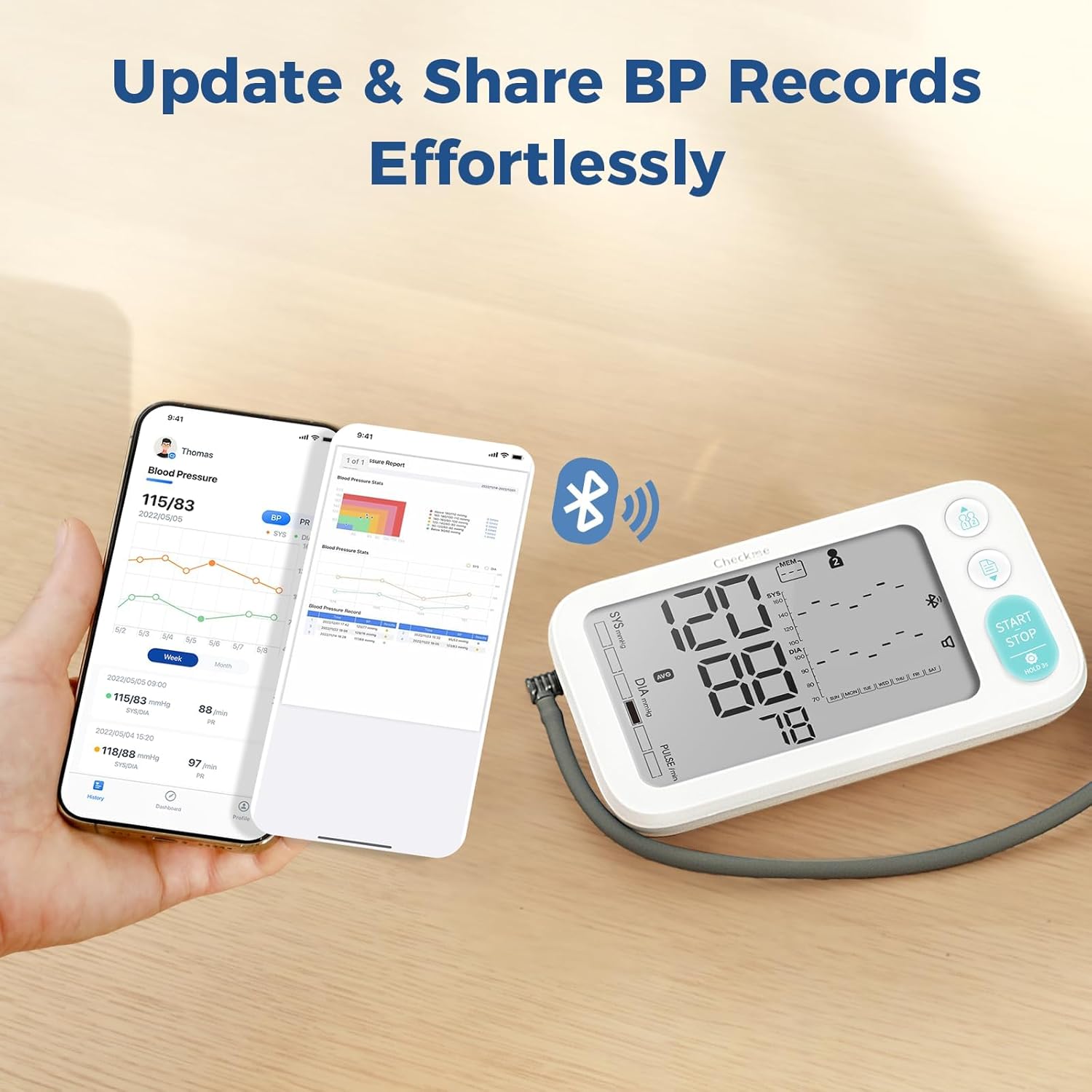
Image: The blood pressure monitor next to a smartphone, illustrating the seamless update and sharing of blood pressure records via Bluetooth to the ViHealth app.
4. Operating Instructions
4.1 Taking a Measurement
For accurate results, ensure you are relaxed, seated comfortably with your feet flat on the floor, and your arm supported at heart level.
- Wear the cuff on your arm as described in Section 3.2.
- Take 5-6 deep breaths and remain still.
- Press the START/STOP button to begin the measurement. The cuff will inflate, and the measurement will proceed automatically.
- The results (Systolic, Diastolic, and Pulse Rate) will be displayed on the screen and announced via voice broadcast.
Image: A hand pressing the START/STOP button on the blood pressure monitor, with visual cues indicating voice broadcast of measurement progress and results.
4.2 Understanding the Display
The large backlit dual display provides clear readings and indicators.

Image: A comprehensive diagram labeling various indicators and readings on the blood pressure monitor's display, including Systolic/Diastolic BP, Pulse Rate, Memory, User ID, Date/Time, WHO Indicator, Body Motion Detector, Cuff Wearing Indicator, Irregular Heartbeat Detector, Last 7 Days BP Trends, Voice Broadcast, and Bluetooth status.
- Systolic BP Reading: The top number, indicating pressure when the heart beats.
- Diastolic BP Reading: The bottom number, indicating pressure when the heart rests between beats.
- Pulse Rate: Your heart rate in beats per minute.
- Cuff-Wearing Indicator: Displays "OK" when the cuff is correctly applied.
- Body Motion Detector: Alerts if movement during measurement may affect accuracy.
- Irregular Heartbeat Detector: Indicates detection of an irregular heartbeat.
- Last 7 Days BP Trends: Shows a graphical representation of your blood pressure trends over the past week.
- Voice Broadcast: Indicates if the voice function is active.
- Bluetooth: Indicates Bluetooth connection status.
- Memory: Shows the memory bank in use and number of stored readings.
- User ID: Indicates which user profile is active (User 1, User 2, or Guest).
- Date / Time: Displays the current date and time.
4.3 Voice Broadcast
The monitor features a voice broadcast function that announces measurement instructions and results.
- During measurement, it will guide you with phrases like "Starting measurement, please remain still and quiet."
- Upon completion, it will announce your blood pressure and pulse rate, e.g., "Your blood pressure is XXX. Your blood pressure is normal."
- The broadcast is in English by default. Language settings can be adjusted within the ViHealth app.

Image: A visual representation of the voice broadcast feature, showing speech bubbles with example phrases like "Starting measurement, please remain still and quiet." and "Your blood pressure is XXX."
4.4 Multiple User Mode
The device supports two individual users with 250 memory spaces each, totaling 500 readings. A guest mode is also available for quick measurements without storing data.
- To switch between User 1, User 2, or Guest mode, press the User Switch button (usually indicated by person icons).
- Each user's data is stored separately, allowing for personalized tracking.

Image: Two individuals in the background, with the blood pressure monitor in the foreground, highlighting its "Multiple User Mode" feature with 250 BP records for each user and one-click user switching.
4.5 Data Management and Trends
The monitor tracks your progress by displaying the last 7 days' readings and average blood pressure. For comprehensive data management, use the ViHealth app.
- On-Device Trends: View a summary of your recent blood pressure trends directly on the monitor's display.
- ViHealth App: Sync your data to the app for detailed historical records, graphical trends (week/month/year), and the ability to generate CSV or PDF reports. You can also share reports with healthcare professionals.

Image: Screenshots of the ViHealth app interface, demonstrating features like expansive storage, BP result levels, CSV & PDF format export, and report sharing, alongside the blood pressure monitor.
4.6 Easy Access Control Parameters
You can quickly access and adjust certain settings directly on the device when it is off.
- Quick Switch User: Press the user switch button to change the active user profile.
- Review Historical Results: Press the memory button to cycle through stored readings.
- Voice Settings: Press and hold the voice button to adjust voice broadcast settings.

Image: Three separate images of the blood pressure monitor demonstrating how to quick switch users, review historical results, and adjust voice settings by pressing specific buttons while the monitor is off.
5. Maintenance
Proper maintenance ensures the longevity and accuracy of your blood pressure monitor.
- Cleaning: Wipe the monitor and cuff with a soft, dry cloth. For stubborn stains, use a slightly damp cloth with mild soap, then wipe dry. Do not use abrasive cleaners or immerse the device in water.
- Storage: Store the device in its carrying bag in a cool, dry place, away from direct sunlight, extreme temperatures, and humidity.
- Battery Replacement: Replace batteries when the low battery indicator appears on the display. Remove batteries if the device will not be used for an extended period.
6. Troubleshooting
If you encounter issues with your Checkme Blood Pressure Monitor, refer to the following common problems and solutions:
| Problem | Possible Cause | Solution |
|---|---|---|
| Inaccurate readings or "Motion" indicator appears. | Movement during measurement. | Remain still and quiet during measurement. Avoid talking or moving your arm. |
| "Cuff OK" indicator does not appear or measurement fails. | Cuff not applied correctly or too loose/tight. | Re-apply the cuff according to instructions in Section 3.2. Ensure it is snug but comfortable. |
| Device does not power on. | Low or depleted batteries; incorrect battery installation; power cable issue. | Replace batteries with new ones, ensuring correct polarity. Check Type-C cable connection if using external power. |
| Bluetooth pairing fails. | Bluetooth not enabled on phone; app not open; device not in pairing mode. | Ensure Bluetooth is on. Open ViHealth app. Restart both device and phone. If issues persist, remove batteries from the monitor for 30 seconds, then reinsert and try again. |
| Incorrect time/date displayed. | Time/date not set or reset. | Set the time and date via the ViHealth app or by following the device's manual setting instructions (if available). A full power cycle (removing batteries for 30 seconds) might reset it. |
If the problem persists after attempting these solutions, please contact Checkme customer support.
7. Specifications
| Feature | Detail |
|---|---|
| Model Number | TMB-2288-BT |
| Cuff Size | 22-45 cm (8.7" - 17.7") |
| Memory Storage | 2 x 250 readings (500 total) |
| Power Source | 4 AA Batteries (included) or Type-C USB |
| Display | 5.5" Large Backlit Dual Display |
| Connectivity | Bluetooth (for ViHealth App) |
| Voice Broadcast | Yes (English default, adjustable via app) |
| Indicators | Cuff-Wearing, Body Motion, Irregular Heartbeat |
| Product Dimensions | 17.5L x 10W x 4.5Th Centimetres |
| Weight | 780 g (Parcel Weight) |
| Manufacturer | GUANGDONG TRANSTEK MEDICAL ELECTRONICS CO., LTD. |
| Country of Origin | China |
8. Warranty and Support
For information regarding the product warranty, please refer to the warranty card included in your product packaging or visit the official Checkme website.
If you require technical assistance, have questions about the product, or need to report an issue, please contact Checkme customer support through their official channels.
Manufacturer: GUANGDONG TRANSTEK MEDICAL ELECTRONICS CO., LTD.
Place of Business: Zone A No 105, Dongli Road, Torch Decelopment District, Zhongshan, Guangdong, China