
1. Introduction
This manual provides detailed instructions for the installation, operation, and maintenance of your Razuvious R5 TT Smart Door Lock. This advanced keyless entry system offers multiple unlocking methods, including fingerprint, touchscreen keypad, RFID card, mobile application, and mechanical key, enhancing security and convenience for your home or office.
2. Safety Information
Please read all safety instructions carefully before installation and use. Failure to follow these instructions may result in damage to the product, property, or personal injury.
- Do not expose the lock to extreme temperatures or direct sunlight for prolonged periods.
- Use only specified batteries (4x AA, not included). Do not mix old and new batteries or different types of batteries.
- Ensure proper installation to prevent malfunction and maintain security. If unsure, consult a professional locksmith.
- Keep mechanical keys in a secure location outside the property.
3. Package Contents
Verify that all components are present before beginning installation:
- Smart Door Lock (Exterior and Interior Units)
- Mortise Lock Body
- Mechanical Keys (2)
- RFID Cards (3-5, quantity may vary)
- Installation Hardware (screws, spindle, etc.)
- User Manual (this document)

Image 3.1: Overview of the Razuvious R5 TT Smart Door Lock and its included components, such as the exterior keypad, interior unit, mortise, keys, and RFID cards.
4. Specifications
| Brand | Razuvious |
| Model Number | R5 TT |
| Material | Aluminum |
| Color | Black |
| Item Weight | 1.2 Kilograms |
| Product Dimensions | 6 x 3.5 x 15.6 cm |
| Recommended Door Thickness | 30-60mm |
| Special Features | Weather Resistant |
| Lock Type | Deadbolt |
| Power Source | 4x AA Batteries (not included) |
| Connectivity | Bluetooth (for TT Lock App direct control), Wi-Fi (with optional gateway) |
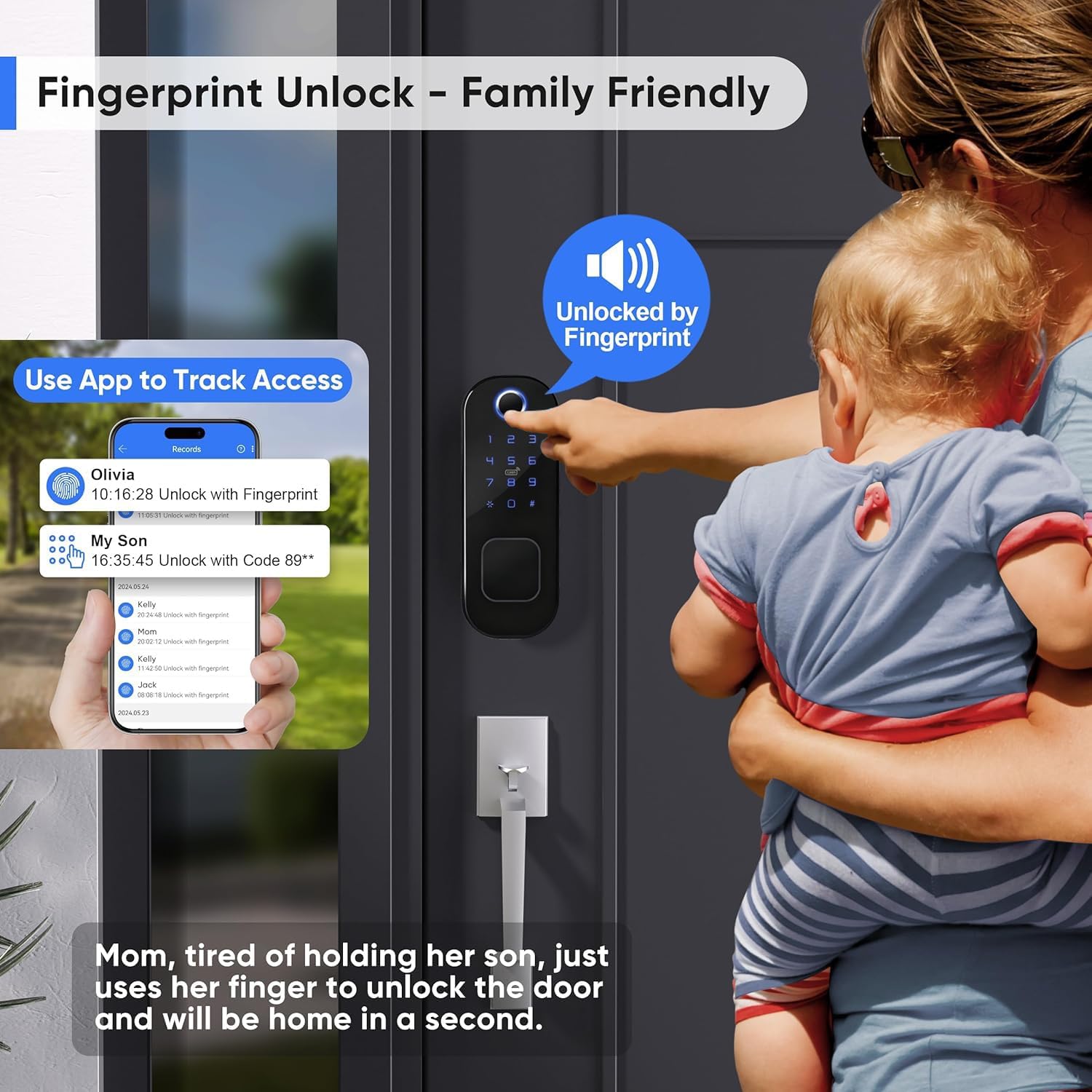
Image 4.1: Detailed diagram showing the dimensions of the Razuvious R5 TT Smart Door Lock's exterior and interior units, including the fingerprint reader, touchscreen keypad, card sensor, mechanical keyhole, USB charging port, unlock button, and battery box location. This image also indicates the suitable door thickness range.
5. Setup and Installation
The Razuvious R5 TT Smart Door Lock is designed for easy installation on doors with a thickness between 30mm and 60mm. Ensure you have 4 AA batteries ready before starting.
5.1 Pre-Installation Checks
- Verify door thickness and backset measurements.
- Ensure the door frame is clear of obstructions.
- Confirm the lock's orientation (universal left & right door opening directions are supported).
5.2 Mechanical Installation
- Install the mortise lock body into the door edge.
- Mount the exterior unit, ensuring the spindle and cable pass through the door.
- Connect the cable from the exterior unit to the interior unit.
- Secure the interior unit to the door using the provided screws.
- Insert 4 AA batteries into the battery compartment of the interior unit.
- Test the mechanical operation of the lock with the mechanical key.
5.3 App Setup (TTLock)
The TTLock app is essential for managing your smart lock. Download it from your device's app store.
- Open the TTLock app and create an account.
- Enable Bluetooth on your smartphone.
- In the app, tap 'Add Lock' and select 'Door Lock'.
- Touch the lock's keypad to wake it up. The app should detect the lock.
- Follow the on-screen prompts to pair the lock with your app.
- Set an administrator password and register your fingerprint.

Image 5.1: Visual representation of the Razuvious R5 TT Smart Door Lock highlighting its key features: 5 ways to unlock, gateway connection requirement for remote access, APP control, universal left & right door opening directions, and support for smart voice control with Google Assistant and Amazon Alexa.
6. Operating Instructions
Your Razuvious R5 TT Smart Door Lock offers multiple convenient ways to unlock and manage access.
6.1 Unlocking Methods
- Fingerprint: Place your registered finger on the fingerprint reader. The lock will unlock if recognized.
- Passcode: Enter your 6-8 digit passcode on the touchscreen keypad, followed by '#'.
- RFID Card: Present a registered RFID card to the card sensor.
- TTLock App (Bluetooth): Open the app, ensure Bluetooth is on, and tap the unlock icon when near the lock.
- Mechanical Key: Insert the mechanical key into the keyhole and turn to unlock.

Image 6.1: A user unlocking the Razuvious R5 TT Smart Door Lock using the fingerprint recognition feature, demonstrating its family-friendly and convenient access method.
6.2 Locking Methods
- Automatic Locking: The lock can be configured to automatically lock after a set period (e.g., 5 seconds) via the TTLock app.
- Manual Locking (Keypad): Press and hold the '#' key on the keypad for 2 seconds.
- TTLock App (Bluetooth): Open the app, ensure Bluetooth is on, and long-press the lock icon when near the lock.
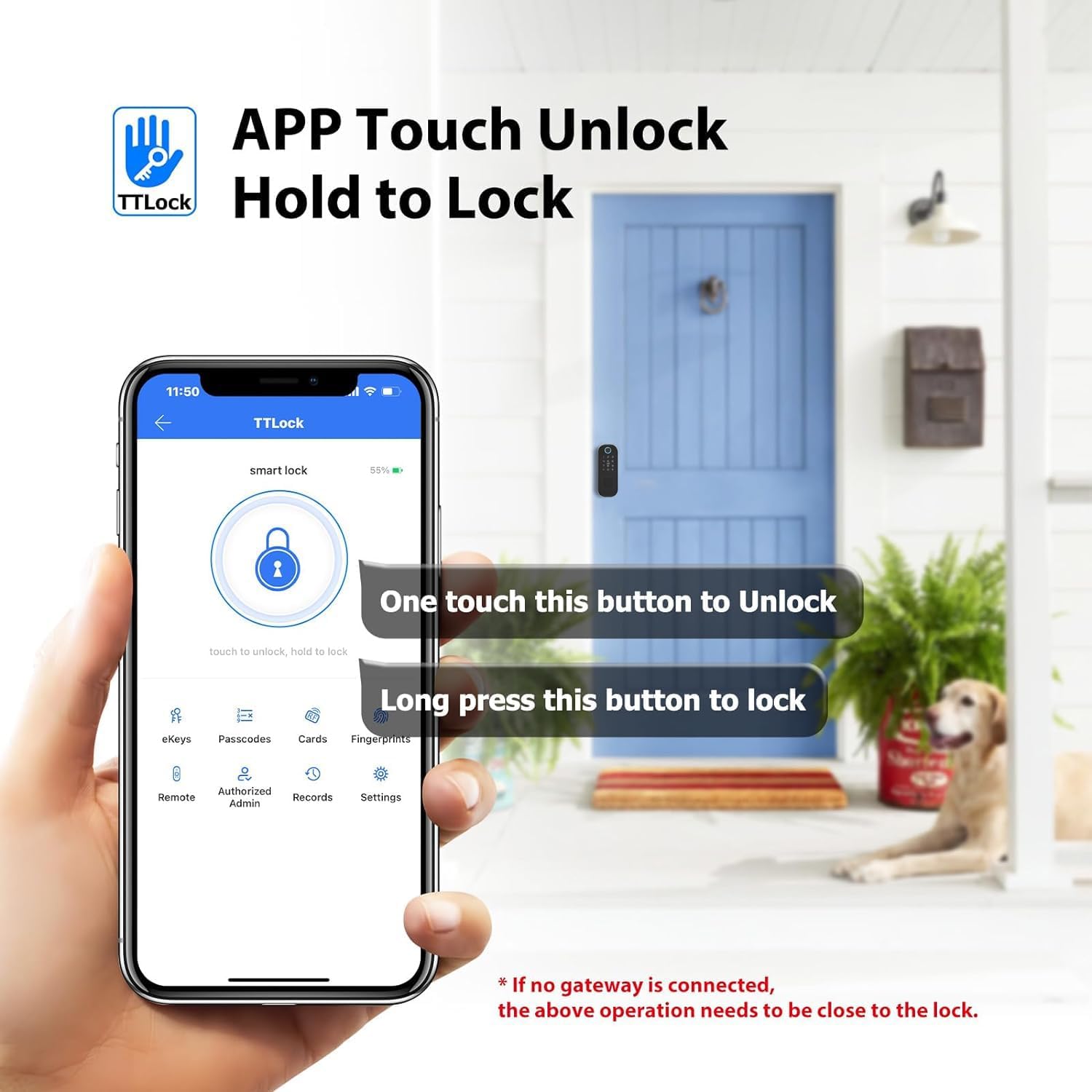
Image 6.2: Screenshot of the TTLock app interface showing the 'touch to unlock, hold to lock' functionality. A single tap on the button unlocks the door, while a long press locks it. Note: Without a gateway, these operations require proximity to the lock.
6.3 User Management via TTLock App
The TTLock app allows comprehensive management of your lock's users and settings.
- Add/Delete Users: Easily add or remove fingerprints, passcodes, and RFID cards for various users.
- Generate Temporary Codes: Create one-time, timed, or recurring passcodes for guests, visitors, or service personnel.
- View Entry Logs: Access a detailed record of who entered and when, including the method used (fingerprint, passcode, app).
- Remote Control (with Gateway): With the optional WiFi Gateway (sold separately, ASIN: B09JWNF6C3), you can remotely lock/unlock, check door status, and manage users from anywhere.
- Voice Assistant Integration (with Gateway): Connect to Alexa or Google Home for voice control of your lock.
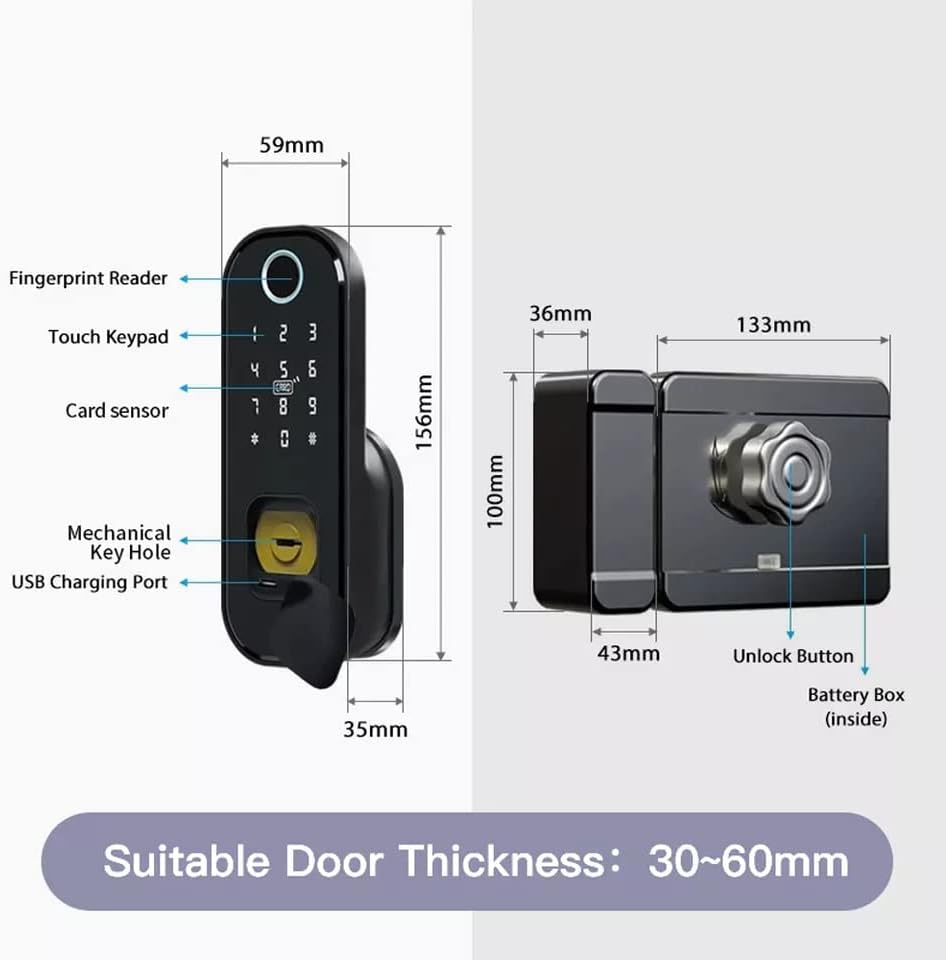
Image 6.3: Illustration of two individuals sharing a generated one-time passcode via their smartphones, demonstrating the convenience of the TTLock app for granting temporary access to friends, visitors, or housekeepers.
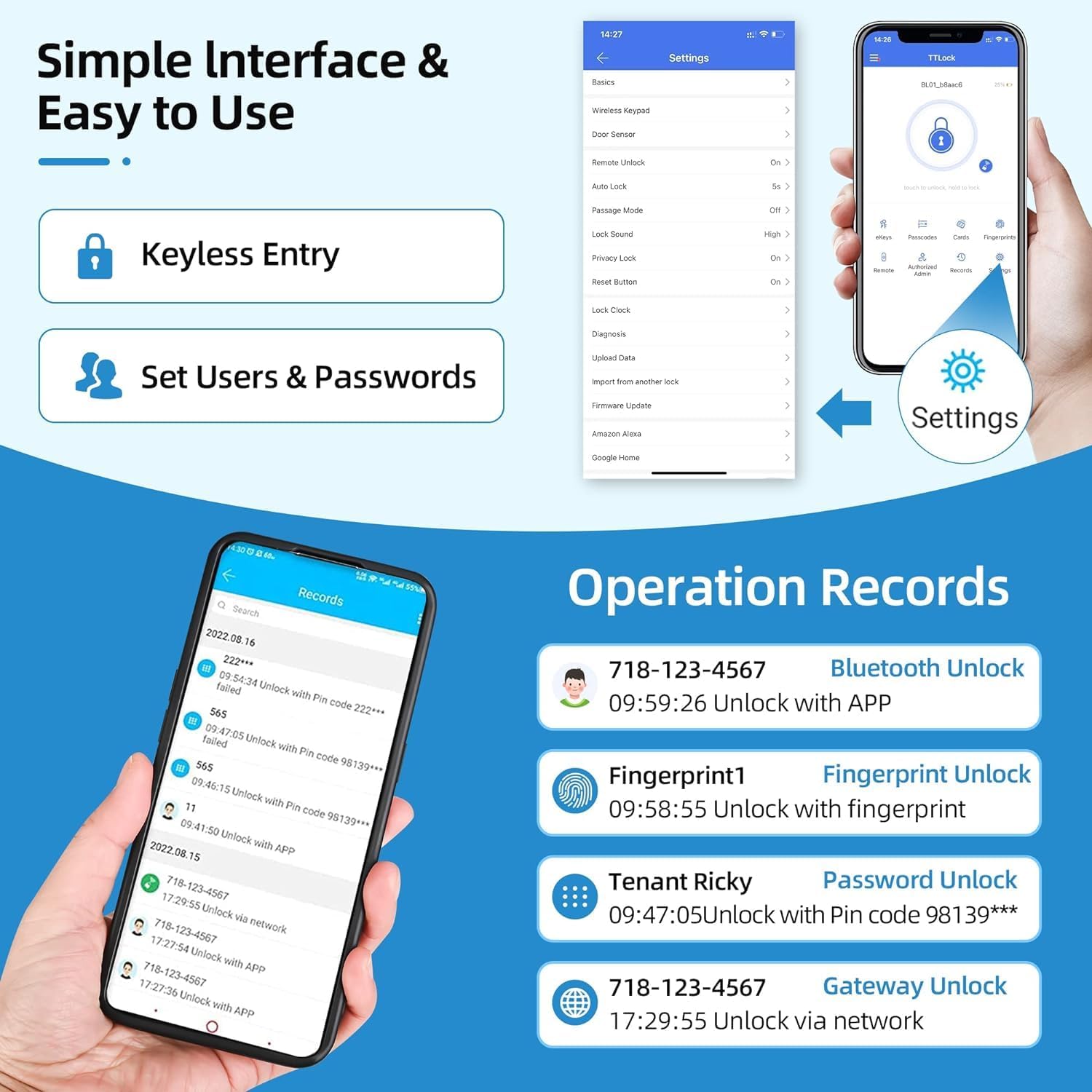
Image 6.4: Screenshots of the TTLock app showing its simple interface for keyless entry, setting users and passwords, and viewing detailed operation records, including Bluetooth unlocks, fingerprint unlocks, password unlocks, and gateway unlocks with timestamps.
7. Maintenance
Regular maintenance ensures the longevity and optimal performance of your smart door lock.
- Cleaning: Wipe the lock's surface with a soft, dry cloth. Avoid abrasive cleaners or solvents that could damage the finish or electronic components.
- Battery Replacement: Replace all four AA batteries when the low battery warning is indicated by the lock or the TTLock app. Do not wait for the batteries to completely drain to avoid being locked out.
- Mechanical Check: Periodically check that all screws are tight and the lock operates smoothly. Lubricate the mortise mechanism if necessary with a graphite-based lubricant.
8. Troubleshooting
If you encounter issues with your Razuvious R5 TT Smart Door Lock, refer to the following common problems and solutions.
- Problem: The lock/unlock function operates in reverse (e.g., 'lock' command unlocks, 'unlock' command locks).
Solution: This typically indicates incorrect installation of the mortise or the lock's orientation setting. Recheck the installation steps, particularly the mortise direction, and ensure the lock's handedness setting in the TTLock app matches your door. - Problem: Fingerprint is not recognized or requires multiple attempts.
Solution: Ensure your finger is clean and dry. Try re-registering your fingerprint in the TTLock app, ensuring full contact with the sensor during the process. Clean the fingerprint sensor surface. - Problem: Cannot connect to the lock via TTLock app or remote features are unavailable.
Solution: Ensure Bluetooth is enabled on your phone and you are within range of the lock for direct app control. For remote control and voice assistant integration, verify that the optional WiFi Gateway is properly installed, powered, and connected to your home Wi-Fi network. - Problem: Keypad is unresponsive.
Solution: Check the batteries. If the batteries are low or dead, replace them. If the issue persists, try a soft reset by removing and reinserting the batteries. - Problem: Mechanical key does not work.
Solution: Ensure the key is fully inserted and turned correctly. If the lock was recently installed, verify that the mortise and cylinder are aligned properly.
9. Warranty and Support
Your Razuvious R5 TT Smart Door Lock comes with a one-year warranty from the date of purchase, covering manufacturing defects. Additionally, we offer a 30-day free return policy if you are not satisfied with your purchase.
For installation assistance, a detailed installation video is available upon request. For further support, troubleshooting, or warranty claims, please contact Razuvious customer service through your retailer or the official support channels.