
1. Introduction
This manual provides detailed instructions for the installation, operation, and maintenance of your ASVEGE 12.1 inch Android GPS Navigation IPS Touch Screen Car Radio, designed specifically for Nissan Navara Pathfinder R51 models from 2008 to 2012. Please read this manual thoroughly before use to ensure proper functionality and safety.
2. What's in the Box
Upon opening the package, please verify that all components are present and undamaged:
- 12.1 inch Android Car Radio Head Unit
- Charging Cable
- GPS Antenna
- USB Cables
- Power Harness with Canbus Decoder
- RCA Cables
- User Manual (this document)

Image: The ASVEGE 12.1 inch Android Car Radio head unit shown with all included cables and accessories, such as the power harness, USB cables, and GPS antenna.
3. Product Features
- Display: 12.1-inch IPS Touch Screen with 1920*1200 Resolution.
- Operating System: Android 13.
- Processor: 8-core CPU with 4GB RAM and 64GB ROM.
- Connectivity: Built-in WiFi, 3G/4G Network support, Bluetooth 5.0.
- Smartphone Integration: Supports Wireless & Wired USB CarPlay and Wired USB Android Auto.
- Navigation: High-precision GPS + GLONASS, supports online and offline maps (Apple Maps, Google, Waze).
- Audio: Built-in DSP with 4*50W amplification, FM Radio.
- Control: Supports Factory Steering Wheel Control, Radar Parking Sensor, and A/C Information Display.
- Voice Command: Microphone and Touchscreen voice command support.

Image: An overview of the multimedia features, highlighting the Android system, powerful CPU, voice control, steering wheel control integration, Bluetooth 5.0, 360-degree panorama view, and AHD 1080P backup camera compatibility.
4. Setup and Installation
This section guides you through the physical installation and initial setup of your car radio. Professional installation is recommended.
4.1 Compatibility Check
Ensure your vehicle's dashboard matches the compatible configuration. This unit is designed for Nissan Navara Pathfinder R51 models from 2008-2012 with the specific dashboard layout shown below.

Image: A visual guide indicating the correct dashboard configuration for installation (left) and an incompatible one (right) for Nissan Navara Pathfinder R51 2008-2012 models.
4.2 Wiring Connections
Connect the provided wiring harness and accessories according to your vehicle's existing connections. Pay close attention to the Canbus and original plugs.

Image: Detailed view of connecting the 4th pin to the DH-9004 wiring harness.

Image: Connecting the provided plug to the original car defroster plug.
4.3 Wireless CarPlay and Android Auto Connection
To utilize Wireless CarPlay or Android Auto, ensure your phone's Bluetooth is enabled and paired with the head unit. Then, open the respective application on the head unit.
Video: Demonstrates how to connect Wireless CarPlay on Sc7862 Android Head Units, showing the steps for Bluetooth pairing and activating CarPlay.
Video: Provides a step-by-step guide on how to connect your car radio, including initial setup and pairing procedures.
5. Operating Instructions
Your ASVEGE car radio offers a wide range of functions accessible via the intuitive touch screen interface.
5.1 General Interface and Navigation
The main screen provides quick access to essential functions like Navigation, Music, and Radio. Swipe left or right to access additional applications.

Image: The main application screen of the head unit, showing various apps for multimedia, navigation, and settings.
Video: A demonstration of the ASVEGE Car Radio for Nissan Navara Pathfinder 2008-2012, showcasing its user interface and various functions.
Video: Displays the functions and details of the Android screen after installation, including app navigation and settings.
5.2 CarPlay and Android Auto
Once connected, CarPlay or Android Auto will mirror your smartphone's interface, allowing access to navigation, music, calls, and messages directly from the head unit's screen.

Image: The head unit showcasing both Wireless CarPlay and Android Auto interfaces, demonstrating seamless smartphone integration.
Video: A demonstration of the 'Perfect Android screen', highlighting its features and user experience, including CarPlay functionality.
Video: Showcases the Nissan Pathfinder Android Radio with a Tesla-style touch screen, demonstrating its various features and responsiveness.
Video: Demonstrates the Car Radio Stereo with Wireless CarPlay, Android Auto, GPS, FM, and WiFi functionalities.
5.3 GPS Navigation
Access the navigation application to use pre-installed maps or download your preferred navigation apps. The system supports both online and offline maps for reliable guidance.
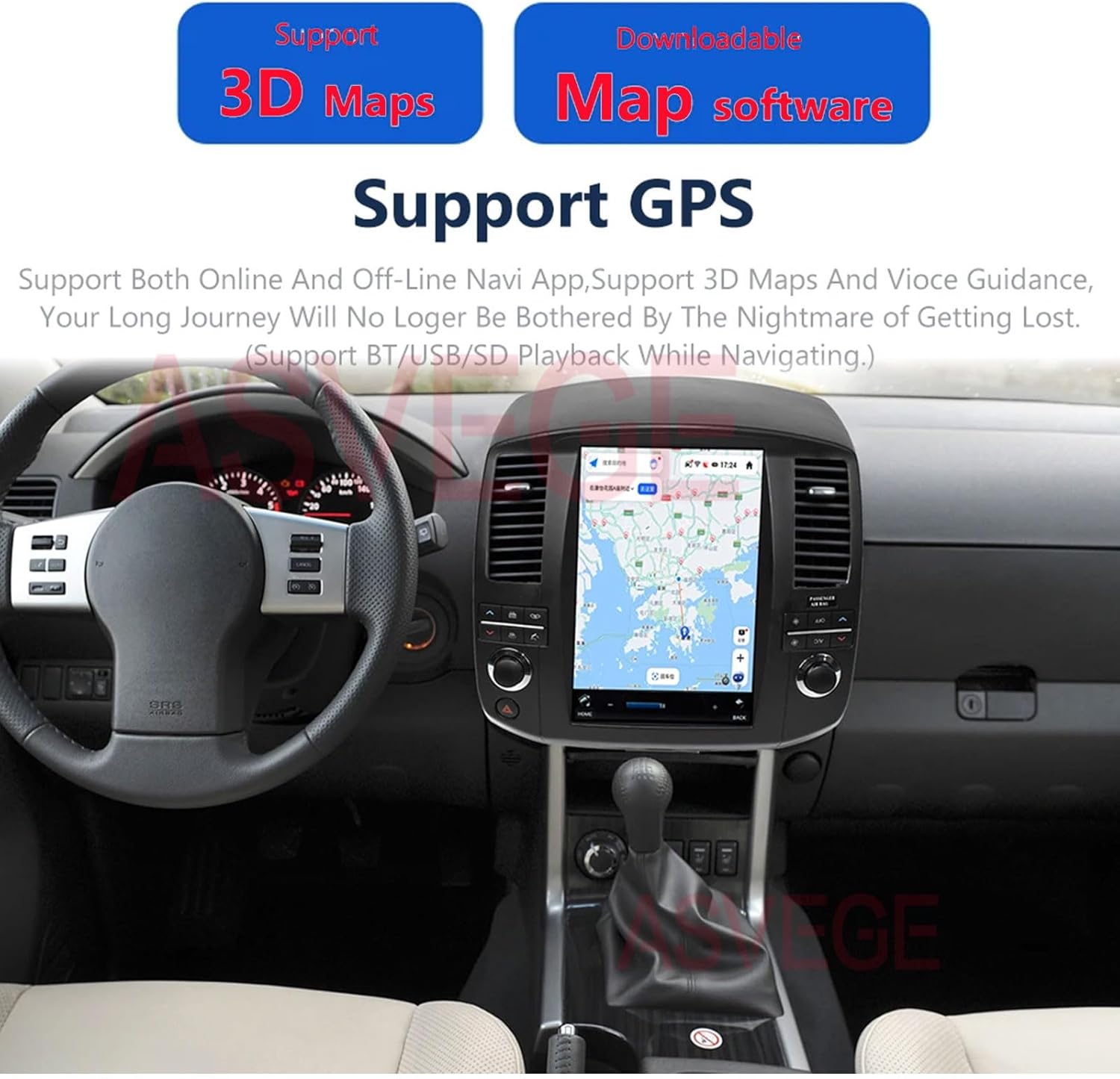
Image: The head unit displaying GPS navigation, highlighting support for 3D maps and downloadable map software.
5.4 Steering Wheel Controls
The unit integrates with your vehicle's factory steering wheel controls, allowing you to manage audio, calls, and other functions without taking your hands off the wheel.

Image: Interface for customizing steering wheel controls, showing various functions that can be assigned to your vehicle's buttons.
6. Specifications
| Feature | Detail |
|---|---|
| Item Weight | 10.34 pounds |
| Package Dimensions | 18.5 x 17.72 x 9.06 inches |
| Display Size | 12.1 Inches |
| Voice Command | Microphone, Touchscreen |
| Brand | ASVEGE |
| Vehicle Service Type | Car |
| Special Feature | Bluetooth, Touchscreen |
| Connectivity Technology | Powerline |
| Map Type | Worldwide |
| Audio Output Mode | Stereo |
| Mounting Type | Dashboard Mount |
| Operating System | Android |
7. Maintenance and Troubleshooting
To ensure the longevity and optimal performance of your ASVEGE car radio, follow these general maintenance guidelines:
- Keep the screen clean using a soft, lint-free cloth. Avoid harsh chemicals.
- Ensure all connections are secure to prevent intermittent issues.
- Regularly update the system software for improved performance and new features.
If you encounter any issues, try the following basic troubleshooting steps:
- No Power: Check all power connections and vehicle fuses.
- No Sound: Verify speaker connections and audio settings on the unit.
- Touch Screen Unresponsive: Perform a soft reset (refer to device settings for reset options).
- GPS Signal Loss: Ensure the GPS antenna is properly installed and has a clear view of the sky.
- CarPlay/Android Auto Connection Issues: Re-pair your phone via Bluetooth and ensure the respective app is updated on both your phone and the head unit.
8. Warranty and Support
Your ASVEGE car radio comes with a 12-month warranty covering manufacturing defects. For warranty claims or technical assistance, please contact the seller directly.
Seller: Asvege US Store
Support: The Asvege US Store is committed to providing high-quality customer service. For any questions or concerns regarding your product, including compatible vehicle factory radio upgrade processes, detailed step-by-step instructions, or troubleshooting, please reach out to the seller.
- 30-day money-back guarantee for any reason.
- 12-month warranty for quality-related & feature issues.

Image: Guide on how to contact the seller for support via Amazon.