
1. Introduction
This manual provides detailed instructions for the installation, operation, and maintenance of your Inefala 4G 128G Car Stereo. Please read this manual thoroughly before using the product to ensure proper function and safety. Keep this manual for future reference.
2. Product Overview
The Inefala 4G 128G Car Stereo is an advanced infotainment system designed for Toyota Fortuner and Hilux models from 2005 to 2014. It features a 9-inch Incell Touchscreen, Android 15 operating system, and supports various connectivity options to enhance your driving experience.
Key Features:
- Applicable Models: Toyota Fortuner Hilux 2005-2014 (Manual A/C and Auto A/C).
- Operating System: Android 15 with 4GB RAM and 128GB ROM.
- Display: 9-inch Incell Touchscreen with 1280 x 720 resolution, 178° viewing angle, improved light transmission and color contrast.
- Connectivity: Wireless CarPlay & Android Auto, Wireless/Wired Mirror Link, Bluetooth 5.0, Wi-Fi, GPS/BeiDou/Galileo/Glonass navigation.
- Audio: EQ options, FM/RDS radio with 54 preset stations.
- Additional Features: AHD backup camera support, steering wheel control learning, 15 desktop themes, 1080P video playback.
3. Setup & Installation
3.1. Applicable Models
This dash kit is designed for Toyota Fortuner Hilux models manufactured between 2005 and 2014, compatible with both Manual A/C and Auto A/C systems.
3.2. Included Components
The package includes:
- Inefala Android Radio for Toyota Fortuner Hilux
- Power Cable
- RCA Harness
- GPS Antenna
- AHD Backup Camera
- Rear Camera Input Cable
- External Microphone
- Dual USB Cable
- Installation Tool & Accessories
3.3. Pre-Installation Check
Before proceeding with the full installation, perform a quick check:
- Connect the red and yellow wires of the car stereo to the positive pole of the 12V battery.
- Connect the black wire to the negative pole of the battery.
- After 2 seconds, check the car stereo. If the screen lights up, the stereo is functioning normally. If the car player turns on but the device does not work after installation, recheck the installation procedure.
Important Tips:
- Double-check that the power cable port matches the port of your car.
- No need to connect all sockets if they don't fit; the harness may contain spare sockets for different car models.
- If the wiring harness is different or accessories are missing/damaged, contact customer service for assistance.
3.4. Port Details
Refer to the diagram below for the port connections on the rear of the unit.

Figure 3.4: Rear Port Connections
3.5. Reversing Camera Wiring
The included AHD backup camera provides clear night vision and is waterproof. Proper wiring is essential for its function.
- Tip: The reversing input must be plugged in even if the reversing camera is not used, otherwise, Wi-Fi and Bluetooth signals may be affected.
- Cable 1 and Cable 5: Connect the positive pole of the car reversing light cable.
- Cable 2: Connect the negative pole of the car reversing light cable.
- Cable 3 and Cable 4: Connect to the reverse trigger wire of the power cable (labeled 'Reverse/Back'). If not needed, pull it out.

Figure 3.5: Backup Camera Wiring Diagram
4. Operating Instructions
Your Inefala car stereo offers a wide range of functions. This section details how to navigate and utilize its various features. For visual guidance on many settings, please refer to the official product video below.
Video 4.1: Inefala Car Radio Interface and Settings Overview. This video demonstrates various system settings, including language, time, Wi-Fi, display brightness, touch calibration, button learning, CAN settings, split screen, speed unit, memory clear, steering wheel controls, UI themes, radio, EQ, Bluetooth, CarPlay, and Android Auto connections.
4.1. Basic Settings (Refer to Video 4.1 for visual guide)
- Language Settings: Navigate to Settings > More Settings > Language & input > Language Settings to select your preferred language.
- Time Settings: Adjust date and time via Settings > More Settings > Date and time. You can use GPS to provide time.
- Wi-Fi Connection: Enable Wi-Fi in Settings > Wi-Fi. Select your network and enter the password to connect. This allows access to online apps.
- Screen Brightness Adjustment: Go to Settings > Display > Day/Night to adjust brightness levels. You can also swipe down the status bar for quick adjustments.
- Touch Calibration (Five-Point Calibration): Access via Settings > Factory Setup (password 1234) > Touch Calibration. Follow on-screen prompts to calibrate the touchscreen.
- Touch Button Learning: In Settings > Factory Setup (password 1234) > Touch Button Learning, you can assign functions to physical buttons on the unit.
- Key Learning: For units with physical buttons, go to Settings > Factory Setup (password 1234) > Knob Panel Button Learning to configure button functions.
- Backcar Source Settings: Adjust rear camera input settings via Settings > Factory Setup (password 1234) > Backcar Source Settings.
- CAN Settings: Configure CAN bus settings for vehicle integration in Settings > Factory Setup (password 1234) > Can Settings.
- Split Screen Settings: Enable or disable split screen functionality via Settings > Factory Setup (password 1234) > Split screen function.
- Speed Unit Switch: Tap the speed unit on the main screen to toggle between kilometers per hour (km/h) and miles per hour (mph).
- Clear Memory: Swipe down from the top of the screen and tap the 'Clean up' icon to optimize memory.
4.2. Steering Wheel Control Learning
To integrate your vehicle's steering wheel controls with the car stereo:
- Open the 'SteeringWheelKey' app from the main menu.
- Press and hold the desired function on the screen (e.g., 'Mode', 'Volume-', 'Volume+').
- While holding the screen function, press the corresponding button on your steering wheel.
- Repeat for all desired functions. Save changes when complete.
Note: Activation of steering wheel controls requires key learning in settings. If your vehicle has a CANBUS box, connect the 20-pin white port in the power cable to the CANBUS itself, and the remaining 8-pin white port to the corresponding port on the back of the radio. Match the car model in Settings > Factory Setup (Password 1234) > Can Settings.

Figure 4.2: Steering Wheel Control Learning Interface
4.3. UI Theme Selection
The stereo offers 15 different desktop themes for customization. Access 'ThemeSelect' from the app menu to browse and apply themes. Some themes allow wallpaper customization.

Figure 4.3: UI Desktop Themes
4.4. Radio Settings
Access the Radio app to adjust radio bands, frequencies, and search for stations. The system supports FM/RDS radio with 54 preset stations.
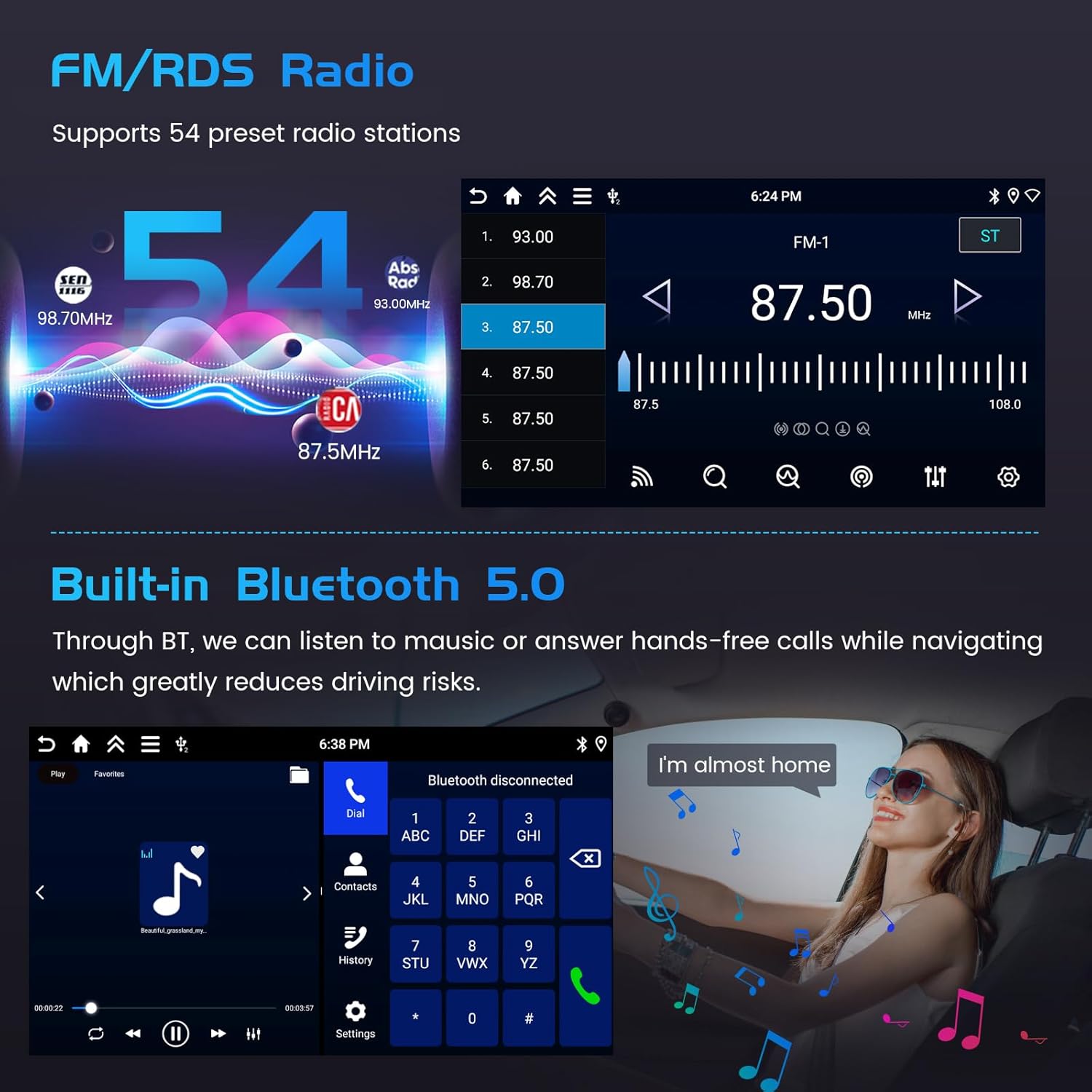
Figure 4.4: FM/RDS Radio Interface
4.5. EQ Settings
Customize your audio experience using the EQ settings. You can select from preset equalizer modes (e.g., Rock, Pop, Jazz) or manually adjust frequency bands. The 'Sound Field' option allows you to adjust audio focus within the car cabin.
4.6. Bluetooth Connection
Connect your mobile phone via Bluetooth 5.0 for hands-free calling, phone book download, and music streaming.
- Go to the 'BT Call' app from the main menu.
- Ensure Bluetooth is enabled on your phone and the car stereo.
- In the stereo's Bluetooth settings, search for new devices.
- Select your phone from the list and confirm the pairing request.
- Once connected, you can make calls and play music wirelessly.
4.7. CarPlay & Android Auto Connection
The stereo supports wireless CarPlay and Android Auto for seamless integration with your smartphone. This allows access to navigation, music, calls, and messages directly from the car's touchscreen.
- Open the 'S-Play' app from the main menu.
- Ensure Bluetooth is enabled on your phone and the car stereo.
- For CarPlay, ensure Wi-Fi is also enabled on your iPhone.
- The system will automatically attempt to connect. Follow any on-screen prompts on your phone to allow access.
Note: For some Samsung and Huawei phones, Android Auto and Mirror Link functionality may not be fully supported. Your phone needs to support Google Services and have the 'Android Auto' app installed.

Figure 4.7: Wireless CarPlay and Android Auto
4.8. Mirror Link
Mirror Link allows you to display your phone's screen on the car stereo. This can be done wirelessly or via a wired USB connection.

Figure 4.8: Mirror Link Functionality
4.9. GPS Navigation
The system supports both online and offline navigation using GPS, BeiDou, Galileo, and Glonass for wide coverage. Real-time road conditions can help avoid traffic. Connect to Wi-Fi to download map data for offline use.

Figure 4.9: GPS Navigation Interface
5. Maintenance
To ensure the longevity and optimal performance of your Inefala Car Stereo, follow these general maintenance guidelines:
- Cleaning: Use a soft, dry cloth to clean the screen and exterior. Avoid abrasive cleaners or solvents that could damage the surface.
- Software Updates: Periodically check for software updates to ensure you have the latest features and bug fixes. Updates are typically available via Wi-Fi connection.
- Temperature Control: Avoid exposing the unit to extreme temperatures. Prolonged exposure to direct sunlight or very cold conditions can affect performance.
- Power Management: Ensure your vehicle's electrical system is in good condition to prevent power fluctuations that could harm the stereo.
6. Troubleshooting
If you encounter issues with your Inefala Car Stereo, consider the following basic troubleshooting steps:
- No Power: Check all power connections. Ensure the red and yellow wires are connected to the positive 12V battery terminal and the black wire to the negative terminal. Verify the vehicle's fuse.
- No Sound: Check speaker connections. Ensure volume is not muted or set too low. Verify EQ settings.
- Touchscreen Unresponsive: Perform a touch calibration as described in Section 4.1. If the issue persists, a system restart may be necessary.
- Wi-Fi/Bluetooth Connectivity Issues: Ensure Wi-Fi and Bluetooth are enabled on both the stereo and your device. Try forgetting and re-pairing Bluetooth devices or re-connecting to Wi-Fi networks. Ensure the reversing input is plugged in, even if not using a camera, as it can affect signal.
- CarPlay/Android Auto Not Connecting: Verify Bluetooth connection. For CarPlay, ensure Wi-Fi is also active on your iPhone. Check phone compatibility and ensure necessary apps are installed (e.g., Android Auto app).
- Steering Wheel Controls Not Working: Re-perform the steering wheel control learning process (Section 4.2). Check CANBUS settings if applicable.
If these steps do not resolve the issue, please contact customer support.
7. Specifications
| Feature | Detail |
|---|---|
| Brand | Inefala |
| Model Name | Android Car Stereo Upgrade Radio |
| Vehicle Service Type | Car |
| Screen Size | 9 Inches |
| Special Feature | Hands-free Bluetooth, Touchscreen, FM/RDS Radio, Support Reverse Input, Steering Wheel Learning, In-Cell 1280*720 Resolution, 1080P Video Playback, EQ, 15 UI, Wireless CarPlay & Android Auto, Wireless/Wired Mirror Link, Siri/Google Voice Assistant, GPS Navigation, WiFi/Hotspot Connection |
| Connectivity Technology | Bluetooth, USB, Wi-Fi |
| Map Type | Worldwide |
| Audio Output Mode | Stereo |
| Mounting Type | Dashboard Mount |
| Operating System | Android |
| Memory Storage Capacity | 128 GB |
| Touch Screen Type | Capacitive |
| Display Type | LCD |
| Human-Interface Input | Microphone, Touchscreen |
| Compatible Devices | iPhones, Most Android Phones |
| Control Method | Touch |
| Supported Satellite Navigation System | BeiDou, GLONASS, GPS, Galileo |
| Manufacturer Part Number | Inefala-A7185A3453H1MI2US53-C251 |
8. Warranty
The Inefala 4G 128G Car Stereo comes with a 1-Year Warranty from the date of purchase. This warranty covers manufacturing defects and ensures the product meets quality standards. Please retain your proof of purchase for warranty claims.
9. Support
For technical assistance, troubleshooting, or any inquiries regarding your Inefala Car Stereo, please contact our customer support team.
How to Reach Us:
- Visit the Inefala Store on Amazon.
- Click on "Ask a question" to send us your query.
Please provide relevant pictures or videos to help us resolve your issue faster. All messages will be replied to within 24 hours, excluding holidays.
Seller: Inefala Direct

Figure 9.1: Customer Support Contact Information


