
Introduction
The TODAAIR AC1200 WiFi Extender is a dual-band WiFi booster designed to significantly expand your existing wireless network coverage. It effectively eliminates Wi-Fi dead zones, providing a stronger and more reliable signal for seamless connectivity throughout your home or garden. This device supports both 2.4GHz and 5GHz bands, delivering combined speeds up to 1200Mbps, making it suitable for streaming, gaming, and general internet browsing across multiple devices.
- Dual-Band Connectivity: Supports both 2.4GHz (300Mbps) and 5GHz (867Mbps) for versatile connection options.
- Extended Coverage: Capable of extending WiFi range up to 1290 sq. ft.
- Multi-Device Support: Connects up to 25 devices simultaneously, including laptops, smartphones, speakers, IP cameras, and smart home devices.
- Enhanced Security: Supports WPA-PSK/WPA2-PSK and WPA/WPA2 wireless security protocols to protect your network.
- Flexible Antenna Design: Features a 180° rotating antenna for optimized signal reception and stability.
Package Contents
Please verify that all items are present in your package:
- 1 x TODAAIR AC1200 WiFi Extender
- 1 x User Manual (this document)
Product Overview
Familiarize yourself with the physical components of your WiFi Extender.

Image: The TODAAIR AC1200 WiFi Extender, a compact white device with a rotatable upper section, plugged into a standard wall outlet. A blue indicator light is visible on the top surface, and a 'RES' (Reset) button is located below it. The base of the device, which plugs into the outlet, features the 'Todaair' brand name.
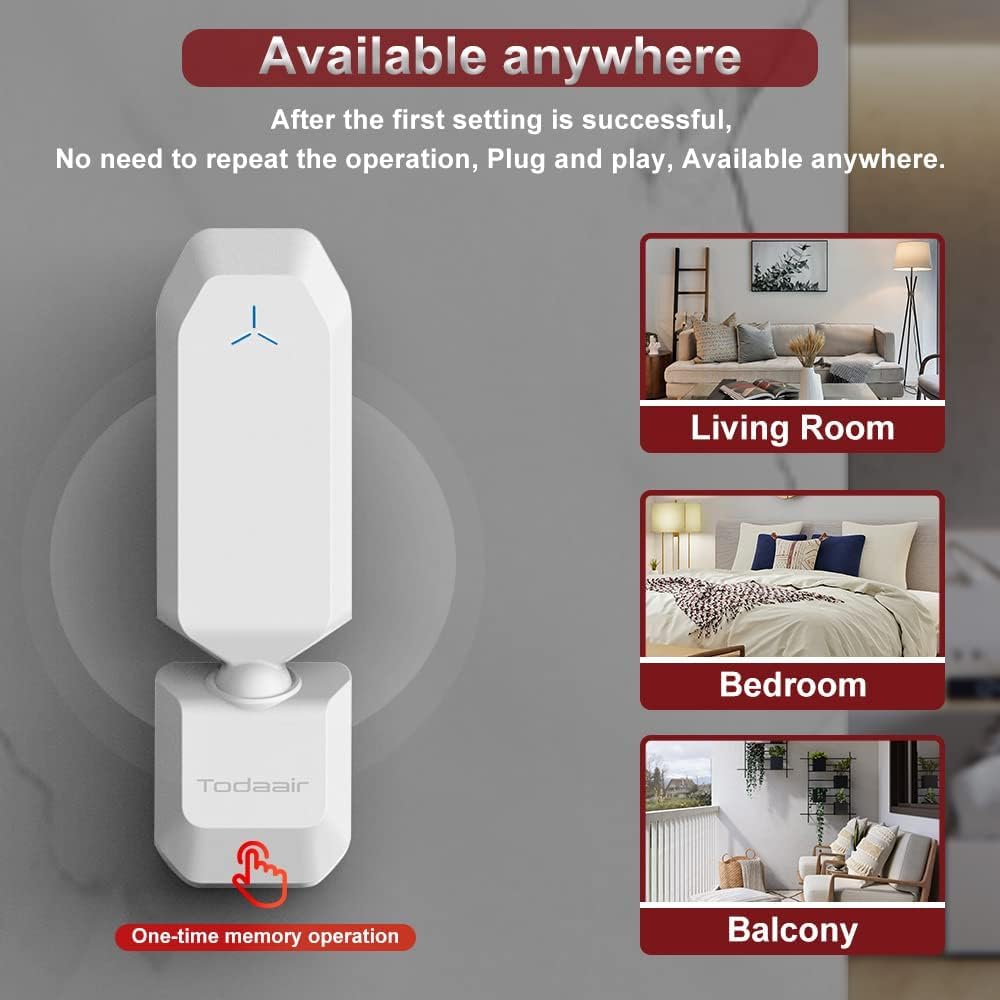
Image: A diagram illustrating the 180-degree rotating capability of the WiFi Extender's antenna. Two instances of the extender are shown, one upright and one rotated, with arrows indicating the range of motion. The text highlights "180° Rotating" and "Flexible" design, emphasizing its adaptability for optimal signal direction.
Image: A visual representation of the WiFi Extender's multi-device connection capability. The extender is centrally placed in a room with large windows, surrounded by various smart devices such as security cameras, smart light bulbs, and string lights, all connected by a circular blue line symbolizing the extended WiFi coverage.
Setup Instructions
Follow these steps for initial setup of your TODAAIR AC1200 WiFi Extender:
- Power On: Plug the WiFi Extender into a standard wall outlet in an area where your existing WiFi signal is still detectable but weak. The indicator light on the extender should illuminate.
- Connect to Extender's Network: On your smartphone, tablet, or computer, go to your Wi-Fi settings. Look for an unsecured network named "TDAir" and connect to it.
- Access Management System: Once connected, your device may automatically open a browser window to the Repeater Management System. If not, open a web browser and navigate to the address provided in the physical instruction manual (e.g., todaair.link or captive.apple.com as seen in some setups).
- Login: When prompted, enter the default password, which is typically "admin".
- Select Band and Survey: In the management interface, you can choose between 2.4G or 5G bands. Click the "Survey" button to scan for available wireless networks in your vicinity.
- Select Your Network: From the list of scanned networks, select your main home WiFi network (SSID).
- Enter Password: Enter the password (PSK Password) for your main home WiFi network.
- Apply Settings: Confirm your settings and apply the configuration. The extender will restart to apply the changes.
- Reconnect to Extended Network: After the extender restarts, go back to your device's Wi-Fi settings. You should now see a new extended network (often with "_EXT" or similar appended to your original network name, or simply "TDAir" if configured as a repeater). Connect to this network using your main WiFi password.
For additional control and management, the TODAAIR AC1200 WiFi Extender can also be controlled via the Tuya APP.
Operating Instructions
Once the setup is complete, the TODAAIR AC1200 WiFi Extender operates as a plug-and-play device. It will automatically extend your WiFi signal based on the configured settings.
- Optimal Placement: For best performance, place the extender roughly halfway between your main router and the area where you need improved signal. Ensure the indicator lights on the extender show a strong connection to your main router.
- Signal Strength: The 180° rotating antenna allows you to adjust its orientation to optimize signal reception and transmission, especially useful in homes with multiple walls or obstacles.
- Seamless Connectivity: Devices connected to the extended network should experience improved signal strength and reduced buffering, enabling smoother streaming, online gaming, and video calls.
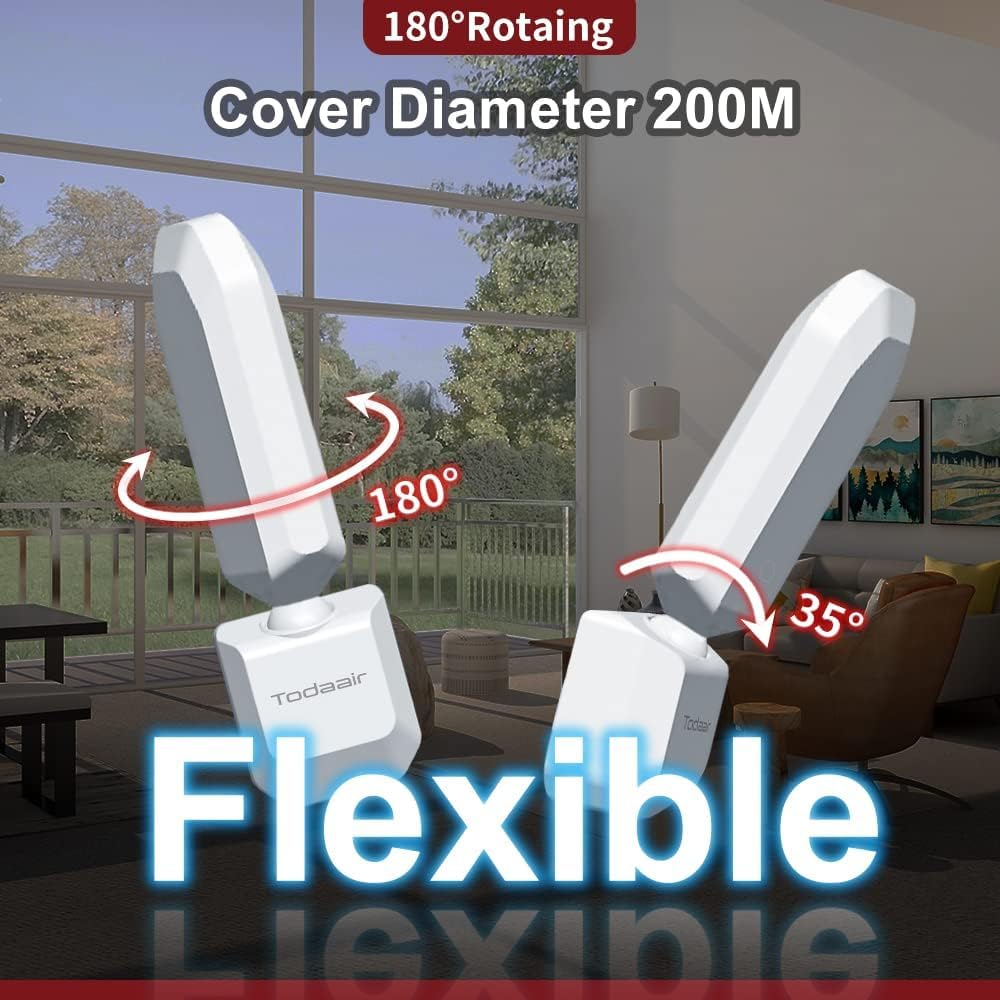
Image: A diagram demonstrating the correct and incorrect placement of a WiFi repeater. The "Correct Use" section shows the repeater positioned midway between the router and the receiving device, ensuring a good signal. The "Error Demonstration" section shows the repeater placed too far from the router, resulting in no signal extension.
Maintenance
To ensure the longevity and optimal performance of your TODAAIR AC1200 WiFi Extender, consider the following maintenance tips:
- Placement: Keep the device in a well-ventilated area, away from direct sunlight, heat sources, and excessive moisture.
- Cleaning: Use a soft, dry cloth to clean the exterior of the device. Do not use liquid cleaners or aerosols.
- Firmware Updates: Periodically check the manufacturer's website for any available firmware updates. Keeping the firmware updated can improve performance, security, and add new features.
- Power Cycle: If you experience intermittent connectivity issues, try unplugging the extender from the power outlet for 10-15 seconds, then plug it back in. This can often resolve minor glitches.
Troubleshooting
If you encounter issues with your WiFi Extender, refer to the following common problems and their solutions:
| Problem | Possible Cause | Solution |
|---|---|---|
| No signal or weak signal from extender. | Extender is too far from the main router or in a signal dead zone. | Relocate the extender closer to your main router, ensuring it's within the router's strong signal range. Refer to the "Optimal Placement" section. |
| Cannot connect to the extender's setup network ("TDAir"). | Extender not powered on, or device is not scanning for networks correctly. | Ensure the extender is plugged in and powered on. Restart your device (phone/computer) and try scanning for networks again. |
| Forgot Repeater Management System password. | Password lost or forgotten. | Locate the "RES" (Reset) button on the extender. With the extender powered on, use a paperclip or similar pointed object to press and hold the "RES" button for approximately 5-10 seconds until the indicator lights flash. This will restore the extender to factory default settings, including the "admin" password. You will need to reconfigure it. |
| Frequent disconnections or unstable connection. | Interference, outdated firmware, or suboptimal placement. | Try repositioning the extender to minimize interference from other electronic devices. Ensure the extender's firmware is up to date. Perform a power cycle (unplug and replug). |
If problems persist, please contact TODAAIR Technical Support for assistance. Our team is ready to help you resolve any issues as soon as possible.
Specifications
| Feature | Detail |
|---|---|
| Brand | TODAAIR |
| Model Number | AC1200 |
| Wireless Communication Standard | 802.11ac |
| Data Transfer Rate | 1200 Megabits Per Second |
| Frequency Band Class | Dual-Band |
| Special Feature | 180° Rotating Antenna |
| Item Weight | 7 ounces |
| Package Dimensions | 8.46 x 3.07 x 3.03 inches |
Warranty and Support
For any technical assistance or inquiries regarding your TODAAIR AC1200 WiFi Extender, please reach out to the manufacturer's technical support team. Contact information can typically be found on the product packaging or the official TODAAIR website.
Additionally, extended protection plans may be available for purchase to cover your device beyond the standard manufacturer's warranty. Please check with your retailer for details on available protection plans.