
1. Introduction
This manual provides detailed instructions for the installation, operation, and maintenance of your Inefala Android 13 Car Stereo system, designed specifically for Toyota FJ Cruiser models manufactured between 2006 and 2022. Please read this manual thoroughly before installation and use to ensure proper function and to maximize your experience with the device.
The system features an Android 13 operating system, an 8-core CPU (AC8257), 4GB RAM, and 64GB ROM, offering a responsive and feature-rich in-car entertainment and navigation experience. Key functionalities include wireless/wired CarPlay and Android Auto, GPS navigation, Bluetooth 5.0, FM/RDS radio, and AHD backup camera support.
2. Package Contents
Verify that all items listed below are included in your package. If any items are missing or damaged, please contact your retailer.
- 1 x Inefala Android Radio for Toyota FJ Cruiser
- 1 x Power Cable
- 1 x CANBUS Decoder
- 1 x RCA Harness
- 1 x GPS Antenna
- 1 x AHD Backup Camera
- 1 x Rear Camera Input Cable
- 1 x External Microphone
- 2 x USB Cables
- 1 x Installation Tool Set
3. Setup and Installation
This unit is designed for direct replacement in Toyota FJ Cruiser models from 2006 to 2022. Professional installation is recommended. Ensure the vehicle's power is disconnected before beginning installation.
3.1 Compatibility Check
Before installation, compare the power cable port on the provided harness with your vehicle's original wiring harness to ensure compatibility. The stereo comes with an in-dash head unit, wiring harness cables, CANBUS decoder, and a frame panel designed to integrate seamlessly with your FJ Cruiser's dashboard.
3.2 Installation Steps (General Overview)
- Carefully remove the original factory radio and dashboard trim.
- Connect the provided power cable, CANBUS decoder, and RCA harness to the new head unit and the vehicle's wiring.
- Install the GPS antenna in a location with a clear view of the sky.
- Route and connect the AHD backup camera and its input cable (if installing).
- Connect the external microphone for hands-free calling.
- Secure the new head unit into the dashboard opening and reassemble the trim.
- Reconnect the vehicle's power and test all functions.
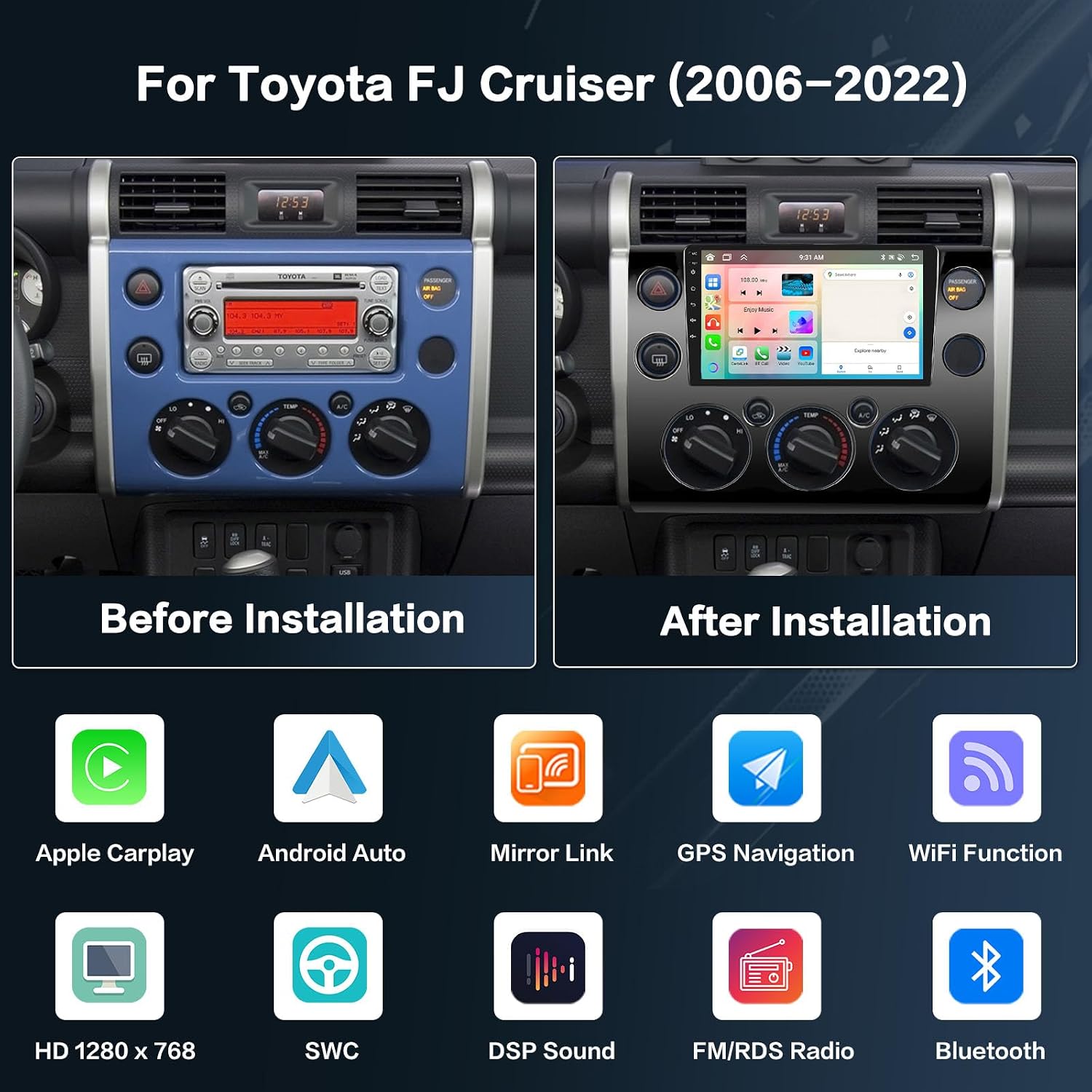
Image: Comparison of the Toyota FJ Cruiser dashboard before and after the installation of the Inefala Android 13 Car Stereo. The image shows the original factory radio on the left and the new 9-inch touchscreen unit integrated into the dashboard on the right, along with icons representing key features like Apple CarPlay, Android Auto, Mirror Link, GPS Navigation, WiFi Function, HD 1280x768 resolution, Steering Wheel Control (SWC), DSP Sound, FM/RDS Radio, and Bluetooth.
4. Operating Instructions
4.1 CarPlay & Android Auto & Mirror Link
The system supports both wireless and wired CarPlay and Android Auto, providing seamless integration with your smartphone for navigation, music, calls, and messages. Mirror Link functionality is also available.
- Wireless Connection: Connect via WiFi hotspot.
- Wired Connection: Use your phone's original USB cable.
- Note: Some Samsung phones may have limitations with Android Auto and Mirror Link. Some Huawei phones may have limitations with Android Auto.

Image: This image illustrates the wireless CarPlay, Android Auto, and Mirror Link functionalities. It shows a smartphone screen mirrored onto the car stereo display, with options for hotspot connection or USB/Bluetooth connection. Examples of applications like iHeartRadio, Telegram, SiriusXM, NPR One, Waze, Spotify, MLB, and WhatsApp are visible on the CarPlay interface, while Android Auto displays apps such as Exit, Map, Phone, Messages, NetEase Music, Spotify, TikTok, and YouTube.
4.2 GPS Navigation & WiFi Hotspot
The head unit includes a built-in GPS module. Navigation software like Waze and free offline maps can be utilized. Connect to a WiFi hotspot for online maps and to download additional applications from the Google Play Store, such as YouTube or TikTok.

Image: This image demonstrates the GPS navigation and WiFi hotspot capabilities. The top panel shows a navigation map with route guidance and points of interest. The bottom panel illustrates the WiFi hotspot function, allowing users to download various applications from the Play Store, including social media, streaming services, and games, enriching the in-car experience.
4.3 Hands-free Bluetooth & FM/RDS Radio
The system supports Bluetooth 5.0 for hands-free calling, phone book downloads, and music playback. The built-in microphone ensures clear communication. The stable FM/RDS radio allows you to preset up to 18 stations, providing access to channel broadcasts, weather forecasts, and real-time traffic conditions.
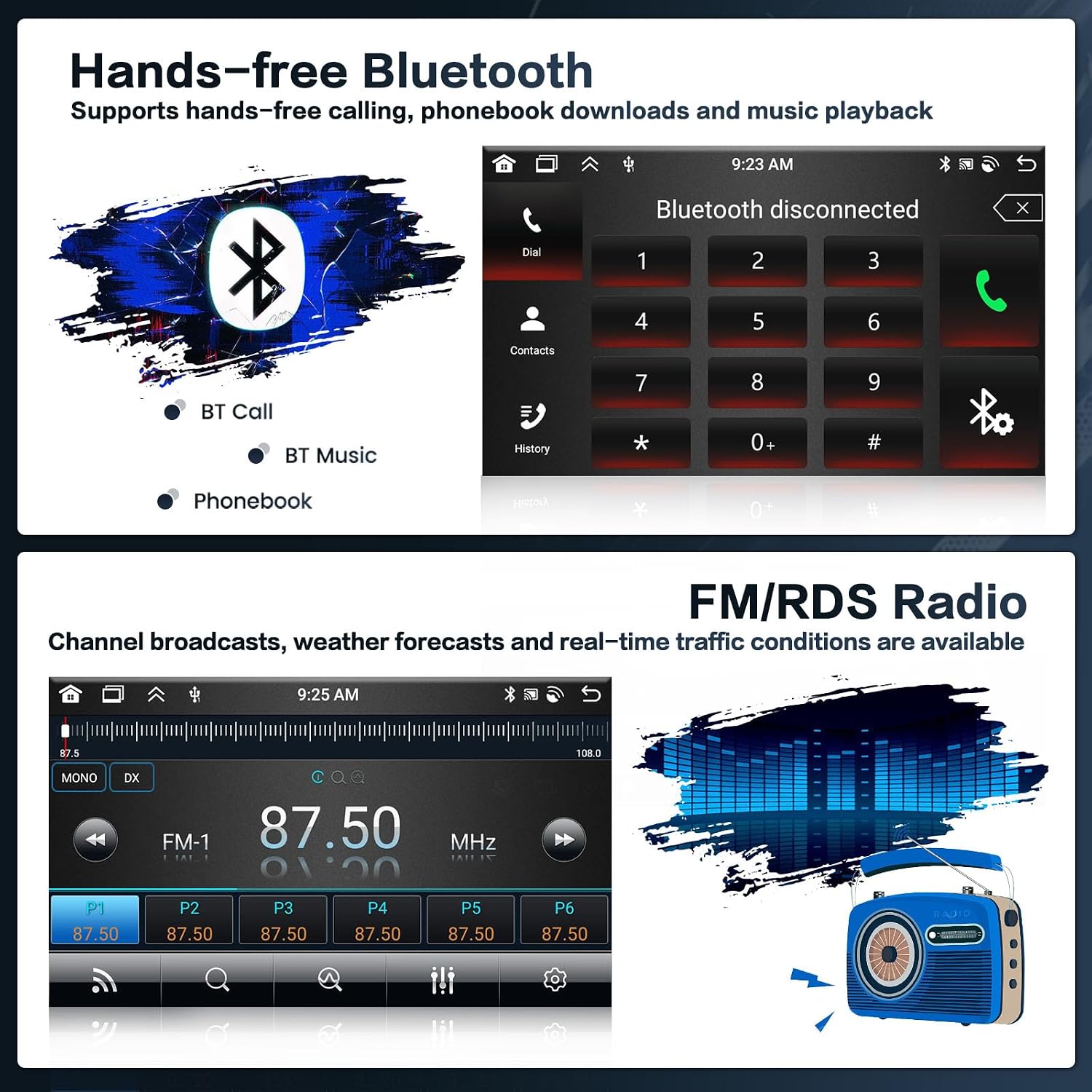
Image: This image highlights the hands-free Bluetooth and FM/RDS radio features. The top section displays the Bluetooth interface with options for BT Call, BT Music, and Phonebook, along with a dial pad. The bottom section shows the FM/RDS radio interface, indicating frequency tuning, preset stations (P1-P6), and signal strength, alongside a graphic equalizer representation and a vintage radio icon.
4.4 Steering Wheel Control
The unit supports your vehicle's original steering wheel controls. You can program the buttons to control various functions of the car stereo, such as volume, track skipping, mode selection, and answering calls. To configure, navigate to the "Steering Wheel Learning" section in the system settings.

Image: This image demonstrates the Steering Wheel Control and AHD Reversing Image features. The top panel shows a steering wheel with control buttons and an on-screen interface for learning and assigning functions like Mode, Power, Volume, Navi, Radio, and Frequency. The bottom panel displays a simulated view from an AHD backup camera, showing parking guidelines and a clear rear view, indicating the reversing image functionality.
4.5 AHD Reversing Camera
The system is equipped with an AHD backup camera. When the vehicle is shifted into reverse, the radio screen automatically displays the rear view, assisting with parking and maneuvering. The camera provides a clear AHD720 resolution image.
4.6 Display Customization
Personalize your user interface with various display options:
- Backgrounds: Choose from 19 different background options by touching the color circle in the lower-left corner of the screen.
- Desktop Themes: Long-press the main interface to switch between 59 available desktop themes.

Image: This image showcases the display customization options. The top panel illustrates 19 different wallpaper options, allowing users to change the background of their car stereo interface. The bottom panel demonstrates 59 various desktop themes, providing extensive personalization for the main screen layout and appearance.
5. Maintenance
To ensure the longevity and optimal performance of your Inefala car stereo, follow these maintenance guidelines:
- Screen Cleaning: Use a soft, lint-free cloth to gently wipe the touchscreen. Avoid abrasive cleaners or solvents that could damage the screen.
- Software Updates: Periodically check for software updates through the system's settings or the manufacturer's website to ensure you have the latest features and bug fixes.
- Environmental Conditions: Avoid exposing the unit to extreme temperatures, direct sunlight for prolonged periods, or excessive moisture.
- Cable Connections: Ensure all cables are securely connected. Loose connections can lead to intermittent issues.
6. Troubleshooting
If you encounter issues with your car stereo, refer to the following common problems and solutions:
- Unit Does Not Power On:
- Check all power connections and fuses.
- Ensure the vehicle's ignition is on.
- No Sound:
- Verify volume settings are not muted or too low.
- Check speaker connections.
- Ensure the correct audio source is selected.
- GPS Signal Lost/Inaccurate:
- Ensure the GPS antenna has a clear view of the sky.
- Check the GPS antenna connection.
- Bluetooth Connection Issues:
- Ensure Bluetooth is enabled on both the stereo and your phone.
- Delete previous pairings and re-pair the devices.
- Restart both devices.
- Backup Camera Not Displaying:
- Check the camera's power and video input connections.
- Ensure the vehicle is in reverse gear.
- System Freezes or Slows Down:
- Restart the unit.
- Close unnecessary background applications.
- Consider a factory reset (Note: This will erase all user data. The factory setting keyword is 1234).
7. Specifications
| Feature | Detail |
|---|---|
| System | Android 13 |
| CPU | 8-Core AC8257, 2.0GHz Main Frequency |
| Memory (RAM + ROM) | 4GB RAM + 64GB ROM |
| Screen Size | 9 inches |
| Screen Resolution | 1280*720 |
| Video Playback | Supports 1920*1080P |
| Radio Band | FM/RDS (Radio Chip: 8035) |
| Rear Camera Standard | AHD720 & CVBS |
| Power Amplifier Chip | 7388 |
| Bluetooth Version | 5.0 (BT/GPS/WIFI Chip: MT6631) |
| Sound Decoder | BU32107 |
| EQ Options | 36-band |
| USB Interface | Double USB |
| Split Screen | Supported |
| Factory Setting Keyword | 1234 |
| Supported Satellite Navigation System | GLONASS, GPS, Galileo |
| Connectivity Technology | Bluetooth, USB, Wi-Fi |
| Human-Interface Input | Microphone, Touchscreen |
8. Warranty and Support
Inefala products are designed for reliability and performance. For specific warranty details, please refer to the warranty card included with your product or visit the official Inefala website. If you require technical assistance, troubleshooting, or have questions regarding your product, please contact Inefala customer support through the contact information provided on their official website or through your purchase platform.
Please have your model number (Inefala-A7343A3453H1MI2US53-C251) and purchase date ready when contacting support.