
Introduction
Welcome to the user manual for your FACETEL Q3 Android Tablet. This guide provides essential information for setting up, operating, maintaining, and troubleshooting your device. Please read this manual thoroughly to ensure optimal performance and longevity of your tablet.
The FACETEL Q3 is a 10-inch Android tablet featuring an Octa-Core processor, 4GB RAM, 64GB internal storage (expandable up to 128GB via TF card), an 8000mAh battery, and dual cameras (5MP front, 8MP rear). It comes with a keyboard and mouse for enhanced productivity.
What's in the Box
Upon opening your package, please verify that all the following items are included:
- 1 x FACETEL 10-inch Android Tablet
- 1 x 10-inch Tablet Case
- 1 x Headset
- 1 x Type-C Cable
- 1 x USB-C Adapter
- 1 x UL Certified Charger
- 1 x Screen Protector
- 1 x User Manual (this document)
Product Overview
Familiarize yourself with the physical components of your FACETEL Q3 tablet.

Image: Overview of the FACETEL Q3 tablet, highlighting the location of the 3.5mm Aux Earphone port, Power button, Volume buttons (VOL+ / VOL-), Rear Camera, Flashlight, TF card slot, Type-C port, Front Camera, and Double Box Surround Speaker.
- 3.5mm Aux Earphone Port: Standard audio jack for headphones.
- Power button: Press and hold to power on/off, short press to sleep/wake.
- VOL+ / VOL-: Adjust volume levels.
- Rear Camera: 8MP camera for capturing photos and videos.
- Flashlight: Provides illumination for the rear camera.
- TF Slot: Slot for inserting a MicroSD (TF) card to expand storage.
- Type-C Port: USB Type-C port for charging and data transfer.
- Front Camera: 5MP camera for video calls and selfies.
- Double Box Surround Speaker: Provides audio output.
Setup Guide
1. Initial Charging
Before first use, fully charge your tablet using the provided UL Certified Charger and Type-C cable. The charging indicator will typically show progress on the screen.
2. Powering On/Off
- To power on: Press and hold the Power button until the FACETEL logo appears.
- To power off: Press and hold the Power button, then select "Power off" from the options on the screen.
- To sleep/wake: Short press the Power button.
3. Initial Setup Wizard
Upon first power-on, the tablet will guide you through an initial setup process. Follow the on-screen prompts to:
- Select your preferred language.
- Connect to a Wi-Fi network.
- Set up your Google account (optional, but recommended for app downloads).
- Configure date, time, and other basic settings.
4. Inserting a TF (MicroSD) Card
To expand storage, insert a TF (MicroSD) card into the designated slot.
- Locate the TF card slot on the side of the tablet.
- Gently insert the TF card with the gold contacts facing down until it clicks into place.
- The tablet will detect the card and may prompt you to format it for internal or portable storage.
5. Connecting the Keyboard and Mouse
The included keyboard and mouse connect via Bluetooth.
- Ensure the keyboard and mouse are powered on and in pairing mode (refer to their individual manuals if needed).
- On your tablet, go to Settings > Connected devices > Bluetooth.
- Turn Bluetooth on and scan for available devices.
- Select the keyboard and mouse from the list to pair them.

Image: FACETEL Q3 tablet connected to its accompanying keyboard, demonstrating its 2-in-1 functionality.
Operating Instructions
Basic Navigation
The FACETEL Q3 tablet uses a touch-based interface. Common gestures include:
- Tap: Select an item or open an app.
- Tap and Hold: Access contextual menus or move icons.
- Swipe: Navigate between screens, scroll through content.
- Pinch-to-Zoom: Enlarge or reduce content on screen.
Connecting to Wi-Fi
- Go to Settings > Network & internet > Wi-Fi.
- Toggle Wi-Fi On.
- Select your desired network from the list and enter the password if prompted.
Using the Camera
The tablet features a 5MP front camera and an 8MP rear camera.
- Open the Camera app.
- Tap the camera icon to switch between front and rear cameras.
- Tap the shutter button to take a photo or start/stop video recording.

Image: A couple using the FACETEL Q3 tablet, with an overlay indicating the 8MP rear camera and 5MP front camera capabilities.
App Management
- Installing Apps: Download apps from the Google Play Store.
- Uninstalling Apps: Tap and hold an app icon, then drag it to "Uninstall" or go to Settings > Apps > select app > Uninstall.
Battery Management
The 8000mAh battery provides extended usage. To optimize battery life:
- Adjust screen brightness.
- Close unused apps running in the background.
- Turn off Wi-Fi and Bluetooth when not in use.
- Enable battery saver mode in Settings > Battery.

Image: Illustration of the FACETEL Q3 tablet's 8000mAh battery providing long-lasting power, with estimated usage times for web browsing (7 hrs), HD video (5 hrs), gaming (5 hrs), music (25 hrs), calling (24 hrs), and standby (480 hrs).
Maintenance
Cleaning the Tablet
- Use a soft, lint-free cloth to clean the screen and body.
- Avoid using harsh chemicals or abrasive materials.
- For stubborn smudges, slightly dampen the cloth with water or a screen cleaner designed for electronics.
Software Updates
Regularly check for and install system updates to ensure optimal performance, security, and access to new features.
- Go to Settings > System > System update.
- Follow the on-screen instructions to check for and install any available updates.
Storage Management
To maintain smooth operation, manage your tablet's storage.
- Delete unnecessary apps and files.
- Move large media files to the TF card or cloud storage.
- Clear cache data for apps in Settings > Apps > select app > Storage & cache > Clear cache.
Troubleshooting
| Problem | Solution |
|---|---|
| Tablet won't turn on | Ensure the tablet is fully charged. Press and hold the Power button for 10-15 seconds to perform a forced restart. |
| Wi-Fi connection issues | Restart your Wi-Fi router. Forget the network on your tablet and reconnect. Ensure Wi-Fi is enabled in settings. |
| Slow performance | Close unused apps. Clear app cache. Check for system updates. Consider uninstalling rarely used apps. |
| Apps crashing or freezing | Clear the app's cache and data (Settings > Apps > select app > Storage & cache). Update the app from the Google Play Store. |
| Keyboard/Mouse not connecting | Ensure Bluetooth is enabled on the tablet and the accessories are in pairing mode. Unpair and re-pair the devices. Check battery levels of accessories. |
| Tablet not charging | Verify the Type-C cable and charger are securely connected and undamaged. Try a different compatible charger and cable if available. |
Factory Reset (Last Resort)
If persistent issues occur, a factory reset can resolve many software-related problems. Warning: This will erase all data on your tablet. Back up important data before proceeding.
- Go to Settings > System > Reset options.
- Select Erase all data (factory reset).
- Confirm your choice and follow the on-screen prompts.
Specifications
Detailed technical specifications for the FACETEL Q3 Android Tablet.
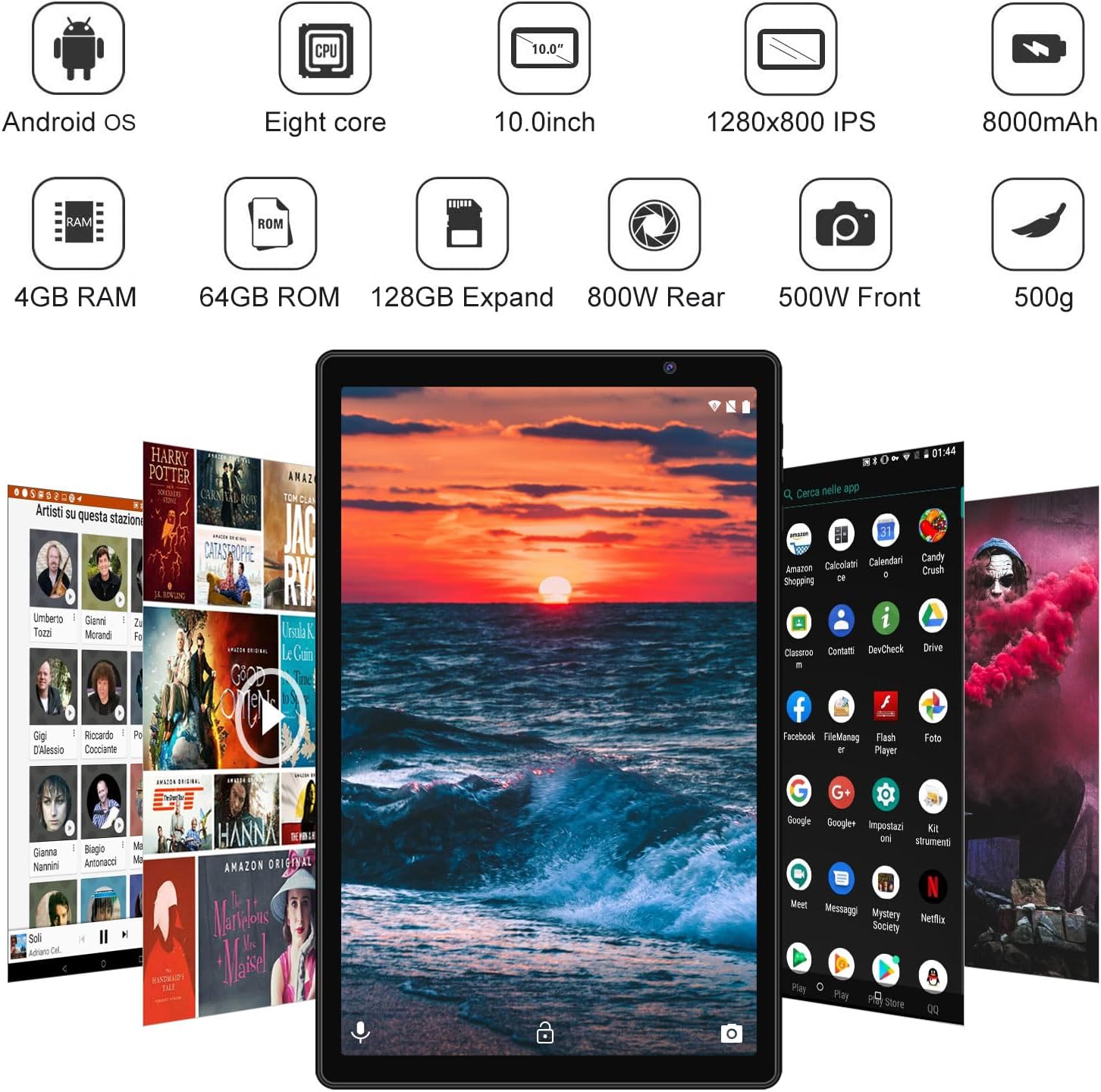
Image: Front view of the FACETEL Q3 tablet displaying its key features: Android OS, Octa-Core processor, 10.0-inch screen, 1280x800 IPS display, 8000mAh battery, 4GB RAM, 64GB ROM (128GB Expandable), 8MP Rear Camera, 5MP Front Camera, and 500g weight.
| Feature | Detail |
|---|---|
| Brand | FACETEL |
| Model Name | Q3 |
| Operating System | Android (Android 11 Generation) |
| Processor | Octa-Core ARM Cortex (Allwinner A23), 2 GHz |
| RAM | 4 GB |
| Internal Storage (ROM) | 64 GB |
| Expandable Storage | Up to 128 GB via TF (MicroSD) card |
| Screen Size | 10.1 inches (25.65 cm) |
| Display Type | LED IPS |
| Native Resolution | 1280 x 800 pixels (Supports 1080p Full HD content) |
| Rear Camera | 8 MP (Video Capture: 1080p) |
| Front Camera | 5 MP (Video Capture: 720p) |
| Battery Capacity | 8000 mAh (Lithium Ion) |
| Connectivity | Wi-Fi (802.11n), Bluetooth, GPS, USB Type-C |
| Audio Jack | 3.5 mm |
| Speakers | Double Box Surround Speaker (rich and clear sound) |
| Dimensions (L x W x Thickness) | 9.6 x 5.98 x 0.3 inches (24 x 16.5 x 0.85 cm) |
| Weight | 500 Grams |
| Human-Interface Input | Keyboard, Microphone, Mouse, Touchscreen |
Warranty and Support
Product Guarantee
FACETEL offers a Lifelong Product Guarantee for your tablet. This commitment reflects our confidence in the quality and durability of our products.
Technical Support
Our professional support team, with 10 years of experience, is available to assist you with any questions or issues you may encounter.
- Availability: We answer all questions online 24 hours a day.
- Response Time: We typically reply to customer messages within 24 hours.
- How to Contact: If you have any problems with your purchased product, please contact us via Amazon email as soon as possible.
Upon receiving your Amazon email, we will respond quickly and provide technical support and answers to your questions.