
Introduction
This manual provides detailed instructions for the setup, operation, and maintenance of your SecuraLen Mini Camera FZ-11. Please read this manual thoroughly before using the device to ensure proper functionality and to avoid any issues.
Product Overview
Key Features
- 4K UHD Resolution: Captures high-quality video at 4K resolution with a wide viewing angle.
- 2.4 GHz WiFi Connectivity: Enables real-time remote monitoring via a mobile application.
- Night Vision: Equipped with invisible infrared lights for clear recording in low light or complete darkness.
- Motion Detection: Automatically detects movement and sends instant alerts, recording only relevant events to optimize storage.
- Plug and Play: Simple setup by connecting to a power source and linking to your network.
- Compact and Versatile Design: Small form factor allows for discreet placement in various indoor environments.
Product Components
The SecuraLen Mini Camera FZ-11 is a compact device designed for discreet surveillance. It features a flexible neck and a USB connector for power. The camera unit itself is small, approximately 2.5 cm x 1.6 cm, with a total length of about 17 cm including the USB connector and flexible neck.
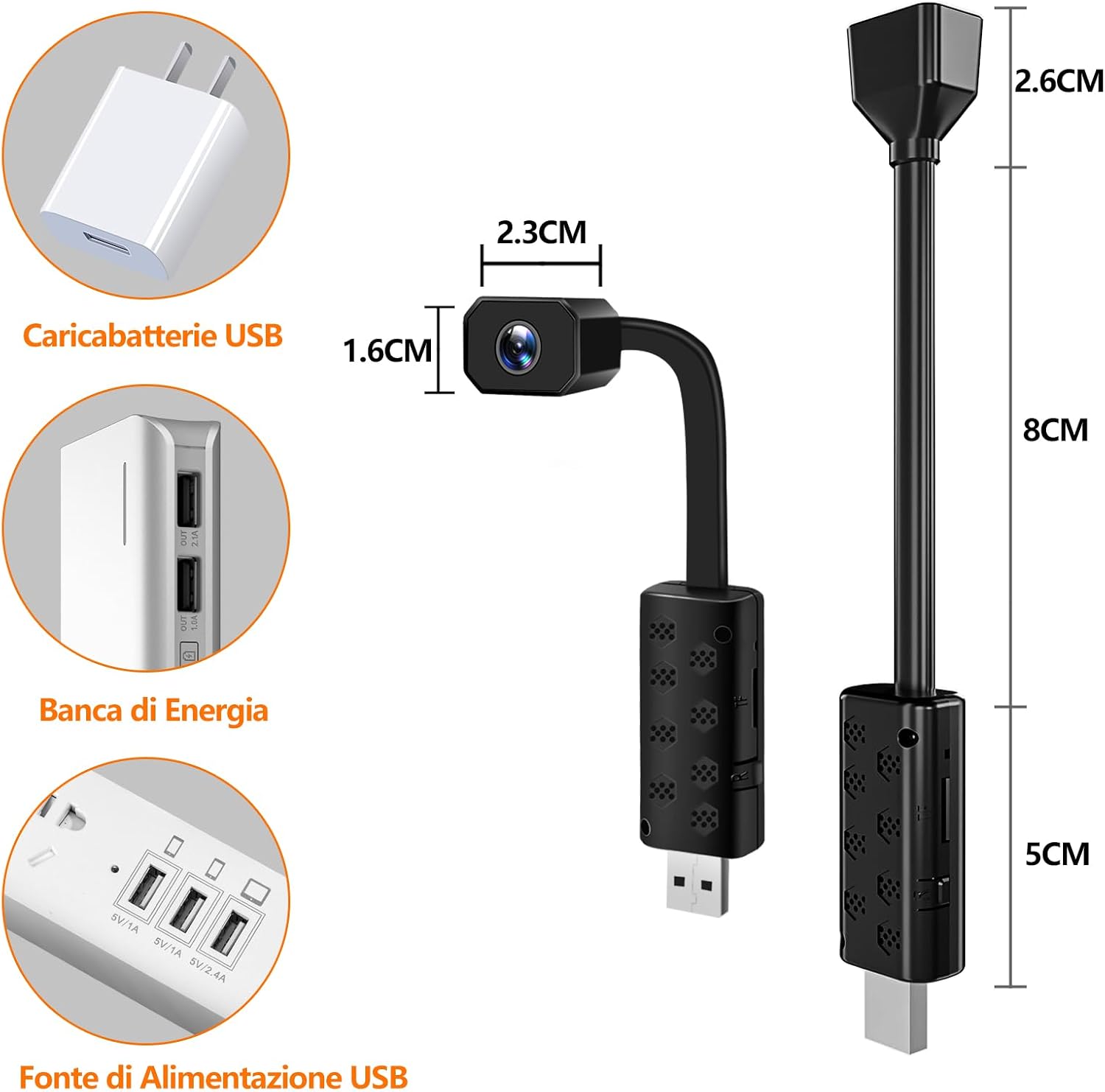
Image: The SecuraLen Mini Camera FZ-11 showing its dimensions (2.5cm x 1.6cm camera head, 8cm flexible neck, 5cm USB base) and compatible power sources like a USB charger, power bank, and USB power strip.

Image: An overview of the camera's features, including 2.4GHz WiFi, motion detection, 4K/2K/1080P/720P HD resolution, wide-angle view, night vision, and loop recording.
Setup Instructions
- Power Connection: Connect the camera to a 5V 1A USB power source (e.g., USB charger, power bank, USB power strip). The camera does not have an internal battery and requires continuous power.
- Micro SD Card Insertion (Optional): For local storage and loop recording, insert a Micro SD card (up to 32GB recommended) into the designated slot on the camera's USB base. Ensure the card is inserted correctly.
- App Download: Download the companion mobile application to your smartphone. Refer to the packaging or a QR code (if provided) for the specific app name.
- WiFi Connection:
- Open the app and follow the on-screen instructions to add a new device.
- Ensure your smartphone is connected to a 2.4 GHz WiFi network. The camera is not compatible with 5 GHz WiFi networks.
- The app will guide you through connecting the camera to your home WiFi network. This typically involves scanning a QR code generated by the app with the camera, or connecting to the camera's temporary WiFi hotspot first.
- Placement: Position the camera in your desired indoor location. Its flexible design allows for various angles. Ensure it has a clear line of sight to the area you wish to monitor.

Image: Diagram illustrating the camera's 2.4 GHz WiFi connection to a router and then to the internet, allowing remote monitoring via a smartphone app. The app interface shows resolution options (4K, 2K, 1080p, 720p).

Image: Visual representation of the camera's compatibility with 2.4 GHz WiFi networks (indicated by a green checkmark) and incompatibility with 5 GHz WiFi networks (indicated by a red cross).
Operating Instructions
Live View and Recording
- Once connected, open the app on your smartphone to access the live video feed from the camera.
- Within the app, you can select video resolution (4K, 2K, 1080P, 720P) based on your preference and network conditions.
- Initiate manual recording or take snapshots directly from the app interface.

Image: A view of the camera's live feed, demonstrating selectable resolutions including 4K, 2K, 1080P, and 720P, suitable for various monitoring needs.
Night Vision
The camera automatically switches to night vision mode in low light conditions. The built-in invisible infrared lights provide clear black and white video footage without emitting visible light.

Image: Comparison showing the camera's clear daytime view and its effective night vision capability in a dark room, highlighting the invisible infrared lights.
Motion Detection and Alerts
- Enable motion detection in the app settings.
- When motion is detected, the camera will automatically begin recording and send an alert notification to your smartphone.
- Recordings triggered by motion detection are saved to the Micro SD card (if inserted) or to cloud storage (if subscribed).

Image: Illustration of the motion detection feature, showing a red box highlighting movement in a kitchen scene, and indicating loop recording functionality.
Loop Recording
If a Micro SD card is inserted, the camera supports loop recording. When the memory card is full, the oldest footage will be automatically overwritten by new recordings.
Maintenance
- Cleaning: Use a soft, dry cloth to clean the camera lens and body. Do not use liquid cleaners or abrasive materials.
- Firmware Updates: Periodically check the mobile application for available firmware updates. Keeping the firmware updated ensures optimal performance and security.
- Storage Management: Regularly review and back up important footage from your Micro SD card. Format the Micro SD card periodically through the app to maintain performance.
- Power Supply: Ensure a stable 5V 1A power supply is used to prevent interruptions in recording or connectivity.
Troubleshooting
| Problem | Possible Cause | Solution |
|---|---|---|
| Camera not powering on. | No power, insufficient power supply. | Ensure the camera is connected to a stable 5V 1A USB power source. Try a different USB port or adapter. |
| Cannot connect to WiFi. | Incorrect WiFi band (5GHz), wrong password, camera too far from router. | Confirm your router is broadcasting a 2.4 GHz WiFi signal. Ensure the WiFi password is correct. Move the camera closer to the router. Reset the camera and try setup again. |
| App shows "Offline" or "Disconnected". | Loss of WiFi connection, internet outage. | Check your home WiFi and internet connection. Restart the camera by unplugging and replugging it. Re-establish the connection through the app if necessary. |
| No recording to Micro SD card. | SD card full, corrupted, or not inserted correctly. | Check if the Micro SD card is properly inserted. Format the card via the app. Replace the card if it is corrupted or too small (max 32GB recommended). |
| Poor video quality. | Low resolution setting, poor network bandwidth, dirty lens. | Select a higher resolution in the app (e.g., 4K). Ensure a strong WiFi signal. Clean the camera lens with a soft cloth. |
| Motion detection alerts not received. | Motion detection disabled, app notifications blocked, poor network. | Enable motion detection in the app settings. Check your phone's notification settings for the app. Ensure stable internet connection. |
Specifications
| Feature | Detail |
|---|---|
| Brand | SecuraLen |
| Model Name | Camara Espia Oculta FZ-11 (FZ-11) |
| Recommended Use | Indoor Security |
| Connectivity Technology | Wireless (Wi-Fi 2.4 GHz) |
| Special Feature | Night Vision, Motion Detection |
| Indoor/Outdoor Use | Indoor |
| Compatible Devices | Smartphone (iPhone, Android) |
| Form Factor | Cube (camera head) |
| Material Type | Plastic |
| Alarm Type | Motion only |
| International Protection Rating | IP54 |
| Control Method | App |
| Viewing Angle | 360 Degrees (Digital pan/tilt via app or wide-angle lens) |
| Optical Sensor Technology | CMOS |
| Flash Memory Type | Micro SD |
| Memory Storage Capacity | Up to 32 GB |
| Power Source | Corded Electric (5V 1A USB) |
| Power Consumption | 3 watts |
| Video Capture Resolution | 4K |
| Frame Rate | 30 frames per second |
| Night Vision Type | Night Color (Infrared) |
| Item Dimensions (L x W x H) | 25 x 16 x 170 mm |
Warranty and Support
Specific warranty information for the SecuraLen Mini Camera FZ-11 is not provided in the product details. Please refer to the retailer's return policy or contact SecuraLen customer support directly for warranty details and technical assistance.
For further support, please visit the official SecuraLen website or contact their customer service department using the contact information provided with your purchase.