
1. Introduction
Welcome to the REDMAGIC 9 Pro user manual. This guide provides essential information to help you get started with your new gaming smartphone, understand its features, and ensure optimal performance. Please read this manual carefully before using your device.
The REDMAGIC 9 Pro is a high-performance gaming smartphone designed for an immersive mobile gaming experience. It features the latest Snapdragon 8 Gen 3 processor, an advanced ICE 13.0 cooling system, a stunning UDC full display, and a long-lasting 6500mAh battery with 80W fast charging.

Figure 1: REDMAGIC 9 Pro device overview.
2. Setup
2.1 Unboxing and Package Contents
Upon opening your REDMAGIC 9 Pro package, ensure all items are present:
- REDMAGIC 9 Pro Smartphone
- SIM Tray Ejector
- Type-C Data Cable
- Power Adapter (80W)
- Protective Phone Case
- Quick Start Guide (this manual)
2.2 Inserting the SIM Card
- Locate the SIM card tray on the side of your device.
- Insert the SIM tray ejector tool into the small hole next to the tray and press firmly until the tray pops out.
- Place your Nano-SIM card(s) into the tray with the gold contacts facing down. The REDMAGIC 9 Pro supports dual physical SIM cards.
- Carefully reinsert the SIM tray into the device.
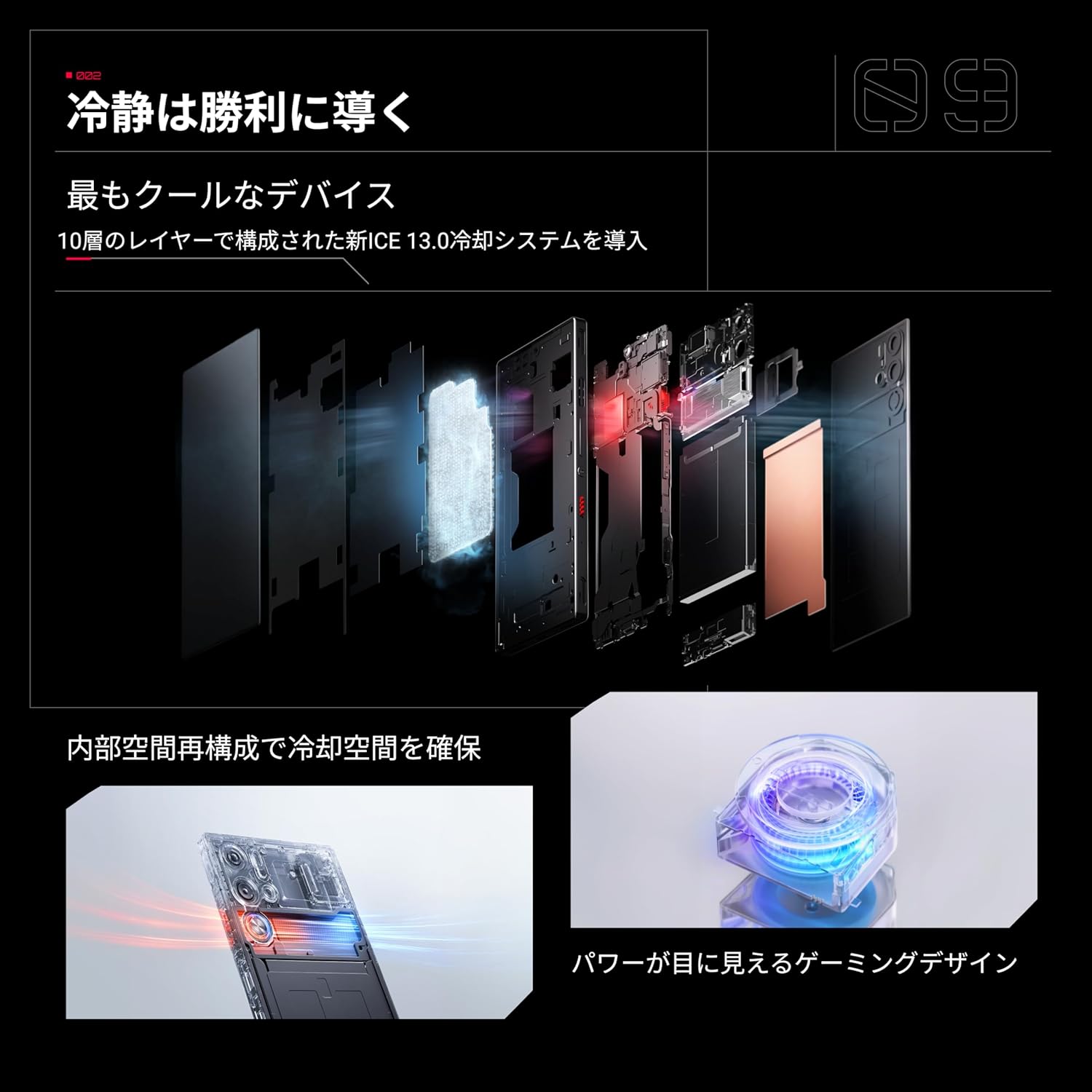
Figure 2: SIM card tray location.
2.3 Initial Power On and Setup
- Press and hold the Power button until the REDMAGIC logo appears.
- Follow the on-screen instructions to complete the initial setup, including language selection, Wi-Fi connection, Google account login, and security settings.
2.4 Charging the Device
Before first use, fully charge your REDMAGIC 9 Pro. Use the provided 80W power adapter and Type-C data cable for optimal fast charging performance. The device supports up to 80W fast charging, allowing a full charge in approximately 35 minutes.
3. Operating Your Device
3.1 Basic Navigation
The REDMAGIC 9 Pro uses Android 14, offering intuitive touch-based navigation. Swipe, tap, and pinch to interact with the interface. Customize gestures in the settings menu.
3.2 Power On/Off and Restart
- Power On: Press and hold the Power button until the device vibrates and the REDMAGIC logo appears.
- Power Off: Press and hold the Power button, then select 'Power off' from the options.
- Restart: Press and hold the Power button, then select 'Restart' from the options.
3.3 Volume and Power Buttons
The volume buttons are located on the side of the device, allowing you to adjust media volume, call volume, and alarm volume. The power button is also on the side, used for screen lock/unlock and power options.
3.4 Shoulder Triggers
For an enhanced gaming experience, the REDMAGIC 9 Pro features capacitive shoulder triggers. These triggers offer a 520Hz touch sampling rate, providing quick and precise input during gameplay. They can be customized within the Game Space settings.

Figure 3: Using the shoulder triggers for gaming.
4. Key Features
4.1 Performance
The REDMAGIC 9 Pro is powered by the latest Snapdragon 8 Gen 3 mobile platform, delivering exceptional speed and efficiency. Coupled with the dedicated Red Core R2 Pro gaming chip, LPDDR5x memory, and UFS 4.0 storage, it ensures smooth performance even in demanding games like Genshin Impact and Honkai: Star Rail at maximum settings.

Figure 4: Snapdragon 8 Gen 3 processor.

Figure 5: Performance metrics for gaming.
4.2 Advanced Cooling System
The device incorporates the new ICE 13.0 cooling system, featuring a 10-layer structure and a large 10182mm² VC (Vapor Chamber). A built-in cooling fan efficiently dissipates heat, preventing thermal throttling during extended gaming sessions without the need for external coolers.

Figure 6: Internal view of the ICE 13.0 cooling system.
4.3 UDC Full Display
Experience an uninterrupted visual experience with the REDMAGIC 9 Pro's UDC (Under-Display Camera) full display. This 6.8-inch AMOLED screen boasts a 93.7% screen-to-body ratio, 120Hz refresh rate, and an ultra-responsive 960Hz multi-point touch sampling rate for precise control.

Figure 7: The notch-less UDC display.
4.4 Battery and Fast Charging
Equipped with a large 6500mAh battery, the REDMAGIC 9 Pro offers extended usage, up to 56 hours of typical daily use. The included 80W fast charger allows you to fully recharge the device in approximately 35 minutes, minimizing downtime.

Figure 8: High-capacity battery and fast charging.
4.5 Camera System
The REDMAGIC 9 Pro features a capable camera system, including a 50MP main camera with Optical Image Stabilization (OIS) for clear and steady shots. It also includes a wide-angle camera and a macro camera for versatile photography.

Figure 9: Camera system with OIS.
4.6 Audio Experience
Immerse yourself in rich audio with DTS:X Ultra certified dual 1115K speakers and five magnetic sound units, providing a powerful and clear sound experience for gaming and multimedia.

Figure 10: Enhanced audio for immersive gaming.
5. Maintenance
5.1 Cleaning Your Device
To maintain your device's appearance and functionality, regularly clean it with a soft, lint-free cloth. Avoid using harsh chemicals or abrasive materials. For the screen, use a screen cleaner specifically designed for electronics.
5.2 Software Updates
Keep your device's software up to date to ensure optimal performance, security, and access to new features. You can check for updates in Settings > System > System updates.
5.3 Battery Care
To prolong battery life:
- Avoid extreme temperatures.
- Do not let the battery completely drain frequently.
- Use the original charger and cable.
- Unplug the charger once the battery is full.
6. Troubleshooting
This section addresses common issues you might encounter with your REDMAGIC 9 Pro.
6.1 Device Not Powering On
Ensure the device is sufficiently charged. Connect it to the charger for at least 15 minutes, then try powering it on again. If the issue persists, perform a forced restart by holding the Power button for 10-15 seconds.
6.2 Network Connectivity Issues
If you experience problems with mobile data or calls:
- Check if your SIM card is correctly inserted.
- Ensure airplane mode is off.
- Restart the device.
- Verify your network settings (APN, preferred network type) with your carrier.
6.3 Slow Performance or Freezing
If your device is slow or freezes:
- Close unnecessary background applications.
- Clear cache for problematic apps.
- Ensure sufficient storage space is available.
- Restart the device.
6.4 Factory Reset
A factory reset will erase all data on your device and restore it to its original factory settings. Back up important data before proceeding. To perform a factory reset, go to Settings > System > Reset options > Erase all data (factory reset).
7. Specifications
Below are the key technical specifications for the REDMAGIC 9 Pro (Model NX769J):
| Feature | Specification |
|---|---|
| Model Number | NX769J |
| Screen Size | 6.8 inches |
| Display Type | AMOLED |
| Operating System | Android 14 |
| CPU Model | Snapdragon 8 Gen 3 |
| RAM | 16GB (as per variant) |
| Storage Capacity | 512GB (as per variant) |
| Battery Capacity | 6500 mAh |
| Continuous Usage Time | Up to 56 Hours |
| Fast Charging | 80W |
| Connectivity | Bluetooth, Wi-Fi, 5G |
| Product Dimensions | 16.4 x 7.63 x 0.89 cm |
| Product Weight | 228 g |
8. Warranty and Support
Your REDMAGIC 9 Pro comes with a standard manufacturer's warranty. Please refer to the warranty card included in your package for specific terms and conditions, including warranty period and coverage details.
For technical support, service, or further inquiries, please visit the official REDMAGIC support website or contact their customer service. Contact information can typically be found on the REDMAGIC official website or in your product packaging.


