
Introduction
Thank you for choosing the Generic G61 Gaming Keyboard. This 61-key mechanical keyboard features vibrant RGB backlighting and versatile dual-mode connectivity (2.4G wireless and Bluetooth), making it an ideal choice for PC and computer gaming. This manual provides detailed instructions on setting up, operating, maintaining, and troubleshooting your new keyboard to ensure optimal performance and longevity.
Safety Information
- Keep the keyboard away from water, moisture, and excessive heat.
- Do not attempt to disassemble or modify the keyboard. This may void the warranty and cause damage.
- Use only the provided charging cable or a certified equivalent.
- Avoid dropping or subjecting the keyboard to strong impacts.
- Clean the keyboard with a soft, dry cloth. Do not use liquid cleaners or aerosols.
Package Contents
- G61 Gaming Keyboard (Pink)
- USB Wireless Receiver (2.4G)
- USB Charging Cable
- User Manual
Product Overview
The G61 is a compact 61-key mechanical keyboard designed for gaming and general use. Its layout optimizes space while retaining essential functions through function key combinations. The keyboard features customizable RGB backlighting and supports both 2.4G wireless and Bluetooth connectivity for versatile use across various devices.

Image: The G61 Gaming Keyboard in pink, showcasing its compact 61-key layout and sleek design.

Image: A detailed view of the G61 keyboard's 61-key layout, highlighting keycap legends and compact form factor.
Setup
1. Charging the Keyboard
Before first use, fully charge the keyboard. Connect the provided USB charging cable to the keyboard's charging port and the other end to a USB power source (e.g., computer USB port, USB wall adapter). The charging indicator light will show the charging status and turn off when fully charged.
2. Wireless Connection
2.1. 2.4G Wireless Mode
- Locate the USB wireless receiver.
- Plug the USB wireless receiver into an available USB port on your computer.
- Turn on the keyboard. The keyboard should automatically connect to the receiver.

Image: The compact 2.4G USB wireless receiver, essential for wireless connectivity.
2.2. Bluetooth Mode
- Ensure the keyboard is in Bluetooth pairing mode (refer to Operating Instructions for mode switching).
- On your device (PC, laptop, tablet, phone), enable Bluetooth and search for new devices.
- Select "G61 Keyboard" or a similar name from the list of available devices to pair.
- Follow any on-screen prompts to complete the pairing process.
3. Compatibility
The G61 Gaming Keyboard is compatible with a wide range of operating systems, including Windows, Android, and iOS devices, ensuring broad usability across your platforms.
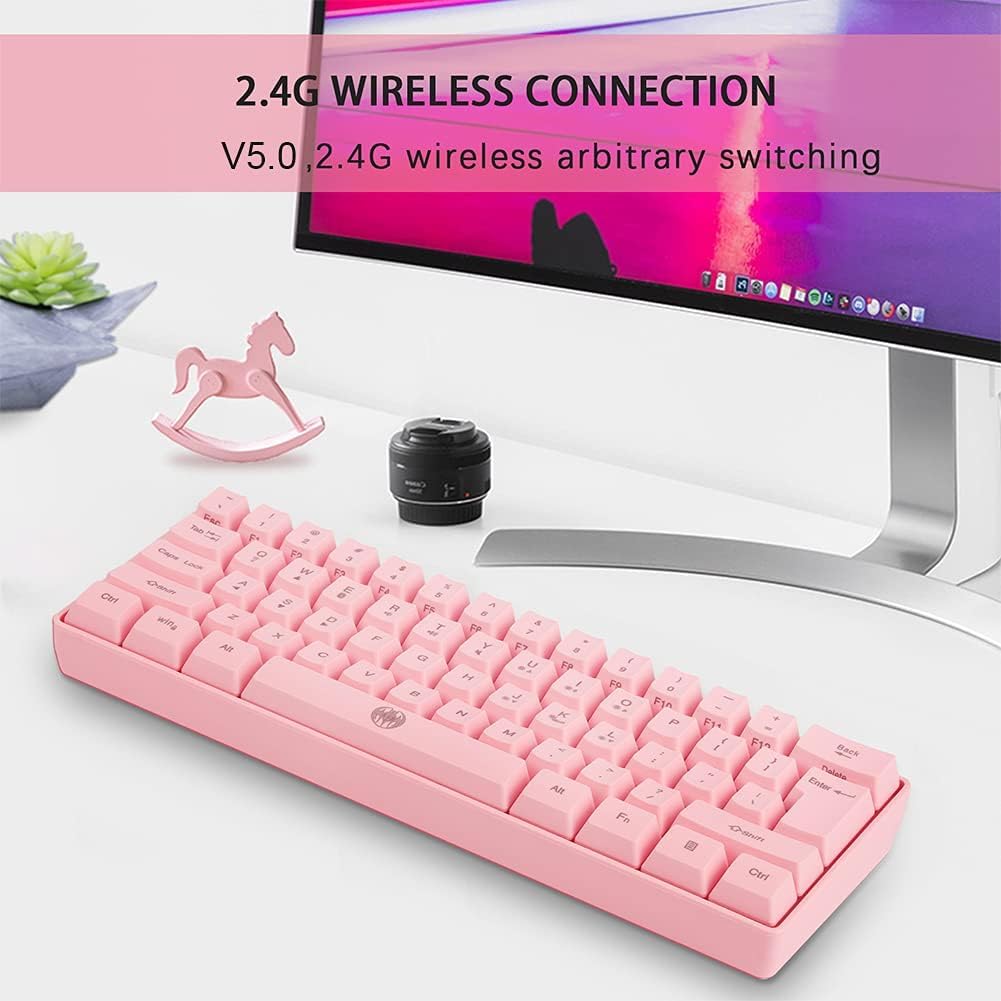
Image: Icons indicating compatibility with Windows, Android, and iOS operating systems.
Operating Instructions
1. Basic Key Functions
The G61 keyboard utilizes a compact 61-key layout. Many functions are accessed via the Fn key in combination with other keys. Refer to the keycap legends for specific Fn combinations (e.g., Fn + 1-0 for F-keys, Fn + P for Print Screen).
2. RGB Backlight Control
The keyboard features dynamic RGB backlighting with multiple modes and colors. Use the following key combinations to control the lighting:
- Fn + I: Backlight ON/OFF
- Fn + K: Switch Light Mode (cycle through various lighting effects)
- Other Fn combinations may control brightness or specific color changes.
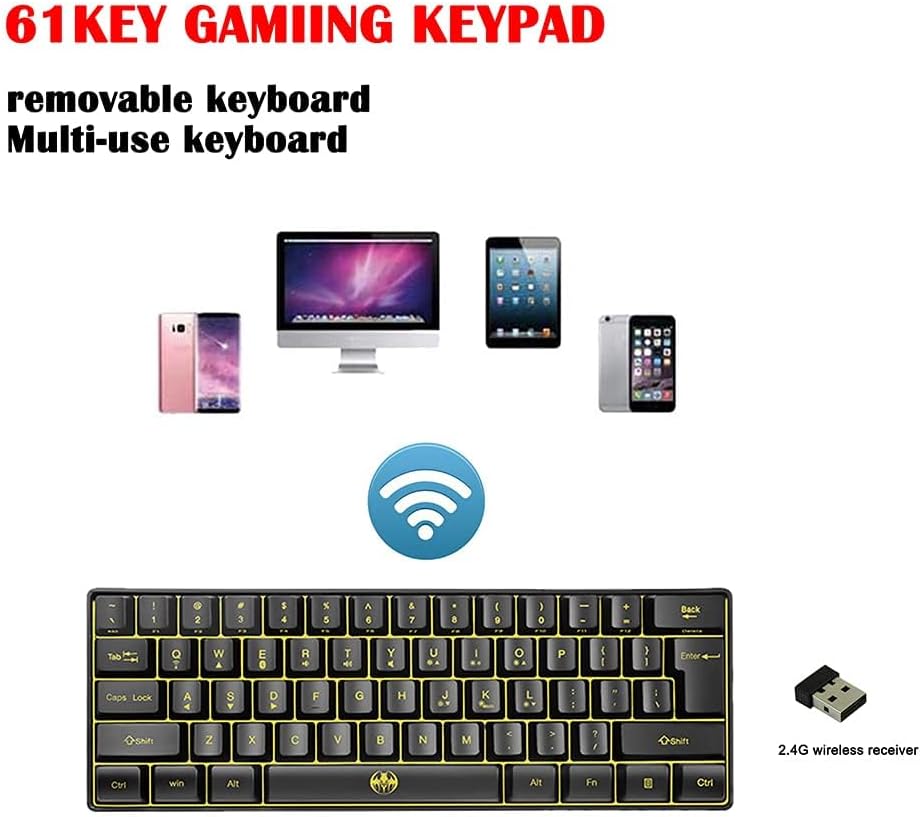
Image: Illustration showing the Fn + I and Fn + K key combinations for backlight control.

Image: Depiction of the keyboard with various RGB backlight colors, demonstrating the customizable lighting.
3. Dual Mode Switching
The G61 keyboard supports both 2.4G wireless and Bluetooth connectivity. To switch between modes, use the designated switch on the keyboard (usually on the back or side) or a specific Fn key combination. Ensure the correct mode is selected for your desired connection type.
Maintenance
- Cleaning: Use a soft, lint-free cloth to wipe the keyboard surface. For dust between keycaps, use compressed air. Do not spray liquid directly onto the keyboard.
- Storage: When not in use for extended periods, store the keyboard in a cool, dry place away from direct sunlight and extreme temperatures.
- Battery Care: To prolong battery life, avoid fully discharging the keyboard frequently. Charge it when the low battery indicator appears.
Troubleshooting
| Problem | Possible Cause | Solution |
|---|---|---|
| Keyboard not responding | Low battery; Incorrect connection mode; Driver issue; Receiver not plugged in (2.4G) | Charge the keyboard; Switch to correct mode (2.4G/BT); Reinstall drivers; Plug in receiver securely. |
| Bluetooth pairing fails | Keyboard not in pairing mode; Device Bluetooth off; Interference | Ensure keyboard is in pairing mode; Turn on device Bluetooth; Move closer to device; Try pairing again. |
| Backlight not working | Backlight turned off; Software glitch | Press Fn + I to turn on; Restart keyboard. |
| Keys not registering | Dust/debris under keycap; Faulty switch | Clean under keycap with compressed air; If issue persists, contact support. |
Specifications
| Feature | Detail |
|---|---|
| Model | G61 |
| Keys | 61 Keys |
| Connectivity | Dual Mode (2.4G Wireless, Bluetooth) |
| Backlight | RGB (7-color illuminated) |
| Operation Style | Mechanical |
| Interface Type | Bluetooth |
| Application | Laptop, PC, Computer |
| Compatible Devices | Laptop |
| Operating System | Windows 7 and above, Android, iOS |
| Color | Pink |
| Material | Other |
| Recommended Use | Gaming |
Warranty and Support
The manufacturer commits to a 12-month warranty for this product. This warranty covers manufacturing defects and issues arising from normal use.
If you encounter any problems with your G61 Gaming Keyboard, such as damaged products or incorrect items received, please do not hesitate to contact customer support. We aim to reply to all inquiries within 24 hours to provide assistance and resolution.
For support, please refer to the contact information provided by your retailer or the product's packaging.