
EMPIRBUS 010-02225-10
EMPIRBUS CONNECT 50 User Manual
Model: 010-02225-10
Introduction
This manual provides comprehensive instructions for the installation, operation, maintenance, and troubleshooting of the EMPIRBUS CONNECT 50. Please read this manual thoroughly before using the device to ensure proper function and safety.

Figure 1: Front view of the EMPIRBUS CONNECT 50 module. This image shows the main unit with its connectors and indicator lights.
Setup and Installation
Proper installation is crucial for the optimal performance of your EMPIRBUS CONNECT 50. Follow these steps carefully.
1. Unpacking and Inspection
- Carefully remove the EMPIRBUS CONNECT 50 from its packaging.
- Inspect the device for any visible damage. If damage is found, do not proceed with installation and contact your supplier.
- Verify all components listed in the packing list are present.
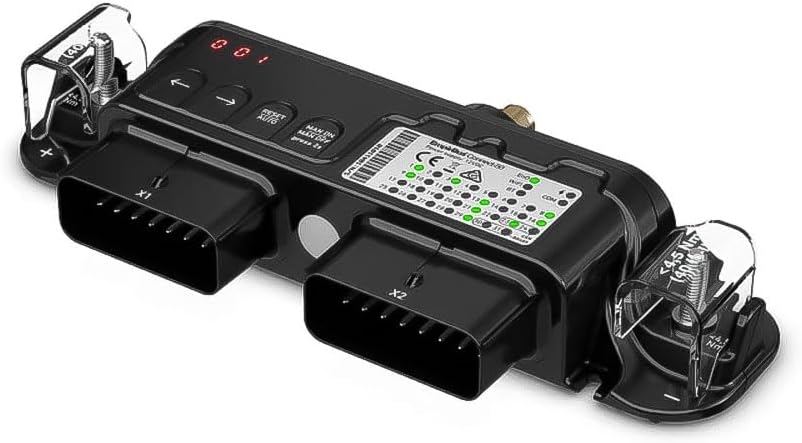
Figure 2: Angled view of the EMPIRBUS CONNECT 50, highlighting the connection ports X1 and X2.
2. Mounting the Device
The EMPIRBUS CONNECT 50 should be mounted in a secure, dry location, away from direct heat sources and excessive vibration.
- Choose a suitable mounting surface that can support the device's weight.
- Use appropriate fasteners to secure the device through its mounting points. Ensure the device is level.
- Allow adequate space around the device for ventilation and cable routing.
3. Electrical Connections
Refer to the wiring diagram provided with your product for specific connection details. Ensure all power is disconnected before making any electrical connections.
- Connect the main power supply to the designated terminals. Observe correct polarity (+ and -).
- Connect all input and output cables to their respective ports (e.g., X1, X2).
- Secure all connections to prevent accidental disconnection.
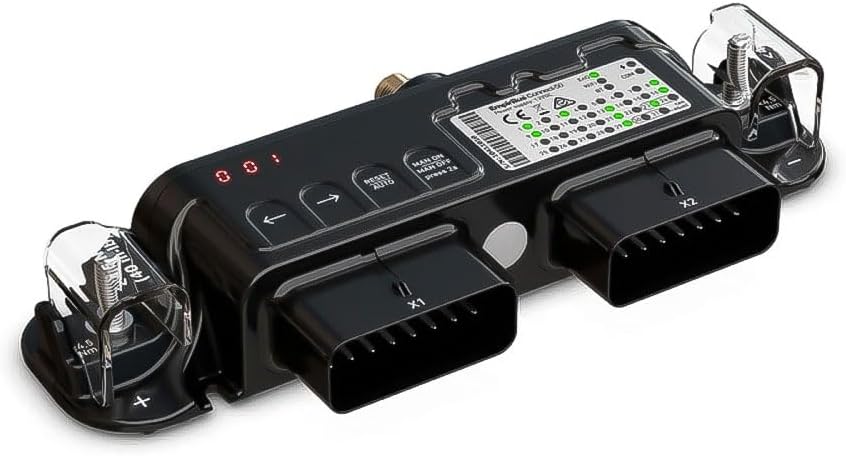
Figure 3: Side view of the EMPIRBUS CONNECT 50, showing the robust terminal connections. Note the torque specifications for secure fastening.
Operating Instructions
This section details the basic operation of the EMPIRBUS CONNECT 50.
Powering On/Off
- To power on, ensure all connections are secure, then apply power to the main supply. The indicator lights will illuminate.
- To power off, disconnect the main power supply.
Indicator Lights
The device features several indicator lights to show its status:
- Power Indicator: Solid green when power is supplied.
- Status Indicator: Flashing green indicates normal operation. Red indicates an error (refer to Troubleshooting).
- Communication Indicator: Flashing blue indicates active data communication.
Basic Functionality
The EMPIRBUS CONNECT 50 is designed for managing electrical loads and data communication within a system. Refer to the detailed software manual for configuration and advanced features.
- Manual/Auto Mode: Use the "MAN ON/OFF" button to toggle between manual and automatic control modes. Press and hold for 2 seconds to switch.
- Reset/Auto Button: Press to reset the device or to initiate an auto-configuration sequence.
- Navigation Buttons (Arrows): Used for navigating menus on an external display or for specific parameter adjustments as defined by the system configuration.
Maintenance
Regular maintenance ensures the longevity and reliable operation of your EMPIRBUS CONNECT 50.
Cleaning
- Ensure the device is powered off and disconnected before cleaning.
- Wipe the exterior with a soft, dry, or slightly damp cloth. Do not use abrasive cleaners or solvents.
- Do not allow liquids to enter the device.
Connection Checks
- Periodically check all electrical connections for tightness and corrosion.
- Ensure cables are not pinched or damaged.
Firmware Updates
Check the EMPIRBUS official website for available firmware updates. Follow the instructions provided with the update package carefully.
Troubleshooting
This section provides solutions to common issues you might encounter with your EMPIRBUS CONNECT 50.
| Problem | Possible Cause | Solution |
|---|---|---|
| Device does not power on. | No power supply; Incorrect wiring; Blown fuse. | Check power source; Verify wiring connections; Inspect and replace fuses if necessary. |
| Status indicator is red. | System error; Overload; Communication failure. | Refer to the system's diagnostic codes (if applicable); Reduce load; Check communication cables. Try a soft reset. |
| No communication with connected devices. | Incorrect cable connection; Software configuration error; Device not recognized. | Verify all communication cables are securely connected; Check software settings; Ensure drivers are installed (if applicable). |
If the problem persists after attempting these solutions, please contact EMPIRBUS customer support.
Specifications
Key technical specifications for the EMPIRBUS CONNECT 50 (Model: 010-02225-10).
| Attribute | Detail |
|---|---|
| Brand | EMPIRBUS |
| Model Number | 010-02225-10 |
| Manufacturer | EMPIRBUS |
| Package Dimensions | 23 x 10.6 x 3.8 cm |
| Weight | 402 g |
| ASIN | B0CQLRG3PL |
| First Available Date | 14 April 2025 |

Figure 4: Rear view of the EMPIRBUS CONNECT 50, showing the mounting points and overall compact design.
Warranty Information
EMPIRBUS products are covered by a limited warranty against defects in materials and workmanship. The specific warranty period and terms may vary by region and product. Please refer to the warranty card included with your product or visit the official EMPIRBUS website for detailed warranty information.
Note: Unauthorized modifications or improper installation may void the product warranty.
Customer Support
For technical assistance, troubleshooting beyond this manual, or warranty claims, please contact EMPIRBUS customer support:
- Website: www.empirbus.com (Check for regional support contacts)
- Email: Refer to the website for specific support email addresses.
- Phone: Refer to the website for regional phone numbers.
When contacting support, please have your product model number (010-02225-10) and ASIN (B0CQLRG3PL) ready.
Related Documents - 010-02225-10
 |
EmpirBus Connect-50 User Manual: Installation, Configuration, and Specifications Comprehensive user manual for the EmpirBus Connect-50, detailing installation, circuit configurations, input/output functions, serial interfaces, WiFi settings, and product specifications. Learn how to integrate and manage your marine electrical system. |
 |
EmpirBus NXT DCM User Manual This user manual provides comprehensive information on the EmpirBus NXT DCM, including installation, configuration, circuit details, product specifications, and troubleshooting. It covers digital and analog inputs/outputs, manual channel override, and wireless transmitter pairing. |
 |
EmpirBus Studio Installation Guide A comprehensive guide for installing EmpirBus Studio software and firmware, and uploading configuration files to EmpirBus systems. Covers firmware upgrades, unit ID setup, and system configuration. |
 |
EmpirBus Studio Quickstart Guide: Build Logical Functions for EmpirBus Systems Get started with EmpirBus Studio, a powerful configuration software from Garmin, for building logical functions and managing EmpirBus systems. This guide covers installation, features, and system setup. |
 |
EmpirBus NXT WDU User Manual User manual for the EmpirBus NXT WDU (Web Display Unit), covering introduction, scope of delivery, model range, installation, software setup, Wi-Fi settings, product specifications, and declarations of conformity. |
 |
EmpirBus Studio Installation Guide A comprehensive guide detailing the step-by-step installation of EmpirBus Studio software, firmware upgrades, and system unit configuration for the EmpirBus platform. |
Ask a question about this manual
Ask about setup, troubleshooting, compatibility, parts, safety, or missing instructions. Manuals+ will review the question and use this page’s manual context to help answer it.