Introduction
Welcome to the Ussixchare 61-Key Mechanical Gaming Keyboard user manual. This guide provides detailed instructions for setting up, operating, and maintaining your new compact mechanical keyboard. Designed for PC and laptop gamers, this keyboard features responsive red mechanical switches and customizable LED backlighting to enhance your gaming and typing experience.
Product Features
- Ultra-Compact 60% Layout: A 61-key design for a minimalist desktop setup, optimizing space without sacrificing essential functionality.
- Ergonomic Design: Features a scientific stair-up keycap design for maximum comfort, reducing hand fatigue during extended use and minimizing typing errors.
- Mechanical Red Switches: Equipped with quiet click red mechanical switches, offering fast action with minimal resistance and no tactile bump, ideal for rapid keystrokes.
- Classic Blue LED Backlight: Customize your experience with approximately 18 distinct static and dynamic backlight modes.
- Detachable USB-A to USB-C Cable: Ensures easy plug-and-play connectivity without requiring software installation.
- Wide Compatibility: Compatible with Windows 98 / 2000 / 7 / 8 / 10 / XP / Vista operating systems.

Image: Key features of the Ussixchare 61-key mechanical gaming keyboard, including LED backlighting, USB wired connection, red switches, and N-key rollover.
Setup
- Unpack the Keyboard: Carefully remove the keyboard and its accessories from the packaging.
- Connect the USB Cable: Insert the USB-C end of the provided cable into the port on the back of the keyboard.
- Connect to Computer: Plug the USB-A end of the cable into an available USB port on your PC or laptop.
- Automatic Recognition: The keyboard is plug-and-play and should be automatically recognized by your operating system without the need for additional drivers.

Image: Close-up view of the USB-C connection port on the keyboard, illustrating how to connect the detachable cable.
Operating Instructions
Key Functions
The Ussixchare 61-key keyboard utilizes a compact layout. Many standard functions are accessed via the Fn key in combination with other keys.
- Fn + A/S/D/W: Typically used for arrow key functions (depending on specific model configuration).
- Fn + P: Print Screen (PrtSc)
- Fn + [: Home
- Fn + ]: End
- Fn + ;: Page Up (PgUp)
- Fn + ': Page Down (PgDn)
- Fn + \: Delete (Del)
- Fn + Enter: Right Shift (if applicable)
- Fn + Spacebar: Lock/Unlock Fn key (some models)
Refer to the keycap legends for specific secondary functions indicated on each key.
Backlight Modes
The keyboard features multiple LED backlight modes. Use the following key combinations to adjust the lighting:
- Fn + \|: Cycle through approximately 18 different backlight effects.
- Fn + [{: Decrease backlight brightness.
- Fn + ]}: Increase backlight brightness.
- Fn + ;: Decrease backlight speed (for dynamic modes).
- Fn + ': Increase backlight speed (for dynamic modes).
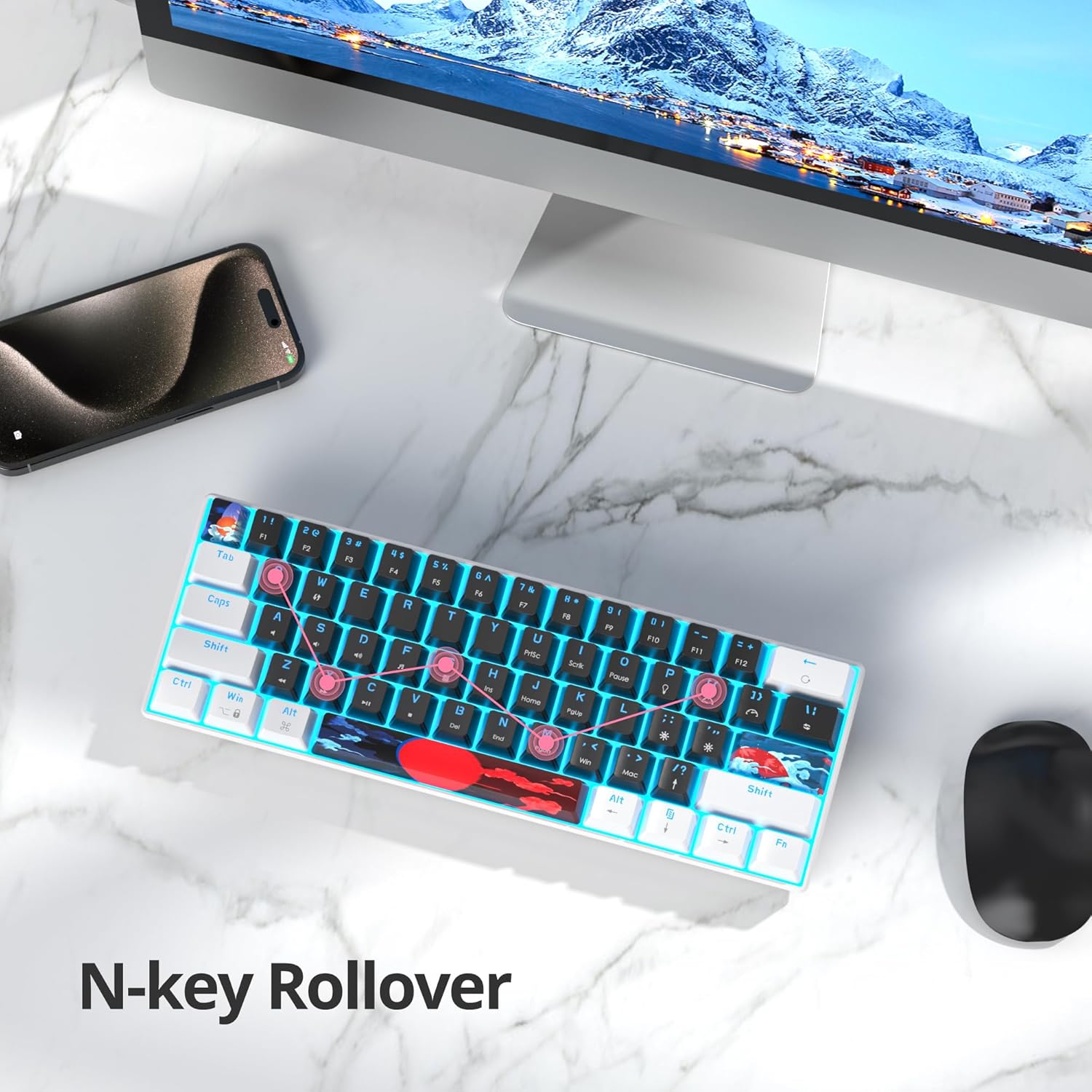
Image: The keyboard in use, illustrating its compact design and N-key rollover capability for precise input during gaming.

Image: A close-up of the keyboard's red mechanical switches, highlighting their design and construction.
Maintenance
Cleaning the Keyboard
- Disconnect the keyboard from your computer before cleaning.
- Use a soft, dry cloth to wipe down the keycaps and keyboard surface.
- For deeper cleaning, use a can of compressed air to remove dust and debris from between the keys.
- Avoid using harsh chemicals or abrasive materials, as these can damage the keyboard's finish or keycap legends.
Keycap Removal
A keycap puller is included with your keyboard for easy removal of keycaps, allowing for thorough cleaning or customization.
- Gently place the keycap puller over the keycap you wish to remove.
- Apply even pressure and pull upwards until the keycap detaches from the switch.
- To reattach, align the keycap with the switch stem and press down firmly until it clicks into place.
Troubleshooting
| Issue | Solution |
|---|---|
| Keyboard not responding |
|
| Backlight not working or inconsistent |
|
| Keys are not registering or double-typing |
|
Specifications
| Feature | Detail |
|---|---|
| Product Dimensions | 11.46 x 3.98 x 1.54 inches (29.1 x 10.1 x 3.9 cm) |
| Item Weight | 1.65 pounds (0.75 kg) |
| Brand | Ussixchare |
| Connectivity Technology | USB-A (Wired) |
| Keyboard Description | Mechanical |
| Switch Type | Red Switch |
| Backlight | LED Backlit (Blue, approx. 18 modes) |
| Compatible Devices | Laptop, PC |
| Special Feature | Ergonomic |
| Included Components | Wired mechanical gaming keyboard, keycaps puller |

Image: Side profile of the keyboard, showcasing its ergonomic angle and adjustable feet for user comfort.
Warranty and Support
For warranty information or technical support, please refer to the product packaging or contact Ussixchare customer service through the retailer's platform where the product was purchased. Keep your purchase receipt for warranty claims.