
Capapro 7inch carplay
User Manual for Capapro 7" HD Portable Carplay Wireless Touch Screen Car Stereo
Brand: Capapro | Model: 7inch carplay
1. Product Overview
The Capapro 7-inch HD Portable Carplay Wireless Touch Screen Car Stereo is designed to enhance your driving experience by integrating advanced smartphone functionalities into your vehicle. This portable unit offers wireless Apple CarPlay and Android Auto compatibility, GPS navigation, voice control, mirror link capabilities, and multiple audio output options, including a built-in speaker, Bluetooth, AUX, and FM transmission. It also includes a backup camera for improved safety and convenience.

This image displays the main unit of the Capapro 7-inch portable car stereo, featuring a vibrant touchscreen showing the Apple CarPlay interface. Below the main unit, the included waterproof backup camera is visible, highlighting the comprehensive nature of the product.
2. What's Included
Your Capapro 7" HD Portable Carplay Wireless Touch Screen Car Stereo package includes the following components:
- Wireless Car Stereo Unit
- Power cable + AUX cable
- Backup camera
- Adhesive mount
- User Manual (this document)
3. Setup and Installation
The Capapro portable car stereo is designed for easy installation, allowing you to set it up in minutes without professional assistance. It can be mounted on your dashboard using the provided adhesive mount.
3.1 Mounting the Unit
- Choose a suitable location on your dashboard that does not obstruct your view or interfere with vehicle controls.
- Clean the dashboard surface thoroughly to ensure proper adhesion of the mount.
- Attach the adhesive mount to the chosen location. The mount offers 90° adjustability for optimal viewing angles.
- Securely attach the car stereo unit to the mount.

This image demonstrates the universal compatibility and ease of installation of the Capapro car stereo across different vehicle types, from sedans to trucks, showing its adaptability to various dashboards.
3.2 Connecting Power and Audio
- Connect the provided power cable to the car stereo unit and then to your vehicle's power source (e.g., cigarette lighter socket).
- For audio output, choose one of the following methods:
- Built-in Speaker: The unit has an integrated speaker for direct audio output.
- Bluetooth: Wirelessly transmit audio to your car's existing stereo speakers via Bluetooth.
- AUX: Connect the provided AUX cable from the car stereo to your vehicle's AUX input.
- FM Transmitter: Tune the car stereo and your vehicle's FM radio to the same unused FM frequency to transmit audio.
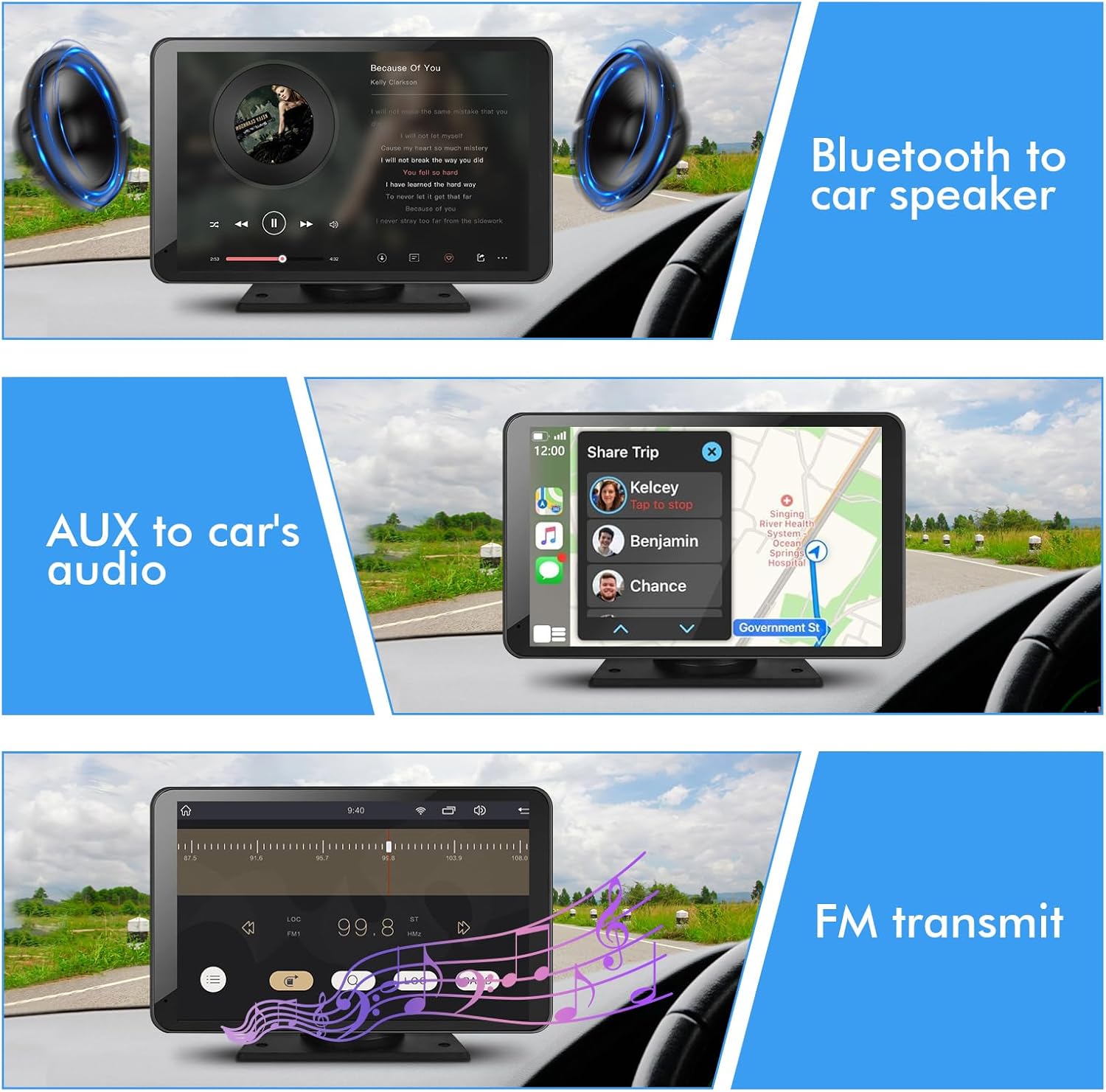
This image highlights the versatile audio output capabilities of the Capapro car stereo. It depicts the unit transmitting audio via Bluetooth to car speakers, connecting through an AUX cable, and utilizing FM transmission, providing multiple ways to integrate with your vehicle's audio system.
3.3 Backup Camera Connection
The included backup camera enhances safety by providing a clear view of the area behind your vehicle.
- Mount the backup camera at the rear of your vehicle, ensuring a clear view.
- Connect the camera's video cable to the designated input on the car stereo unit.
- Connect the camera's power cable to your vehicle's reverse light power source, so it activates automatically when shifting into reverse.

This diagram provides a visual guide for connecting the included backup camera to the Capapro car stereo. It shows the camera, the main unit, and the necessary wiring for proper installation and functionality, including power and video signal.
4. Operating Instructions
4.1 Wireless Apple CarPlay & Android Auto
Connect your smartphone wirelessly to access navigation, music, messages, and hands-free calls directly on the car stereo screen.
- Ensure Bluetooth and Wi-Fi are enabled on your smartphone.
- On the car stereo, select the CarPlay or Android Auto icon.
- Follow the on-screen prompts to pair your phone via Bluetooth and establish the wireless connection.
- Once connected, your phone's compatible apps will appear on the stereo display.
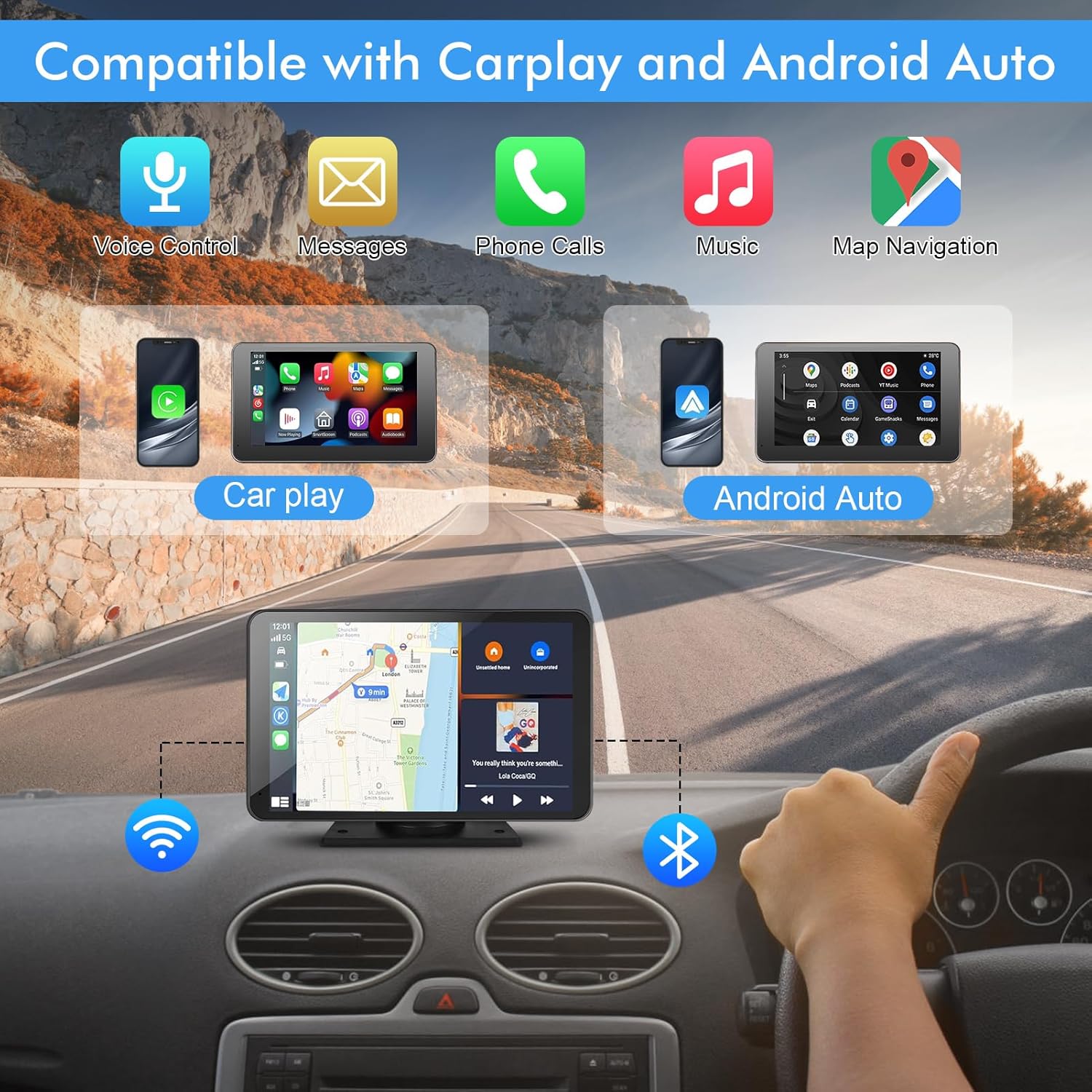
This image illustrates the seamless integration of the Capapro car stereo with both Apple CarPlay and Android Auto. It shows the unit mounted on a dashboard, displaying navigation and media interfaces, emphasizing its dual compatibility.
4.2 Voice Control (Siri/Google Assistant)
Utilize voice commands for a safer driving experience.
- Once connected to CarPlay or Android Auto, activate Siri or Google Assistant by speaking the wake phrase ("Hey Siri" or "Hey Google") or by pressing the voice control button on the screen (if available).
- Issue commands for navigation, calls, messages, or music playback.
4.3 Mirror Link Function
Mirror your smartphone's screen directly onto the 7-inch display for viewing videos or other content.
- Select the "Mirror Link" option on the car stereo.
- Follow the instructions on the screen to connect your iOS or Android device. This typically involves connecting via Wi-Fi or USB.
- Once connected, your phone's display will be mirrored on the car stereo.
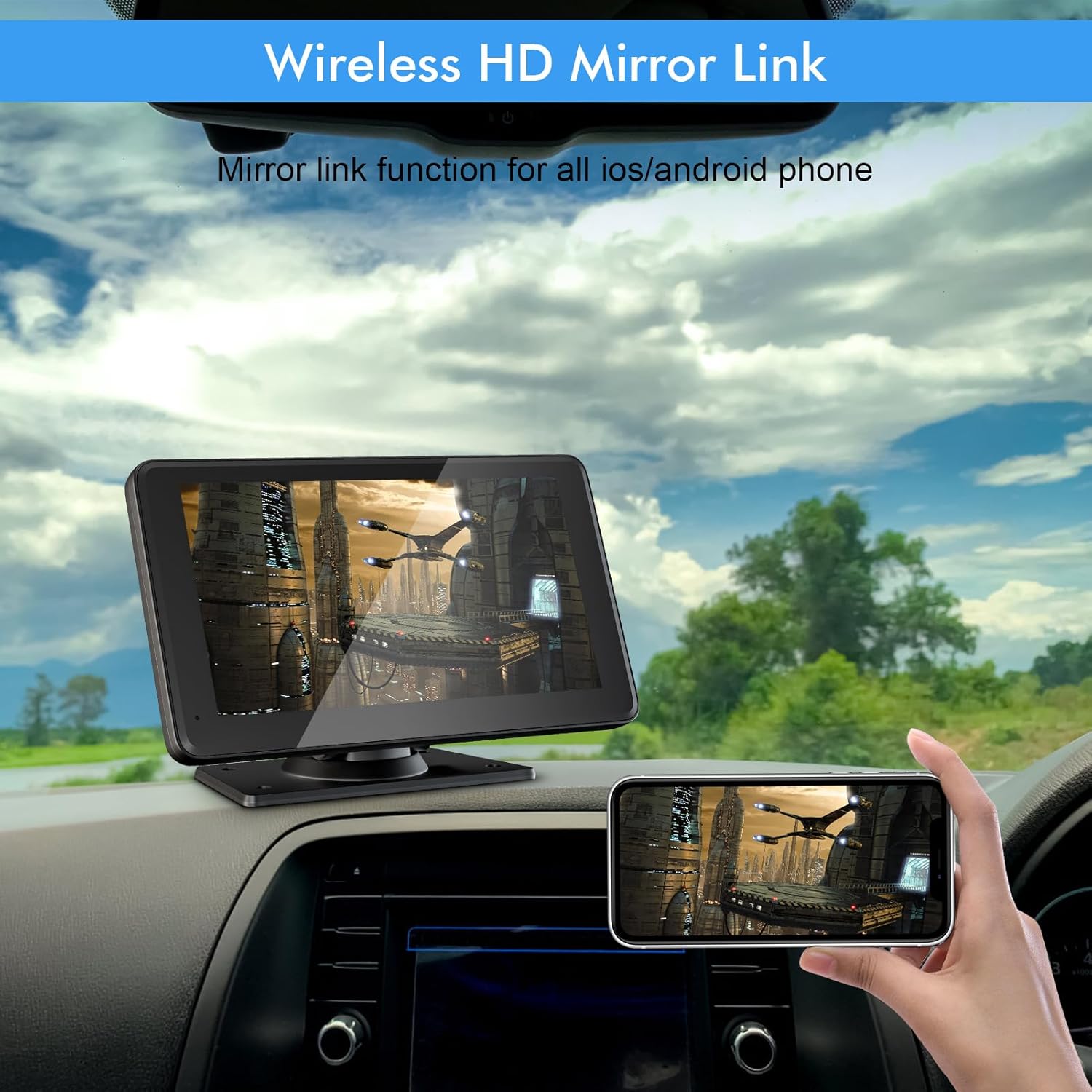
This image shows the Capapro car stereo's wireless mirror link feature, where a smartphone screen is mirrored onto the larger 7-inch display. This allows for viewing content like videos directly on the car stereo screen.
4.4 GPS Navigation
Utilize the integrated GPS navigation for real-time directions and route guidance.
- When connected to CarPlay or Android Auto, open your preferred navigation app (e.g., Apple Maps, Google Maps, Waze).
- Enter your destination, and the system will provide voice-guided directions through your car's speakers.
4.5 Backup Camera Operation
The backup camera automatically activates when your vehicle is shifted into reverse.
- Shift your vehicle into reverse gear.
- The car stereo screen will automatically switch to the backup camera view, displaying a 180° wide-angle perspective with parking assistance guidelines.
- The camera supports night vision for clear visibility in low-light conditions.

This image showcases the high-definition night vision capability of the backup camera. It displays the camera's wide-angle view on the car stereo screen, complete with parking assistance guidelines, demonstrating its utility in low-light conditions.
5. Maintenance
To ensure the longevity and optimal performance of your Capapro car stereo, follow these simple maintenance guidelines:
- Cleaning the Screen: Use a soft, lint-free cloth to gently wipe the touchscreen. For stubborn smudges, slightly dampen the cloth with water or a screen-safe cleaner. Avoid abrasive materials or harsh chemicals.
- General Cleaning: Keep the unit free from dust and debris. Use a soft brush or compressed air to clean vents and ports if necessary.
- Temperature: Avoid exposing the unit to extreme temperatures for prolonged periods.
- Cables: Periodically check all connected cables for any signs of wear or damage. Ensure they are securely plugged in.
6. Troubleshooting
If you encounter any issues with your Capapro car stereo, refer to the following common problems and their solutions:
| Problem | Possible Cause | Solution |
|---|---|---|
| Unit does not power on. | Power cable not connected securely or no power from vehicle's outlet. | Ensure the power cable is firmly plugged into both the unit and the vehicle's power source. Check if the vehicle's power outlet is functional. |
| No audio output. | Incorrect audio output mode selected, low volume, or loose audio cable. | Verify the selected audio output mode (Built-in Speaker, Bluetooth, AUX, FM). Increase the volume on both the car stereo and your vehicle's audio system. Check AUX cable connection if applicable. Ensure FM frequency is clear. |
| Wireless CarPlay/Android Auto not connecting. | Bluetooth/Wi-Fi issues on phone, incorrect pairing process. | Ensure Bluetooth and Wi-Fi are enabled on your phone. Forget the device on both the phone and stereo, then attempt to re-pair. Restart both devices. |
| Backup camera not displaying. | Camera not properly connected or power issue. | Check the video cable connection from the camera to the stereo. Ensure the camera's power cable is correctly wired to the reverse light circuit. |
| Screen unresponsive or frozen. | Temporary software glitch. | Perform a soft reset by disconnecting the power cable for a few seconds and then reconnecting it. |
7. Specifications
| Feature | Detail |
|---|---|
| Product Dimensions | 7.36 x 0.89 x 4.21 inches |
| Item Weight | 2.14 pounds |
| Model Number | 7inch carplay |
| Screen Size | 7 Inches |
| Resolution | 1024 x 600 |
| Connectivity Technology | Wireless, Bluetooth, Wi-Fi |
| Audio Output Mode | Stereo |
| Mounting Type | Dashboard Mount |
| Special Features | Backup Camera for Car, Android Auto Screen, Carplay, GPS Navigator for Car, Voice Control |
| Manufacturer | Capapro |
8. Warranty and Support
Capapro is committed to providing high-quality products and excellent customer service.
- Quality Guarantee: Your Capapro car stereo is covered by a 24-month quality guarantee from the date of purchase. This warranty covers manufacturing defects and ensures the product meets its specified performance standards.
- Customer Support: We offer lifetime customer and technical support for your product. If you have any questions, require assistance with setup, operation, or troubleshooting, please do not hesitate to contact our support team.
For support inquiries, please refer to the contact information provided with your purchase or visit the official Capapro support channels.
Ask a question about this manual
Ask about setup, troubleshooting, compatibility, parts, safety, or missing instructions. Manuals+ will review the question and use this page’s manual context to help answer it.