
SV3C A01
SV3C 4K POE Camera User Manual
Model: A01
1. Introduction
This manual provides detailed instructions for the installation, operation, and maintenance of your SV3C 4K POE Camera. This IP dome wired security camera is designed for both indoor and outdoor use, featuring 8MP HD resolution, human/vehicle detection, color night vision, two-way audio, and an IP66 waterproof rating. Please read this manual thoroughly before using the product to ensure proper setup and functionality.
2. What's in the Box
Carefully unpack the box and ensure all items are present and in good condition. If any items are missing or damaged, please contact customer support.
- 1x SV3C 4K POE Camera
- 1x Power Adapter
- 1x Ethernet Cable
- 1x Screws Bag (for mounting)
- 1x User Manual (this document)
3. Product Features
3.1 4K (8MP) Ultra-Clear Video & 120° Wide Angle
The camera captures video at 4K (8MP) resolution, providing crisp and detailed visuals. Its 3.6mm lens offers a 120-degree wide viewing angle, covering a large detection area. This ensures comprehensive surveillance with high clarity.

Image: The camera's 120-degree wide-angle lens captures a broad view of a residential property, demonstrating its extensive coverage.
3.2 Advanced Night Vision Capabilities
Equipped with both B&W (Infrared) and Color Night Vision modes. In low-light conditions, the camera can switch to B&W mode for clear footage. With its integrated white lights, it can also provide bright color viewing at night, enhancing detail and identification.

Image: A split image illustrating the difference between black and white infrared night vision and full-color night vision using the camera's spotlight feature in an indoor environment.
3.3 Stable Power over Ethernet (POE) & Flexible Power Options
POE technology simplifies installation by allowing both power and data transmission through a single Cat5 or Cat6 Ethernet cable. For installations without POE, a separate power adapter is included, offering flexible power solutions.
3.4 Smart AI Detection (Human/Vehicle) & Real-time Alerts
The camera features intelligent AI detection, accurately identifying human and vehicle motion while minimizing false alarms from irrelevant movements like insects or falling leaves. Upon detection, the system sends instant push notifications to your app or email and can upload images to an FTP server.

Image: A visual representation of the camera's AI detection capabilities, highlighting a person and a car within detection zones, with corresponding alerts displayed on a mobile phone screen.
3.5 Two-Way Audio & Siren Functionality
Equipped with a built-in microphone and speaker, enabling real-time two-way communication. This allows you to speak to individuals near the camera. The integrated siren can be activated to deter unwanted visitors or alert others to an event.

Image: An illustration depicting the camera's two-way audio and siren capabilities, showing a person in a warehouse with sound waves emanating from the camera, suggesting an active deterrent.
3.6 IP66 Waterproof Rating
The camera boasts an IP66 waterproof rating, ensuring its durability and reliable operation in various weather conditions, including rain and snow. This makes it suitable for long-term outdoor installation.

Image: The camera is shown mounted outdoors under an eave, with water splashing against it, visually confirming its IP66 waterproof and weather-resistant design.
3.7 Versatile Storage Options & ONVIF/RTSP Support
Supports 24/7 continuous recording and event-triggered recording. Video footage can be stored using three flexible methods: a large micro SD card (up to 512GB, not included), an ONVIF NVR, or cloud service. The camera is compatible with ONVIF and RTSP protocols, allowing integration with various security systems and software like Blue Iris, iSpy, VLC, and Videolink app.
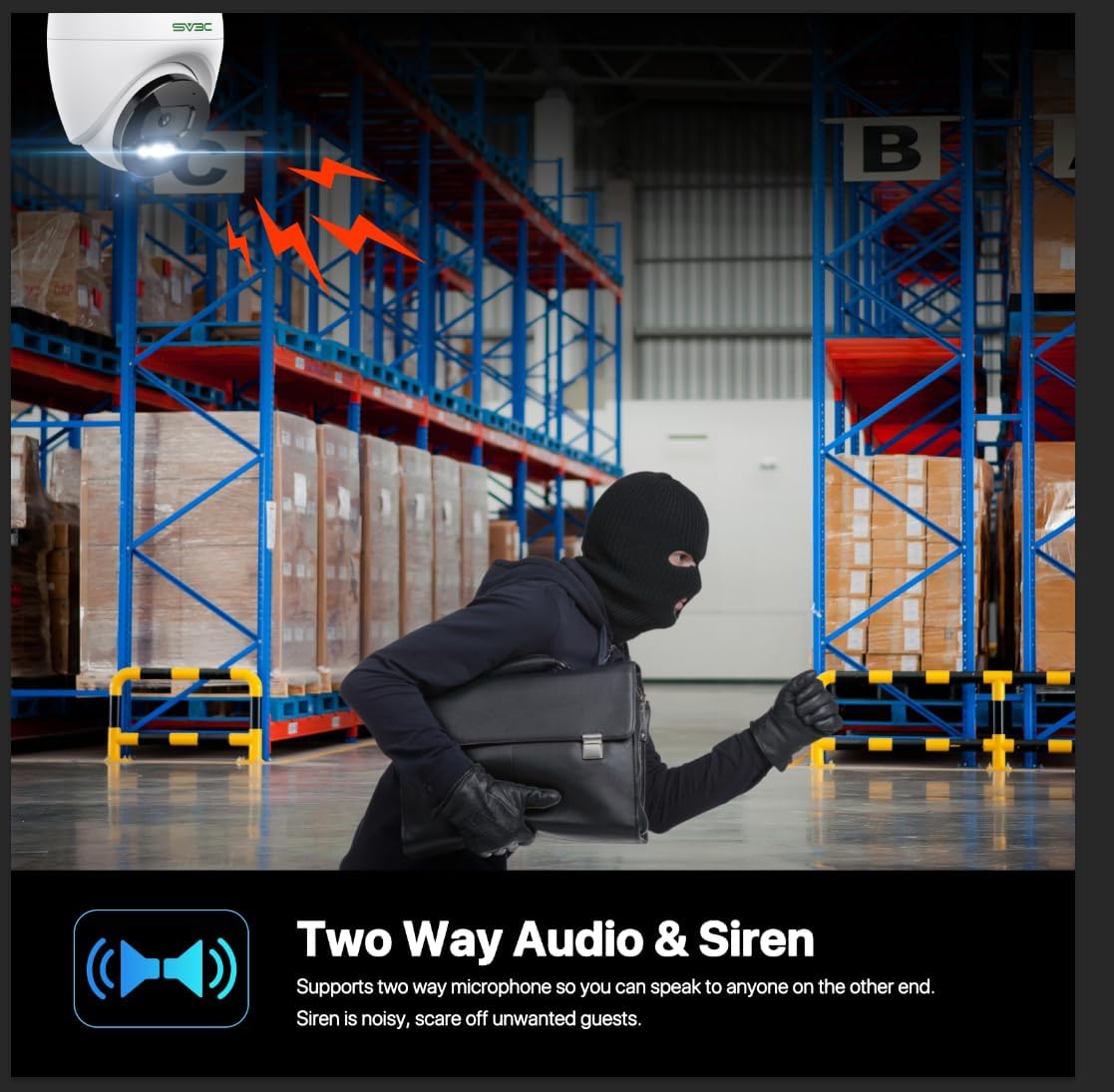
Image: An overview of the camera's multiple storage options, including cloud storage, SD card storage, and NVR integration, alongside a mobile app interface showing recorded video playback.
4. Setup
4.1 Mounting the Camera
- Choose a Location: Select a suitable indoor or outdoor location for optimal surveillance coverage. Consider the 120-degree viewing angle.
- Prepare the Surface: Ensure the mounting surface (wall or ceiling) is clean and sturdy enough to support the camera.
- Mark Drill Holes: Use the provided mounting template (if applicable) or the camera base to mark the positions for drilling.
- Drill Holes: Drill pilot holes at the marked positions. Insert wall anchors if mounting on drywall or masonry.
- Secure the Camera: Attach the camera base to the surface using the provided screws. Adjust the camera's angle as needed.
4.2 Powering the Camera
- Power over Ethernet (POE): Connect a Cat5 or Cat6 Ethernet cable from a POE-enabled switch or NVR directly to the camera's Ethernet port. This single cable will provide both power and data.
- Standard Power Adapter: If not using POE, connect the included power adapter to the camera's power input port and plug it into a standard electrical outlet. Then, connect an Ethernet cable from your router/switch to the camera's Ethernet port for data transmission.
4.3 Network Connection
- Ensure the Ethernet cable is securely connected to both the camera and your network device (router, switch, or NVR).
- The camera will obtain an IP address automatically via DHCP.
4.4 Initial Configuration (App/Software)
- Download the App: Search for the recommended SV3C app (e.g., Videolink) on your smartphone's app store (iOS/Android) and install it.
- Add Camera: Open the app, create an account if necessary, and follow the on-screen instructions to add your camera. This typically involves scanning a QR code on the camera or searching for devices on the local network.
- Set Password: For security, change the default password during the initial setup.
- Live View: Once added, you should be able to view the live feed from your camera.
5. Operating the Camera
5.1 Live View and Playback
- Access the live video feed through the mobile app or compatible desktop software.
- Review recorded footage by navigating to the playback section in the app or NVR interface.
5.2 Motion Detection and Alerts
- Enable AI Detection: In the camera settings, enable Human/Vehicle detection to receive intelligent alerts.
- Configure Alert Settings: Set up push notifications to your mobile device or email alerts. You can also configure FTP upload for detected events.
- Adjust Sensitivity: Fine-tune the detection sensitivity to minimize false alarms.
5.3 Two-Way Audio
- In the live view interface of the app, locate the microphone icon to speak through the camera's speaker.
- The camera's built-in microphone will capture audio from the surveillance area.
5.4 Recording Management
- Micro SD Card: Insert a micro SD card (up to 512GB) into the camera's designated slot for local storage.
- NVR Integration: Connect the camera to an ONVIF-compatible Network Video Recorder (NVR) for centralized recording and management.
- Cloud Storage: Explore available cloud storage options through the app for off-site backup of recordings.
- Recording Modes: Configure continuous recording, scheduled recording, or motion-triggered recording based on your needs.
5.5 ONVIF/RTSP Integration
- The camera supports standard ONVIF and RTSP protocols, allowing integration with third-party software and NVRs.
- Refer to the specific software's documentation for adding an ONVIF/RTSP camera using the camera's IP address and credentials.
6. Maintenance
- Regular Cleaning: Periodically clean the camera lens and housing with a soft, damp cloth to remove dust, dirt, or water spots that may affect image quality. Do not use harsh chemicals.
- Firmware Updates: Check for and install firmware updates regularly to ensure optimal performance, security, and access to new features.
- Cable Inspection: Inspect all cables (Ethernet, power) for any signs of wear, damage, or loose connections, especially for outdoor installations.
- Storage Management: Regularly review recorded footage and manage storage space, especially if using an SD card, to prevent it from becoming full.
- Environmental Protection: While the camera is IP66 waterproof, ensure it is installed in a location that minimizes direct exposure to extreme weather conditions where possible, to prolong its lifespan.
7. Troubleshooting
- No Power:
• Check if the power adapter is securely plugged into an outlet and the camera.
• If using POE, ensure the POE switch/NVR is powered on and the Ethernet cable is connected correctly. - No Video/Offline:
• Verify the Ethernet cable connection to both the camera and your network.
• Ensure your router/switch is functioning correctly.
• Restart the camera by disconnecting and reconnecting power.
• Check if the camera's IP address is accessible on your network using a network scanning tool. - Poor Image Quality:
• Clean the camera lens.
• Ensure there are no obstructions in the camera's field of view.
• Check network bandwidth if streaming is choppy (4K video requires good bandwidth). - Motion Detection Not Working/Too Many False Alarms:
• Ensure motion detection is enabled in the app/software settings.
• Adjust the detection sensitivity and detection zones.
• Verify that AI Human/Vehicle detection is enabled to filter out irrelevant movements. - Two-Way Audio Issues:
• Check volume settings on your device and in the app.
• Ensure the microphone and speaker are not obstructed.
• Verify network connection stability for clear audio transmission. - SD Card Not Recording:
• Ensure the SD card is correctly inserted and formatted within the camera settings.
• Check if the SD card has sufficient free space.
• Verify recording schedules or event triggers are properly configured. - Cannot Access Camera Remotely:
• Ensure your home network has internet access.
• Check app permissions on your smartphone.
• Verify that the camera is properly connected to the internet and registered with the cloud service (if applicable).
8. Specifications
| Feature | Detail |
|---|---|
| Model Name | A01-4K ONVIF |
| Video Capture Resolution | 4K (8MP) |
| Viewing Angle | 120 Degrees |
| Indoor/Outdoor Usage | Indoor, Outdoor |
| Connectivity Technology | Ethernet, Wired (POE) |
| Power Source | Corded Electric (POE or Power Adapter) |
| Special Features | 2-Way Audio, HD Resolution, Humanoid recognition, ONVIF, Vehicle recognition, Color Night Vision |
| Water Resistance Level | IP66 Waterproof |
| Flash Memory Installed Size | Up to 512GB (Micro SD Card) |
| Compatible Devices | Blue Iris, Desktop, Laptop, ONVIF NVR, Smartphone (Android, iOS) |
| Mounting Type | Wall Mount, Screw In |
| Dimensions (L x W x H) | 3.74 x 3.74 x 3.94 inches |
| Item Weight | 1.1 pounds |
| Material | Aluminum A+ Plastic |
| Frame Rate | 20 frames_per_second |
| Night Vision Range | 263 Feet |
| Alert Type | Motion Only (Human/Vehicle) |
9. Warranty and Support
For warranty information, please refer to the documentation provided at the time of purchase or contact your retailer. SV3C products typically come with a manufacturer's warranty covering defects in materials and workmanship.
For technical support, product inquiries, or assistance with troubleshooting, please visit the official SV3C website or contact their customer service department. Contact details are usually available on the product packaging or the brand's official online presence.