
Roinvou 2+64G Android
Roinvou 6.9" Single Din Touchscreen Radio User Manual
Model: 2+64G Android
Product Overview
The Roinvou 6.9" Single Din Touchscreen Radio is an advanced in-car entertainment and navigation system designed to enhance your driving experience. Featuring a powerful Android system and high-performance CPU, it offers seamless operation and a wide range of functionalities.
Key features include wireless/wired CarPlay and Android Auto, Bluetooth connectivity for hands-free calls and music streaming, Wi-Fi for app downloads and online content, built-in GPS navigation, steering wheel control compatibility, and support for a backup camera.

Figure 1: Roinvou 6.9" Single Din Touchscreen Radio and included accessories.
This image displays the main head unit, a backup camera, an external microphone, and a smartphone demonstrating wireless CarPlay/Android Auto connectivity.
What's in the Box
Upon unboxing, verify that all components are present:
- 6.86-inch Android Single DIN Car Stereo
- Power Cable
- GPS Antenna
- AHD Backup Camera
- External Microphone
- Radio Antenna
- User Manual (this document)
Setup and Installation
Proper installation is crucial for optimal performance. It is recommended to have this unit installed by a qualified professional.
Installation Overview
The Roinvou head unit is designed for single DIN car stereo slots. Ensure your vehicle has adequate space for installation.

Figure 2: Visual comparison of a car dashboard before and after the Roinvou car stereo installation.
This image illustrates the transformation of the car's interior with the new head unit seamlessly integrated.
Wiring Diagram for Backup Camera
Connect the AHD backup camera according to the following diagram:
- Connect the red wire from the camera power cable to the car's reversing lamp positive (+).
- Connect the black wire from the camera power cable to the car's ground (GND).
- Connect the RCA video cable from the camera to the "CAMIN" input on the car stereo.
- Ensure the car stereo is properly connected to the car's power supply and ground.

Figure 3: Detailed wiring diagram for connecting the AHD backup camera to the car stereo system.
This diagram shows the connections for the car stereo, camera power source, and rear-view camera, including positive, ground, and video signal lines.
Dimensions and Port Details
Refer to the diagram below for the physical dimensions and port layout of the Roinvou head unit:

Figure 4: Front, rear, and wiring harness views of the Roinvou car stereo, detailing dimensions and port labels.
This image provides a comprehensive view of the unit's physical attributes and connection points, including radio antenna, GPS antenna, RCA outputs, power cable, and various speaker and control wires.
Operating Instructions
User Interface Overview
The Roinvou head unit features an intuitive touchscreen interface. Navigate through various functions using the main menu icons.
Video 1: Demonstration of the Roinvou head unit's user interface, including navigation, audio settings, and connectivity features.
This video provides a visual guide to the main screen, app navigation, and various settings available on the device.
Volume Adjustment
Adjust the audio volume using the rotary knob on the front panel or through the touchscreen controls.

Figure 5: Image illustrating the physical volume knob and its function on the Roinvou car stereo.
This image highlights the ease of adjusting volume using the dedicated knob.
Audio Settings (EQ Sound)
The unit features a built-in equalizer (EQ) for customizing sound output. Access the EQ settings from the main menu to adjust frequency bands and select preset sound effects (e.g., Pop, Rock, Classical, Jazz).

Figure 6: Screenshot of the Roinvou car stereo's equalizer interface, showing multiple EQ options for sound customization.
This image demonstrates the visual representation of the EQ curve and various sound effect presets.
Bluetooth Connectivity
Connect your smartphone via Bluetooth for hands-free calling, phone book synchronization, and music streaming.
- Go to the Bluetooth menu on the head unit.
- Enable Bluetooth on your smartphone and search for available devices.
- Select "Car BT" (or similar name) from the list on your phone and pair.
- Confirm the pairing code if prompted.
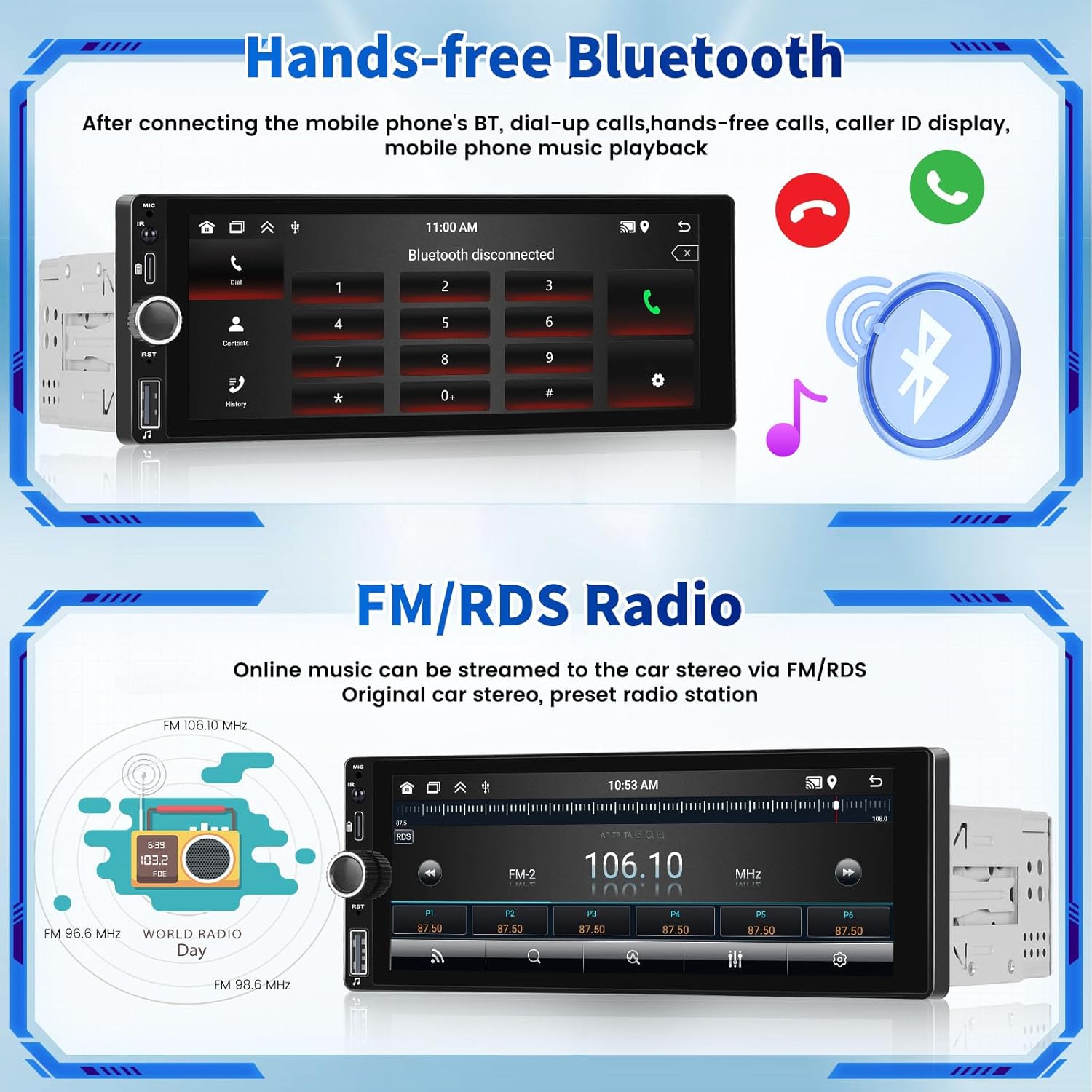
Figure 7: Screenshot of the Bluetooth interface on the Roinvou car stereo, showing call functions and music playback icons.
This image highlights the hands-free calling and music streaming capabilities via Bluetooth.
FM/RDS Radio
Access the FM/RDS radio function to listen to local radio stations. The RDS (Radio Data System) feature displays station information where available.
Figure 8: Screenshot of the FM/RDS radio interface on the Roinvou car stereo, displaying frequency and preset options.
This image shows the radio tuner with frequency display and preset buttons for easy station selection.
Video Playback
The unit supports video playback from various sources, including USB drives. Ensure video files are in a compatible format.

Figure 9: Image depicting a USB drive connected to the car stereo for music playback.
While this image specifically shows music playback, the USB port supports various media types including video files.
Wireless/Wired CarPlay & Android Auto
Connect your iPhone or Android smartphone to access CarPlay or Android Auto features, including navigation, music, calls, and messages, directly on the head unit's screen.
- For wireless connection, ensure Bluetooth and Wi-Fi are enabled on your phone and the head unit.
- For wired connection, use an original USB data cable to connect your phone to the unit's USB port.

Figure 10: Screenshots demonstrating the interfaces for Apple CarPlay, Android Auto, and Mirror Link on the Roinvou car stereo.
This image illustrates the various connectivity options, showing how smartphone interfaces are mirrored or integrated into the head unit.
GPS Navigation
The unit has built-in GPS navigation. You can download offline maps from the Play Store or use online maps when connected to Wi-Fi.

Figure 11: Screenshot of the GPS navigation interface on the Roinvou car stereo, showing real-time road conditions and accurate satellite positioning.
This image highlights the navigation capabilities, including traffic avoidance and precise location tracking.
Wi-Fi and Hotspot Connectivity
Connect the head unit to a Wi-Fi network or a mobile hotspot to access online features, download apps, and stream content.
Figure 12: Screenshot of the Roinvou car stereo displaying various online applications accessible via Wi-Fi or hotspot.
This image shows popular apps like YouTube, Facebook, and TikTok, indicating the unit's internet capabilities.
Steering Wheel Control
The unit supports steering wheel controls, allowing you to manage functions without taking your hands off the wheel. Configuration may be required in the settings menu.

Figure 13: Screenshot of the steering wheel control learning interface on the Roinvou car stereo.
This image shows the options for programming steering wheel buttons to control various functions of the head unit.
Backup Camera Functionality
When the vehicle is shifted into reverse, the unit automatically displays the rear-view camera feed, aiding in safe parking and maneuvering.
Figure 14: Screenshot of the AHD reversing image displayed on the Roinvou car stereo screen.
This image shows the clear view from the backup camera, including parking guidelines, to assist with reversing.
Split Screen Display
The split-screen feature allows you to view two applications simultaneously, such as navigation and music playback, for enhanced multitasking.
Figure 15: Screenshot demonstrating the split-screen functionality of the Roinvou car stereo.
This image shows two applications running side-by-side on the display, illustrating the convenience of simultaneous operation.
Type-C Fast Charging
The unit includes a Type-C port that supports fast charging for compatible devices.

Figure 16: Image highlighting the Type-C fast charging port on the Roinvou car stereo.
This image shows a smartphone connected and charging via the Type-C port, indicating its fast charging capability.
Maintenance
To ensure the longevity and optimal performance of your Roinvou head unit, follow these maintenance guidelines:
- Cleaning: Use a soft, dry cloth to clean the touchscreen and exterior. Avoid abrasive cleaners or solvents.
- Software Updates: Periodically check for software updates to ensure the system runs efficiently and has the latest features. Updates can typically be found in the system settings or on the manufacturer's website.
- Temperature: Avoid exposing the unit to extreme temperatures for prolonged periods.
- Connections: Ensure all cables and connections are secure and free from damage.
Troubleshooting
If you encounter issues with your Roinvou head unit, refer to the following common troubleshooting steps:
| Problem | Possible Cause | Solution |
|---|---|---|
| Unit does not power on. | Loose power connection; blown fuse; vehicle battery issue. | Check power cable connections. Inspect vehicle fuses and replace if necessary. Verify vehicle battery charge. |
| No sound output. | Volume too low; mute activated; speaker wiring issue; incorrect audio source. | Increase volume. Check if mute is active. Verify speaker connections. Select correct audio source. |
| Bluetooth not connecting. | Bluetooth not enabled; incorrect pairing; interference. | Ensure Bluetooth is enabled on both devices. Delete previous pairings and re-pair. Move closer to the unit. |
| GPS signal lost or inaccurate. | GPS antenna obstructed or disconnected; unit in an area with poor satellite reception. | Ensure GPS antenna is properly installed and has a clear view of the sky. Move to an open area. |
| Touchscreen unresponsive. | System freeze; dirty screen. | Perform a soft reset (refer to manual for specific reset procedure). Clean the screen with a soft cloth. |
If the problem persists after attempting these solutions, please contact Roinvou customer support.
Specifications
- Model: 2+64G Android
- Display Size: 6.86 Inches
- Resolution: 1024 x 600 or 1280 x 720 (depending on specific model variant)
- Operating System: Android (version not specified, but implied as Newest Android)
- Memory: 2GB RAM + 64GB Internal Storage
- Connectivity: Bluetooth, USB, RCA, Type-C, Wi-Fi
- Special Features: Touchscreen, Wireless CarPlay, Wireless Android Auto, Mirror Link, GPS Navigation, Wi-Fi, Type-C Fast Charging, EQ Settings, FM/RDS Radio, Steering Wheel Control, Backup Camera Support
- Audio Output Mode: Stereo
- Mounting Type: Dashboard Mount (Single DIN)
- Item Weight: Approximately 2.44 pounds
- Package Dimensions: Approximately 8.66 x 6.46 x 4.57 inches

Figure 17: Comparison image highlighting the high resolution display of the Roinvou car stereo.
This image visually contrasts the unit's 1280 x 480 HD screen with a general 800 x 480 screen, emphasizing clarity.
Warranty and Support
Warranty: The Roinvou 6.9" Single Din Touchscreen Radio comes with a 1-Year Warranty from the date of purchase. This warranty covers manufacturing defects and malfunctions under normal use.
Support: For technical assistance, troubleshooting beyond this manual, or warranty claims, please contact Roinvou customer support through their official website or the retailer where the product was purchased. Please have your model number and purchase date ready when contacting support.
For more information, visit the official Roinvou Store on Amazon.
Ask a question about this manual
Ask about setup, troubleshooting, compatibility, parts, safety, or missing instructions. Manuals+ will review the question and use this page’s manual context to help answer it.