
Introduction
This manual provides comprehensive instructions for the installation, operation, and maintenance of the Zapco HB-410-ADSP 10-Channel DSP / 8-Channel Class D Amplifier. The HB-410-ADSP is designed to integrate advanced digital sound processing with efficient amplification, offering a versatile solution for car audio systems. Please read this manual thoroughly before using the device to ensure proper functionality and longevity.

Image: Front view of the Zapco HB-410-ADSP amplifier, showcasing its compact design and branding.
Features and Specifications
Key Features:
- 10-Channel Digital Sound Processor (DSP): Equipped with a 31-band equalizer for precise audio tuning.
- 8-Channel Class D Amplifier: Delivers 70 Watts (Max) per channel.
- Input Options: Includes 4-channel high-level inputs and 2-channel RCA inputs for versatile source connectivity.
- Output Options: Features 10-channel RCA outputs for system expansion.
- Plug & Play Compatibility: Designed for straightforward integration into existing audio systems.
- Bluetooth 5.1 Streaming: Enables wireless audio playback from compatible devices.
- Integrated Music Player: Supports various audio formats including MP2, MP3, MP4, WMA, APE, FLAC, AAC, M4A, WAV, AIF, and AIFC.
- DSP Control Tools: Accessible via PC software and a dedicated mobile application.
Technical Specifications:
| Model Number | HB-410-ADSP |
| Amplifier Power | 8 x 70 Watt (Max) |
| Number of Channels | 10 (DSP), 8 (Amplifier) |
| Product Dimensions (L x W x H) | 160 mm x 115 mm x 45 mm (6.3 x 4.53 x 1.77 inches) |
| Weight | Approximately 6 Pounds |
| Mounting Type | Surface Mount |
| Bluetooth Version | 5.1 |
| Supported Audio Formats | MP2, MP3, MP4, WMA, APE, FLAC, AAC, M4A, WAV, AIF, AIFC |
Setup and Installation
Proper installation is crucial for optimal performance. It is recommended that installation be performed by a qualified professional. Ensure the vehicle's battery is disconnected before beginning any wiring.
Connection Overview:
- Power Connections: Connect the +12V, GND, and REM (Remote Turn-On) wires to the appropriate terminals.
- High-Level Inputs: Use the 4-channel high-level inputs for direct connection to factory head unit speaker outputs.
- RCA Inputs: Utilize the 2-channel RCA inputs for aftermarket head units or other audio sources.
- RCA Outputs: The 10-channel RCA outputs allow for connection to additional amplifiers or external audio processors.
- Speaker Outputs: Connect your speakers to the designated speaker output terminals.
- PC USB: Connect to a computer for DSP software control and configuration.

Image: Detailed view of the Zapco HB-410-ADSP's input and output terminals, including RCA, high-level, power, and USB connections.
Operating Instructions
The HB-410-ADSP offers extensive control over your audio system through its Digital Sound Processor and integrated features.
Digital Sound Processor (DSP) Control:
The DSP can be configured using either a PC application or a mobile application. Both interfaces provide access to the 31-band equalizer and other DSP tools for fine-tuning your audio.
- PC Software: Connect the amplifier to your computer via the PC USB port. Install the Zapco DSP software to access the full graphical user interface (GUI) for detailed adjustments.
- Mobile App: Download the Zapco Harmony DSP mobile application from your device's app store. Connect via Bluetooth to control basic DSP functions and the integrated music player.
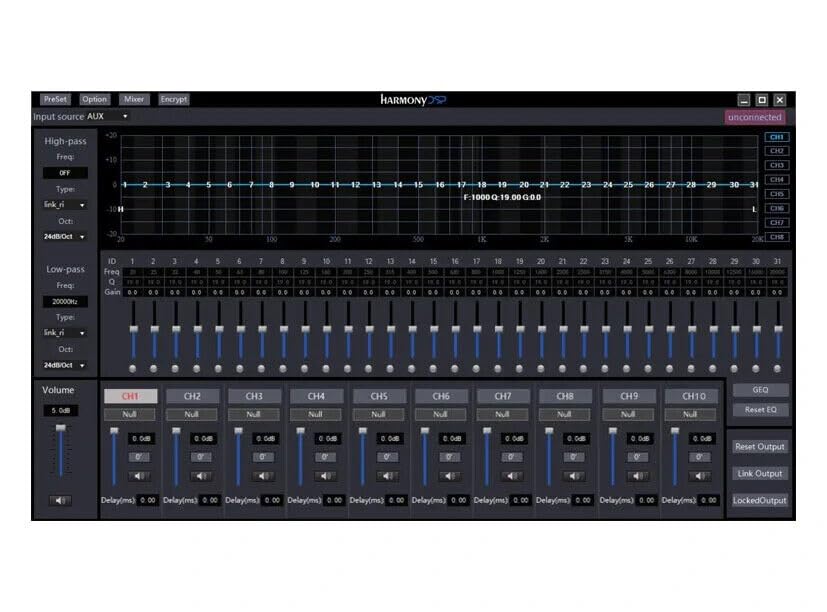
Image: Screenshot of the Zapco Harmony DSP PC software, showing the 31-band equalizer and channel controls for precise audio tuning.
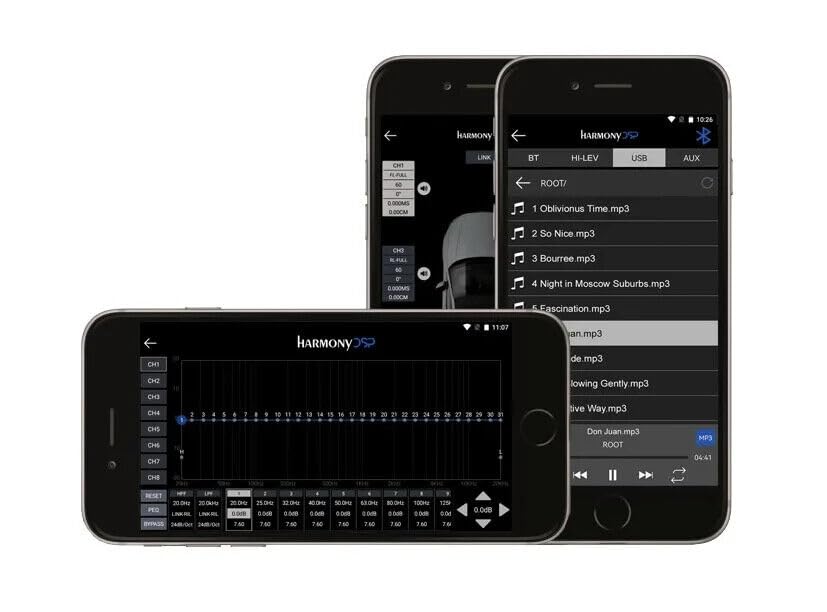
Image: Screenshots of the Zapco Harmony DSP mobile application on a smartphone, illustrating the interface for Bluetooth streaming and DSP adjustments.
Bluetooth Streaming:
To stream audio wirelessly, enable Bluetooth on your mobile device and pair it with the HB-410-ADSP. The device name will typically appear as "Zapco HB-410-ADSP" or similar. Once paired, you can play audio from your device through the amplifier.
Integrated Music Player:
The amplifier includes a built-in music player that supports various file formats. You can manage and play music files directly through the mobile application.
Maintenance
The Zapco HB-410-ADSP is designed for durability and requires minimal maintenance. Follow these guidelines to ensure its continued performance:
- Cleaning: Use a soft, dry cloth to clean the exterior of the amplifier. Avoid using harsh chemicals or abrasive cleaners.
- Ventilation: Ensure that the amplifier's ventilation openings are not obstructed to prevent overheating.
- Connections: Periodically check all wiring connections to ensure they are secure and free from corrosion.
- Environment: Install the amplifier in a location that is protected from excessive moisture, dust, and extreme temperatures.
Troubleshooting
If you encounter issues with your Zapco HB-410-ADSP, refer to the following common problems and solutions:
- No Power:
- Check all power connections (+12V, GND, REM) for proper contact and voltage.
- Verify that the vehicle's battery is charged.
- Inspect any inline fuses for continuity.
- No Audio Output:
- Ensure all input and output cables are securely connected.
- Check the source device (head unit, phone) for audio output.
- Verify DSP settings; ensure channels are not muted or gain is not set too low.
- Confirm speaker connections are correct and speakers are functional.
- Distorted Audio:
- Reduce input gain if the signal is clipping.
- Check speaker impedance compatibility with the amplifier.
- Review DSP equalizer and crossover settings for anomalies.
- Mobile App Issues (Input/Output Mapping):
- Some users have reported inconsistencies with input channel mapping to outputs when using the mobile application. If precise mapping is required, it is recommended to use the PC software for configuration.
- Ensure the mobile app is updated to the latest version.
- Bluetooth Connectivity Problems:
- Ensure the amplifier is in pairing mode or discoverable.
- Delete previous pairings on your mobile device and re-attempt pairing.
- Move the mobile device closer to the amplifier to rule out range issues.
Warranty and Support
For warranty information, please refer to the documentation provided with your purchase or visit the official Zapco website. If you require technical assistance or have questions not covered in this manual, please contact Zapco customer support through their official channels.
Online Resources: For additional support and software downloads, visit the Zapco Store on Amazon or the official Zapco website.