
Introduction
This user manual provides comprehensive instructions for the ApoloSign 15.6-inch WiFi Digital Picture Frame (Model: DPF156). This device allows you to instantly share and display photos and videos from anywhere using the free Frameo app. It features a 1920x1080 FHD IPS touch screen, 32GB of internal storage, and automatic rotation for flexible placement. Please read this manual thoroughly to ensure proper setup, operation, and maintenance of your digital picture frame.
Product Overview
Components
- 15.6-inch Digital Picture Frame
- Power Adapter
- Stand (pre-attached or separate)
- User Manual (this document)
Key Features
- Instant Photo & Video Sharing: Share media instantly via the free Frameo app from anywhere.
- High-Quality Display: 15.6-inch FHD IPS touch screen with 1920x1080 resolution and 16:9 aspect ratio for stunning clarity and vibrant colors.
- Large Storage Capacity: Built-in 32GB storage, expandable with an SD card (up to 32GB, not included).
- Flexible Placement: Auto-rotate function adjusts content for portrait or landscape orientation; wall-mountable design.
- User-Friendly Interface: Intuitive touch screen control for easy navigation and settings adjustment.
- Versatile Customization: Supports slideshows, video playback, sleep mode, image scaling, brightness adjustment, and various transition effects.
- Secure Sharing: Frameo app uses Secure Device Grid (SDG) for private and secure sharing.

Figure 1: The ApoloSign 15.6-inch Digital Picture Frame and its companion Frameo app on a smartphone.
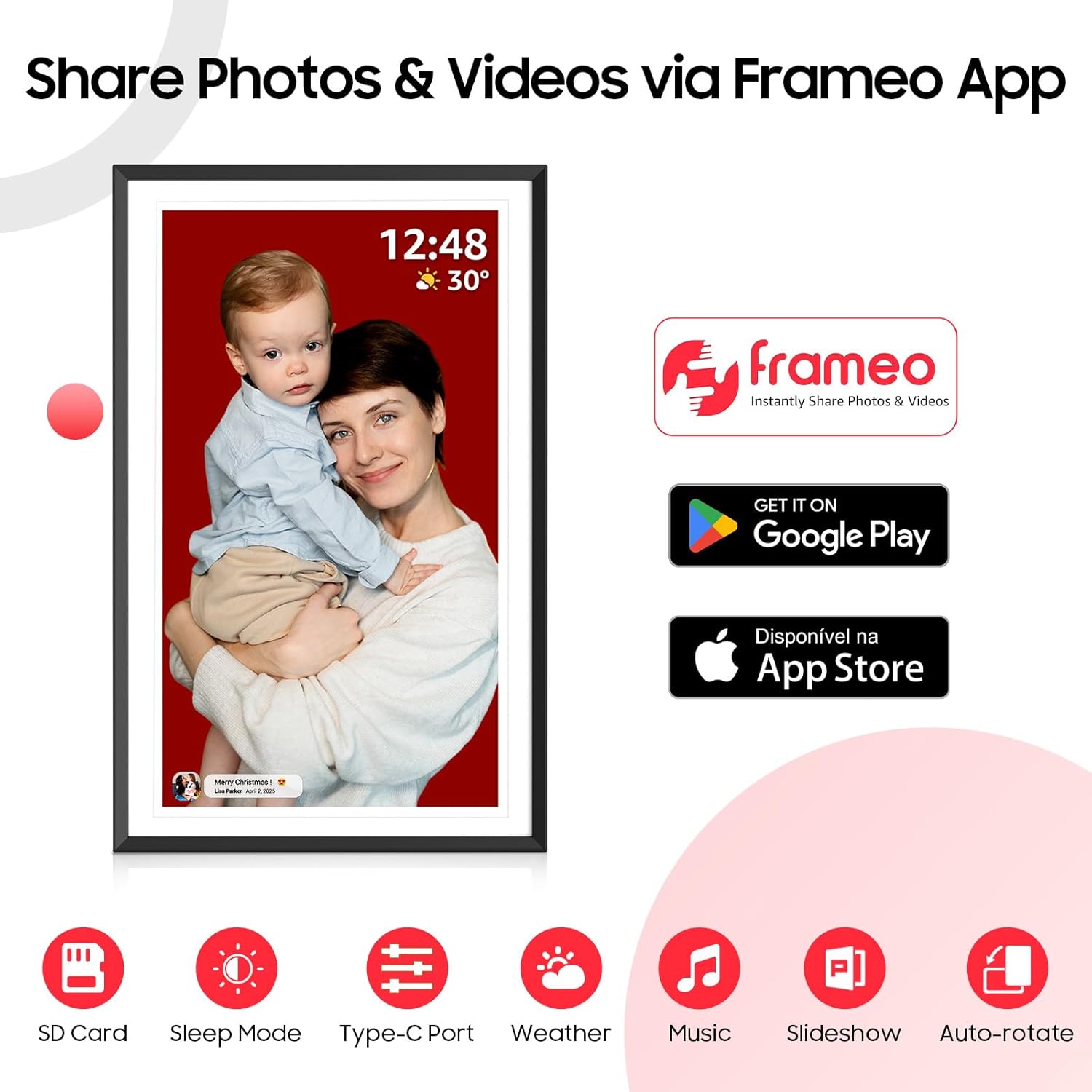
Figure 2: Key features of the ApoloSign Digital Picture Frame, including SD card support, sleep mode, Type-C port, weather display, music playback, slideshows, and auto-rotate.
Setup
- Power Connection: Connect the provided power adapter to the frame's power port and plug it into a wall outlet. The frame will automatically power on.
- Initial Setup: Follow the on-screen prompts to select your language, time zone, and connect the frame to your Wi-Fi network.
- Install Frameo App: Download and install the free Frameo app on your iOS or Android smartphone. Search for "Frameo" in your device's app store.
- Connect to Frameo App:
- On the digital picture frame, navigate to the "Add Friend" section to generate a unique invitation code.
- Open the Frameo app on your smartphone, create an account (if you don't have one), and enter the invitation code displayed on your frame.
- Once connected, you can begin sharing photos and videos directly from your phone to the frame.

Figure 3: Instant wireless sharing is enabled via the Frameo app, ensuring privacy and security.
Video 1: This video demonstrates how to share photos and videos privately and safely using the Frameo App. It highlights the ease of connecting your smartphone to the ApoloSign digital picture frame for instant media transfer.
Operating Instructions
Navigating the Touch Screen
The ApoloSign digital picture frame features a responsive touch screen. Swipe left or right to navigate through photos and videos. Tap the screen to reveal on-screen controls for playback, settings, and other options.

Figure 4: The 15.6-inch FHD IPS touch screen allows for effortless control and navigation.
Sharing Photos and Videos via Frameo App
Once your frame is connected to the Frameo app, you can easily send media:
- Open the Frameo app on your smartphone.
- Select the photos or videos you wish to share.
- Choose your ApoloSign frame as the recipient.
- The media will instantly appear on your digital picture frame.
Multiple users can connect to the same frame, allowing family and friends to share their moments from anywhere.

Figure 5: User management and the ability to add friends for shared photo experiences.
Customizing Display Settings
Access the settings menu on the frame to customize various display options:
- Slideshow Mode: Adjust interval time between photos and transition effects.
- Brightness: Control screen brightness for optimal viewing in different lighting conditions.
- Volume: Adjust volume for video playback.
- Image Scaling: Choose how images are displayed (e.g., fill screen, fit to screen).
- Hide/Show Images and Titles: Manage visibility of photo details.
- Sleep Mode: Schedule the frame to turn off/on automatically.
Video 2: This video demonstrates the weather and clock features of the ApoloSign digital picture frame, showcasing its utility as a life assistant beyond just displaying photos.
Auto-Rotate Function
The frame automatically detects its orientation (landscape or portrait) and adjusts the displayed content accordingly. This allows for versatile placement on a table or mounted on a wall.
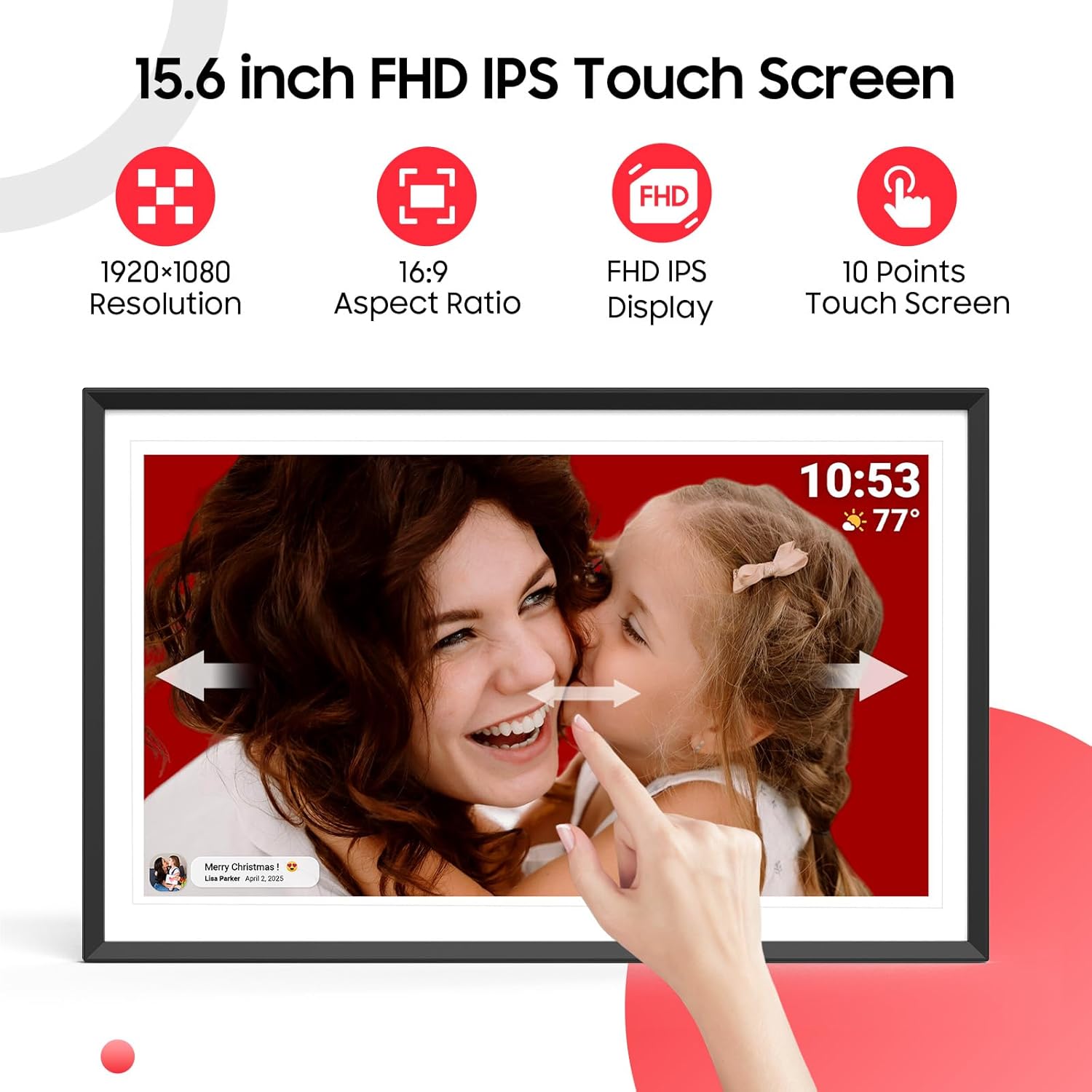
Figure 6: Flexible placement options with automatic content rotation based on the frame's actual position.
Transferring Photos via USB Cable (Windows/Linux)
For direct transfer from a computer (Windows or Linux only), follow these steps:
- Connect the frame to your computer using a USB cable that supports data transfer (not just charging).
- On the frame, navigate to Settings > Manage photos > Transfer from computer.
- Toggle the feature on. Your computer should detect the frame as a storage device, typically found under "This PC" in File Explorer.
- Copy your photos from your computer to the frame's DCIM folder.
- Allow the frame to import all photos to its slideshow. Do not disconnect the cable until all transfers are complete.
- If the computer does not detect the frame, restart the photo frame and try again.
Maintenance
- Cleaning the Screen: Use a soft, lint-free cloth to gently wipe the screen. For stubborn smudges, slightly dampen the cloth with water or a screen-cleaning solution. Avoid harsh chemicals.
- Cleaning the Frame: Wipe the frame's exterior with a soft, dry cloth.
- Software Updates: The frame may receive periodic software updates via Wi-Fi. Ensure your frame is connected to the internet to receive these updates, which can improve performance and add new features.
- Storage Management: Periodically review the photos and videos stored on your frame. You can export media to an SD card or computer to manage storage space.
Troubleshooting
| Problem | Possible Cause / Solution |
|---|---|
| Frame does not power on. | Ensure the power adapter is securely connected to both the frame and a working power outlet. Try a different outlet. |
| Cannot connect to Wi-Fi. | Check your Wi-Fi password. Ensure the frame is within range of your Wi-Fi router. Restart both the frame and your router. |
| Cannot send photos via Frameo app. | Verify the frame is connected to Wi-Fi. Ensure the invitation code was entered correctly in the app. Check your phone's internet connection. |
| Computer does not detect frame via USB. | Use a USB cable that supports data transfer. Ensure "Transfer from computer" is enabled in the frame's settings. Restart the frame and try again. This feature is only supported on Windows and Linux. |
| Photos do not fill the entire screen. | Adjust the "Image Scaling" setting in the frame's display options to "Fill Screen" or similar, depending on your preference and the photo's aspect ratio. |
| Frame is unresponsive. | Perform a soft reset by unplugging the power adapter, waiting 10 seconds, and plugging it back in. |
Specifications
| Feature | Detail |
|---|---|
| Model Number | DPF156 |
| Screen Size | 15.6 Inches |
| Resolution | 1920 x 1080 FHD IPS |
| Aspect Ratio | 16:9 |
| Internal Storage | 32GB |
| External Storage | Supports 32GB SD card (not included) |
| Connectivity | Wi-Fi, Type-C USB |
| Product Dimensions | 18 x 10.8 x 0.99 inches |
| Item Weight | 4.07 pounds |
| Manufacturer | ApoloSign |
Warranty and Support
ApoloSign is committed to providing excellent customer service and product support.
- Warranty: Your ApoloSign Digital Picture Frame comes with a One-Year Worry-Free Warranty.
- Technical Support: Lifetime Technical Support is available for your product.
- After-Sales Service: 24 Hours After-Sales Service is provided to assist with any inquiries or issues.
For assistance, please contact ApoloSign customer support through the contact information provided on the product packaging or the official ApoloSign website.

Figure 7: ApoloSign's commitment to customer satisfaction, including warranty and support services.