1. Introduction and Overview
The Falcon 4G Combo Deluxe is an integrated 4G LTE router and external antenna system designed to provide reliable internet connectivity in vehicles such as caravans, motorhomes, buses, boats, and vans. This system addresses common connectivity issues in insulated vehicles by positioning the antenna externally, bypassing the Faraday cage effect that can block mobile signals. It offers high-speed internet access up to 150 Mbps and supports simultaneous connection for up to 10 Wi-Fi enabled devices.
The device is fully unlocked, allowing compatibility with any data provider's SIM card (SIM card not included). Its robust, waterproof design (IP65 rated) ensures durability and optimal performance when mounted outdoors. Multiple power options provide flexibility for various usage scenarios.

Image 1.1: Falcon 4G Combo Deluxe highlighting 150 Mbps 4G internet access.

Image 1.2: The Falcon 4G Combo Deluxe mounted, illustrating signal boosting capabilities.
2. Package Contents
Please verify that all items listed below are present in your package:

Image 2.1: Visual representation of all included accessories.
- 1x Falcon 4G Combo Deluxe Router Unit
- 2x External Antennas
- 1x 2-meter 12V DC Power Cable
- 1x 5-meter 12V DC Power Cable
- 1x 2-meter Mains Adapter (230V)
- 1x 5-meter Mains Adapter (230V)
- 1x 2-meter USB-C Cable
- 1x 2-meter Ethernet Cable
- 2x Suction Cups for mounting
- 1x Self-Adhesive Wall Plate
- 2x Cable Ties for pole/tripod mounting
- 1x DC & USB Adapter
- 1x SIM Card Adapter & Pin
- 1x Protective Carry Case
- 1x Crocodile Clip to 12V DC Female Cable (for battery connection)
3. Setup Instructions
The Falcon 4G Combo Deluxe is designed for straightforward installation without the need for drilling or complex wiring.
3.1 SIM Card Insertion
- Locate the SIM card slot on the Falcon 4G Combo Deluxe unit.
- Using the provided SIM card pin, gently open the SIM card tray.
- Insert your activated 4G SIM card into the tray. Ensure the SIM card is correctly oriented as indicated on the device or tray.
- Carefully reinsert the SIM card tray into the slot until it clicks into place.
3.2 Mounting Options
The device can be mounted in several ways to suit your vehicle and environment:
- Suction Mount: Attach the included suction cups to the back of the router and press firmly onto a clean, smooth surface such as a window. This allows for flexible indoor or outdoor placement.
- Self-Adhesive Wall Plate: For a more permanent fixture, use the self-adhesive wall plate. Clean the desired surface, peel off the protective backing, and firmly press the plate into place. The router can then be attached to the plate.
- Cable Ties: The provided cable ties can be used to secure the router to a pole or tripod, ideal for external mounting on a vehicle or temporary outdoor setups.
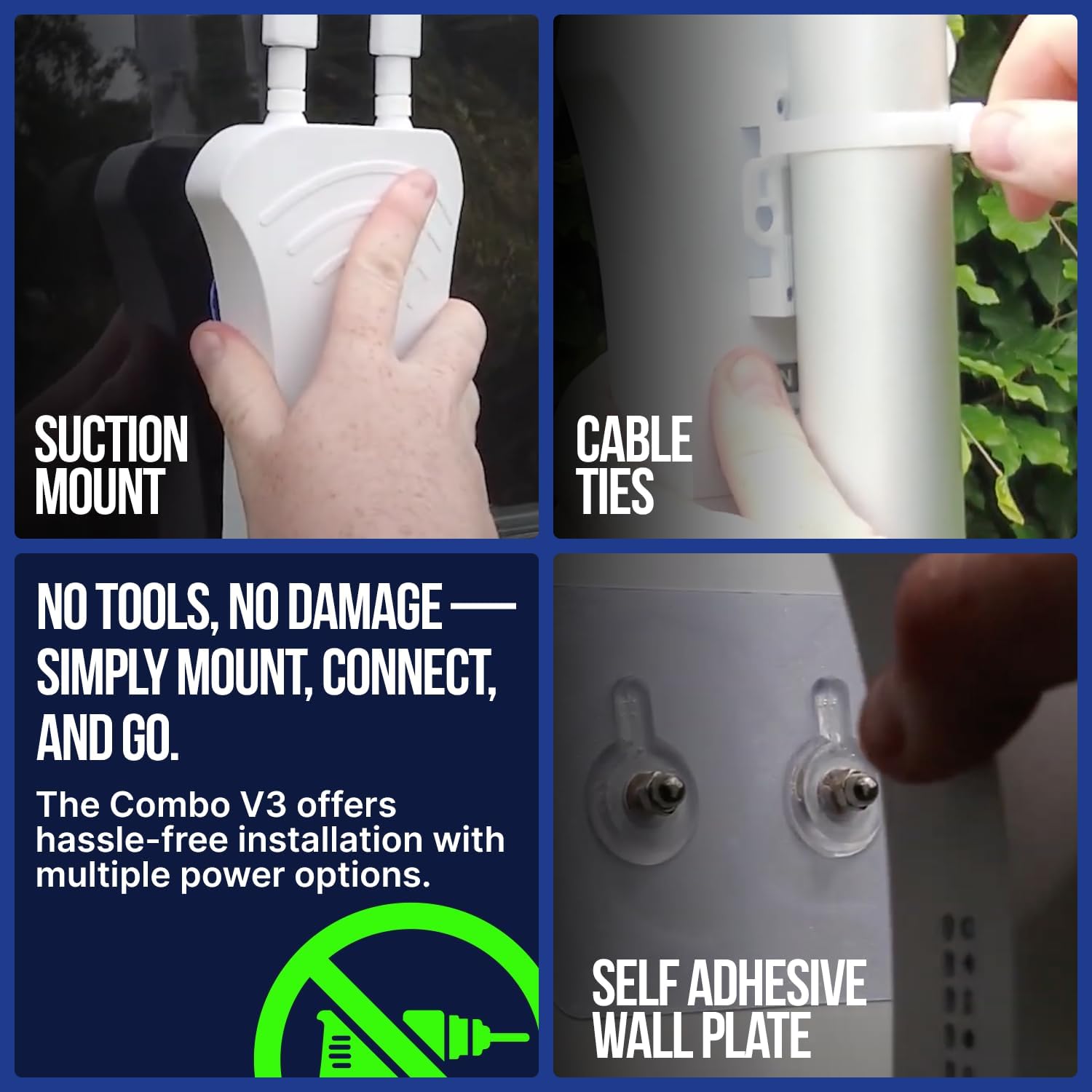
Image 3.1: Various mounting options for the Falcon 4G Combo Deluxe.
3.3 Power Connection
Connect the Falcon 4G Combo Deluxe using one of the following power options:
- 12V/24V Vehicle Power: Use the included 12V DC power cables (2m or 5m) to connect to your vehicle's 12V or 24V power outlet. For direct battery connection, use the crocodile clip adapter.
- 230V Mains Power: Use the included 230V mains adapters (2m or 5m) to connect to a standard wall socket.
- USB-C Power: For additional flexibility, the device can be powered via the USB-C port using the provided USB-C cable and a compatible USB power source.
4. Operating Instructions
4.1 Initial Power On and Network Connection
- After connecting the power, the device will automatically power on.
- Allow a few minutes for the router to initialize and connect to the 4G network. The LED indicators on the device will show the status of the network connection. Refer to the device's LED guide (usually printed on the device or in a quick start guide) for specific indicator meanings.
4.2 Connecting Devices via Wi-Fi
- On your smartphone, tablet, laptop, or other Wi-Fi enabled device, search for available Wi-Fi networks.
- Locate the Wi-Fi network name (SSID) of your Falcon 4G Combo Deluxe. This is typically found on a label on the device itself.
- Select the network and enter the Wi-Fi password (also found on the device label).
- Once connected, your device will have internet access through the Falcon 4G Combo Deluxe. The router supports up to 10 simultaneous Wi-Fi connections.
4.3 Ethernet Connection
For wired connections, use the included Ethernet cable to connect a device (e.g., a desktop computer or smart TV) directly to the router's Ethernet port.
5. Maintenance
The Falcon 4G Combo Deluxe is designed for durability and outdoor use with an IP65 waterproof rating. Minimal maintenance is required.
- Cleaning: Periodically wipe the exterior of the unit with a soft, damp cloth to remove dust and dirt. Do not use harsh chemicals or abrasive cleaners.
- Antenna Check: Ensure the external antennas are securely attached and free from obstructions.
- Cable Inspection: Regularly check all power and data cables for any signs of wear or damage. Replace damaged cables immediately.

Image 5.1: The Falcon 4G Combo Deluxe highlighting its waterproof design.
6. Troubleshooting
If you encounter issues with your Falcon 4G Combo Deluxe, refer to the following common troubleshooting steps:
| Problem | Possible Cause | Solution |
|---|---|---|
| No Power | Power cable not connected; power source issue. | Ensure power cables are securely connected to both the router and a working power source. Try a different power outlet or cable. |
| No 4G Signal / Slow Internet | SIM card not inserted correctly or not activated; poor network coverage; antenna obstruction. | Verify SIM card insertion and activation. Check your data provider's network coverage in your location. Ensure the external antenna has a clear line of sight. Relocate the router if possible. |
| Cannot Connect to Wi-Fi | Incorrect Wi-Fi password; router not broadcasting Wi-Fi. | Double-check the Wi-Fi password. Restart the router. Ensure your device's Wi-Fi is enabled. |
| Connected but No Internet Access | Data plan exhausted; network configuration issue. | Check your data plan status with your provider. Restart the router and your connected device. |
7. Specifications
| Feature | Detail |
|---|---|
| Brand | FALCON WORLD CLASS TECHNOLOGY |
| Model Name | Falcon 4G Combo Deluxe |
| Color | White |
| Connectivity Technology | Ethernet, LTE, Wi-Fi |
| Wireless Communication Standard | 802.11b, 802.11g, 802.11n |
| Frequency Band Class | Dual Band |
| Special Feature | Waterproof (IP65 rated) |
| Compatible Devices | Printer, Personal Computer, Smartphone, Tablet, Smart Television |
| Recommended Use | Recreational Vehicles (Caravans, Motorhomes, Boats, Vans) |
| Max Speed | Up to 150 Mbps |
| SIM Slot | Yes, unlocked for any data provider |
| Max Wi-Fi Devices | 10 |
8. Warranty and Support
For warranty information and technical support, please refer to the documentation included with your product or contact FALCON WORLD CLASS TECHNOLOGY directly through their official website or customer service channels. Specific warranty terms and conditions may vary by region and retailer.


