Magcubic HY320 Portable Projector User Manual
Model: HY320-Andriod
1. Introduction
Thank you for purchasing the Magcubic HY320 Portable Projector. This device is designed to provide a versatile and high-quality projection experience, supporting Full HD 1080P and 4K decoding. With its advanced features like 180° rotation, automatic keystone correction, and integrated Android 11.0, it offers an immersive viewing experience for various applications, from home entertainment to outdoor movie nights.
Key features include:
- Full HD 1080P / 4K Decoding Support for stunning visuals.
- 180° Rotatable Design for flexible projection angles on walls, ceilings, or floors.
- Integrated BT 5.0 and Hi-Fi Speaker for rich audio.
- Automatic Keystone Correction for a perfectly rectangular image.
- WiFi 6 Connectivity for seamless screen mirroring and online content.
2. Safety Information
Please read all safety instructions before using the projector to ensure proper operation and prevent damage. Keep this manual for future reference.
- Power Source: Use only the provided power adapter. Ensure the voltage matches the projector's requirements.
- Ventilation: Do not block ventilation openings. Ensure adequate airflow around the projector to prevent overheating.
- Heat: The projector may become warm during operation. This is normal. Avoid touching the lens or vents immediately after use.
- Light Exposure: Do not look directly into the projector lens when the lamp is on, as the bright light can cause eye strain or damage.
- Cleaning: Disconnect power before cleaning. Use a soft, dry cloth. Do not use liquid or aerosol cleaners.
- Placement: Place the projector on a stable, level surface. Avoid placing it in direct sunlight, near heat sources, or in environments with high humidity or dust.
- Children: Keep the projector out of reach of small children.
3. Package Contents
Verify that all items are present in the package:
- Magcubic HY320 Portable Projector
- Remote Control
- Power Cord (EU PLUG)
- User Manual (this document)

Image: The Magcubic HY320 projector, its remote control, power cord, and user manual, all neatly arranged next to the product box.
4. Product Overview
Familiarize yourself with the main components and interfaces of your HY320 projector.
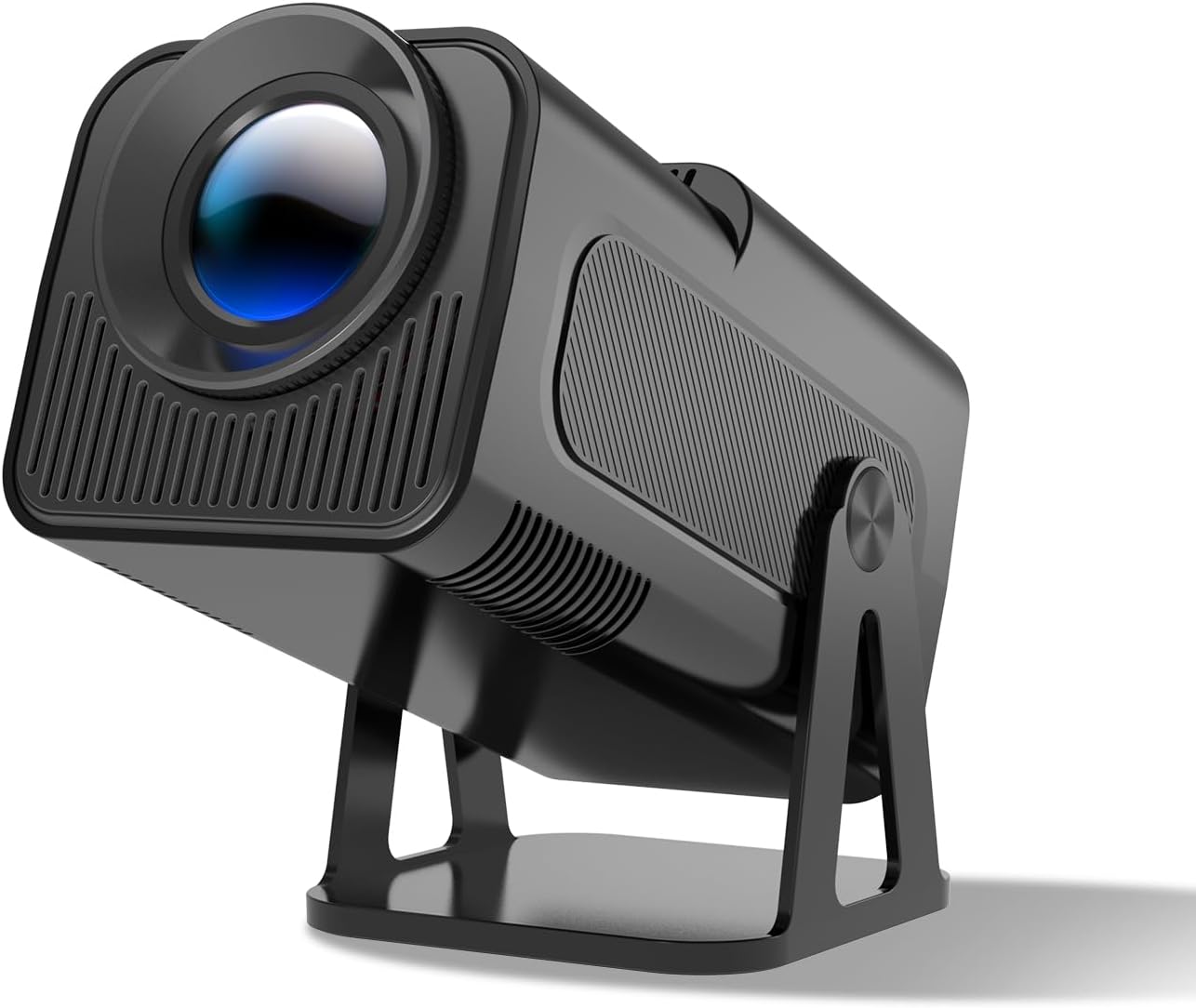
Image: A sleek, black Magcubic HY320 portable projector with its lens prominently displayed, resting on its adjustable stand.
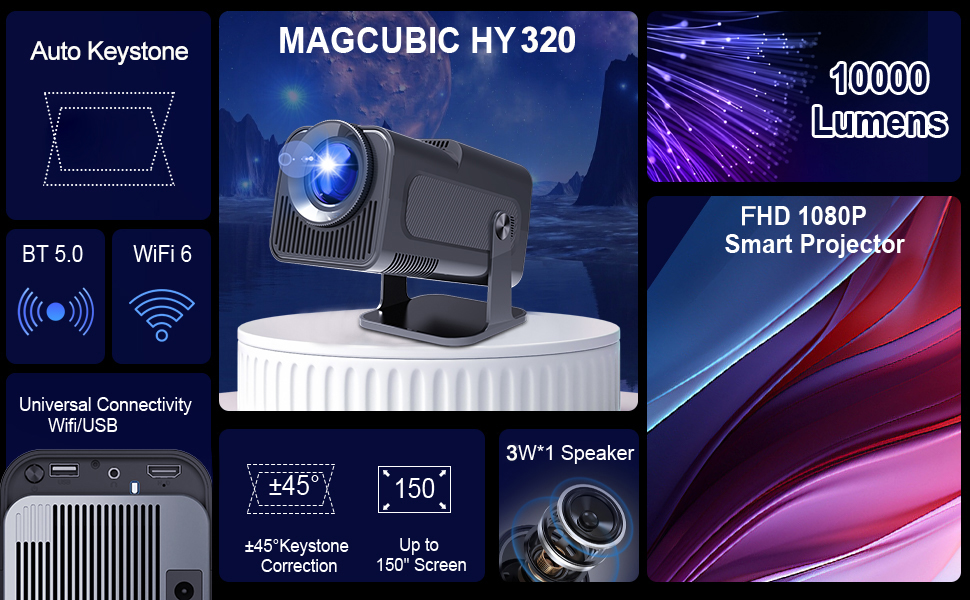
Image: A diagram highlighting the Magcubic HY320 projector's key features including Auto Keystone, BT 5.0, WiFi 6, 10000 Lumens brightness, FHD 1080P, 180° adjustable support, and a 3W speaker.
4.1 Ports and Connections
The projector features various ports for connectivity:
- HDMI Port: For connecting external devices like laptops, gaming consoles, or TV boxes.
- USB Port: For connecting USB drives to play media files directly.
- Power Input: For connecting the power adapter.

Image: A side view of the Magcubic HY320 projector, showcasing its various input ports including USB and HDMI, along with ventilation grilles.
5. Setup
5.1 Power Connection
- Connect the power cord to the projector's power input port.
- Plug the other end of the power cord into a wall outlet.
- The projector will power on automatically or can be turned on using the power button on the remote control or the device itself.
5.2 Placement and Projection
The HY320 projector features a 180° rotatable design, allowing for flexible placement and projection onto various surfaces.
- Place the projector on a stable surface.
- Adjust the projector's angle using its integrated stand to project onto a wall, ceiling, or screen.
- The optimal projection distance will vary based on the desired screen size (up to 150 inches recommended).

Image: The Magcubic HY320 projector positioned outdoors on a rocky surface, projecting an image onto a screen inside a camping tent, illustrating its portability for outdoor use.
5.3 Focus and Keystone Correction
The projector is equipped with automatic keystone correction and manual focus adjustment to ensure a clear and properly shaped image.
- Automatic Keystone Correction: The projector will automatically correct skewed images to provide a rectangular picture. This feature activates upon startup or significant movement.
- Manual Focus: Use the focus ring on the projector lens to fine-tune the image clarity until it is sharp.

Image: A Magcubic HY320 projector projecting an image of a motorcycle onto a screen, demonstrating its automatic keystone correction feature that corrects skewed images for a perfect rectangle.
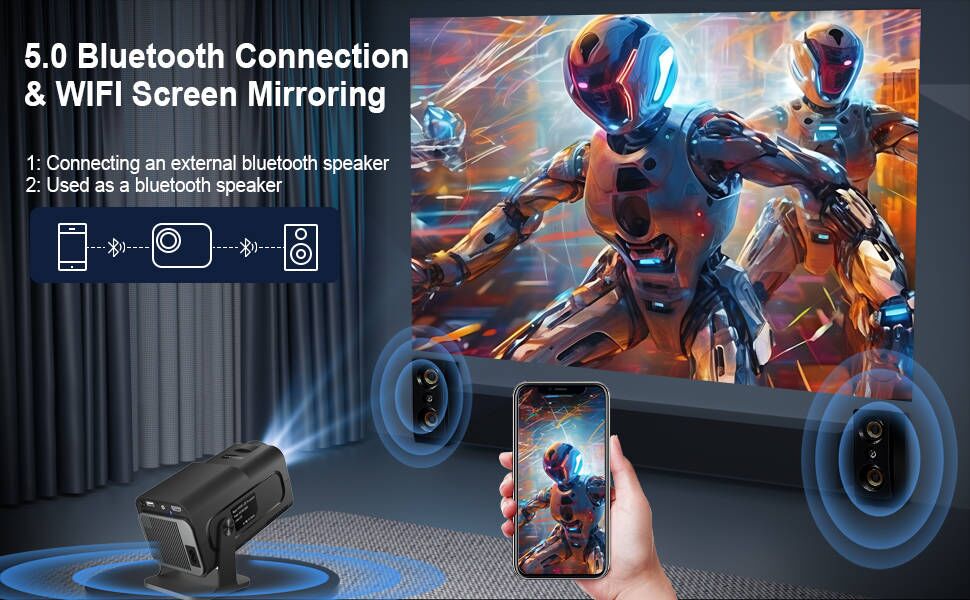
Image: A Magcubic HY320 projector on a coffee table, projecting an image onto a wall, illustrating its automatic keystone correction and four-point keystone adjustment capabilities.
6. Operating Instructions
6.1 Initial Power On and Navigation
Once connected to power, the projector will boot up. Use the remote control to navigate the Android 11.0 interface.
- Use the directional buttons to move through menus.
- Press the
Related Documents - HY320-Andriod

Magcubic L018 Portable Projector User Manual - Setup, Features, and Settings
Comprehensive user manual for the Magcubic L018 portable projector. Learn about setup, package contents, remote control functions, settings navigation, troubleshooting tips, and safety instructions.
Magcubic HY320 Smart Projector: Quick Installation Guide
Comprehensive quick installation and user guide for the Magcubic HY320 Smart Projector. Learn about setup, remote functions, connectivity options (Wi-Fi, Bluetooth, Miracast, Airplay), settings, and essential safety precautions. Optimize your home theater experience with this detailed manual.
Magcubic HY320 Smart Projector User Manual
User guide for the Magcubic HY320 Smart Projector, covering setup, safety, remote functions, settings (network, Bluetooth, projection), wireless projection (Miracast, Airplay), and FCC compliance.
Magcubic HY310X Mini Projector User Manual - Setup, Settings, and Safety
Comprehensive user manual for the Magcubic HY310X Mini Projector. Learn about safety instructions, overview, remote control, settings (networking, Bluetooth, projection, applications, language, date/time), about information, other settings, screen casting, and regulatory compliance.
Magcubic HY450 Smart Projector Quick Installation Guide
Concise guide to installing and setting up your Magcubic HY450 smart projector, covering safety precautions, remote control functions, system settings, wireless screen mirroring, and support information.
Magcubic Smart Projector Quick Installation Guide - Setup and Operation
Comprehensive guide for setting up and operating the Magcubic Smart Projector, covering connectivity, settings, safety, and troubleshooting. Learn how to connect to Wi-Fi, Bluetooth, use screen mirroring, and adjust projection settings.