
1. Introduction
This manual provides detailed instructions for setting up, operating, and troubleshooting your HOSAYA 4G LTE SIM Card WiFi Router (Model: CPF908). This device is designed to provide reliable 4G LTE internet access, functioning as both a desktop and portable CPE (Customer Premises Equipment) router. It features a color LCD display, an RJ45 port, and supports up to 10 WiFi users.
2. Package Contents
Please verify that all items are present in your package:
- 4G LTE WiFi Router (CPE) x 1
- 12V Power Adaptor x 1
- User Manual x 1
- Network Cable x 1
3. Product Overview and Features
The HOSAYA CPF908 router is a versatile device offering high-speed 4G LTE internet connectivity. Key features include:
- High-Speed LTE Chipset: Supports TDD-LTE/FDD-LTE/UMTS networks.
- Color LCD Display: A 1.44-inch display provides settings, parameters, SMS status, WiFi name, and password at a glance.
- Built-in External Antennas: Designed for wide signal coverage.
- Dual Power Inputs: Supports both 12V1A and 5V1A power input for flexible use indoors or with a power bank/car USB power.
- RJ45 WAN/LAN Port: One RJ45 port for wired connections.
- Multi-User Support: Connects up to 10 WiFi users simultaneously.
- Micro SIM Card Slot: Compatible with Nano SIM cards using an adapter.
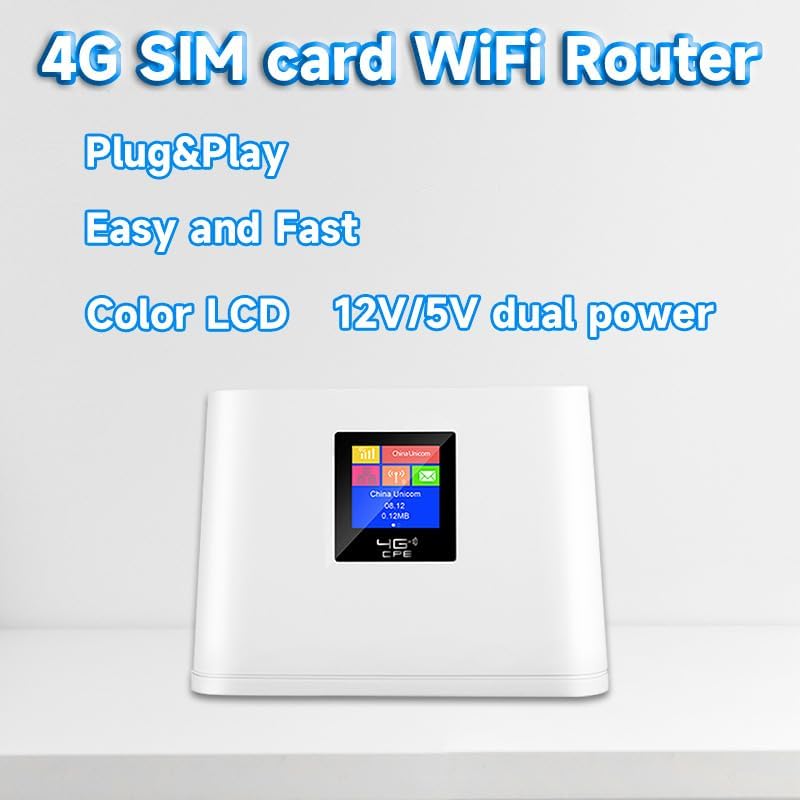
Figure 1: Front view of the HOSAYA CPF908 Router with its color LCD display.

Figure 2: Detailed view of the 1.44-inch LCD display showing connection status, operator, Ethernet status, connected devices, SMS status, connection time, consumed data, WiFi name, and WiFi password.
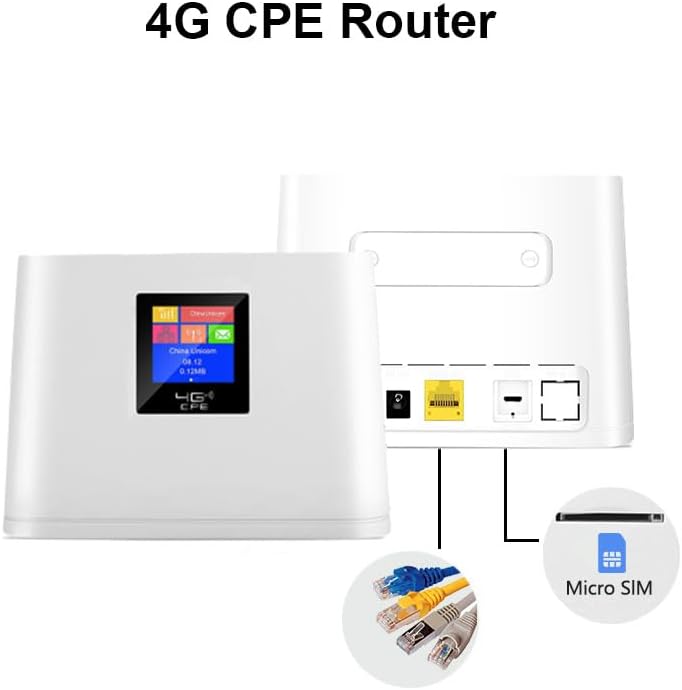
Figure 3: Rear view of the HOSAYA CPF908 Router, highlighting the RJ45 WAN/LAN port, dual power inputs, and Micro SIM card slot.
4. Setup
4.1. SIM Card Installation
- Ensure the router is powered off.
- Locate the Micro SIM card slot on the device.
- Insert your universal ordinary Micro SIM card into the slot. If using a Nano SIM, place it in a Micro SIM adapter first.
- Ensure the SIM card is correctly oriented and fully inserted until it clicks into place.
4.2. Power Connection
- Connect the provided 12V power adaptor to the router's 12V power input port and then to a wall outlet.
- Alternatively, for portable use, connect a 5V1A power bank or car USB power source to the 5V power input port.
- The router will automatically power on and begin initialization.
4.3. Initial Configuration
The router will automatically recognize most SIM cards and APN settings. If it does not connect to the internet automatically:
- Connect a device (e.g., laptop, smartphone) to the router's WiFi network. The default WiFi name (SSID) and password (KEY) are displayed on the LCD screen.
- Open a web browser and enter the router's default IP address (usually 192.168.0.1 or 192.168.1.1) to access the web management interface.
- Log in using the default username and password (refer to the manual or device label).
- Navigate to the network settings and manually enter the APN information provided by your mobile network operator.
- Save the settings and restart the router if prompted.
Video 1: HOSAYA Production Showcase. This video provides a brief overview of the product's design and features.
5. Operating Instructions
5.1. Connecting Devices
To connect your devices to the HOSAYA CPF908 router:
- Turn on the router.
- On your WiFi-enabled device (smartphone, tablet, laptop, gaming console, smart TV), search for available WiFi networks.
- Select the WiFi network name (SSID) displayed on the router's LCD screen.
- Enter the WiFi password (KEY) shown on the LCD screen.
- Your device should now be connected to the internet.

Figure 4: The router supports up to 10 simultaneous WiFi connections for various devices.
5.2. Understanding the LCD Display
The 1.44-inch color LCD display provides real-time status updates:
- Connection Status: Indicates signal strength and network type (4G LTE).
- Telecom Operator: Shows the name of your mobile network provider.
- Ethernet Status: Indicates if a wired connection is active.
- Connected Devices: Displays the number of devices currently connected via WiFi.
- SMS Status: Notifies you of new messages.
- Connection Time: Shows the duration of the current internet session.
- Consumed 4G Data: Tracks data usage.
- WiFi Name (SSID) & Password (KEY): Essential for connecting new devices.
6. Troubleshooting
6.1. No Internet Access / Slow Speed
- Check SIM Card: Ensure the Micro SIM card is correctly inserted and your plan is active and has data.
- APN Settings: If internet access is unavailable, log into the web management interface and manually configure the APN settings according to your mobile network operator's specifications.
- Signal Strength: Check the signal strength indicator on the LCD. If the signal is weak, try relocating the router to an area with better reception.
- SIM Card Compatibility: This router supports universal ordinary SIM cards. Some locked or contract SIM cards may not work. Try a different operator's universal SIM card if issues persist.
- Restart Router: Power off the router, wait 30 seconds, and then power it back on.
6.2. Unable to Connect to WiFi
- Verify WiFi Name/Password: Ensure you are entering the correct SSID and password as displayed on the router's LCD screen.
- Device Compatibility: Ensure your device supports 802.11n wireless communication standard.
- Router Proximity: Ensure your device is within the WiFi range of the router.
7. Specifications
| Feature | Specification |
|---|---|
| Model Number | CPF908 |
| Product Dimensions | 7048 x 6.69 x 2.76 inches |
| Item Weight | 14.1 ounces |
| Connectivity Technology | Ethernet, LTE, Wi-Fi |
| Wireless Communication Standard | 802.11n |
| Frequency Band Class | Single-Band |
| Special Features | 12V 5V dual power inputs, Access Point Mode, color LCD display, portable and desktop |
| Supported 4G LTE Bands (American Version) | B2/B4/B5/B7/B12/B17/B28/B66 |
| Supported 3G Bands (American Version) | B2/B5 |
| Max WiFi Users | 10 |
8. Warranty and Support
For warranty information and technical support, please refer to the documentation included in your product package or visit the official HOSAYA website. Keep your purchase receipt for warranty claims.