
1. Product Overview
The Anycast HDTV Wireless Display Adapter is designed to mirror or stream content from your mobile device (phone, tablet, laptop) to a larger display such as a TV, projector, or monitor wirelessly. It supports various operating systems and protocols, enabling easy sharing of videos, photos, and presentations.

Image 1.1: The Anycast Wireless Display Adapter shown alongside a television and a smartphone, illustrating its function in mirroring mobile content to a larger screen.
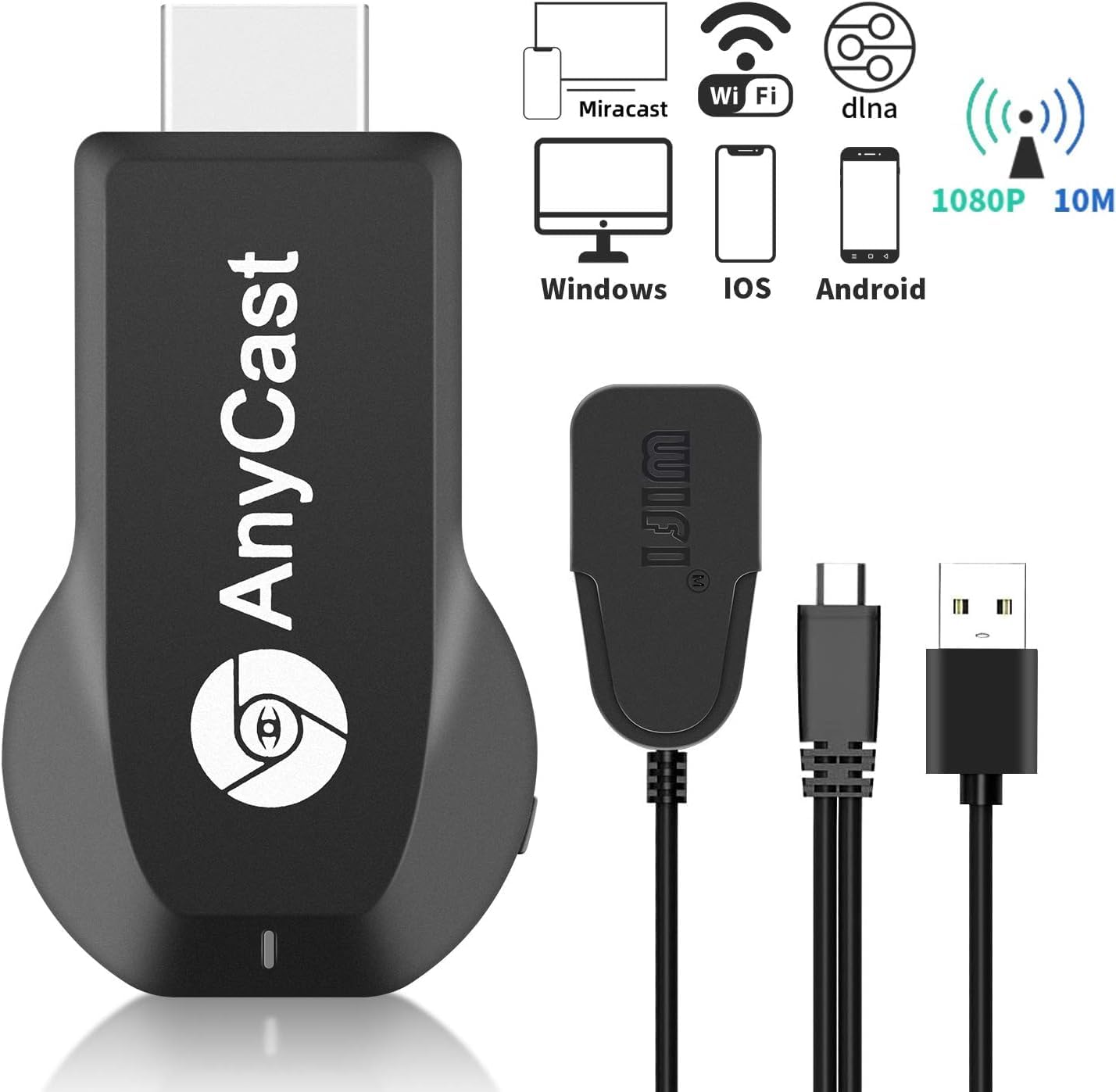
Image 1.2: The Anycast adapter displayed with its included power cable and various icons indicating its features such as Miracast, WiFi, DLNA, 1080P resolution support, and compatibility with Windows, iOS, and Android operating systems.
2. Setup Instructions
The Anycast Wireless Display Adapter requires no additional applications or drivers for basic setup. Follow these steps to connect and begin mirroring.
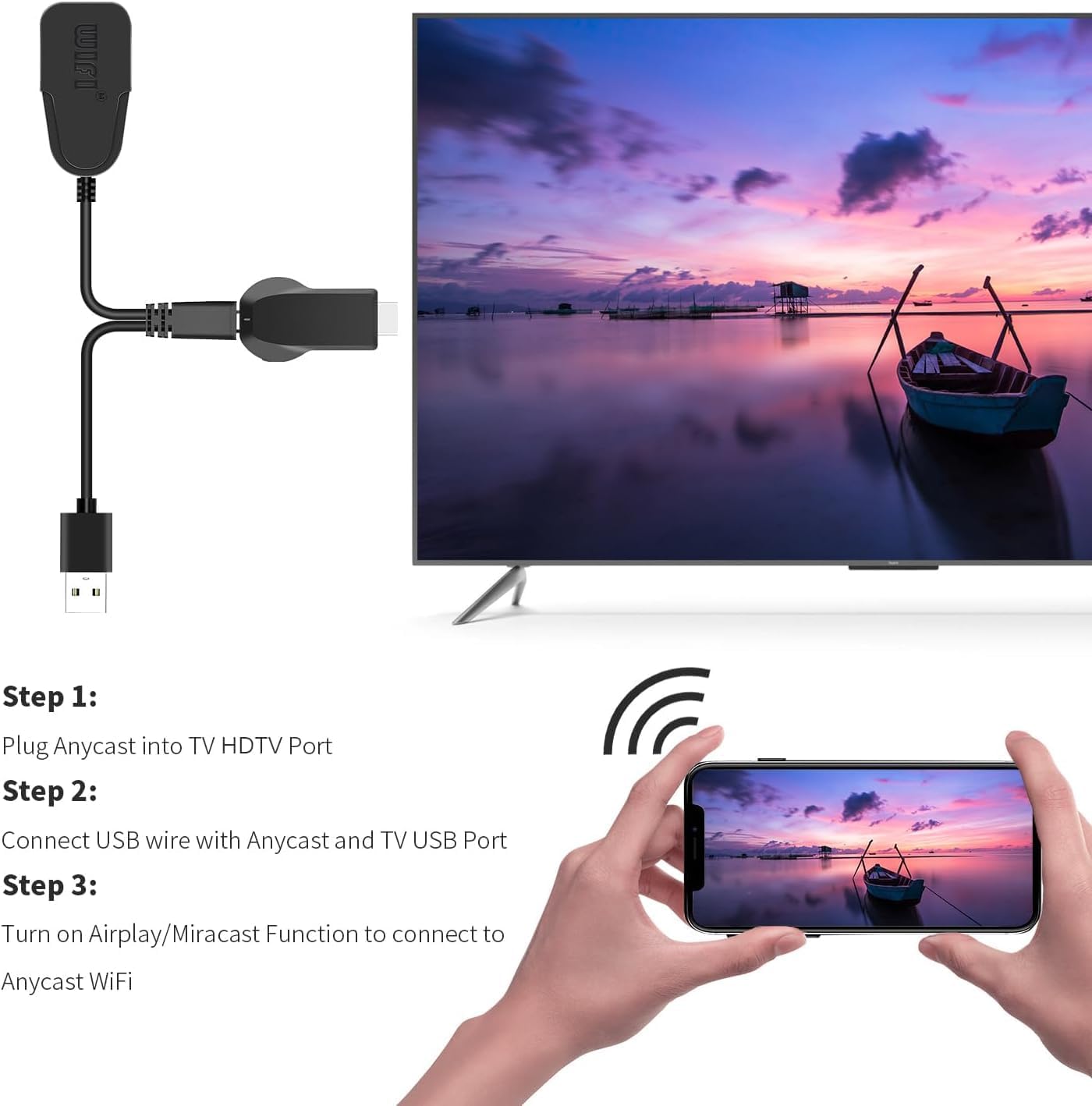
Image 2.1: A visual guide demonstrating the three primary steps for setting up the Anycast adapter: plugging it into an HDTV port, connecting the USB power cable, and activating the Airplay/Miracast function on your device to connect to the Anycast WiFi network.
2.1 Initial Connection and WiFi Setup
- Power On: Plug the Anycast dongle into an HDMI port on your TV/projector/monitor. Connect the custom USB cable (which includes a WiFi antenna) to the dongle and then to a USB power source (e.g., a TV's USB port or a USB A power adapter, not included).
- Connect to AnyCast WiFi: On your phone, tablet, or laptop, go to your WiFi settings. You will see a new WiFi network named 'AnyCast-XXXX' (where XXXX are numbers). Connect to this network. The default password is 12345678.
- Access Settings Menu: Open a web browser (e.g., Safari, Chrome) on your connected device. In the address bar, type 192.168.203.1 and press Enter. This will open the Anycast settings menu.
- Connect to Home WiFi (Optional but Recommended): In the settings menu, click on "Internet" or "WiFi Setup". Select your home WiFi network from the list and enter its password. Once connected, the Anycast dongle will reboot and join your home WiFi. This allows your device to access the internet while mirroring.
2.2 Mirroring from iOS Devices (Airplay)
- Ensure your iOS device is connected to the same WiFi network as the Anycast dongle (or directly to the Anycast WiFi if you skipped step 2.1.4).
- Pull up the Control Center on your iOS device.
- Tap on "Screen Mirroring" or "AirPlay Mirroring".
- Select the Anycast dongle from the list of available devices to begin mirroring.
2.3 Mirroring from Android Devices (Miracast)
- Press the button on the Anycast dongle to switch it to Android mode (if it's not already).
- On your Android device, locate the screen mirroring function. This may be named differently depending on your device model (e.g., "Miracast", "Wireless Display", "Smart View", "Cast", "Screen Cast", "Play To").
- Select the Anycast device from the list to establish the connection and begin mirroring.
- Note: If you have difficulty finding the Miracast function, you may download the EZMira app to facilitate pairing with the Anycast dongle.
2.4 Mirroring from Windows Devices
- Ensure your Windows PC is connected to the same WiFi network as the Anycast dongle.
- On your Windows PC, press the Windows key + K. This will open the Connect sidebar.
- Select the Anycast device from the list of available wireless displays.
3. Operating the Device
Once connected, the Anycast adapter allows for seamless wireless display of content from your compatible devices.
3.1 Compatibility
The Anycast adapter supports a wide range of devices and protocols:
- Operating Systems: iOS 9.0+, Android 5.0+, Windows, and Macbook series.
- Protocols: Airplay, Miracast, DLNA.
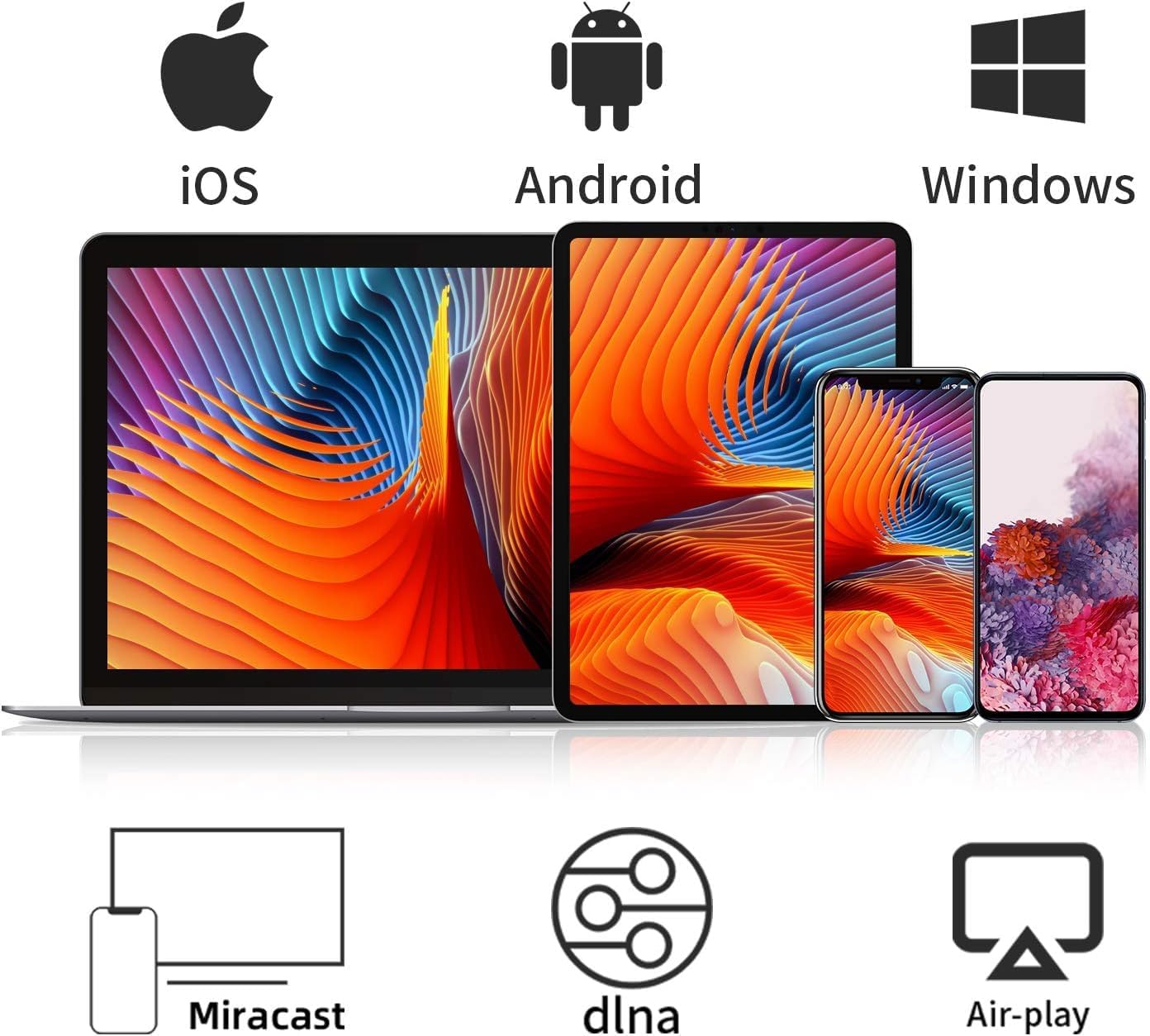
Image 3.1: This image illustrates the broad compatibility of the Anycast adapter with major operating systems, including iOS, Android, and Windows, as depicted by the corresponding device icons.
3.2 Usage Scenarios
The wireless display functionality is suitable for various applications:
- Business Meetings: Mirror presentations (PPT), emails, and documents to a projector or large screen wirelessly.
- Educational Settings: Share teaching content from a mobile device to a large screen in classrooms.
- Home Entertainment: Share photos, videos, and movies from your phone or tablet to your TV.
- Travel: Portable design allows for easy sharing of content to available displays while traveling.
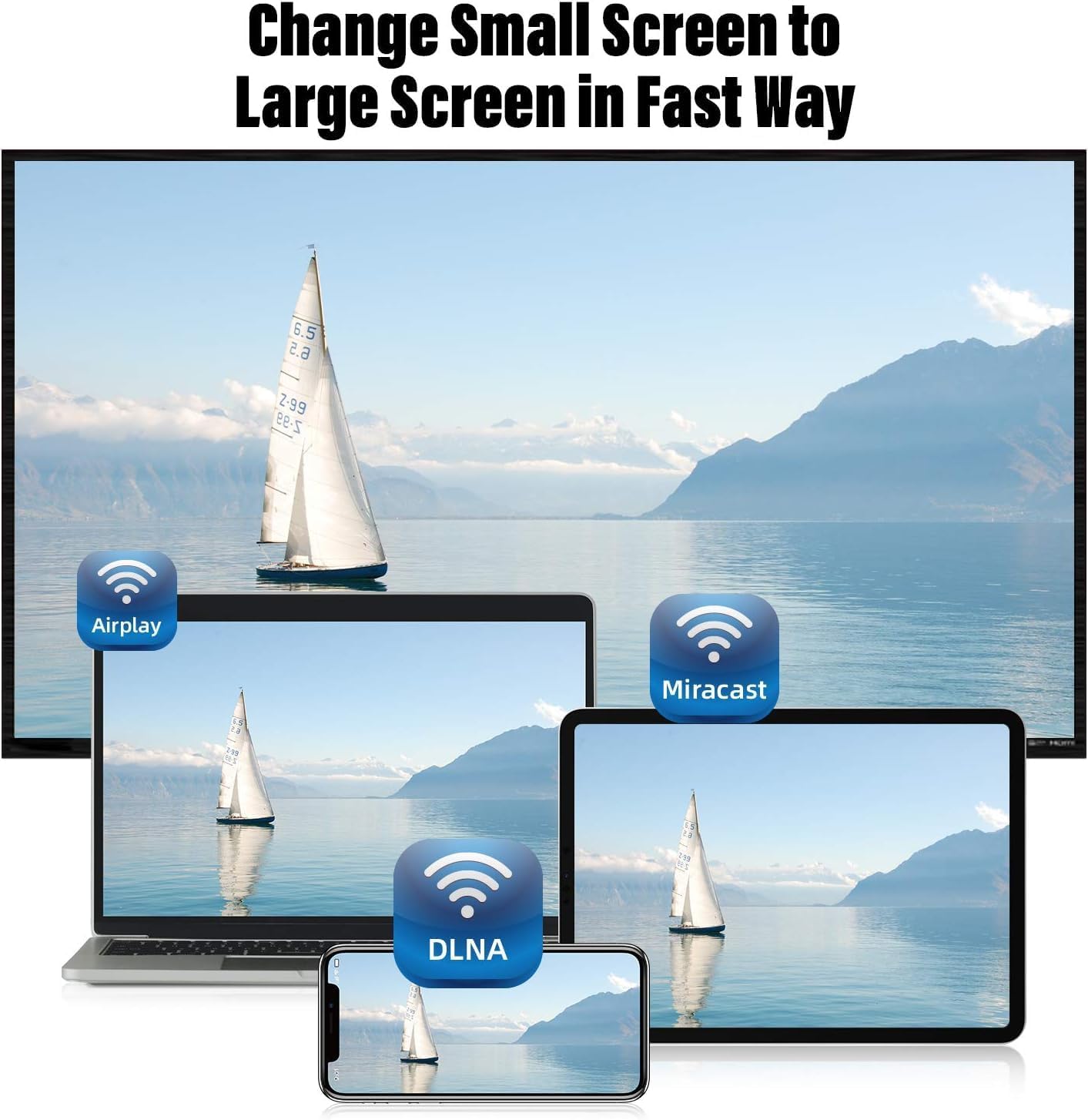
Image 3.2: This image demonstrates the ability to mirror content from various devices (laptop, tablet, smartphone) to a large TV screen using Airplay, Miracast, and DLNA protocols, effectively changing a small screen to a large one.
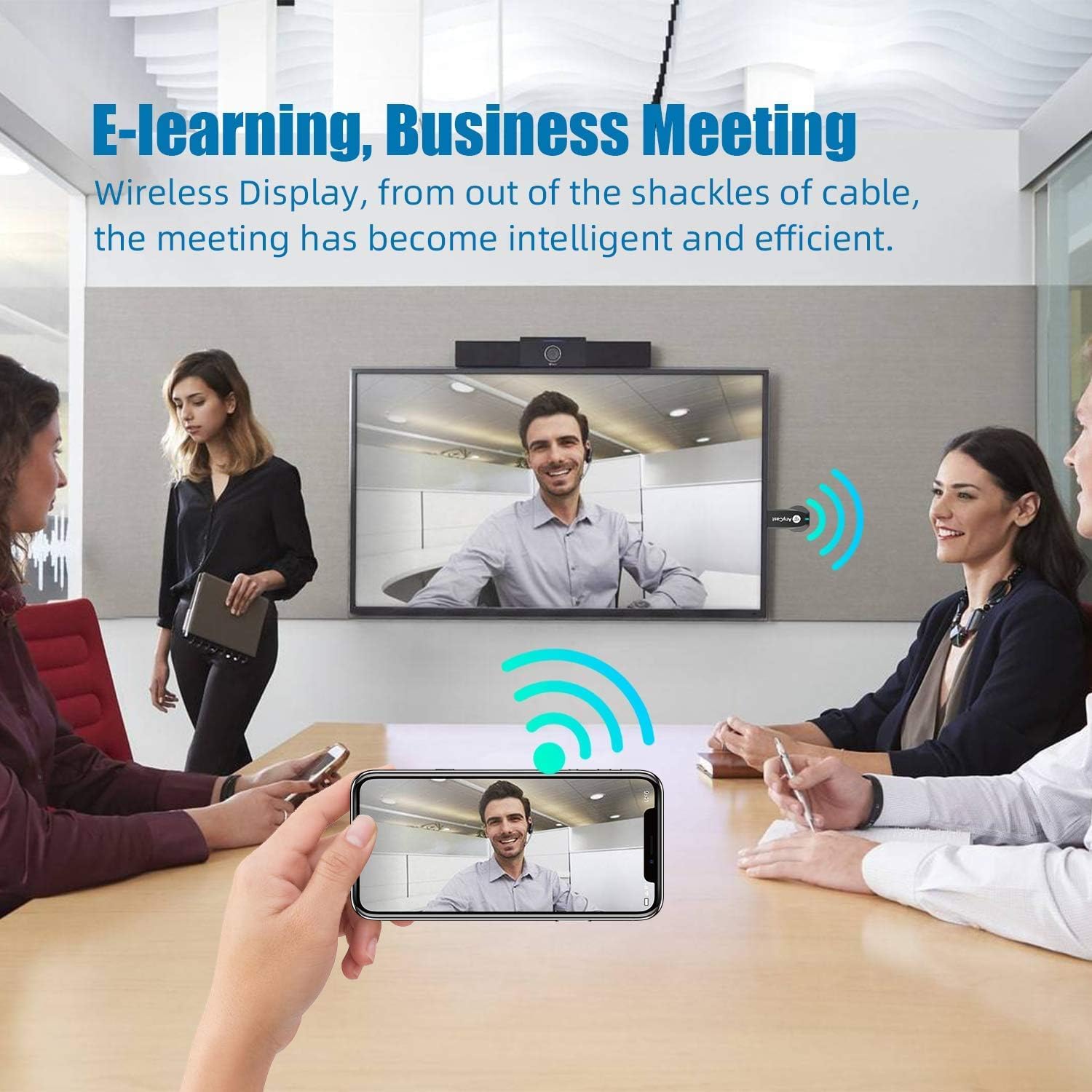
Image 3.3: A depiction of the Anycast adapter's utility in professional environments, showing a smartphone mirroring a video call to a large display during a business meeting, highlighting its application in e-learning and collaborative settings.
4. Maintenance
The Anycast Wireless Display Adapter is designed for minimal maintenance. The primary maintenance aspect involves firmware updates.
4.1 Regular OTA Updates
The device supports Over-The-Air (OTA) firmware updates. When connected to your WiFi network, the dongle will automatically check for and install updates from the cloud server. These updates add new features and improve compatibility with the latest versions of iOS, Android, and Windows devices, ensuring continued optimal performance.
5. Troubleshooting
If you encounter issues with your Anycast Wireless Display Adapter, refer to the following common problems and solutions.
- No Display/Connection Issues:
- Ensure the Anycast dongle is properly plugged into the HDMI port and receiving sufficient power via the USB cable.
- Verify that your device is connected to the correct AnyCast WiFi network or the same home WiFi network as the dongle.
- Reboot the Anycast dongle by unplugging and re-plugging its power source.
- Confirm your TV/projector input is set to the correct HDMI port.
- Cannot Mirror Certain Apps (e.g., Netflix, Amazon Video, Hulu):
- The Anycast adapter is not compatible with applications that have protocol protection, such as Netflix, Amazon Video, HBO Go, Hulu Plus, Sky Go, and DIRECTV. These apps are designed to prevent screen mirroring for copyright reasons.
- Video/Audio Lag or Delay:
- Wireless connections can introduce some delay. While suitable for general media consumption and presentations, this device is generally not recommended for fast-paced gaming where low latency is critical.
- Ensure there are no significant obstructions between your device and the Anycast dongle.
- Reduce interference from other wireless devices.
- Difficulty with Setup Instructions:
- Refer to the detailed setup steps in Section 2 of this manual. The process involves connecting to the AnyCast's own WiFi, accessing a specific IP address (192.168.203.1) in a browser for settings, and then initiating mirroring from your device's native casting function.
6. Specifications
| Feature | Detail |
|---|---|
| Brand | Aimery |
| Model Number | 2A5TQ-G57 |
| Connectivity Technology | Wireless |
| Connector Type | HDMI |
| Special Feature | Miracast |
| Resolution | 1080p |
| Form Factor | HDMI Dongle or TV Stick |
| Color | Anycast Black |
| Item Weight | 1.1 ounces |
| Product Dimensions | 3 x 1 x 1 inches |
| Supported Internet Services | Hulu (Note: Not compatible with all streaming services due to protocol protection) |
| Date First Available | December 14, 2023 |