
1. Introduction
The EMPIRE GAMING Guardian P-W240 is an All-in-One (AIO) liquid CPU cooler designed to provide efficient thermal management for high-performance computing systems. Featuring a 240mm radiator, two 120mm ARGB fans, and a vibrant ARGB pump, this cooler is compatible with a wide range of Intel and AMD CPU sockets, ensuring optimal cooling and aesthetic appeal for your PC build.

Image: EMPIRE GAMING Guardian P-W240 AIO Liquid CPU Cooler showcasing its ARGB lighting on fans and pump.
2. Safety Information
- Always disconnect power from your PC before installation or maintenance.
- Handle components with care to avoid damage.
- Avoid touching the pump base or radiator fins directly to prevent injury or damage.
- Ensure proper grounding to prevent electrostatic discharge (ESD).
- Keep out of reach of children.
3. Package Contents
Verify that all components are present before beginning installation:
- 1x Guardian P-W240 AIO Liquid CPU Cooler (Radiator, Pump, Tubing, 2x 120mm ARGB Fans pre-attached)
- 1x Universal Mounting Backplate (for Intel sockets)
- Intel Mounting Brackets
- AMD Mounting Brackets
- Various Screws and Standoffs for Intel and AMD sockets
- Thermal Paste Syringe
- Fan Splitter Cable
- ARGB Controller Cable (if applicable)

Image: All components included in the EMPIRE GAMING Guardian P-W240 AIO Liquid CPU Cooler package, laid out for inspection.
4. Specifications
| Feature | Specification |
|---|---|
| Model Number | OE-WA-240W |
| Radiator Size | 240mm (277 x 120 x 27 mm) |
| Fan Size | 2x 120mm ARGB Fans |
| Pump Voltage | 12 VDC |
| Fan Connector Type | 3-pin (5V ARGB) |
| Cooling Method | Liquid (Water) |
| Compatible Intel Sockets | LGA 1700, 1200, 115X, 1366, 2066, 2011 |
| Compatible AMD Sockets | AM5, AM4 |
| Radiator Material | Aluminum |
| Cold Plate Material | Copper |

Image: Technical drawing illustrating the dimensions of the radiator, fans, and tubing for the Guardian P-W240.
5. Setup and Installation
Before installation, ensure your PC is powered off and unplugged. Refer to your motherboard and PC case manuals for specific mounting locations and clearances.
5.1. Prepare the CPU Socket
- Clean the CPU surface with isopropyl alcohol to remove any old thermal paste.
- Apply a small pea-sized amount of thermal paste to the center of the CPU's integrated heat spreader (IHS).
5.2. Install Mounting Hardware
For Intel Sockets (LGA 1700/1200/115X/1366/2066/2011):
- Place the universal backplate behind the motherboard, aligning the holes with the CPU socket.
- Insert the correct standoffs through the motherboard's CPU mounting holes and into the backplate.
- Secure the Intel mounting brackets to the pump unit using the provided screws.
For AMD Sockets (AM5/AM4):
- Remove the existing plastic retention clips from the motherboard's AM4/AM5 socket, but keep the original backplate.
- Screw the AMD standoffs into the original motherboard backplate.
- Secure the AMD mounting brackets to the pump unit using the provided screws.

Image: Close-up of the pump's copper cold plate and the attachment points for the mounting brackets.
5.3. Mount the Radiator and Fans
- Determine the optimal location for the 240mm radiator in your PC case (e.g., top, front).
- Secure the radiator to the case using the long radiator screws. Ensure the fans are oriented to provide optimal airflow (intake or exhaust, depending on your case's airflow design).
5.4. Install the Pump Unit
- Carefully place the pump unit onto the CPU, aligning the mounting brackets with the standoffs.
- Tighten the thumb screws or nuts evenly in a diagonal pattern until the pump is securely seated. Do not overtighten.
5.5. Connect Cables
- Connect the pump's 3-pin power cable to a CPU_FAN or AIO_PUMP header on your motherboard.
- Connect the 3-pin (5V ARGB) fan cables to the included fan splitter cable.
- Connect the fan splitter cable to a 3-pin (5V ARGB) header on your motherboard. If your motherboard does not have a 5V ARGB header, you may need an external ARGB controller (not included).

Image: A single 120mm ARGB fan, highlighting its 3-pin 5V ARGB connector for lighting control.
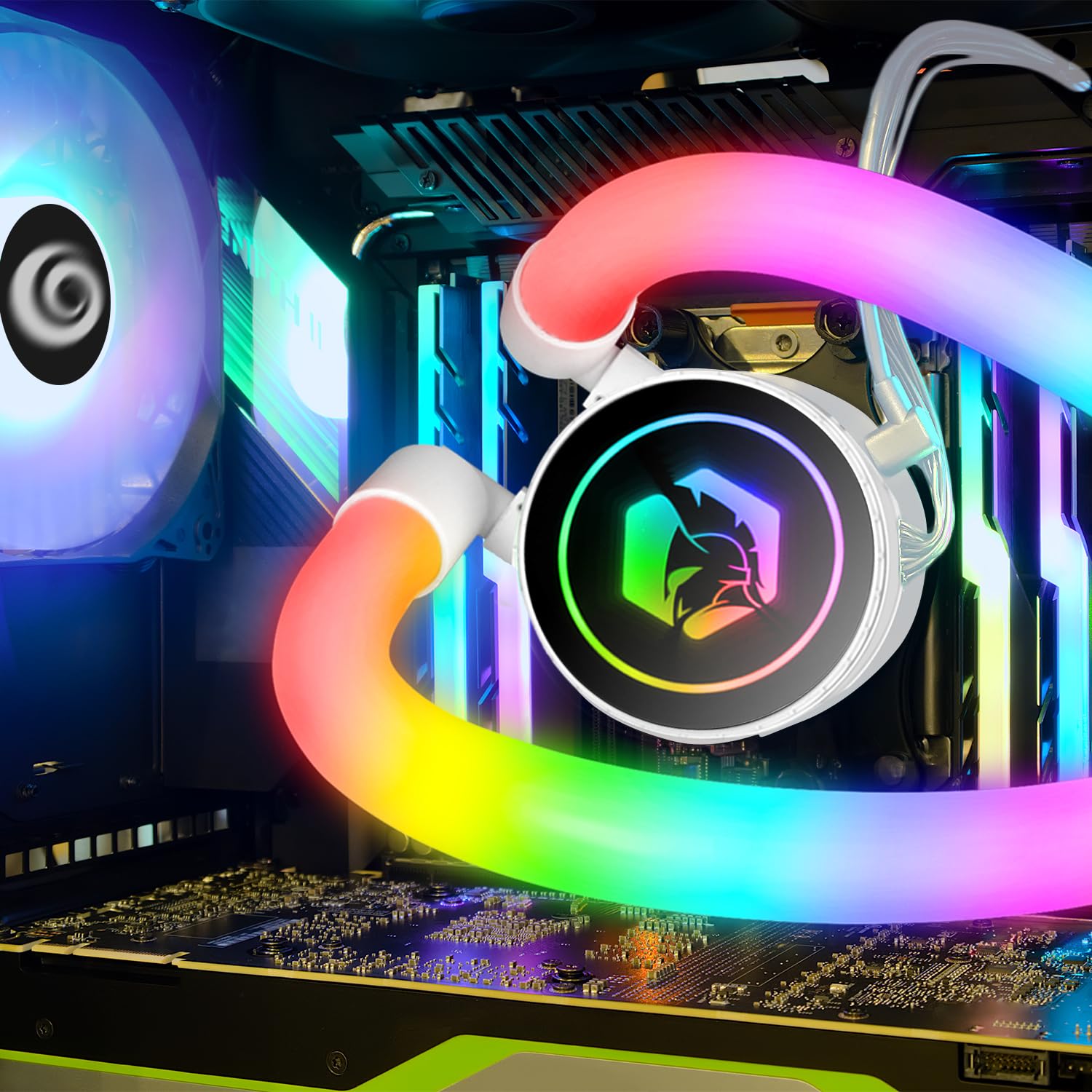
Image: The Guardian P-W240 AIO cooler fully installed within a PC, demonstrating its operational state with ARGB lighting.
6. Operating Instructions
Once installed and all cables are connected, power on your PC. The pump and fans will begin operating. You can monitor CPU temperatures using software provided by your motherboard manufacturer or third-party utilities.
6.1. Fan and Pump Speed Control
The pump and fan speeds are typically controlled via your motherboard's BIOS/UEFI settings or through motherboard software. It is recommended to set the pump to run at 100% speed for optimal cooling performance. Fan speeds can be adjusted based on desired noise levels and cooling requirements.
7. ARGB Lighting Control
The Guardian P-W240 features 3-pin 5V Addressable RGB (ARGB) lighting on both the fans and the pump. This allows for synchronization with compatible motherboard ARGB software:
- ASUS Aura Sync
- GIGABYTE RGB Fusion Ready
- MSI Mystic Light Sync
- ASRock Polychrome Sync
Connect the ARGB cables to the appropriate 3-pin 5V ARGB header on your motherboard and use the motherboard's software to customize lighting effects and colors.

Image: The pump head of the Guardian P-W240, displaying its customizable ARGB lighting.
8. Maintenance
The EMPIRE GAMING Guardian P-W240 is a sealed AIO unit and requires minimal maintenance. However, regular cleaning can help maintain optimal performance:
- Radiator: Periodically use compressed air to clear dust from the radiator fins. Ensure the fans are not spinning during this process.
- Fans: Wipe fan blades with a soft, dry cloth to remove dust buildup.
- Pump: Ensure the pump unit is free of dust and debris.
Do not attempt to open the pump or radiator, as this will void the warranty and may cause leakage.
9. Troubleshooting
| Problem | Possible Cause | Solution |
|---|---|---|
| CPU temperatures are high | Improper thermal paste application; pump not running; radiator airflow blocked; fans not spinning. | Reapply thermal paste; check pump power connection; clear dust from radiator; ensure fan cables are connected and spinning. |
| Fans or pump not lighting up (ARGB) | ARGB cable not connected; incorrect ARGB header (e.g., 12V RGB instead of 5V ARGB); software issue. | Ensure 3-pin 5V ARGB cable is connected to the correct motherboard header; check motherboard ARGB software settings. |
| Pump making unusual noises | Air bubbles in the loop; pump malfunction. | Orient the radiator higher than the pump to allow air to settle in the radiator; if noise persists, contact support. |
10. Warranty
The EMPIRE GAMING Guardian P-W240 AIO Liquid CPU Cooler comes with a manufacturer's warranty. Please refer to the warranty card included with your product or visit the official EMPIRE GAMING website for detailed warranty terms and conditions. Keep your proof of purchase for warranty claims.
11. Support
For technical assistance, troubleshooting beyond this manual, or warranty inquiries, please contact EMPIRE GAMING customer support through their official website or the retailer where you purchased the product. Provide your product model number (OE-WA-240W) and a detailed description of the issue for faster service.