
1. Introduction
This manual provides comprehensive instructions for the Kruger & Matz KM1100 FRAMEO Wi-Fi 10.1-inch Digital Photo Frame. Please read this manual carefully before using the device to ensure proper operation and to maximize its features. This digital photo frame allows you to display photos and videos, share memories with family and friends via the Frameo app, and enjoy additional functionalities like weather information and a sleep timer.

Image: The Kruger & Matz KM1100 Digital Photo Frame showing a family picture on its screen.
2. Package Contents
Verify that all items listed below are included in your product package:
- Kruger & Matz KM1100 Digital Photo Frame
- Stand
- Power Supply (DC 5V/2A)
- User Manual

Image: The included power adapter for the digital photo frame.
3. Product Overview
Familiarize yourself with the physical components and connection ports of your digital photo frame.
3.1 Front View
The front of the device features a 10.1-inch TFT touch display with a resolution of 1280 x 800 pixels and a 16:10 aspect ratio. The 5-point touch panel allows for intuitive navigation.
3.2 Rear View and Ports
The rear of the frame includes the power button, speaker, and various connection ports.

Image: The back of the digital photo frame, showing the power button, speaker grille, and product information label.

Image: A detailed view of the connectivity ports on the digital photo frame: MicroSD card slot, MicroUSB port, and DC power input.
Available Ports:
- MicroUSB Slot: For connecting to a computer or other devices.
- MicroSD Card Slot: For expanding storage up to 32 GB and displaying content directly from a memory card.
- DC IN Port: For connecting the power adapter.
4. Setup
Follow these steps to set up your digital photo frame for the first time.
4.1 Powering On
- Connect the power adapter to the DC IN port on the back of the frame.
- Plug the power adapter into a wall outlet.
- The frame will automatically power on or you may need to press and hold the power button on the back.
4.2 Initial Configuration
Upon first startup, you will be guided through an initial setup wizard. This includes selecting your language, time zone, and connecting to a Wi-Fi network.
4.3 Connecting to Wi-Fi
- From the main menu, navigate to Settings.
- Select Wi-Fi and turn it on.
- Choose your desired Wi-Fi network from the list.
- Enter the network password if prompted and tap Connect.
4.4 Frameo App Setup
The Frameo app is essential for transferring photos and videos from your smartphone to the digital photo frame.
- Download the Frameo app from the Google Play Store (for Android) or the Apple App Store (for iOS) on your smartphone.
- Open the Frameo app and create an account or log in.
- On your digital photo frame, follow the on-screen instructions to generate a unique code.
- In the Frameo app on your smartphone, enter this code to pair your device with the photo frame.
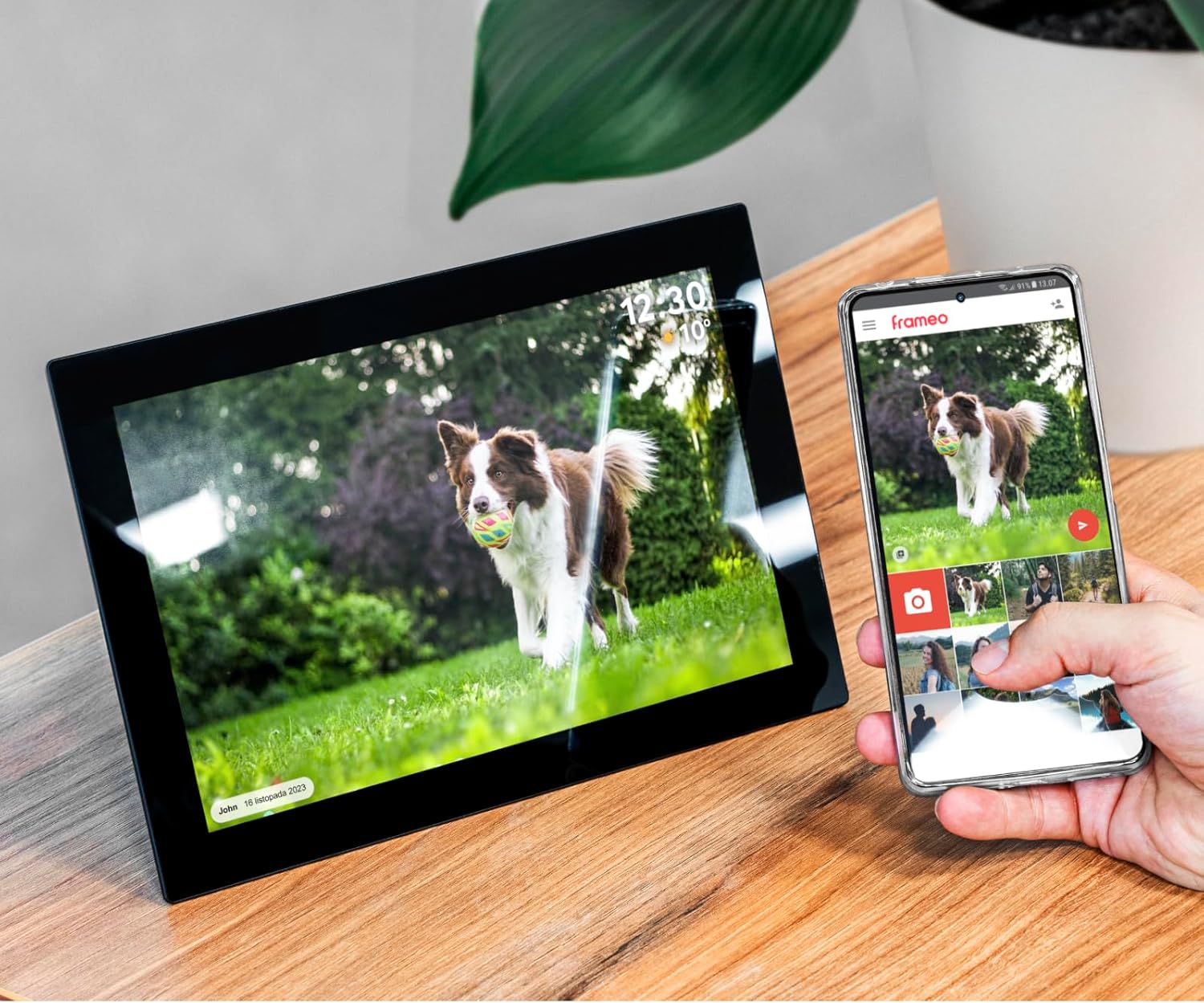
Image: The digital photo frame shown alongside a smartphone, illustrating the Frameo app for photo transfer.
5. Operating Instructions
Learn how to use the various features of your Kruger & Matz KM1100 digital photo frame.
5.1 Transferring Photos and Videos
Use the Frameo app on your smartphone to send photos and short videos directly to your digital photo frame.
- Open the Frameo app on your paired smartphone.
- Select the photos or videos you wish to send.
- Choose your digital photo frame as the recipient.
- The selected media will be transferred and appear on your frame.
5.2 Video Playback
The frame supports video playback. Videos sent via the Frameo app or loaded from a microSD card will play automatically within the slideshow or can be selected manually.

Image: A digital photo frame in vertical orientation, showing a video playing with a visible play button icon.
5.3 Adding Descriptions and Reactions
You can add descriptions and interactive reactions (emoticons) to your photos directly from the Frameo app or on the frame itself.

Image: The digital photo frame displaying an overlay menu for selecting emoticons to react to a photo.
5.4 Random Image Display
Configure the frame to display images in a random order for varied viewing experience. This setting can typically be found in the frame's display settings.
5.5 Displaying Images from MicroSD Card
Insert a compatible microSD card (up to 32 GB) into the MicroSD card slot. The frame will automatically detect the card and allow you to view its contents or integrate them into your slideshow.
5.6 Timer and Sleep Function
Utilize the built-in timer and sleep functions to conserve energy or schedule when the frame is active. These settings can be adjusted in the system settings menu.
5.7 Weather Information
When connected to Wi-Fi, the frame can display current weather information, often shown alongside the time on the screen.
6. Maintenance
Proper care and maintenance will extend the lifespan of your digital photo frame.
- Cleaning the Screen: Use a soft, lint-free cloth to gently wipe the screen. For stubborn smudges, slightly dampen the cloth with water or a screen-cleaning solution. Avoid harsh chemicals.
- Cleaning the Frame: Wipe the frame's exterior with a dry, soft cloth.
- Power Off When Not in Use: If storing the frame for an extended period, disconnect it from the power source.
- Avoid Extreme Conditions: Do not expose the frame to extreme temperatures, direct sunlight for prolonged periods, or high humidity.
7. Troubleshooting
If you encounter issues with your digital photo frame, refer to the following common solutions.
- Frame does not turn on: Ensure the power adapter is securely connected to both the frame and a working power outlet. Try a different outlet.
- Cannot connect to Wi-Fi: Verify your Wi-Fi password is correct. Ensure the frame is within range of your Wi-Fi router. Restart your router and the photo frame.
- Photos are not transferring: Check if both your smartphone and the photo frame are connected to the internet. Ensure the Frameo app is updated to the latest version. Verify the frame code is correctly entered in the app.
- Screen is unresponsive: Try restarting the frame by disconnecting and reconnecting the power. If the issue persists, perform a factory reset (refer to system settings, note this will erase all data).
- MicroSD card not detected: Ensure the card is inserted correctly. Try a different microSD card to rule out card malfunction. Check if the card is formatted to a compatible file system (e.g., FAT32).
8. Specifications
Detailed technical specifications for the Kruger & Matz KM1100 Digital Photo Frame.
| Model | KM1100 |
| Display Size | 10.1 inches |
| Display Type | TFT |
| Resolution | 1280 x 800 pixels |
| Aspect Ratio | 16:10 |
| Touch Panel | 5-point touch |
| Operating System | Android 6.1 |
| CPU | Rockchip RK3126 Quad-Core |
| RAM | 1 GB |
| Internal Memory | 16 GB |
| Max. Memory Card Capacity | 32 GB (MicroSD) |
| Connectivity | Wi-Fi 802.11 b/g/n (2.4 GHz) |
| Ports | MicroUSB, MicroSD slot, DC IN |
| Audio | Mono Speaker |
| Power Supply | DC 5 V / 2 A |
| AC Input | 100 - 240 V AC; 50/60 Hz |
| Dimensions (W x H x D) | 255 x 172 x 18 mm (17.5 x 25.5 x 2.51 cm) |
| Weight | 530 g (500 g) |
| Supported Image Formats | JPEG, PNG |
| Supported Video Formats | MPEG-1, MPEG-2, MPEG-4, H.263, H.264, VC1, RV |

Image: Visual representation of the 16 GB internal memory, expandable with a MicroSD card.
9. Warranty and Support
For warranty information and technical support, please refer to the documentation provided with your purchase or visit the official Kruger & Matz website. Keep your proof of purchase for warranty claims.