
AHANIN B0CQ2JKKPL
AHANIN Barcode Scanner User Manual
Model: B0CQ2JKKPL (2.4G Wireless Handheld Barcode Reader)
1. Introduction
This manual provides detailed instructions for the setup, operation, and maintenance of your AHANIN 2.4G Wireless Handheld Barcode Scanner. This device is designed for efficient and accurate scanning of 1D, 2D, and QR codes from both printed materials and digital screens. It offers versatile connectivity options, including 2.4G wireless and USB wired modes, making it suitable for various applications such as commercial POS systems, warehousing, logistics, and inventory management.

Figure 1.1: AHANIN 2.4G Wireless Handheld Barcode Scanner and its USB receiver.
2. Safety Information
Please read all safety instructions carefully before using the device. Failure to follow these instructions may result in injury or damage to the product.
- Laser Safety: This product emits a laser beam. DO NOT point the scanner laser beam directly into eyes or stare directly into the laser aperture. Direct exposure to the laser beam may cause eye damage.
- Battery Safety: The device contains a Lithium Polymer battery. Do not disassemble, crush, puncture, short-circuit, or expose the battery to extreme temperatures or fire. Dispose of batteries according to local regulations.
- Environmental Conditions: Do not expose the scanner to water, excessive humidity, or extreme temperatures. Operate the device within its specified temperature range.
- Cleaning: Use a soft, dry cloth to clean the scanner. Do not use abrasive cleaners or solvents.

Figure 2.1: Important laser safety warning.
3. Package Contents
Please check the package contents upon unboxing to ensure all items are present:
- AHANIN 2.4G Wireless Handheld Barcode Scanner
- 2.4G USB Wireless Receiver
- USB Charging Cable
- User Manual (this document)
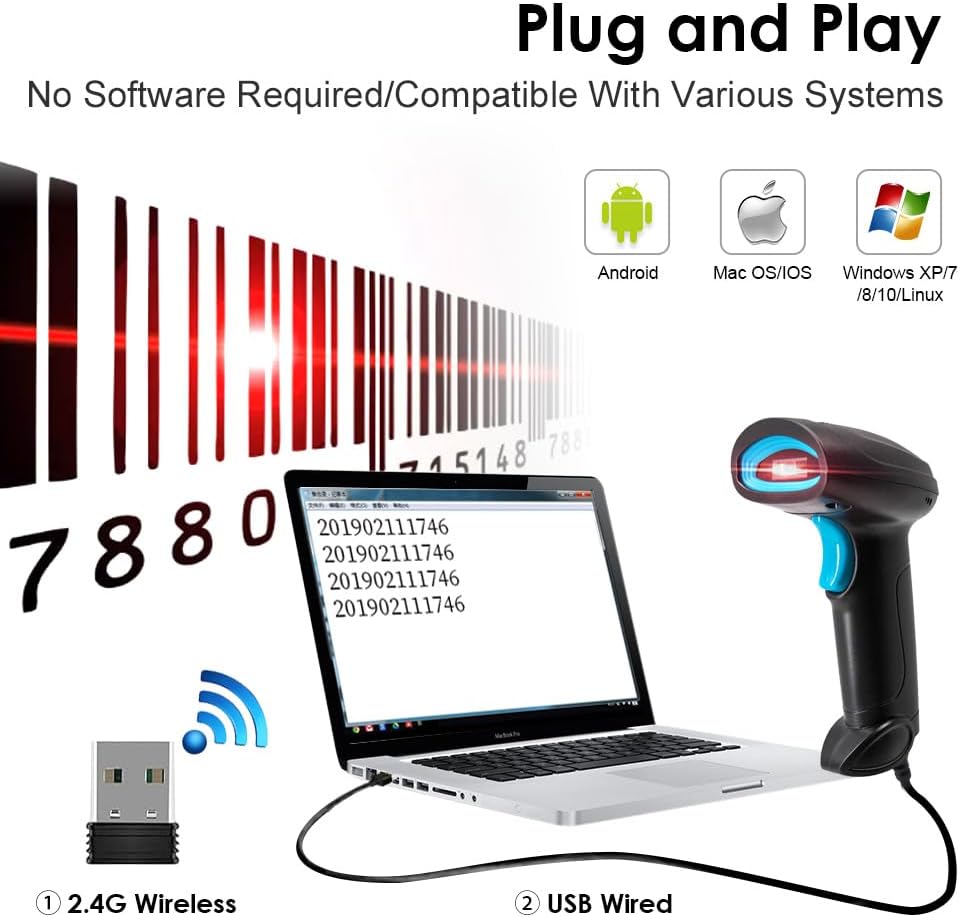
Figure 3.1: The barcode scanner, 2.4G USB wireless receiver, and USB charging cable.
4. Setup
4.1 Charging the Scanner
Before first use, ensure the scanner is fully charged. The built-in 2000mAh Lithium Polymer battery provides up to 15 hours of continuous use on a 4-hour charge.
- Connect the small end of the USB charging cable to the charging port on the bottom of the scanner.
- Connect the larger end of the USB cable to a USB power adapter (not included) or a USB port on your computer.
- The battery level indicator will show charging status. Once fully charged, disconnect the cable.

Figure 4.1: Connecting the scanner for charging via USB cable.
4.2 Connecting to a Computer
The scanner supports two connection modes: 2.4G Wireless and USB Wired. No software installation is required for either mode; it is plug-and-play compatible with various operating systems including Android, Mac OS/iOS, Windows XP/7/8/10, and Linux.
4.2.1 2.4G Wireless Connection
- Insert the 2.4G USB wireless receiver into an available USB port on your computer.
- The computer will automatically detect and install the necessary drivers. This may take a few moments.
- Once installed, the scanner is ready for use. The wireless range can reach up to 25 meters indoors with obstacles and up to 80 meters in open outdoor environments.

Figure 4.2: 2.4GHz wireless transmission capabilities.
4.2.2 USB Wired Connection
- Connect the small end of the USB charging cable to the charging port on the bottom of the scanner.
- Connect the larger end of the USB cable to an available USB port on your computer.
- The computer will automatically detect and install the necessary drivers. The scanner is ready for use once detected.
Figure 4.3: Both 2.4G wireless and USB wired connection options.
5. Operating Instructions
5.1 Scanning Barcodes
The AHANIN barcode scanner can read a wide variety of 1D, 2D, and QR codes, including those on paper and digital screens. It features a CMOS camera module for accurate and fast recognition.
- Hold the scanner with the scanning window facing the barcode.
- Press the trigger button to activate the laser beam.
- Aim the laser beam at the center of the barcode. Ensure the entire barcode is within the scanning area.
- A successful scan will typically be indicated by an audible beep and/or a visual confirmation (e.g., LED indicator). The scanned data will be transmitted to your connected computer as keyboard input.

Figure 5.1: Scanning 1D and 2D codes from various sources.
Supported Decoding Types:
The scanner supports a broad range of barcode symbologies:
- 1D Codes: EAN13, EAN 8, UPC-A, UPC-E0, UPC-E1, Code128, Code39, Code93, Interleaved 2 of 5, Industrial 25, Matrix 2 of 5, Code11.
- 2D Codes: QR Code, Data Matrix (DM), PDF417, Han Xin, Micro PDF417, Micro QRCode, MaxiCode, Aztec Code, Code16K.

Figure 5.2: Examples of supported 1D and 2D barcode types.
5.2 Upload Modes
The scanner offers two data upload modes:
- Instant Upload Mode: In this mode, scanned barcode data is immediately transmitted to the connected computer. This is ideal for real-time data entry.
- Storage Mode: The scanner has a built-in memory that can store up to 63,000 barcode entries. This mode is useful when working out of range of the computer or for batch processing. Data can be uploaded to the computer later by scanning a specific command barcode (refer to the full programming manual for command barcodes, if provided separately).

Figure 5.3: Instant Upload Mode vs. Storage Mode operation.
6. Maintenance
- Cleaning: Regularly clean the scanning window with a soft, lint-free cloth to ensure optimal scanning performance. Do not use harsh chemicals or abrasive materials.
- Storage: When not in use, store the scanner in a cool, dry place away from direct sunlight and extreme temperatures.
- Battery Care: To prolong battery life, avoid fully discharging the battery frequently. If storing for an extended period, charge the battery to about 50% before storage.
7. Troubleshooting
If you encounter issues with your barcode scanner, please refer to the following common troubleshooting steps:
| Problem | Possible Cause | Solution |
|---|---|---|
| Scanner does not power on. | Low battery or no charge. | Charge the scanner using the provided USB cable. Ensure the charging indicator lights up. |
| Scanner does not read barcodes. |
|
|
| No data transmitted to computer (Wireless). |
|
|
| No data transmitted to computer (Wired). | USB cable not properly connected or faulty. | Ensure the USB cable is securely connected to both the scanner and the computer. Try a different USB port or cable. |
| Scanned data is incorrect or incomplete. | Partial scan or incorrect decoding settings. | Ensure the entire barcode is within the scanning area. If issues persist, contact customer support. |
8. Specifications
| Feature | Detail |
|---|---|
| Product Dimensions | 6.3 x 2.6 x 3.5 inches |
| Item Weight | 10.5 ounces |
| Connectivity Technology | 2.4G Wireless, USB Wired |
| Power Source | Battery Powered (1 Lithium Polymer battery included) |
| Battery Capacity | 2000mAh |
| Charging Time | Approx. 4 hours |
| Continuous Use Time | Approx. 15 hours |
| Wireless Range (Indoor) | Up to 25 meters (with obstacles) |
| Wireless Range (Outdoor) | Up to 80 meters (open environment) |
| Scanning Module | CMOS Camera Module |
| Minimum Resolution | ≥ 5mil |
| Supported 1D Codes | EAN13, EAN 8, UPC-A, UPC-E0, UPC-E1, Code128, Code39, Code93, Interleaved 2 of 5, Industrial 25, Matrix 2 of 5, Code11 |
| Supported 2D Codes | QR Code, Data Matrix (DM), PDF417, Han Xin, Micro PDF417, Micro QRCode, MaxiCode, Aztec Code, Code16K |
| Compatible Devices | Desktop, Laptop |
| Compatible Operating Systems | Android, Mac OS/iOS, Windows XP/7/8/10, Linux |
9. Warranty and Support
AHANIN provides customer support for its products. If you experience any issues or have questions regarding your barcode scanner, please contact us directly.
- Customer Service Email: 2085189809@qq.com
- Please include your product model (B0CQ2JKKPL) and a detailed description of the issue when contacting support.
Ask a question about this manual
Ask about setup, troubleshooting, compatibility, parts, safety, or missing instructions. Manuals+ will review the question and use this page’s manual context to help answer it.