
1. Introduction
This manual provides comprehensive instructions for the installation, setup, operation, and maintenance of your Hodozzy 9-inch Android Car Stereo. Designed specifically for the Peugeot 508 models from 2012 to 2016, this unit integrates advanced features such as wireless CarPlay, Android Auto, GPS navigation, WiFi connectivity, Bluetooth, FM/RDS radio, and HiFi audio. Please read this manual thoroughly before installation and use to ensure proper function and safety.
2. Product Overview and Key Features
The Hodozzy Android Car Stereo is a 9-inch touchscreen unit designed to enhance your driving experience with modern connectivity and entertainment options.
- Display: 9-inch 2.5D tempered glass touchscreen with 1024x600 resolution, supporting 1080P HD format.
- Performance: Quad Core processor, 2GB RAM, 64GB ROM for smooth operation and ample storage.
- Smartphone Integration: Supports wireless CarPlay and Android Auto via Wi-Fi, USB cable, or Bluetooth for seamless access to phone functions like navigation, calls, messages, and music.
- Navigation: Built-in GPS receiver compatible with various navigation apps (e.g., Waze, Google Maps). Supports offline map downloads.
- Connectivity: Integrated WiFi for internet access via hotspot, allowing app downloads and online browsing. Bluetooth 5.0 for hands-free calling, contact synchronization, and music streaming.
- Audio: FM/RDS radio (87.5 MHz-108 MHz with 18 preset stations) and HiFi audio support for high-fidelity sound.
- User Interface: Split-screen function for multitasking, allowing simultaneous use of navigation and music playback.
- Control: Supports steering wheel controls for convenient audio management while driving.

Image 2.1: Hodozzy 9-inch Android Car Stereo and essential components.
3. Package Contents
Please verify that all items listed below are included in your package:
- Hodozzy 9-inch Android Car Stereo Unit
- Power Cable
- Canbus Decoder
- Radio Antenna
- Original USB Cable
- GPS Antenna
- Accessories (various connectors/adapters)
- Installation Tool
- User Manual (this document)
- Rear Camera Cable (if included with specific variant)
- RCA Cables

Image 3.1: Diagram illustrating the dimensions of the car stereo frame and the included accessories in the packing list.
4. Installation Guide
This car stereo is designed for direct plug-and-play installation in Peugeot 508 models from 2012-2016. No additional parts or cables are typically required beyond what is provided. Professional installation is recommended to ensure correct wiring and avoid damage to the vehicle or the unit.
4.1 Pre-Installation Checks
- Ensure the vehicle's ignition is off and the battery is disconnected to prevent electrical shorts.
- Confirm compatibility with your Peugeot 508 model (2012-2016).
- Identify all cables and connectors from the package contents.
4.2 Removal of Original Unit
- Carefully remove the trim panels surrounding the original car stereo.
- Unscrew and detach the original stereo unit from the dashboard.
- Disconnect all cables from the back of the original unit.
4.3 Connecting the New Stereo
- Connect the provided power cable harness to the car's wiring harness.
- Connect the Canbus decoder to the appropriate ports as indicated in the wiring diagram (refer to the included manual for specific diagrams).
- Attach the GPS antenna, radio antenna, and any other necessary cables (USB, RCA, rear camera) to the corresponding ports on the Hodozzy unit.
- Ensure all connections are secure. Note that some users have reported short cable lengths, requiring careful routing or minor modifications to the car's plastic trim for a proper fit.
4.4 Mounting and Testing
- Carefully slide the new Hodozzy unit into the dashboard opening.
- Secure the unit with screws.
- Reconnect the vehicle battery.
- Turn on the ignition and test the unit's basic functions (power, display, audio).
- If all functions are working, reattach the trim panels.

Image 4.1: Visual comparison of the car dashboard before and after the installation of the Hodozzy Android Car Stereo.
5. Setup and Initial Configuration
After successful installation, follow these steps for initial setup:
- Power On: Turn on your vehicle's ignition. The stereo should power on automatically.
- Language Settings: Navigate to the system settings to select your preferred language. The unit supports up to 40 national languages.
- Date and Time: Set the correct date and time, or enable automatic synchronization via GPS/network.
- WiFi Connection: Go to Settings > Network > Wi-Fi. Turn on Wi-Fi and connect to an available hotspot (e.g., from your smartphone) to enable online features and app downloads.
- GPS Setup: Ensure the GPS antenna is properly connected. The system will automatically detect GPS signals. You can download offline maps via the 'Here We Go' app or use other online navigation applications.
6. Operating Instructions
The Hodozzy car stereo features an intuitive touchscreen interface. Tap icons to open applications and swipe to navigate menus.
6.1 Main Screen Navigation
- The main screen displays frequently used apps and widgets.
- Swipe left or right to access additional app pages.
- Tap the 'Apps' icon to view all installed applications.
6.2 Split Screen Function
The split-screen feature allows you to run two applications simultaneously. For example, you can have navigation on one side and music playback on the other.
- Open the first application you wish to use.
- Press and hold the recent apps button (usually a square icon) or swipe up and hold from the bottom of the screen (depending on Android version) to enter split-screen mode.
- Select the second application from the list to occupy the other half of the screen.
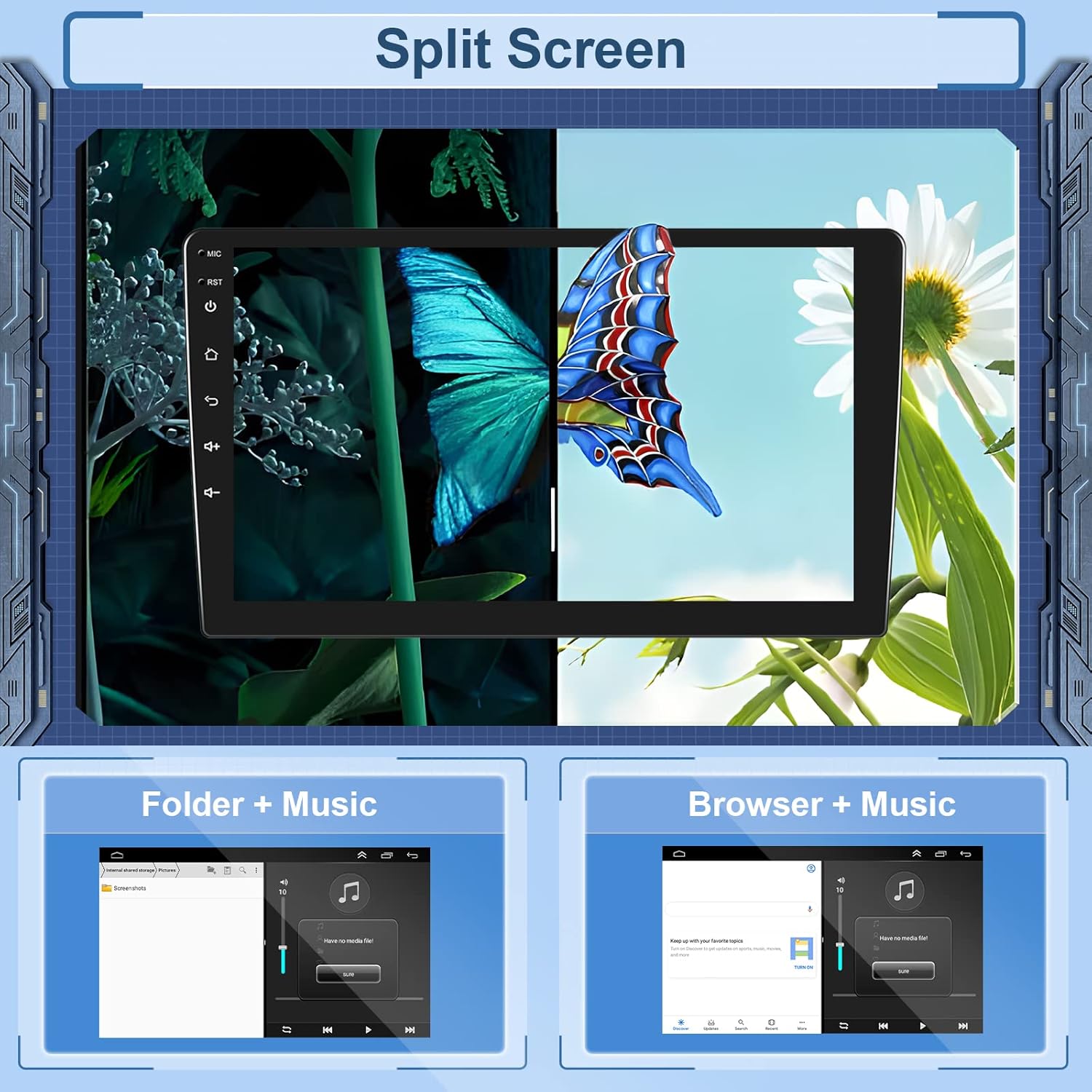
Image 6.1: The split-screen feature allows two applications to be displayed simultaneously on the car stereo screen.
6.3 Steering Wheel Control
The unit supports your vehicle's original steering wheel controls for audio functions. This feature enhances safety by allowing you to manage media without taking your hands off the wheel.
- Navigate to Settings > Steering Wheel Control (or similar menu option).
- Follow the on-screen instructions to program each button on your steering wheel to its corresponding function on the stereo.

Image 6.2: The interface for configuring steering wheel controls on the Hodozzy car stereo.
7. Connectivity
7.1 Wireless CarPlay and Android Auto
Connect your smartphone to the car stereo for an integrated experience, accessing navigation, calls, messages, and music directly from the unit's display.
- For Wireless Connection: Ensure both your phone's Bluetooth and Wi-Fi are enabled. Pair your phone with the car stereo via Bluetooth. Once paired, the system may prompt you to enable CarPlay/Android Auto over Wi-Fi.
- For Wired Connection: Connect your smartphone to the stereo's USB port using a data cable. The system should automatically detect and launch CarPlay or Android Auto.
- CarPlay Specifics: Compatible with iPhones up to iOS 16.3. Ensure CarPlay is enabled in your iPhone settings (General > CarPlay).
- Android Auto Specifics: Compatible with Android phones running Android 13 or lower. (Note: May not be compatible with some Huawei and Samsung phones).

Image 7.1: Overview of wireless and wired connectivity options for CarPlay and Android Auto.
7.2 Bluetooth
Bluetooth allows for hands-free calling and wireless audio streaming.
- Go to the Bluetooth application on the stereo.
- Enable Bluetooth on your smartphone and search for available devices.
- Select the car stereo (usually named 'Hodozzy' or similar) from your phone's list and pair.
- Once connected, you can make/receive calls and play music through the car speakers.
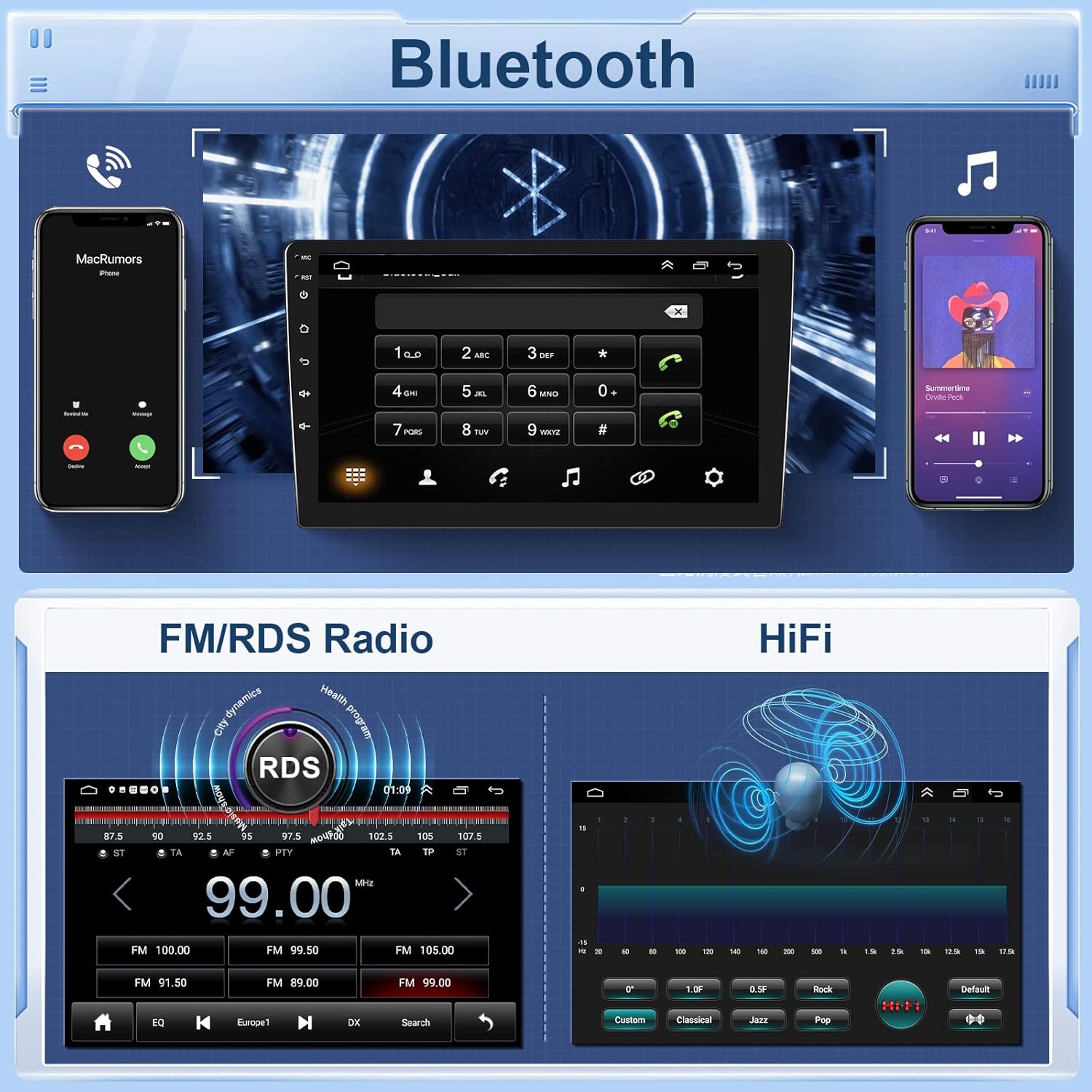
Image 7.2: Bluetooth interface for calls and music, along with FM/RDS radio and HiFi audio settings.
7.3 WiFi Connection
Connect to a Wi-Fi hotspot to access online features and download apps.
- Go to Settings > Network > Wi-Fi.
- Select your desired Wi-Fi network and enter the password if required.
- Once connected, you can browse the internet, stream videos, and use online applications.
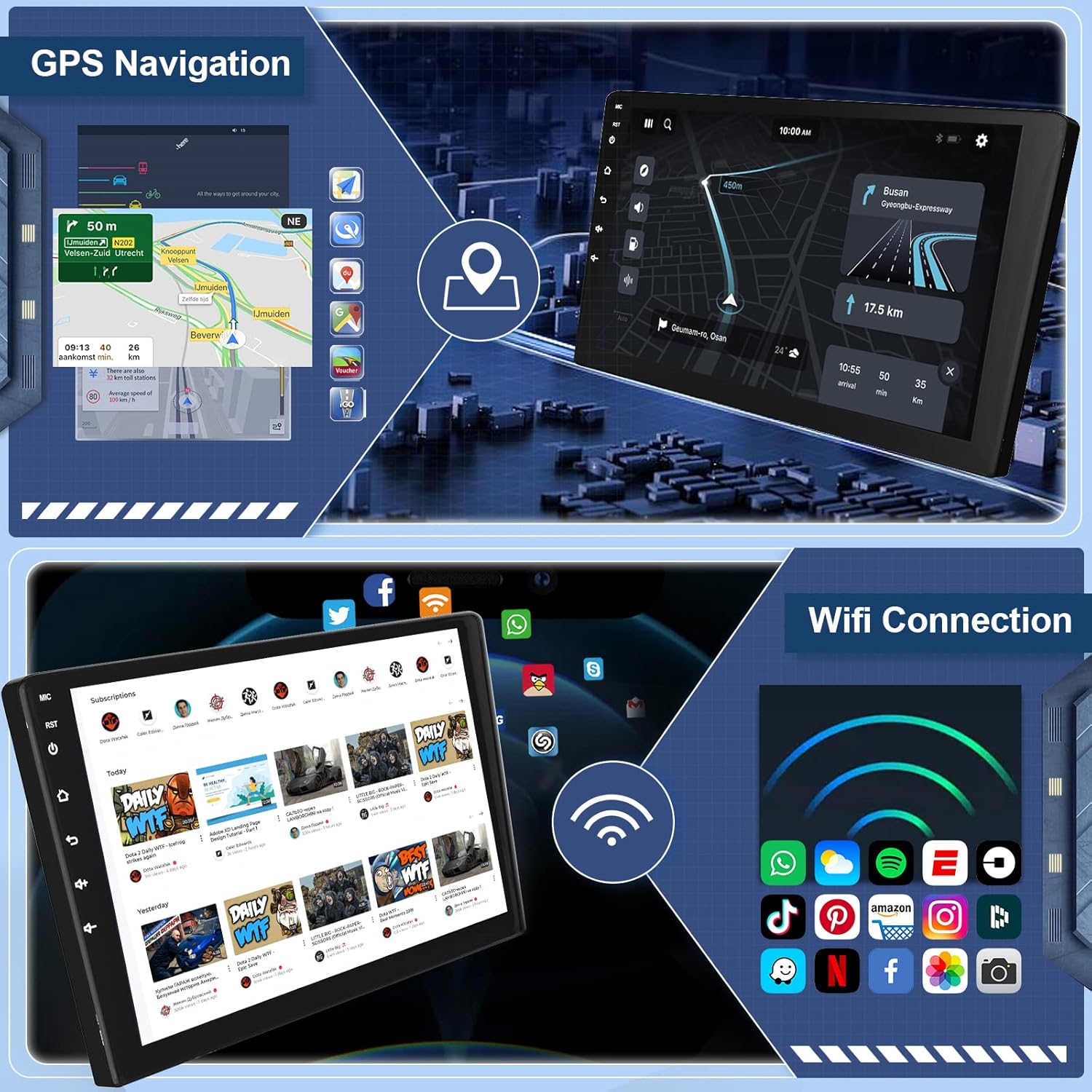
Image 7.3: GPS navigation display and available WiFi connection options.
8. Navigation and Multimedia
8.1 GPS Navigation
The built-in GPS system provides accurate navigation. You can use pre-installed maps or download others.
- Open the Navigation app.
- To use offline maps, download them via the 'Here We Go' app in the 'Download Map' menu while connected to Wi-Fi.
- For online navigation, ensure you have an active Wi-Fi connection.
8.2 FM/RDS Radio
Access local radio stations and receive RDS information.
- Open the FM Radio application.
- Use the scan function to automatically search for stations or manually tune to a frequency (87.5 MHz - 108 MHz).
- Save your favorite stations as presets.
- RDS (Radio Data System) provides additional information like station name, song title, and traffic announcements where available.
8.3 HiFi Audio
The unit supports HiFi audio playback, offering an immersive sound experience. Adjust equalizer settings to customize your audio output.
9. Maintenance
To ensure the longevity and optimal performance of your Hodozzy car stereo, follow these maintenance guidelines:
- Cleaning: Use a soft, dry, anti-static cloth to clean the screen and exterior. Avoid abrasive cleaners or solvents.
- Software Updates: Periodically check for available software updates through the system settings to ensure optimal performance and access to new features.
- Temperature: Avoid exposing the unit to extreme temperatures, direct sunlight for prolonged periods, or high humidity.
10. Troubleshooting
If you encounter issues with your Hodozzy car stereo, refer to the following common problems and solutions:
| Problem | Possible Cause | Solution |
|---|---|---|
| Unit does not power on | Loose power connection, blown fuse, vehicle battery disconnected. | Check all power cable connections. Inspect vehicle fuses. Ensure car battery is connected. |
| No sound | Volume too low, mute activated, speaker wires disconnected, incorrect audio settings. | Increase volume. Check if mute is active. Verify speaker wire connections. Adjust audio output settings. |
| Touchscreen unresponsive or slow | System overload, temporary software glitch, excessive background apps. | Restart the unit. Close unnecessary background applications. Perform a factory reset if the issue persists (backup data first). |
| GPS not working or inaccurate | GPS antenna not connected, poor signal, outdated maps. | Ensure GPS antenna is securely connected and has a clear view of the sky. Update maps if necessary. |
| Bluetooth connection issues | Phone not discoverable, incorrect pairing, interference. | Ensure phone's Bluetooth is on and discoverable. Delete previous pairings and re-pair. Move away from other Bluetooth devices. |
| CarPlay/Android Auto not connecting | Incorrect cable, phone settings, software incompatibility. | Use a certified data cable. Check phone's CarPlay/Android Auto settings. Ensure phone OS is compatible. Try both wired and wireless connections. |
If the problem persists after attempting these solutions, please contact Hodozzy customer support for further assistance.
11. Specifications
- Brand: Hodozzy
- Model Number: 41b1bb41-187b-4b1f-8d11-7b31b8abe68f (4 Nuclei 2+64G variant)
- Screen Size: 9 Inches
- Color: Black
- RAM: 2GB
- ROM: 64GB
- Processor: Quad Core
- Display Resolution: 1024 x 600
- Connectivity Technology: Bluetooth, Wi-Fi
- Special Features: Built-in Bluetooth, Touchscreen, GPS, CarPlay, Android Auto, FM/RDS Radio, HiFi Audio, Split Screen, Steering Wheel Control
- Compatible Devices: Smartphone
- Connector Type: RCA, USB Type A
- Audio Output Mode: Stereo
- Surround Sound Channel Configuration: 4.0
- Video Encoding: H.264
12. Warranty and Support
Your Hodozzy car stereo is covered by a 2-year warranty from the date of purchase. Additionally, free returns are accepted within 30 days of purchase.
For technical support, troubleshooting assistance, or warranty claims, please contact Hodozzy customer service. You can typically find contact information on the seller's page where you purchased the product or through the Hodozzy official website.