
BARCODE-USA P80
Chainway P80 Android Tablet Barcode Scanner User Manual
Brand: BARCODE-USA | Model: P80
1. Introduction
This manual provides comprehensive instructions for the Chainway P80 Android Tablet Barcode Scanner. It covers device setup, operation, maintenance, and troubleshooting to ensure optimal performance and longevity of your device. Please read this manual thoroughly before using the product.

Image 1.1: The Chainway P80 Android Tablet Barcode Scanner, showcasing its Android 13 operating system interface.
2. Product Features
The Chainway P80 is a robust and versatile Android tablet designed for efficient data capture in various environments. Key features include:
- Integrated Zebra SE4710 Barcode Scanner: Capable of reading 1D, 2D, and QR codes with high accuracy and speed.
- Android 13 Operating System: Provides a modern, user-friendly interface with enhanced performance and security features.
- Comprehensive Connectivity: Supports WiFi, GPS, NFC, and Bluetooth for seamless data access and communication.
- Extended Battery Life: Equipped with an 8700mAh battery for prolonged operation throughout the workday.
- Heavy-Duty and Rugged Design: Built for durability and reliability in demanding conditions, featuring a removable protective shell and mounting points.
- Configurable Interface: Includes a built-in scan button and a programmable D-Pad for intuitive control.

Image 2.1: The Chainway P80 in use, demonstrating its suitability for productive work environments with advanced connectivity.
3. Setup
3.1 Unboxing and Initial Inspection
Upon receiving your Chainway P80, carefully unpack all components. Verify that all items are present and undamaged. If any items are missing or damaged, contact your vendor immediately.
3.2 Charging the Device
Before first use, fully charge the device. Connect the provided USB Type-C cable to the tablet's charging port and the other end to a compatible power adapter. The charging indicator will show the charging status.
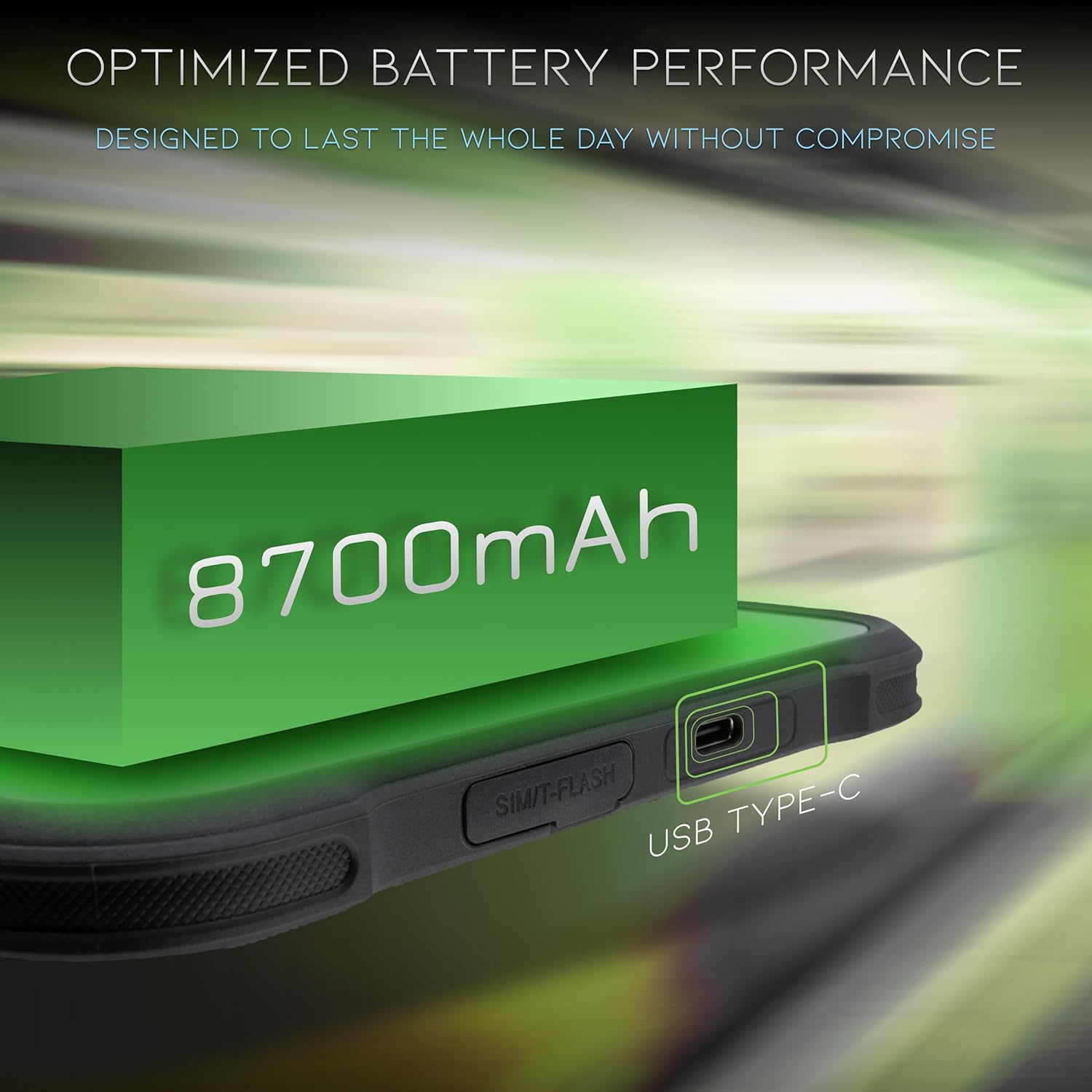
Image 3.1: The USB Type-C charging port and SIM/T-FLASH slot, highlighting the device's 8700mAh battery capacity.
3.3 Powering On/Off
- To Power On: Press and hold the Power button until the screen illuminates.
- To Power Off: Press and hold the Power button, then select "Power off" from the options displayed on the screen.
3.4 Inserting SIM/MicroSD Card (Optional)
If your model supports cellular connectivity or requires expandable storage, locate the SIM/T-FLASH slot (as shown in Image 3.1). Carefully open the cover and insert the SIM card or MicroSD card according to the diagram near the slot. Ensure the cover is securely closed to maintain water and dust resistance.
4. Operating Instructions
4.1 Barcode Scanning
The Chainway P80 features an integrated Zebra SE4710 scanner for efficient barcode reading.
- Activate Scanner: Press the dedicated "SCAN" button located on the side of the device or use the software trigger within your application.
- Positioning: Aim the scanner's red light beam at the barcode. Ensure the entire barcode is within the scanning area.
- Confirmation: A successful scan is typically indicated by an audible beep and/or a visual confirmation on the screen.

Image 4.1: The integrated Zebra SE4710 scanner, capable of reading 2D, 1D, and QR codes.
4.2 Connectivity
- Wi-Fi: Navigate to Settings > Network & internet > Wi-Fi to connect to available wireless networks.
- Bluetooth: Go to Settings > Connected devices > Bluetooth to pair with Bluetooth-enabled accessories.
- NFC: The device supports Near Field Communication. Enable NFC in Settings > Connected devices > Connection preferences > NFC for contactless data exchange.

Image 4.2: The configurable interface of the P80, showing the NFC reader, scan button, and D-Pad for enhanced usability.
4.3 Using the D-Pad and Programmable Buttons
The D-Pad (directional pad) allows for navigation within applications without touching the screen. The scan button can be configured for various functions depending on the application. Refer to your specific application's documentation for button customization options.
5. Maintenance
5.1 Cleaning the Device
Regular cleaning helps maintain device performance and appearance.
- Use a soft, lint-free cloth slightly dampened with water or a mild cleaning solution.
- Do not use abrasive cleaners, solvents, or aerosol sprays directly on the device.
- For the scanner window, use a specialized lens cleaning cloth to avoid scratches.
5.2 Battery Care
To maximize battery life and performance:
- Avoid extreme temperatures.
- Do not fully discharge the battery frequently.
- Use only approved charging accessories.
5.3 Software Updates
Periodically check for system updates to ensure your device has the latest features, security patches, and performance improvements. Go to Settings > System > System update.
6. Troubleshooting
This section addresses common issues you might encounter with your Chainway P80.
| Problem | Possible Cause | Solution |
|---|---|---|
| Device does not power on. | Low battery; device frozen. | Charge the device for at least 30 minutes. Perform a forced restart by holding the Power button for 10-15 seconds. |
| Barcode scanner not working. | Scanner not activated; dirty scanner window; incorrect barcode format. | Ensure the scanner is activated (press SCAN button). Clean the scanner window. Verify the barcode type is supported (1D/2D/QR). |
| Cannot connect to Wi-Fi/Bluetooth. | Wi-Fi/Bluetooth disabled; out of range; incorrect password. | Check Wi-Fi/Bluetooth settings. Move closer to the access point/device. Re-enter password. Restart the device. |
| Short battery life. | Many apps running; high screen brightness; old battery. | Close unused apps. Reduce screen brightness. Check battery health in settings. |
7. Specifications
Detailed technical specifications for the Chainway P80 Android Tablet Barcode Scanner:
- Model Number: P80
- Operating System: Android 13
- Barcode Scanner: Zebra SE4710 (Supports 1D, 2D, QR codes)
- Battery Capacity: 8700mAh
- Connectivity: Wi-Fi, GPS, NFC, Bluetooth
- Power Source: Battery Powered
- Compatible Devices: Tablet
- Manufacturer: Chainway
- Brand: BARCODE-USA
- UPC: 198168810996
- First Available: December 11, 2023

Image 7.1: The rugged outer case of the P80, designed for durability and featuring versatile mounting options.
8. Warranty and Support
For warranty information and technical support, please refer to the documentation provided with your purchase or contact BARCODE-USA directly. Support contact details can typically be found on the manufacturer's or seller's official website.
BARCODE-USA Website: Visit BARCODE-USA Store on Amazon
Related documentsP80


Ask a question about this manual
Ask about setup, troubleshooting, compatibility, parts, safety, or missing instructions. Manuals+ will review the question and use this page’s manual context to help answer it.