
1. Introduction and Overview
The LR-G200 Integrated Rebar Scanner is a sophisticated instrument designed for the non-destructive testing of reinforced concrete structures. Its primary function is to detect the position, distribution, and direction of rebar, measure the thickness of concrete cover, and estimate the diameter of rebar within concrete. This manual provides comprehensive instructions for the setup, operation, and maintenance of the LR-G200, ensuring accurate and reliable data acquisition.

Figure 1: The LR-G200 Integrated Rebar Scanner, showing its compact design and user interface.
2. Key Features
- Integrated Structure: The instrument sensor features an integrated structure, ensuring a small size and easy operation.
- High Accuracy and Resolution: Testing is carried out with a combination of a high-power transmitting coil and multiple small coils, ensuring superior accuracy and resolution in detection.
- Precise Displacement Scanning: Utilizes a high-accuracy grating sensor for precise displacement scanning and rebar distance measurement.
- Versatile Scanning Modes: Provides different types of scanning to suit various measurement cases and structural requirements.
- Extensive Testing Range and Data Storage: Permits large and small-range testing, with a scanning distance of up to 65 meters maximum. The instrument itself can store data for up to 4000 components.
3. Setup
Before operating the LR-G200, ensure all components are present and properly connected. The device is designed for ease of use, with minimal setup required.
3.1 Unpacking and Component Identification
Carefully unpack the LR-G200 and identify the following components:
- LR-G200 Main Unit
- USB Data Cable
- USB Flash Drive (for software and data transfer)
- Power Adapter/Charger
- Carrying Case
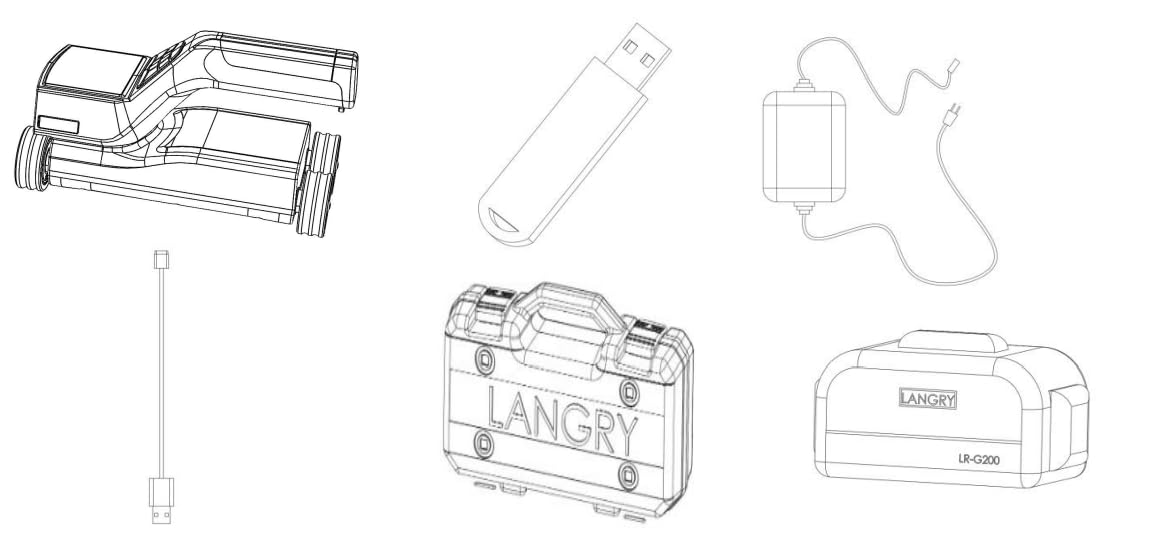
Figure 2: Illustrated components of the LR-G200 system, including the main unit, data transfer accessories, and power supply.
3.2 Charging the Device
Before first use, fully charge the LR-G200 using the provided power adapter. Connect the adapter to the charging port on the device and plug it into a standard power outlet. The charging indicator on the device will show its status.
4. Operating Instructions
The LR-G200 features an intuitive interface for easy navigation and operation. Follow these steps for effective rebar detection.
4.1 Powering On and Main Menu
Press and hold the power button to turn on the device. The main menu will appear, offering various options for scanning and data management.

Figure 3: The LR-G200's main menu, displaying various scanning modes such as Quick, Profile, and Grid, alongside data management options.
4.2 Scanning Modes
The LR-G200 offers several scanning modes to suit different detection requirements:
- Quick Scan: For rapid assessment of rebar presence and approximate depth.
- Profile Scan: Provides a cross-sectional view of rebar distribution.
- Grid Scan: Creates a grid pattern for comprehensive mapping of rebar networks.
- Fine Scan: For detailed analysis of specific rebar locations and diameters.
- Image Scan: Captures a visual representation of the scanned area.

Figure 4: Examples of detailed scan results from various modes, illustrating rebar depth, diameter, and positional data.
4.3 Data Display and Analysis
After scanning, the device displays the collected data, including rebar depth, diameter, and distribution. This data can be reviewed directly on the device or transferred to a computer for further analysis using the dedicated software.

Figure 5: The data display interface of the LR-G200, providing comprehensive details of detected rebar, including dimensions and eligibility.
5. Software for Data Analysis
The LR-G200 comes with a dedicated rebar detection data analysis software developed by Jinan Langrui Detection Technology Co., Ltd. This multi-function analysis software is designed for processing the rebar detection data and runs on XP/Win7/Win10 operating systems, offering a user-friendly interface.
5.1 Software Capabilities
- Component Information Management: Manages all component information and detection data at each measuring point.
- Analysis and Evaluation: Conducts analysis and evaluation of detection data according to construction quality acceptance criteria.
- Graphic Data Display: Displays component data in a clear graphic format for easy interpretation.
- Data File Integration: Generates a detection data file by integrating several individual files, allowing easy addition or removal of detection data.
- Reporting and Export: Supports printing of previews and exporting of treatment results.
- Easy Data Import: Facilitates easy import of rebar scanner data into the computer for further analysis and archiving.
- Automatic Report Generation: Automatically generates detection reports in Word format (.docx).
Data files saved in the software have the file extension `.xgjy`. The automatically generated detection reports use the `.docx` format.

Figure 6: Overview of the rebar detection data analysis software interface, demonstrating its capabilities for data visualization and report generation.
6. Maintenance
Proper maintenance ensures the longevity and accuracy of your LR-G200 scanner.
- Cleaning: Use a soft, dry cloth to clean the device. Do not use abrasive cleaners or solvents. Ensure the sensor area is free from dust and debris.
- Storage: Store the device in its carrying case in a cool, dry place when not in use. Avoid extreme temperatures and high humidity.
- Battery Care: For optimal battery life, avoid fully discharging the battery frequently. If storing for extended periods, charge the battery to about 50% every few months.
- Software Updates: Periodically check for software updates from the manufacturer to ensure optimal performance and access to new features.
7. Troubleshooting
This section addresses common issues you might encounter with the LR-G200.
- Device Not Powering On:
- Ensure the battery is sufficiently charged. Connect the charger and wait a few minutes before attempting to power on again.
- Check the power button for any physical obstruction.
- Inaccurate Readings:
- Ensure the sensor surface is clean and free from dirt or moisture.
- Verify that the scanning technique is consistent with the instructions.
- Calibrate the device if a calibration option is available in the settings menu.
- Software Connectivity Issues:
- Ensure the USB cable is securely connected to both the device and the computer.
- Try a different USB port on your computer.
- Restart both the device and the computer.
- Ensure the correct drivers are installed for the device on your computer.
- Data Transfer Failure:
- Check the USB connection.
- Ensure there is sufficient storage space on the USB flash drive or computer.
- Verify that the software is running correctly and is not blocked by a firewall or antivirus program.
If you encounter issues not listed here or if the problem persists, please contact customer support.
8. Specifications
| Attribute | Value |
|---|---|
| Brand | Generic |
| Manufacturer | Vinculum Labs |
| Model Number | LR-G200 |
| Colour | Blue |
| Number of Memory Sticks | 1 |
| Product Dimensions (LxWxH) | 51 x 32.8 x 21.5 Centimeters |
| Item Height | 21.5 Centimeters |
| Item Width | 32.8 Centimeters |
| ASIN | B0CPYTX5D5 |
| Date First Available | 10 December 2023 |
9. Warranty and Support
For warranty information and technical support, please refer to the documentation provided with your purchase or contact the manufacturer, Vinculum Labs, directly. Ensure you have your product model number (LR-G200) and purchase details ready when seeking support.
Manufacturer Contact: Vinculum labs, New Delhi
