
1. Introduction
This manual provides essential information for the setup, operation, and maintenance of your Toshiba 32LV3E63DAZ VIDAA Smart TV. This 32-inch Full HD television offers an immersive viewing experience with HDR 10, HLG, TRU Resolution, and Micro Dimming technologies, ensuring high contrast and natural colors. Featuring a built-in triple tuner (DVB-C/T2/S2), it allows direct reception of satellite, cable, or antenna broadcasts without additional equipment. The integrated VIDAA operating system provides access to a wide range of smart features and applications, including popular streaming services.

Figure 1.1: Front view of the Toshiba 32LV3E63DAZ VIDAA Smart TV, showcasing the display with the VIDAA interface and various streaming app icons.
2. Setup
2.1 Unboxing and Content Verification
Carefully remove all components from the packaging. Ensure the following items are present:
- Toshiba 32LV3E63DAZ Smart TV
- Remote Control
- 2 x AAA Batteries (for remote control)
- TV Stand and Screws
- Power Cable
- Quick Start Guide (if included)
2.2 Stand Installation
Place the TV screen face down on a soft, clean surface to prevent scratches. Attach the TV stand to the designated slots on the bottom of the television using the provided screws. Ensure the stand is securely fastened before placing the TV upright.
2.3 Connecting Peripherals
The Toshiba 32LV3E63DAZ offers various connection options for external devices. Refer to the image below for port locations and types.

Figure 2.1: Rear panel connections, including HDMI, USB, LAN, Antenna, Headphones, Digital Audio Out, and CI Slot.
- HDMI (x2): Connect Blu-ray players, game consoles, or other HDMI-enabled devices. Supports CEC and ARC.
- USB (x1): Connect USB storage devices for media playback.
- LAN (Ethernet): For wired internet connection.
- Antenna (RF/F): Connect your terrestrial or satellite antenna cable.
- Headphones: For private audio listening.
- Digital Audio Out: Connect to external audio systems for enhanced sound.
- CI Slot: For Conditional Access Modules (CAM) to decrypt pay-TV channels.
- Bluetooth: For wireless connection to compatible audio devices or other peripherals.
2.4 Initial Power On
After connecting all necessary cables and installing the stand, plug the power cable into an electrical outlet. Press the power button on the remote control or on the TV itself to turn on the television. Follow the on-screen instructions for initial setup, including language selection, network configuration, and channel scanning.
3. Operating Instructions
3.1 Remote Control Functions
The remote control provides full access to your TV's features. Insert the two AAA batteries into the remote control, ensuring correct polarity.

Figure 3.1: The remote control features dedicated buttons for popular streaming applications like YouTube, Netflix, Prime Video, and Disney+ for quick access.
- Power Button: Turns the TV on or off.
- Number Buttons (0-9): Direct channel selection.
- Volume Up/Down: Adjusts the sound level.
- Channel Up/Down: Changes TV channels.
- Navigation Buttons (Up/Down/Left/Right) & OK: Navigate menus and confirm selections.
- Back/Exit: Returns to the previous menu or exits the current menu.
- Menu/Guide: Accesses the main menu or electronic program guide.
- Dedicated App Buttons: Quick access to streaming services such as Netflix, Prime Video, Disney+, and YouTube.
3.2 Smart TV Features (VIDAA OS)
Your Toshiba TV runs on the VIDAA operating system, providing a user-friendly interface for smart features. Access the home screen to find pre-installed applications and customize your viewing experience.
- Streaming Services: Enjoy a wide selection of content from apps like Netflix, Prime Video, Disney+, YouTube, and DAZN. (Subscription fees may apply for certain services).
- App Store: Download additional applications from the VIDAA App Store to expand your entertainment options.
- Web Browser: Browse the internet directly from your TV.
3.3 Voice Control
The VIDAA Voice feature allows you to control your TV using voice commands when connected to compatible Alexa-enabled smart speakers (sold separately).

Figure 3.2: A user interacting with the Toshiba TV using voice commands, indicating Alexa compatibility and VIDAA Voice functionality.
To use voice control:
- Ensure your TV is connected to the internet and paired with a compatible Alexa smart speaker.
- Use voice commands to change channels, adjust volume, open applications, and more.
3.4 Picture and Sound Settings
Optimize your viewing and listening experience through the TV's settings menu.
- Picture Modes: Select from various preset picture modes (e.g., Standard, Dynamic, Movie) or customize settings like brightness, contrast, and color.
- HDR 10 & HLG: These technologies enhance contrast and color for compatible content.
- TRU Resolution & Micro Dimming: These features work to improve image clarity and optimize black levels for impressive detail and contrast.

Figure 3.3: A close-up of the TV screen highlighting the TRU Micro Dimming feature, which enhances contrast and optimizes black levels for clearer images.
- Sound Modes: Choose from different sound modes (e.g., Standard, Music, Movie) or adjust equalizer settings.
- Dolby Audio: Experience rich, clear, and powerful sound with Dolby Audio technology.
3.5 Tuner Operation
The integrated triple tuner supports DVB-T2 (terrestrial), DVB-C (cable), and DVB-S2 (satellite) signals. Access the TV's menu to perform channel scans and manage your channel list.
4. Maintenance
4.1 Cleaning Your TV
To maintain the appearance and performance of your TV:
- Screen: Gently wipe the screen with a soft, dry, lint-free cloth. For stubborn marks, lightly dampen the cloth with water or a specialized screen cleaner. Avoid harsh chemicals or abrasive materials.
- Cabinet: Wipe the TV cabinet with a soft, dry cloth.
- Ventilation: Ensure the ventilation openings on the back of the TV are not blocked to prevent overheating.
4.2 Software Updates
Your TV may receive software updates to improve performance, add new features, or fix bugs. Ensure your TV is connected to the internet to receive these updates. You can usually check for updates manually through the TV's settings menu under "System" or "About TV".
5. Troubleshooting
If you encounter issues with your Toshiba TV, refer to the following common solutions:
| Problem | Possible Solution |
|---|---|
| No power / TV won't turn on |
|
| No picture / Black screen |
|
| No sound / Low volume |
|
| Remote control not working |
|
| Cannot connect to Wi-Fi |
|
If the problem persists after trying these solutions, please refer to the "Warranty & Support" section for further assistance.
6. Specifications
Below are the technical specifications for the Toshiba 32LV3E63DAZ VIDAA Smart TV.
| Feature | Detail |
|---|---|
| Brand | Toshiba |
| Model Number | 32LV3E63DAZ |
| Color | Black |
| Operating System | VIDAA |
| Screen Size | 32 Inches (80 cm) |
| Display Technology | LED |
| Resolution | 1080p (Full HD) |
| Refresh Rate | 50 Hz |
| Special Features | HDR, TRU Micro Dimming, TRU Resolution, VIDAA TV |
| Connectivity Technology | Bluetooth, HDMI, USB, Wi-Fi |
| Connections | 2x HDMI (CEC+ARC), 1x USB, LAN, Antenna (RF/F), Headphones, Digital Audio Out, CI Slot |
| Total USB Ports | 1 |
| Aspect Ratio | 16:9 |
| Product Dimensions (D x W x H) | 17.3 cm x 72.8 cm x 47.3 cm (with stand) |
| Included Components | TV with stand, Remote control with 2 AAA batteries |
| Remote Battery Type | 2 AAA (Zinc-carbon, included) |
| Manufacturer | Toshiba |
| Date of Listing on Amazon.com.be | December 11, 2023 |
6.1 Physical Dimensions
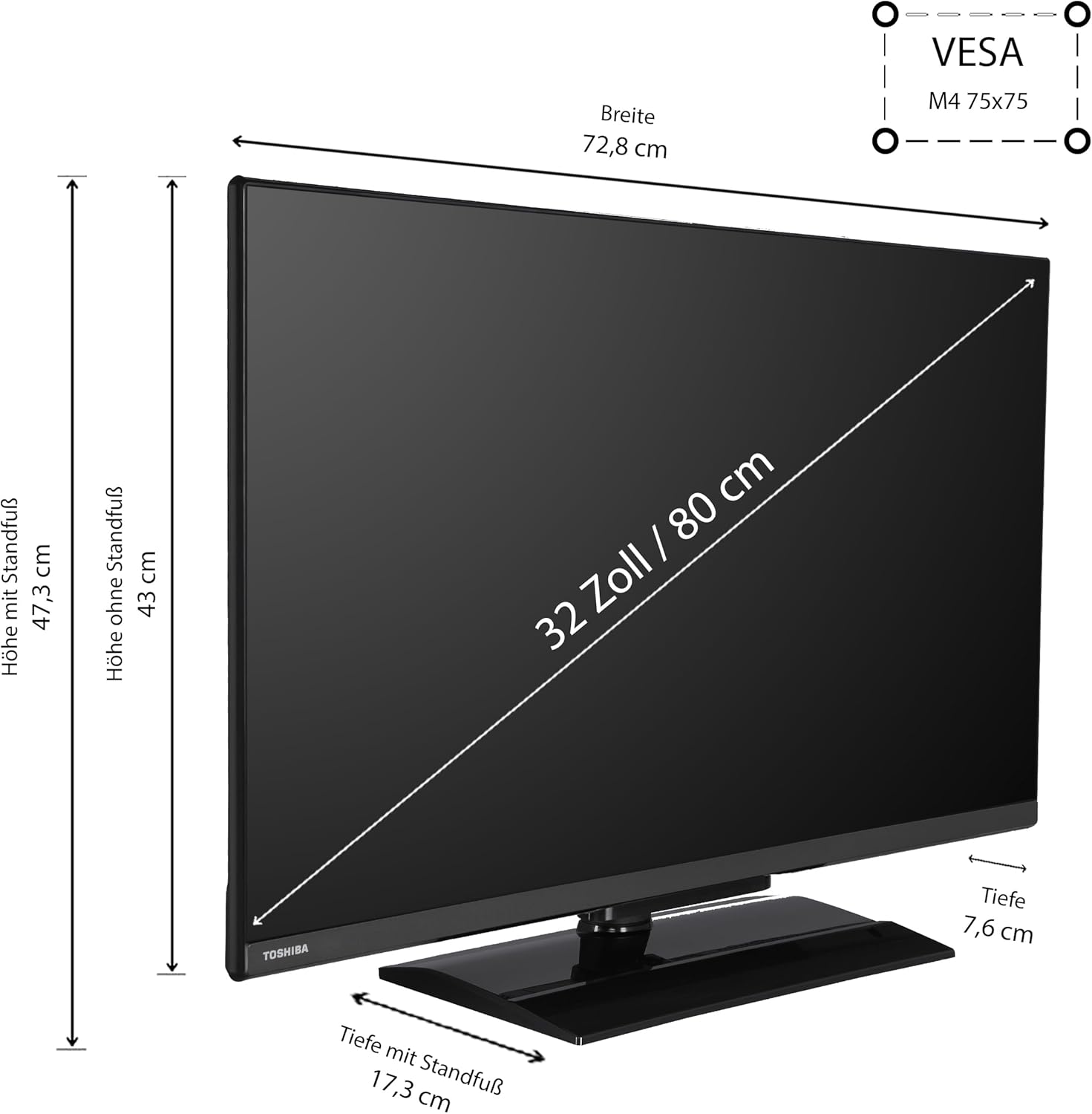
Figure 6.1: Detailed dimensions of the TV, including width (72.8 cm), height with stand (47.3 cm), height without stand (43 cm), depth with stand (17.3 cm), and depth without stand (7.6 cm). VESA mount M4 75x75 is also indicated.
6.2 Optimal Viewing Distance
For the best viewing experience, consider the recommended seating distance based on the screen size and resolution.
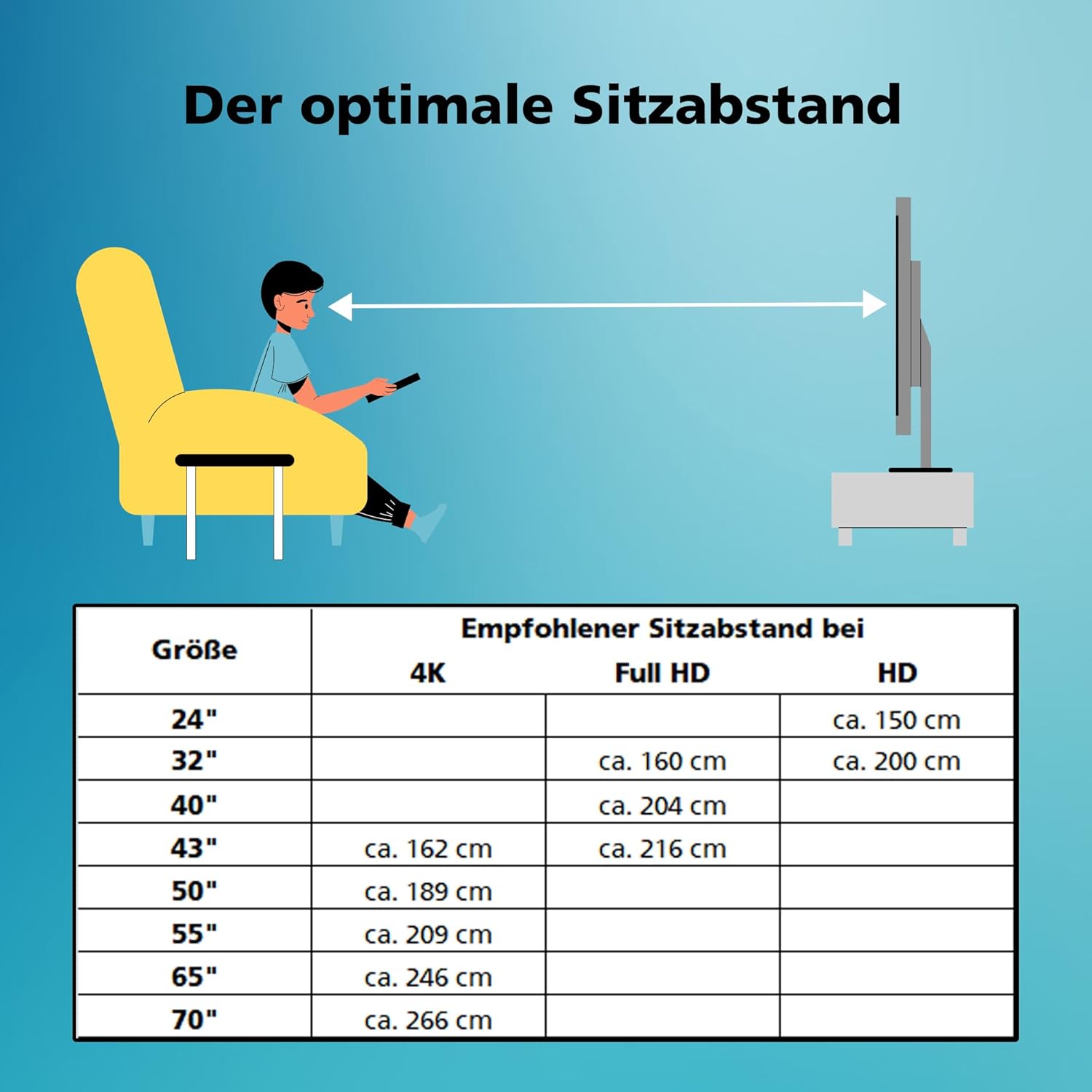
Figure 6.2: Recommended seating distances for different TV sizes and resolutions. For a 32-inch Full HD TV, the optimal distance is approximately 160 cm.
| Screen Size | Recommended Seating Distance (Full HD) |
|---|---|
| 32" | Approx. 160 cm |
| 40" | Approx. 204 cm |
| 43" | Approx. 216 cm |
Note: The table above provides general recommendations. Personal preference may vary.
7. Warranty and Support
7.1 Spare Parts Availability
Spare parts for the Toshiba 32LV3E63DAZ are available for a period of 7 years from the date of purchase. This ensures that your television can be repaired and maintained for an extended period.
7.2 Software Updates
Information regarding guaranteed software updates for this model is not available at this time. Please check the TV's system settings periodically for any available updates.
7.3 Customer Support
For further assistance, technical support, or warranty claims, please contact Toshiba customer service. Refer to the official Toshiba website or your purchase documentation for contact details specific to your region.
When contacting support, please have your TV's model number (32LV3E63DAZ) and serial number ready.