
1. Introduction
This manual provides comprehensive instructions for the installation, configuration, and operation of your 2NLF 16-Channel Wireless NVR Security System. Please read this manual thoroughly before installation and retain it for future reference. This system is designed to provide reliable surveillance for both indoor and outdoor environments, offering advanced features such as PTZ control, night vision, and motion detection.
2. Product Overview
2.1 System Components
The 2NLF Wireless NVR Security System includes the following main components:
- 1 x 16-Channel Digital Video Recorder (NVR)
- 4 x 2MP PTZ Outdoor Surveillance Cameras
- Power Adapters for NVR and Cameras
- USB Mouse
- Ethernet Cable
- Mounting Screws and Plugs
2.2 Key Features
- 2MP High-Definition Wireless Surveillance: Captures clear 1080p video.
- 16-Channel Expandability: Supports up to 16 cameras, allowing for future expansion beyond the included 4 cameras.
- PTZ Control: Pan, Tilt, and Zoom functionality for flexible camera positioning (360-degree viewing angle).
- Advanced Night Vision: Features IR night vision and color night vision modes for clear visibility up to 12 meters in low-light conditions.
- Two-Way Audio: Built-in microphone and speaker for real-time communication.
- Motion Detection & Alerts: Automatically detects movement and can trigger acoustic/optical alarms and send notifications.
- IP66 Weatherproof: Cameras are designed for outdoor use, resistant to dust and water, operating in temperatures from -25°C to 50°C (-13°F to 122°F).
- Easy Setup: Cameras are pre-paired with the NVR for quick installation.
- Remote Viewing: Access live and recorded video from anywhere via the EseeCloud app on Android and iOS devices.
- 24/7 Continuous Recording: Supports continuous video recording with a hard drive (up to 4TB capacity, hard drive not included).
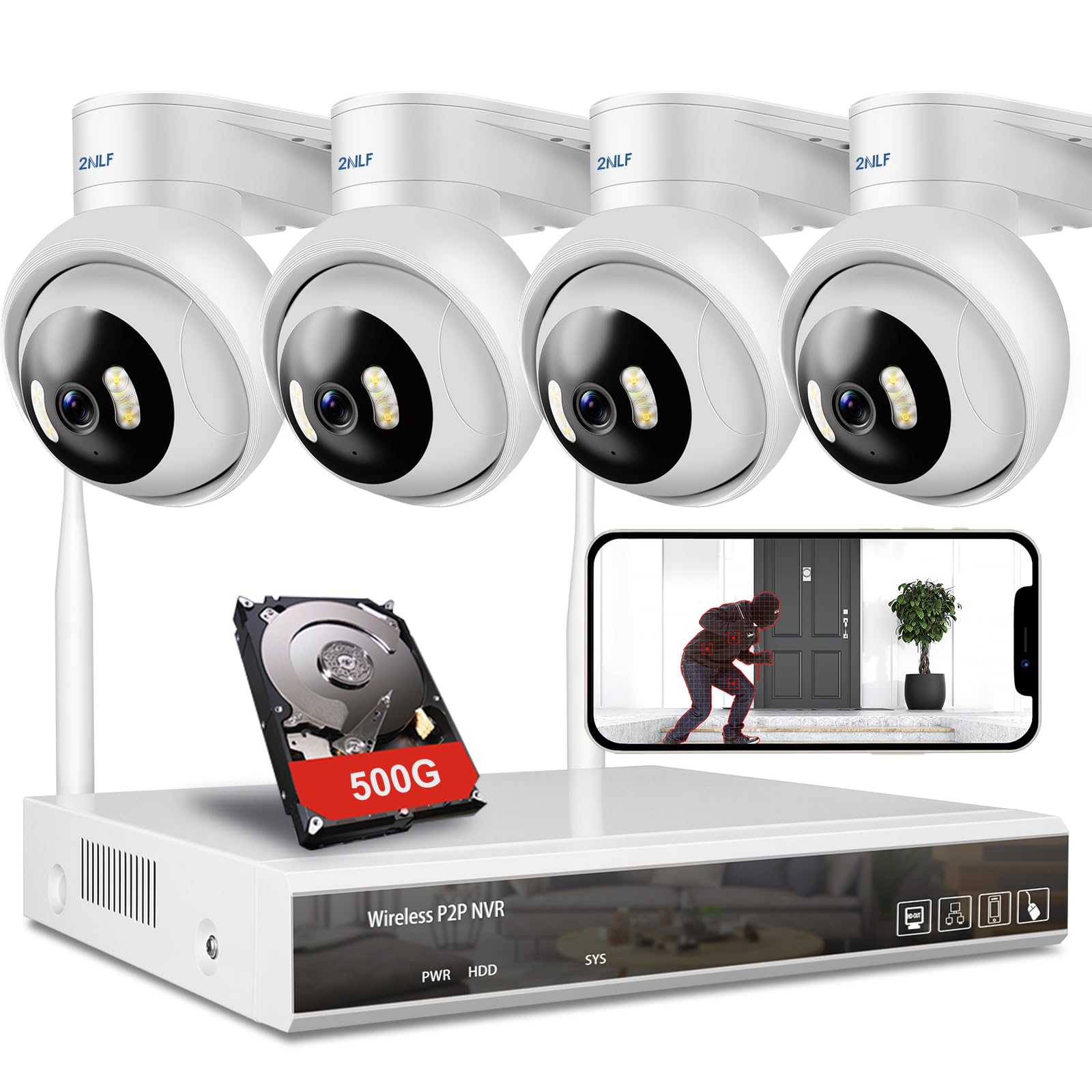
Figure 1: Overview of the 2NLF Wireless NVR Security System components.

Figure 2: NVR and camera dimensions, along with NVR port details (VGA, HDMI, LAN, USB, Power).
3. System Setup
3.1 Initial Connections
- Connect NVR to Power: Plug the NVR power adapter into the NVR's power input and then into a power outlet.
- Connect NVR to Monitor: Use a VGA or HDMI cable to connect the NVR to a monitor or TV.
- Connect NVR to Router: Use the included Ethernet cable to connect the NVR's WAN port to a LAN port on your internet router. This is essential for remote viewing and app functionality.
- Connect USB Mouse: Plug the USB mouse into one of the NVR's USB ports for navigation.
- Power On Cameras: Connect each camera to its respective power adapter and plug the adapters into power outlets. The cameras will automatically attempt to connect to the NVR as they are pre-paired.
3.2 Camera Placement
For optimal performance, consider the following when placing your cameras:
- Ensure cameras are within 300 meters (approximately 984 feet) of the NVR for a stable wireless connection.
- Mount cameras in locations that provide a clear field of view of the desired surveillance area.
- Utilize the PTZ functionality to cover wider areas.
- For outdoor installations, ensure the cameras are securely mounted and their IP66 rating is maintained.

Figure 3: Illustration of automatic pairing between cameras and NVR, and 24/7 recording capability.

Figure 4: Camera demonstrating IP66 waterproof rating and operational temperature range.
4. Mobile App Setup
The EseeCloud app allows you to remotely monitor your security system from your smartphone or tablet.
- Download the App: Search for "EseeCloud" in the Google Play Store (for Android devices) or the Apple App Store (for iOS devices) and download the free application.
- Register an Account: Open the EseeCloud app and follow the on-screen instructions to register a new account.
- Add Device: Log in to your account. Tap the "+" icon or "Add Device" option to add your NVR system. You may need to scan a QR code displayed on your NVR's monitor or manually enter the device ID.
- View Live Feed: Once the NVR is successfully added, you can view the live video feed from your cameras.

Figure 5: EseeCloud app interface showing live view on a smartphone, supporting multiple devices.
5. Operating the System
5.1 Live View and Recording
After setup, the NVR will display the live feed from all connected cameras. The system supports 24/7 continuous recording. You can manage recording settings and view recorded footage directly from the NVR interface or via the EseeCloud app.
5.2 PTZ Control
The PTZ (Pan, Tilt, Zoom) cameras allow you to adjust their viewing angle remotely. Use the NVR interface or the EseeCloud app to control the camera's movement:
- Pan: Rotate the camera horizontally (up to 355 degrees).
- Tilt: Adjust the camera vertically (up to 90 degrees).
- Zoom: Digitally zoom in or out on the image.

Figure 6: Illustration of humanoid tracking and PTZ rotation capabilities of the camera.
5.3 Two-Way Audio
The cameras are equipped with a microphone and speaker, enabling two-way audio communication. Through the EseeCloud app, you can listen to audio from the camera's location and speak through the camera's speaker.

Figure 7: Demonstrates two-way audio functionality and multi-user live viewing.
5.4 Motion Detection and Alerts
Configure motion detection settings via the NVR or EseeCloud app. When motion is detected, the system can:
- Trigger an acoustic and/or optical alarm from the camera.
- Send push notifications to your mobile device.
- Initiate recording (if not already set for continuous recording).

Figure 8: Visual representation of motion tracking and alarm features.
5.5 Night Vision Modes
The cameras offer enhanced night vision capabilities:
- IR Night Vision: Provides clear black and white video in complete darkness.
- Color Night Vision: Utilizes ambient light or built-in illumination to provide color video at night.

Figure 9: Comparison of day vision, IR night vision, and color night vision.
6. Maintenance
6.1 Hard Drive Management
The NVR supports a hard drive up to 4TB for video storage. If a hard drive is not pre-installed, you will need to install one for continuous recording. Refer to the NVR's on-screen menu for hard drive installation instructions and formatting options. Regularly back up important footage if needed.
6.2 Cleaning
To ensure optimal image quality, periodically clean the camera lenses with a soft, damp cloth. Avoid using harsh chemicals or abrasive materials that could scratch the lens. For outdoor cameras, ensure no debris obstructs the view or the PTZ mechanism.
7. Troubleshooting
If you encounter issues with your security system, refer to the following common problems and solutions:
| Problem | Possible Cause | Solution |
|---|---|---|
| No video display on monitor | Loose cable connection, NVR not powered, incorrect input selected on monitor. | Check power connections for NVR and monitor. Ensure VGA/HDMI cable is securely connected. Select the correct input source on your monitor. |
| Cameras not connecting to NVR | Cameras not powered, out of range, interference. | Ensure cameras are powered. Relocate cameras closer to the NVR. Minimize obstacles between cameras and NVR. |
| No remote viewing via app | NVR not connected to internet, incorrect app settings, network issues. | Verify NVR is connected to your router via Ethernet. Check your internet connection. Ensure the NVR is added correctly in the EseeCloud app. Restart NVR and router. |
| No recording | No hard drive installed, hard drive full, recording schedule not set. | Install a compatible hard drive (up to 4TB). Check hard drive status and free space. Configure recording schedule in NVR settings. |
| PTZ control not responding | Camera power issue, network connectivity issue, camera malfunction. | Check camera power and network connection. Restart the camera. If the issue persists, contact support. |
8. Specifications
| Feature | Specification |
|---|---|
| Brand Name | 2NLF |
| Model Name | 2NLF NVR + Cameras |
| Video Capture Resolution | 1080p (2MP) |
| Number of Channels | 16 |
| Number of Items (Included) | 4 Cameras + 1 NVR |
| Connectivity Technology | Wireless (Wi-Fi) |
| Wireless Communication Technology | Wi-Fi (2.4G/5G support for viewing) |
| Viewing Angle | 360 degrees (PTZ) |
| Night Vision Range | 12 meters |
| Light Source Type | Infrared |
| Indoor/Outdoor Use | Outdoor |
| Material | Plastic |
| Color | White |
| Mounting Type | Wall Mount |
| Power Source | Corded Electric |
| Compatible Devices | Smartphone (Android, iOS) |
| Controller Type | Android |
| Special Features | App Control, Auto Tracking, PTZ Control, Smart Playback, Night Vision |
| Max Hard Drive Capacity | 4TB |
| Item Dimensions (NVR) | Approx. 25.7 x 22.5 cm (NVR dimensions from image) |
| Item Dimensions (Camera) | Approx. 10 x 12.2 cm (Camera dimensions from image) |
| Item Weight | 3.56 Kilograms (Total package weight) |
| Recommended Uses | Secure Home Protection, Indoor and Outdoor, Parking Lot, Patio, Office Building |
9. Warranty and Support
For warranty information, technical support, or service inquiries, please refer to the contact details provided with your purchase documentation or visit the official 2NLF website. Keep your proof of purchase for warranty claims.