
mangoal MG-007A-9
Mangoal MG-007A-9 Front 4K & Rear 1080p Dash Cam User Manual
Model: MG-007A-9 | Brand: Mangoal
1. Introduction
This manual provides detailed instructions for the installation, operation, and maintenance of your Mangoal Front 4K & Rear 1080p Dash Cam. Designed for a custom fit in specific Audi models, this dash cam offers advanced recording capabilities and integrated features for enhanced driving safety and evidence capture.
2. Package Contents
Please verify that all items listed below are included in your package:
- Mangoal OEM Look 4K Dashcam x1
- Rear Cam x1
- Rear Cam Cable x1
- 128G MircoSD Card x1
- User Manual x1
- Rain Fall Sensor Adapter x1
- Crowbar x1
- Strap x2

Image: All components included in the Mangoal dash cam package.
3. Vehicle Compatibility
This Mangoal dash cam (Model B Black) is custom-designed for specific Audi models. It is crucial to verify your vehicle's compatibility before installation to ensure proper fit and function. Please refer to the images and table below to identify the correct model for your Audi.
3.1. Model Identification
Carefully compare the shape of your original car's sensor cover with the models shown in the images. Incorrect model selection will prevent successful installation.

Image: Summary of Audi dash cam models (A, B, C, D, E) and their distinguishing features.
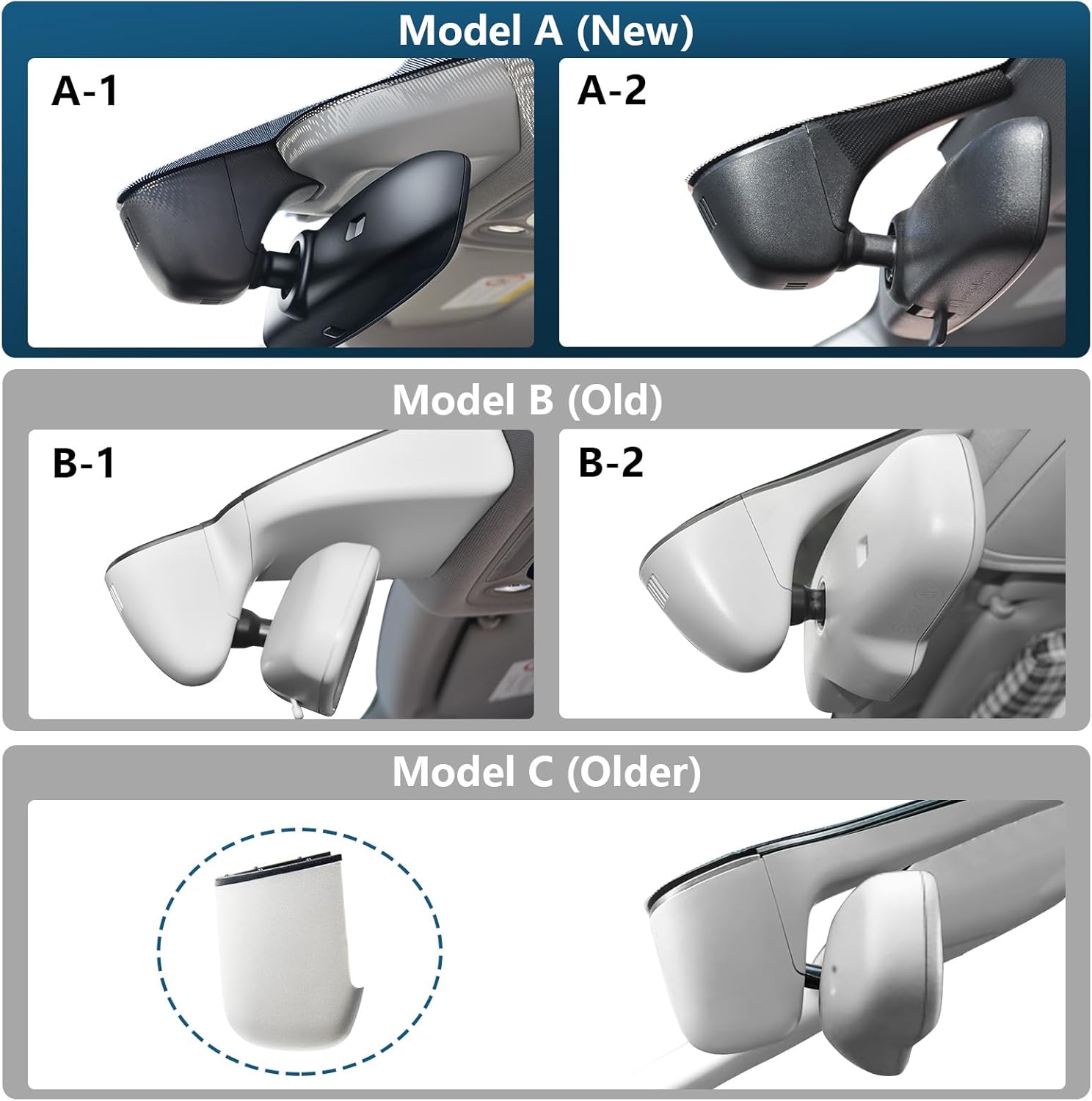
Image: Visual comparison of Audi dash cam models A, B, and C, focusing on the sensor cover design.
3.2. Compatible Audi Models (Model B Black)
This specific dash cam (Model B Black) is compatible with the following Audi vehicles:
- Audi A4
- Audi A6 Allroad
- Audi A3
- Audi A5
- Audi A6
- Audi Q5
- Audi A8
- Audi S8
- Audi A7
- Audi S5
- Audi Q3
- Audi S3
- Audi S7
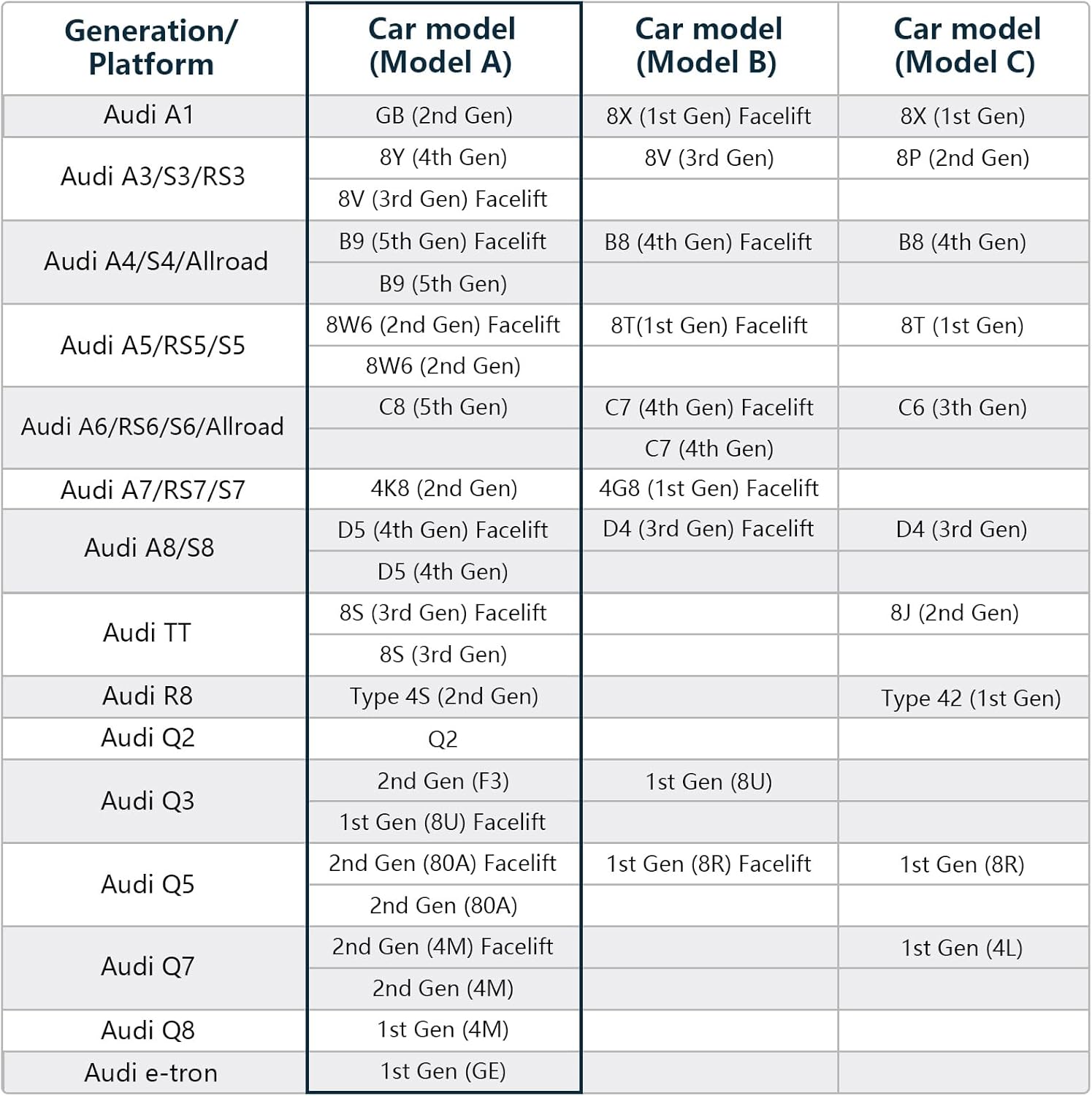
Image: Detailed compatibility table for various Audi models across different dash cam versions (A, B, C).
Important: If you are unsure about your vehicle's compatibility, please take a photo of your original car sensor cover and contact customer support for confirmation.
4. Key Features
The Mangoal Dash Cam is equipped with several features designed to provide comprehensive vehicle surveillance and recording:
- Front 4K & Rear 1080P Recording: Captures Ultra HD 4K (3840x2160) video from the front and Full HD 1080P from the rear, ensuring clear details like road signs and license plates. Features a 150-degree front wide angle and 140-degree rear wide angle to minimize blind spots.
- Integrated OEM Look: Designed to fit seamlessly behind the rearview mirror, providing an original equipment manufacturer (OEM) appearance without exposed wiring.
- Built-in WiFi & Free App: Connects to a dedicated mobile application for real-time video viewing, downloading, and transferring footage to a PC. Allows sharing on social media.
- Loop Recording: Automatically overwrites the oldest footage with new content when the memory card is full, ensuring continuous recording.
- G-Sensor: Detects sudden collisions and automatically saves and locks the current video footage to a specified folder, preventing it from being overwritten.
- Parking Monitor: Automatically switches to parking mode and begins recording to provide 24-hour protection for your vehicle. (Requires optional OBD Power Adapter or Fuse Box Power Adapter, not included in standard package).
- Night Vision: Enhanced low-light performance for clear recordings in dark conditions.

Image: Overview of the dash cam's main features.

Image: Examples of front 4K UHD and rear 1080P video capture.

Image: The Parking Monitor feature in action, offering 24-hour surveillance.
5. Installation Guide
Follow these steps carefully to install your Mangoal Dash Cam. It is recommended to watch the provided installation videos for visual guidance.
5.1. Front Dash Cam Installation
- Pry Open the Sensor Cover: Gently use the provided crowbar tool to pry open the original car's rain-fall sensor cover located behind the rearview mirror.
Video: Installation of Mangoal Audi Dash Cam Model B Black, showing how to pry open the sensor cover.
- Connect the Y-Adapter: Disconnect the original rain-fall sensor plug. Connect the provided Y-adapter to the original sensor wiring and then connect the dash cam's power cable to the Y-adapter. Ensure secure connections.
Video: Installation of Mangoal Audi Dash Cam Model B Black, demonstrating the Y-adapter connection to the rain-fall sensor.

Image: Detail of the rain-fall sensor plug and the Y-adapter for power.
- Mount the Dash Cam Host Unit: Align the dash cam host unit with the original sensor housing and push it up until it locks securely into place. Ensure all wiring is neatly tucked away.
Video: Installation of Mangoal Audi Dash Cam Model B Black, showing the mounting of the main unit.

Image: Before and after view of the dash cam installation, highlighting the OEM integrated design.
5.2. Rear Dash Cam Installation (If Applicable)
- Route the Rear Camera Cable: Connect the rear camera cable to the main dash cam unit. Use the provided car wire trim tool to carefully tuck the cable along the headliner, down the A-pillar, and along the door sills to the rear of the vehicle. Hide any excess wiring in appropriate locations.
Video: Installation of Mangoal Audi Car Rear Dash Cam Model B Black, demonstrating cable routing.
- Mount the Rear Camera: Once the cable is routed, attach the rear camera to the inside of your rear windshield. Ensure the camera's angle is adjusted for optimal view.

Image: Rear camera with 360-degree rotation adjustment for flexible positioning.
- Restore Sun Visor Buckle: If removed during cable routing, restore the sun visor fixing buckle.
Video: Installation of Mangoal Audi Dash Cam Model B Black, showing the restoration of the sun visor buckle.

Image: The Mangoal dash cam seamlessly integrated into an Audi interior.
6. Mobile App Setup
The "SkyCamm" app allows you to control your dash cam, view live footage, and manage recordings.
- Power On the Camera: Ensure the dash cam is powered on by starting your car engine. The rear camera's power indicator blue light should be on.
- Download and Open "SkyCamm" App: Download the "SkyCamm" app from your device's app store. Open the app and click "Add Camera".
- Connect to Camera WiFi: Go to your phone's settings, enable WLAN (Wi-Fi), and search for the camera's Wi-Fi network (e.g., "WIFI_DVR_E970TBG_05aa"). Connect to it using the default password (usually "12345678" or found in the manual).
- Access Live View: Return to the "SkyCamm" app. It should automatically connect and display the camera's real-time view. You can switch between front and rear camera views within the app.
- Verify Camera Functionality: Check both front and rear camera feeds to ensure they are working correctly and the angles are adjusted as desired.
- Format SD Card: For first-time use or to clear all recordings, navigate to "Camera Settings" in the app and select "Format SD Card". Confirm the operation. This will erase all video and picture files on the SD card.
Video: App and camera test video before installation, showing app connection and settings.
7. Operating Instructions
7.1. Automatic Operation
The dash cam is designed for automatic operation:
- Power On/Off: The dash cam will automatically power on and begin recording when your vehicle's engine starts. It will power off shortly after the engine is turned off.
- Loop Recording: Continuous recording is enabled by default. Older files will be overwritten when the SD card is full.
- G-Sensor Activation: In the event of a sudden impact or collision, the G-Sensor will trigger, locking the current video file to prevent it from being overwritten.
- Parking Monitoring: If an optional hardwire kit is installed, the dash cam will automatically enter parking mode when the vehicle is off, providing continuous surveillance.
7.2. Using the Mobile App
The "SkyCamm" app provides full control over your dash cam's settings and recordings:
- Live Preview: View real-time footage from both front and rear cameras.
- File Management: Access recorded videos and photos. Download important footage directly to your phone.
- Settings Adjustment: Modify video resolution, loop recording duration, exposure compensation, time stamp, WDR (Wide Dynamic Range), collision sensing sensitivity, and parking monitoring settings.
- Sharing: Share videos and photos on social media platforms.

Image: Mobile app interface for easy access to dash cam features.
8. Maintenance
- SD Card Formatting: It is recommended to format the MicroSD card periodically (e.g., once a month) to maintain optimal performance and prevent data corruption. This can be done through the "SkyCamm" app.
- Cleaning: Use a soft, dry cloth to clean the camera lenses and the dash cam unit. Avoid using abrasive cleaners or solvents.
- Firmware Updates: Check the "SkyCamm" app or the manufacturer's website for any available firmware updates to ensure your dash cam has the latest features and bug fixes.
9. Troubleshooting
If you encounter issues with your dash cam, refer to the following common solutions:
- Camera Not Powering On:
- Ensure the car engine is running.
- Verify that the Y-adapter is correctly connected to the rain-fall sensor and the dash cam power cable.
- Check for any loose connections.
- App Connection Issues:
- Make sure your phone's Wi-Fi is enabled and connected to the camera's Wi-Fi network.
- Ensure you have entered the correct Wi-Fi password.
- Temporarily disable your car's built-in Wi-Fi or other Wi-Fi networks that might interfere.
- Restart both the dash cam (by restarting the car) and the "SkyCamm" app.
- Video Quality Issues:
- Clean the camera lenses.
- Check the video resolution settings in the "SkyCamm" app.
- Ensure the MicroSD card is not full or corrupted; try formatting it.
- Loop Recording Not Working:
- Format the MicroSD card.
- Ensure the loop recording option is enabled in the app settings.
- G-Sensor Not Triggering/Too Sensitive:
- Adjust the collision sensing sensitivity in the "SkyCamm" app settings.
10. Specifications
| Feature | Detail |
|---|---|
| Model Number | MG-007A-9 |
| Product Dimensions | 8.6 x 3.8 x 2.14 inches |
| Item Weight | 1.95 pounds |
| Video Capture Resolution | Front 4K (3840x2160) and Rear 1080P |
| Field Of View | Front 150 degrees, Rear 140 degrees |
| Connectivity Technology | Wi-Fi |
| Special Features | Built-In Microphone, Built-In Speaker, Built-In Supercapacitor, OEM Style, Motion Sensing, Mute Function, Night Vision, Loop Recording, G-Sensor, Automatic Incident Detection, Parking Monitor, App Control |
| Mounting Type | Windshield Mount |
| Batteries | 1 Lithium Metal battery required (included) |
| Color | Black |
11. Warranty and Support
Your Mangoal Dash Cam comes with a worry-free 12-month warranty. For any questions, technical assistance, or warranty claims, please contact our customer service. Refer to the product packaging or the official Mangoal website for contact details.