
Portta N441QMS
Portta 4K HDMI Multiviewer Switch 4x1 User Manual
Model: N441QMS
Introduction
The Portta 4K HDMI Multiviewer Switch 4x1 is designed to display multiple HDMI input sources on a single output screen. This device offers versatile viewing options and seamless switching capabilities, making it ideal for various applications from home entertainment to professional monitoring. It supports high-definition resolutions up to 4K@30Hz and includes audio extraction features.

Figure 1: Portta 4K HDMI Multiviewer Switch 4x1 with remote control and a display demonstrating its multi-view capabilities.
Key Features
- Versatile Viewing Modes: Supports 6 different display modes including 4 equal screens, dual side-by-side, dual up and down, Picture-in-Picture (PIP), full screen, and 1 big 3 small mode.
- Seamless Switching: Enables smooth and instant switching between four HDMI input sources, particularly useful in full-screen mode.
- High Definition Resolutions: Supports up to 4K@30Hz and offers scaler up/down functions for 1080p and 1600p resolutions. Compatible with HDCP 1.4 and HDCP 1.3.
- Broad Compatibility: Works with a wide range of devices such as Security Cameras, PCs, PS4, PS4 Pro, Xbox, Blu-Ray Players, Chromecast, Computers, HDTVs, Projectors, and Monitors.
- Audio Output: Features Toslink and 3.5mm audio output for flexible audio integration.
- Control Options: Can be controlled via the included IR remote control or RS232 serial control.

Figure 2: Illustration of the six distinct display modes available on the multiviewer, including single display, dual side-by-side, dual up and down, four equal screens, one big and three small screens, and Picture-in-Picture (PIP).
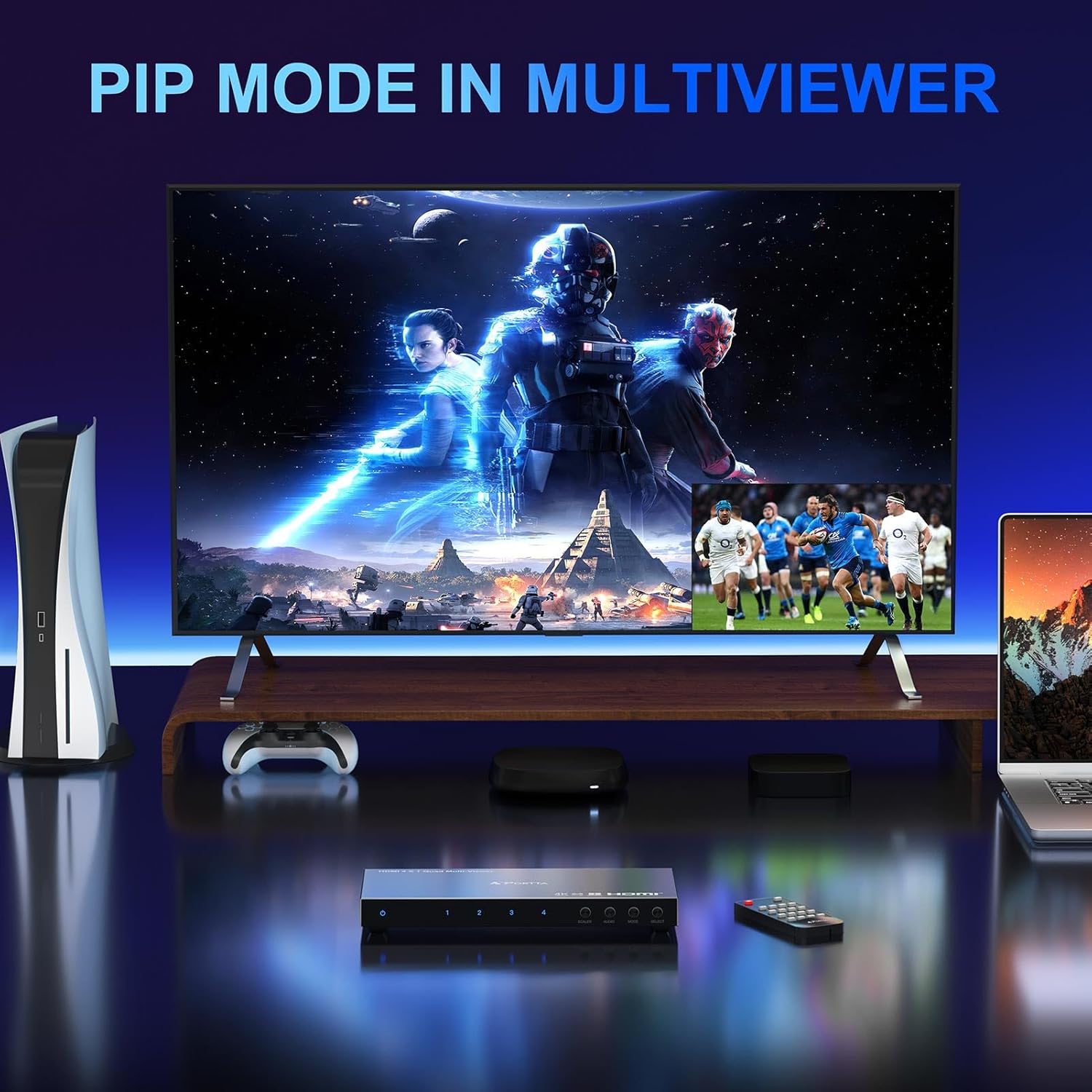
Figure 3: Example of Picture-in-Picture (PIP) mode, displaying a primary video source with a secondary source overlaid in a smaller window.

Figure 4: Demonstration of the "1 Big 3 Small" display mode, suitable for environments like restaurants or control rooms where one main view and three smaller supplementary views are desired.
Setup Instructions
- Power Connection: Connect the provided power adapter to the DC 5V port on the multiviewer and plug it into a power outlet.
- HDMI Input Connection: Connect your HDMI source devices (e.g., PC, PS4, Xbox, Blu-Ray Player) to the HDMI INPUT 1, 2, 3, or 4 ports on the multiviewer using HDMI cables.
- HDMI Output Connection: Connect your display device (e.g., HDTV, Monitor, Projector) to the HDMI OUTPUT port on the multiviewer using an HDMI cable.
- Audio Output Connection (Optional):
- For digital audio, connect an optical cable from the TOSLINK port to your audio receiver or soundbar.
- For analog audio, connect a 3.5mm audio cable from the STEREO 3.5mm OUTPUT port to your audio system.
- Power On: Turn on the multiviewer using the ON/OFF switch. The power indicator light will illuminate.
- Device Power: Power on all connected HDMI source devices and your display.

Figure 5: Detailed diagram illustrating the various input and output ports on the Portta Multiviewer, including HDMI inputs, HDMI output, audio outputs (Toslink, 3.5mm), power, and control ports.

Figure 6: Visual representation of the multiviewer's broad compatibility with common input devices like laptops, PS5, Xbox, Fire Cube, and Apple TV, and output devices such as monitors, HDTVs, and projectors.
Operating Instructions
Using the Remote Control
The multiviewer can be operated using the included IR remote control. Ensure a clear line of sight between the remote and the IR receiver on the front panel of the device.

Figure 7: Layout of the remote control with descriptions for each button, including power, mute, input selection, audio selection, display mode, PIP, scaler, modify, and OSD.
- Power ON/OFF: Press the POWER button to turn the device on or off.
- Input Selection: Use the OUTPUT 1-4 buttons to select the desired input source for full-screen display.
- Display Mode Selection: Press the MODE button to cycle through the 6 different display modes (Full Screen, Dual Side by Side, Dual Up and Down, 4 Equal Screen, 1 Big 3 Small, PIP Mode).
- PIP Mode Control: When in PIP mode, use the PIP button to cycle the small screen to different corners of the display.
- Audio Selection: Use the AUDIO buttons (2.1CH, 5.1CH) to select the desired audio output format.
- Scaler Button: Use the SCALER button to adjust the output resolution (1080p, 1600p, 4K 30Hz).
- Modify Button: Use the MODIFY button to change the combinations of input sources within certain display modes. Refer to the remote diagram for specific combinations.
- OSD: Press the OSD button to show or hide On-Screen Display content.
Front Panel Controls
The front panel of the multiviewer also features buttons for basic operation:
- Input Select Buttons (1-4): Directly select the corresponding HDMI input for full-screen display.
- SCALER Button: Cycles through available output resolutions.
- AUDIO Button: Toggles audio output modes.
- MODE Button: Cycles through the display modes.
- SELECT Button: Used in conjunction with MODE or other functions for selection.
Maintenance
To ensure the longevity and optimal performance of your Portta Multiviewer, follow these maintenance guidelines:
- Cleaning: Use a soft, dry cloth to clean the exterior of the device. Do not use liquid cleaners or aerosol sprays, as they may damage the unit.
- Ventilation: Ensure the device is placed in a well-ventilated area to prevent overheating. Do not block any ventilation openings.
- Storage: When not in use for extended periods, store the device in a cool, dry place away from direct sunlight and extreme temperatures.
- Handling: Handle the device with care. Avoid dropping or subjecting it to strong impacts.
Troubleshooting
| Problem | Possible Cause | Solution |
|---|---|---|
| No video output / Black screen |
|
|
| No audio output |
|
|
| Remote control not responding |
|
|
| Flickering or unstable image |
|
|
Specifications
| Brand | Portta |
| Model | N441QMS |
| Part Number | N4MX41QSA |
| Connector Type | HDMI |
| Number of Ports | 4 (Input) |
| Supported Resolution | Up to 4K@30Hz (with 1080p/1600p scaler) |
| HDCP Compliance | HDCP 1.4, HDCP 1.3 |
| Audio Output | Toslink, 3.5mm Stereo |
| Control Methods | IR Remote, RS232 |
| Compatible Devices | HDTV, Projector, Monitor, Security Camera, PC, PS4, Xbox, Nintendo Switch, Blu-Ray Player, Chromecast, Computer |
| Product Dimensions | 21.11 x 9.91 x 2.49 cm |
| Item Weight | 360 g |
| Color | Black |

Figure 8: Physical dimensions of the multiviewer, along with the power adapter, USB-C power cable, IR remote, and user manual included in the package.
Warranty and Support
The Portta 4K HDMI Multiviewer Switch 4x1 comes with a hassle-free 2-year warranty. Additionally, customers are provided with lifetime technical support.
For any questions, technical assistance, or warranty claims, please feel free to reach out to Portta's customer service. Contact information can typically be found on the product packaging or the official Portta website.
Ask a question about this manual
Ask about setup, troubleshooting, compatibility, parts, safety, or missing instructions. Manuals+ will review the question and use this page’s manual context to help answer it.