
KoeLap MULTI PROG
KoeLap Multi PROG Super Programmer User Manual
Model: MULTI PROG (AQCT0579)
Introduction
The KoeLap MULTI-PROG Pro-level programmer is an advanced device designed for reading and writing automotive chips and electronic modules, with a particular focus on ECU modules. This comprehensive tool integrates programming, reading, writing, and cloning functionalities for common automotive MCUs, automotive memory chips, various electronic modules, and automotive ECU boards. It is engineered to provide precise and reliable operations for automotive diagnostics and repair professionals.
Product Overview
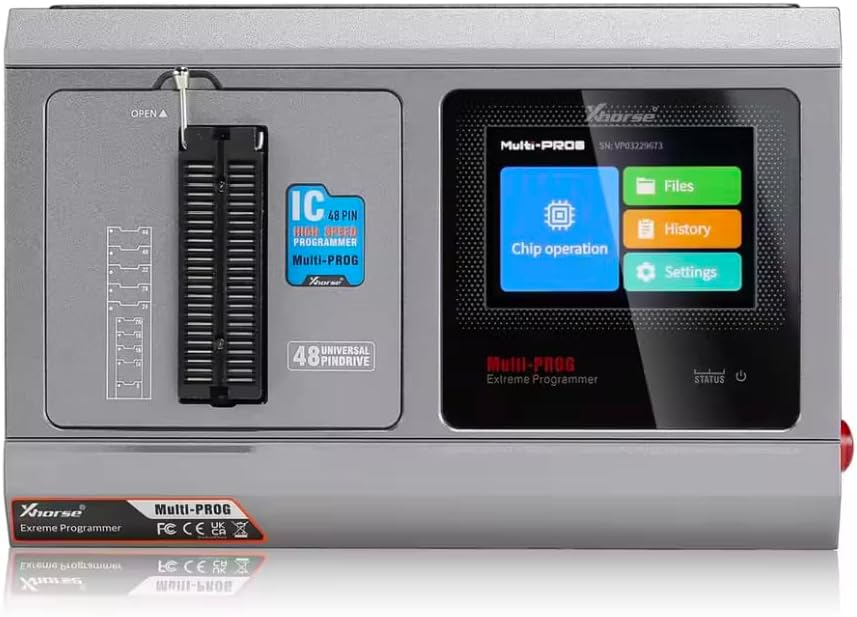
Figure 1: Front View of the Multi PROG Programmer. This image displays the main unit of the Multi PROG programmer, highlighting its compact design and the integrated 48-pin universal pin drive socket on the left, alongside the touch screen interface on the right. The screen shows options for "Chip operation", "Files", "History", and "Settings".
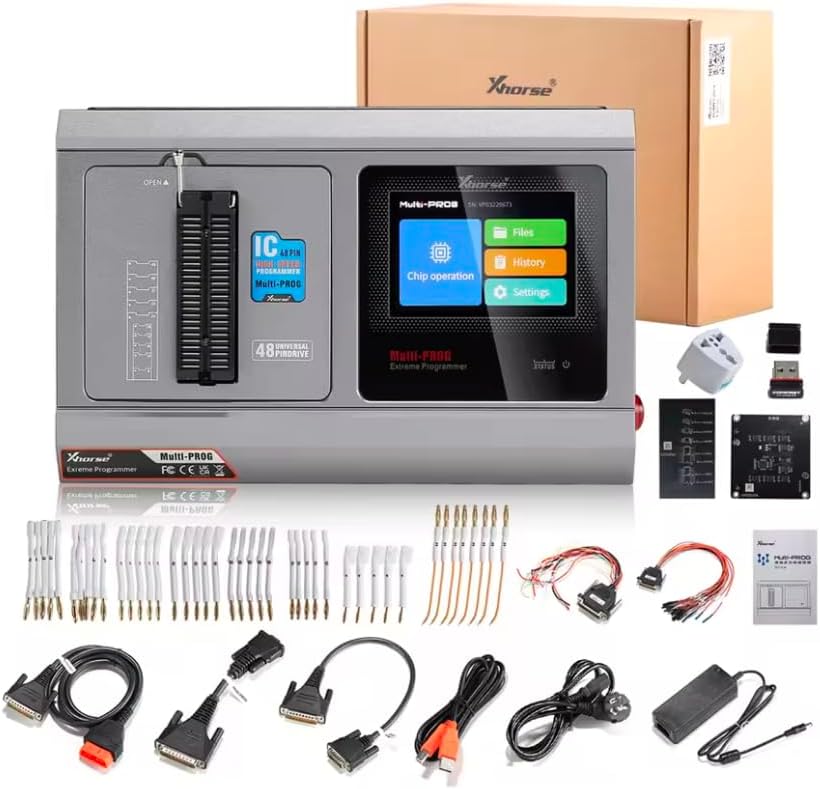
Figure 2: Multi PROG Programmer and Accessories. This photograph showcases the Multi PROG programmer along with its comprehensive set of included accessories, such as various cables, adapters, and circuit boards, all neatly arranged to illustrate the complete package.
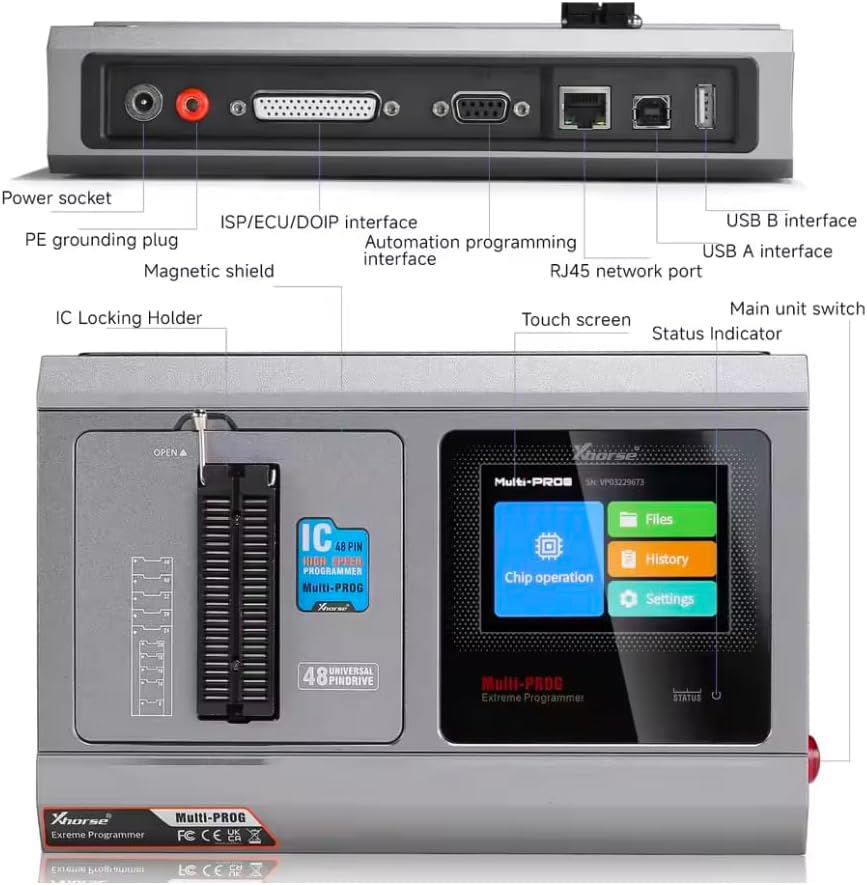
Figure 3: Multi PROG Programmer Port Layout. This detailed view labels the various ports and components of the Multi PROG programmer, including the power socket, PE grounding plug, ISP/ECU/DOIP interface, automation programming interface, RJ45 network port, USB B interface, USB A interface, IC Locking Holder, Magnetic shield, Touch screen, Main unit switch, and Status Indicator.

Figure 4: Key Functions of the Multi PROG Programmer. This image highlights the primary capabilities of the Multi PROG, including Memory Read and Write, Car IMMO Module Read and Write, Third-party Script support, MCU Read & Write Programming, Engine ECU Read and Writing, Transmission TCU Reading and Writing, and Batch Programming Function.
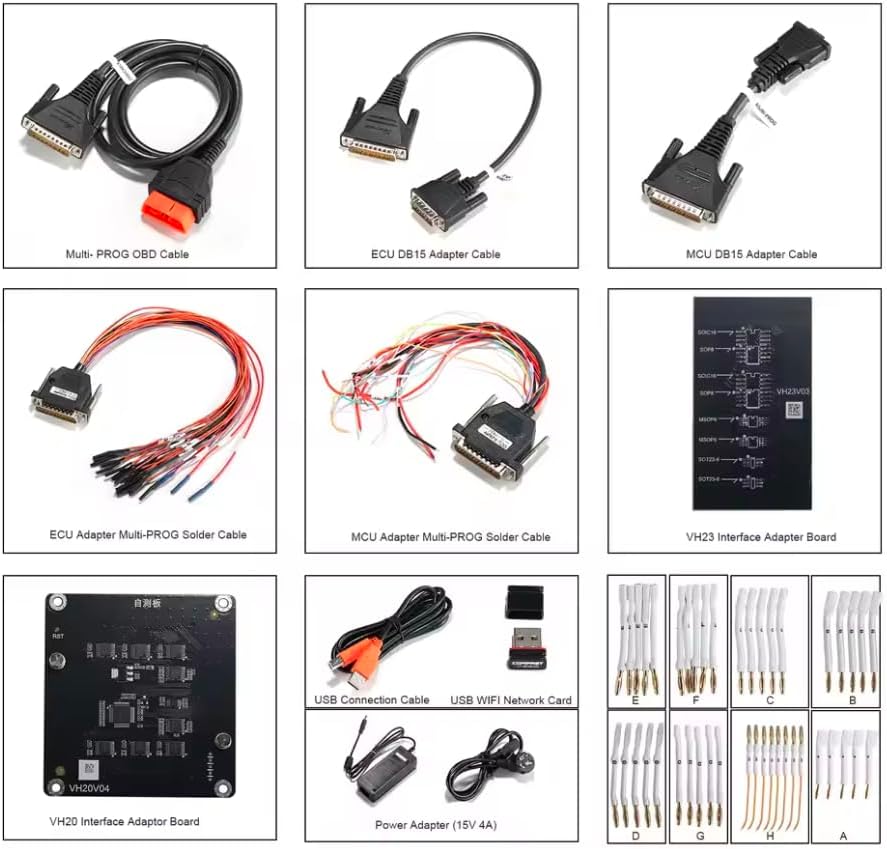
Figure 5: Multi PROG Cables and Adapters. This image displays a selection of the various cables and adapters included with the Multi PROG programmer, such as the Multi-PROG OBD Cable, ECU DB15 Adapter Cable, MCU DB15 Adapter Cable, ECU Adapter Multi-PROG Solder Cable, MCU Adapter Multi-PROG Solder Cable, VH23 Interface Adapter Board, VH20V04 Interface Adapter Board, USB Connection Cable, USB WIFI Network Card, Power Adapter (15V 4A), and various pin sets (E, F, C, B, D, G, H, A).
Features
- Add Vehicle Engine Data Calculation and Processing (MED17, EDC17 etc)
- Support Checksum Function
- With Free MQB48 License and for Ben Read ISN
- Read, Write and Clone ECU
- Support Flexible Extension of Third-party Plug-ins
Setup
- Unpacking: Carefully remove all components from the packaging. Verify that all items listed in the "Product Overview" section (Figure 2 and Figure 5) are present.
- Power Connection: Connect the provided 15V 4A power adapter to the "Power socket" on the rear of the Multi PROG unit (Figure 3). Plug the adapter into a suitable power outlet.
- PC Connection (Optional): For advanced operations or software updates, connect the Multi PROG to your computer using the USB B interface cable (Figure 3). Ensure your PC meets the minimum system requirements for the Multi PROG software.
- Network Connection (Optional): For online features or updates, connect an Ethernet cable to the RJ45 network port (Figure 3) or use the USB WIFI Network Card (Figure 5) if wireless connectivity is preferred.
- Initial Power On: Locate the "Main unit switch" (Figure 3) and turn on the device. The touch screen should illuminate, and the status indicator will show the device's readiness.
- Software Installation: If connecting to a PC, install the necessary drivers and software from the official KoeLap website or the provided installation media. Follow the on-screen instructions for a complete installation.
Operating Instructions
The Multi PROG programmer offers a versatile range of operations for automotive electronic systems. Below are general guidelines for common tasks. Refer to the detailed software manual for specific procedures and advanced functions.
Basic Navigation:
- Touch Screen: Navigate the device using the integrated touch screen. The main menu typically includes "Chip operation", "Files", "History", and "Settings" (Figure 1).
- Chip Operation: Select this option to access functions related to reading, writing, and programming various chips and modules.
- Files: Manage saved data, project files, and firmware updates.
- History: Review past operations and logs.
- Settings: Configure device parameters, network settings, language, and system information.
Programming and Cloning ECUs/MCUs:
- Identify Module: Determine the specific ECU, MCU, or memory chip you intend to work with. Refer to the vehicle's service manual or component markings.
- Select Connection Method:
- On-board Programming (OBD): Use the Multi-PROG OBD Cable (Figure 5) to connect to the vehicle's OBD-II port for direct communication with the ECU.
- Bench Programming: For modules removed from the vehicle, use appropriate adapter cables (e.g., ECU DB15 Adapter Cable, MCU DB15 Adapter Cable, Solder Cables - Figure 5) to connect the module to the Multi PROG unit. Ensure correct pin connections.
- IC Socket: For direct chip programming, insert the chip into the 48-pin universal pin drive socket (Figure 1), ensuring correct orientation and securing it with the IC Locking Holder (Figure 3).
- Software Interface: On the Multi PROG touch screen or connected PC software, select the appropriate vehicle make, model, year, and module type.
- Read Data: Initiate the "Read" function to extract existing data from the target module. Save the data as a backup file.
- Write/Clone Data:
- Writing: Load the desired data file (e.g., new firmware, modified parameters) into the software and initiate the "Write" function.
- Cloning: After reading data from a source module, select a new target module and initiate the "Clone" function to transfer the exact data.
- Checksum Calculation: The device supports checksum functions. Ensure checksums are correctly calculated and verified after writing operations to maintain data integrity.
- Verification: After writing, perform a "Verify" operation to confirm that the data has been written correctly to the module.
Special Functions:
- Engine Data Calculation: Utilize specific functions for MED17, EDC17, and other engine control units for data calculation and processing.
- MQB48 License & BEN Read ISN: Access dedicated functions for MQB48 systems and reading ISN for Ben vehicles as per your license.
- Third-party Plug-ins: The Multi PROG supports flexible extension with third-party plug-ins. Consult the software documentation for integration instructions.
Maintenance
- Cleaning: Regularly clean the device's exterior with a soft, dry cloth. Avoid using abrasive cleaners or solvents. Ensure the IC socket and connection ports are free of dust and debris.
- Software Updates: Periodically check for software and firmware updates from the official KoeLap website. Keeping the software up-to-date ensures compatibility with new vehicle models and modules, and provides access to new features and bug fixes.
- Cable and Adapter Inspection: Inspect all cables and adapters for signs of wear, damage, or corrosion before each use. Replace any damaged components immediately to prevent operational issues or damage to the device/vehicle.
- Storage: Store the Multi PROG programmer and its accessories in a clean, dry, and temperature-controlled environment when not in use. Protect it from extreme temperatures, humidity, and direct sunlight.
- Handle with Care: The device contains sensitive electronic components. Avoid dropping the unit or subjecting it to strong impacts.
Troubleshooting
| Problem | Possible Cause | Solution |
|---|---|---|
| Device does not power on. | Power adapter not connected or faulty; Main unit switch off. | Ensure power adapter is securely connected and plugged into a live outlet. Check the main unit switch. Test with another power outlet if possible. |
| Cannot connect to PC. | USB cable faulty; Drivers not installed or outdated; PC USB port issue. | Try a different USB cable and a different USB port on your PC. Reinstall or update the device drivers from the official website. |
| Module reading/writing fails. | Incorrect connection; Module not supported; Software error; Insufficient power. | Verify all connections (cables, adapters, IC insertion) are correct and secure. Confirm the module type is supported by the Multi PROG. Restart the software and device. Ensure stable power supply. |
| Touch screen unresponsive. | Temporary software glitch; Physical damage. | Restart the device. If the issue persists, contact technical support. |
If you encounter issues not listed here or if the suggested solutions do not resolve the problem, please contact KoeLap technical support for assistance.
Specifications
| Brand | KoeLap |
| Model | MULTI PROG |
| Item Model Number | AQCT0579 |
| Manufacturer | KoeLap |
| Country of Origin | China |
| Primary Function | Automotive Chip, Electronic Module, and ECU Programmer (Read, Write, Clone) |
| Supported Operations | MCU, Memory Chips, ECU, TCU Programming; Engine Data Calculation (MED17, EDC17); Checksum Function; MQB48 License; BEN Read ISN |
| Connectivity | USB B, USB A, RJ45 Network Port, ISP/ECU/DOIP Interface |
| Display | Touch Screen |
| Power Input | 15V 4A (via included adapter) |
Warranty and Support
For information regarding product warranty, please refer to the warranty card included with your purchase or visit the official KoeLap website. Warranty terms and conditions may vary by region and retailer.
For technical support, software updates, or any inquiries regarding the Multi PROG Super Programmer, please contact KoeLap customer service through their official channels. Ensure you have your product model number (AQCT0579) and purchase details ready when contacting support.
Official Website: www.koelap.com (Note: This is a placeholder URL as no official website was provided in the input. Users should refer to the actual manufacturer's website.)
Ask a question about this manual
Ask about setup, troubleshooting, compatibility, parts, safety, or missing instructions. Manuals+ will review the question and use this page’s manual context to help answer it.