
1. Product Overview
This manual provides instructions for the Glintique OEM US Laptop Keyboard, designed as a replacement for specific Acer laptop models. It features a standard English layout for efficient typing and is constructed for durability and reliable performance.
Key Features:
- Compatibility: Specifically designed for Acer W700, W701, P3-171, P3-131, and KT-1252 models.
- English Layout: Standard US English key arrangement for comfortable and familiar typing.
- Durability: Manufactured with high-quality materials for long-lasting use.
- Ease of Installation: Engineered for a straightforward replacement process.
2. Setup and Installation
This keyboard is intended as a replacement part. Installation typically involves removing the existing keyboard and connecting the new one. Due to variations in laptop models, it is recommended to consult your laptop's specific service manual or a qualified technician for detailed installation steps.
General Installation Guidelines:
- Power Off: Ensure your laptop is completely powered off and disconnected from any power source. Remove the battery if possible.
- Access Keyboard: Carefully identify and remove any screws or latches securing the old keyboard. This may involve removing trim pieces or the top case of the laptop.
- Disconnect Old Keyboard: Gently disconnect the ribbon cable(s) connecting the old keyboard to the motherboard. Note the orientation of the connectors.
- Connect New Keyboard: Align the ribbon cable(s) of the new Glintique keyboard with the connectors on the motherboard and gently secure them.
- Secure Keyboard: Place the new keyboard into position and secure it with any screws or latches that were removed.
- Reassemble: Reassemble any laptop components that were removed during the process.
- Test Functionality: Power on your laptop and test all keys to ensure proper operation.

Figure 2.1: The Glintique OEM US Laptop Keyboard, showing its overall layout and protective packaging.
3. Operating Instructions
The Glintique OEM US Laptop Keyboard functions as a standard English layout keyboard. All keys operate according to their labeled functions within your operating system.
Key Functions:
- Standard Alphanumeric Keys: For typing letters, numbers, and symbols.
- Function Keys (F1-F12): These keys often have secondary functions (e.g., volume control, brightness adjustment, Wi-Fi toggle) when pressed in combination with the Fn key. Refer to your laptop's user manual for specific Fn key combinations.
- Special Keys: Includes Caps Lock, Shift, Ctrl, Alt, Windows Key, Enter, Backspace, Delete, Home, End, Page Up, Page Down, and arrow keys.
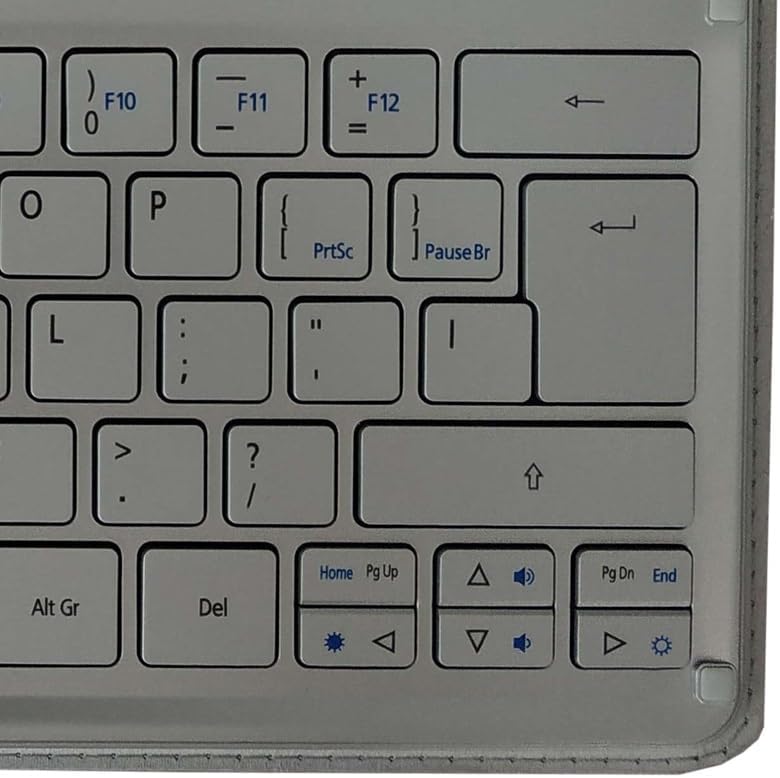
Figure 3.1: Detail of the right-hand side of the keyboard, showing arrow keys, Delete, Home, End, Page Up, Page Down, and multimedia function keys.
4. Maintenance and Care
Proper maintenance ensures the longevity and optimal performance of your keyboard.
Cleaning:
- Dust Removal: Use a can of compressed air to blow away dust and debris from between the keys. Hold the can upright to prevent propellant discharge.
- Surface Cleaning: Gently wipe the keycaps and keyboard surface with a soft, lint-free cloth lightly dampened with water or a mild, non-abrasive cleaning solution. Avoid excessive moisture.
- Avoid Liquids: Do not spray cleaning solutions directly onto the keyboard. Ensure the laptop is powered off before cleaning.
Storage:
- When not in use, store the keyboard in a clean, dry environment away from extreme temperatures and direct sunlight.
- Protect the keyboard from physical impact or pressure that could damage the keys or internal components.
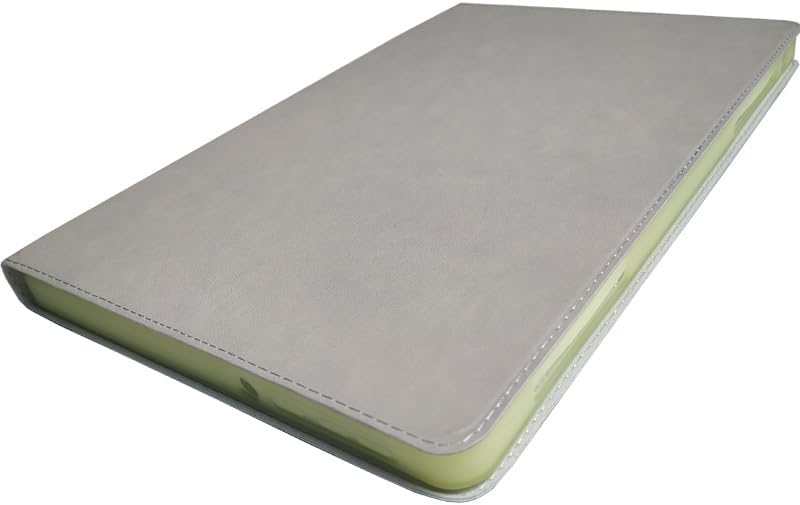
Figure 4.1: The Glintique OEM US Laptop Keyboard enclosed in its protective case, illustrating proper storage.
5. Troubleshooting
If you encounter issues with your Glintique keyboard, try the following troubleshooting steps:
- Keyboard Not Responding:
- Ensure the keyboard ribbon cable(s) are securely connected to the motherboard.
- Restart your laptop.
- Check your operating system's device manager for any keyboard-related errors or outdated drivers.
- Specific Keys Not Working:
- Check for any physical obstructions (e.g., debris) under the non-functional keys.
- Clean the keyboard as described in the Maintenance section.
- Incorrect Key Output:
- Verify that your operating system's keyboard language settings are set to "English (United States)" or the appropriate English layout.
If these steps do not resolve the issue, contact Glintique customer support or a qualified technician.
6. Specifications
| Feature | Detail |
|---|---|
| Brand | Glintique |
| Model Name | Glintique-001 |
| Compatible Devices | Acer W700, W701, P3-171, P3-131, KT-1252 Laptops |
| Layout | US English |
| Item Weight | 1.76 ounces (approx. 50 grams) |
| Package Dimensions | 0.39 x 0.39 x 0.39 inches (approx. 1 x 1 x 1 cm) |
| Included Components | Glintique OEM keyboard |
| ASIN | B0CPT91XVW |
7. Warranty and Support
For warranty information and technical support, please contact Glintique directly or refer to the seller's return policy. Keep your purchase receipt as proof of purchase.
Manufacturer: Glintique
Contact: Refer to your purchase documentation or the Glintique official website for customer service contact details.