1. Introduction
The OSENOUS Mini Portable Projector is designed to deliver a high-quality visual experience in a compact form factor. Featuring a dust-proof sealed optical engine, it ensures longevity and consistent image clarity by preventing dust accumulation. With support for 1080P HD, 15000 lumens brightness, and a 120-inch display, it offers a vibrant and immersive viewing experience. Its dual-band 2.4G/5G WiFi and Bluetooth 5.0 capabilities provide seamless wireless connectivity, while multiple input interfaces ensure broad device compatibility. This manual will guide you through the setup, operation, and maintenance of your new projector.
2. What's in the Box
- Remote Control x1
- Manual x1
- Power Cord x1
3. Product Overview
The OSENOUS Mini Portable Projector is engineered for ease of use and portability. Below is an overview of its key features and physical components.

The main product image shows the compact OSENOUS Mini Portable Projector alongside its remote control, projecting a vibrant display of movies, music, and photos, highlighting its 1080P HD support, 2.4+5G WiFi, Bluetooth 5.0, 15000 lumens, and 120-inch display capability.
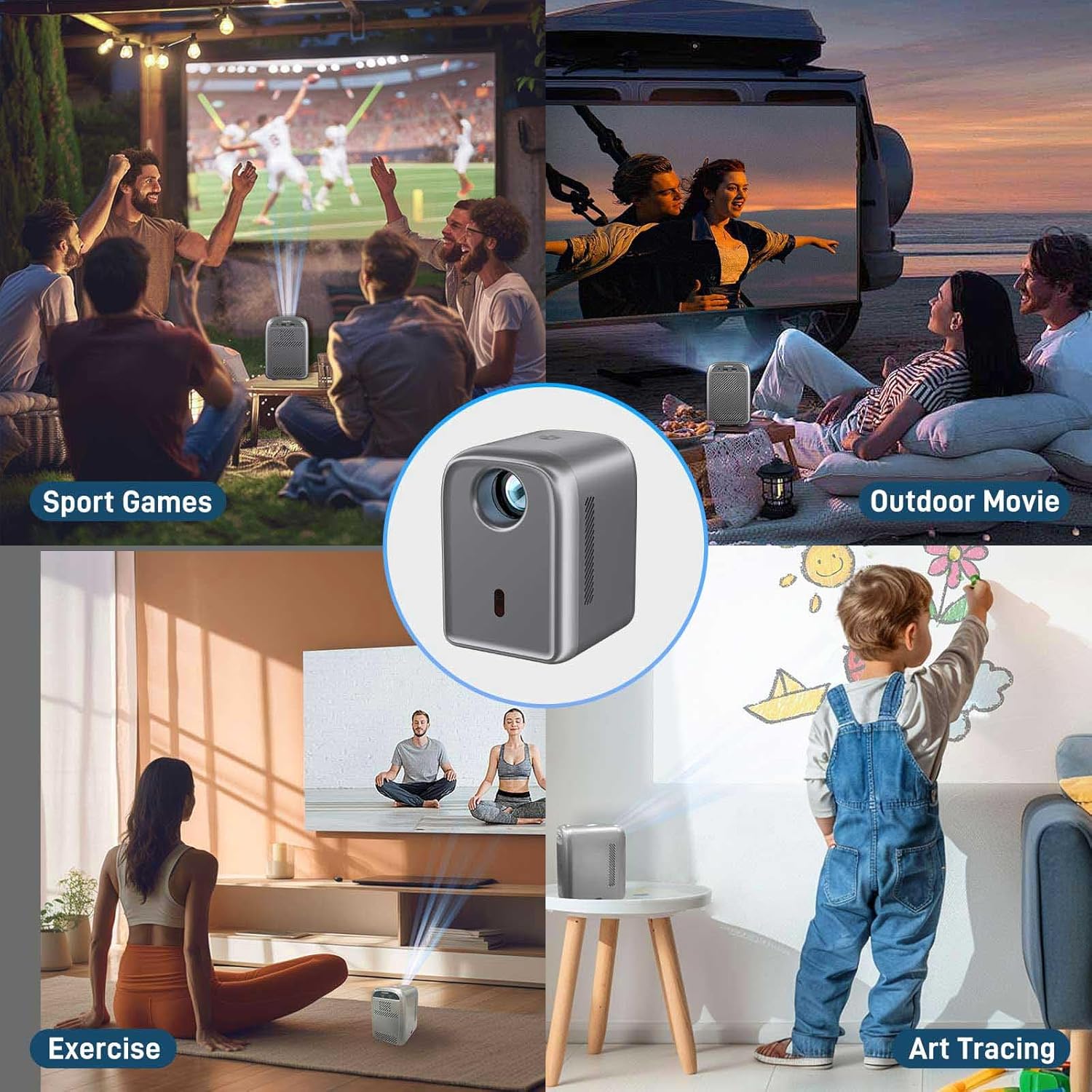
This image demonstrates the projector's versatility across various settings, including outdoor movie nights, watching sports, aiding in exercise routines, and even for art tracing, emphasizing its adaptability for different entertainment and creative needs.
4. Setup
4.1 Initial Power On
- Connect the power cord to the projector's power input and then to a power outlet.
- Press the power button on the projector or the remote control to turn it on.
- The projector will display the main interface.
4.2 Focus Adjustment
Use the focus controls on the remote to sharpen the projected image. Adjust until the image is clear and crisp on your screen or wall.
4.3 Keystone Correction
If the projected image appears trapezoidal, use the keystone correction feature to adjust it to a rectangular shape. This can typically be found in the projector's settings menu.
5. Operating Instructions
5.1 Connecting via Wi-Fi
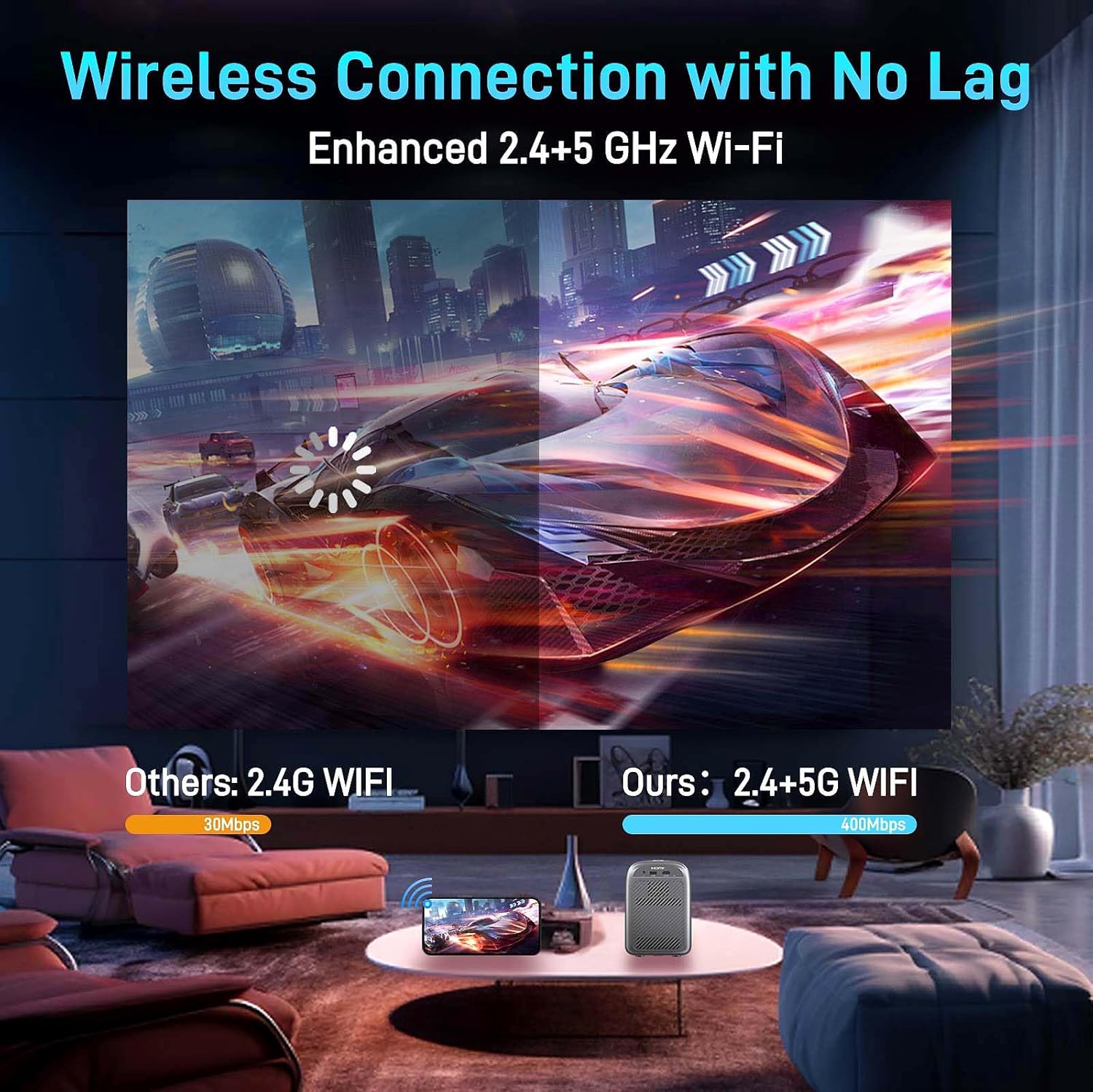
The projector supports dual-band 2.4G and 5G Wi-Fi for stable and fast wireless connections.
- Navigate to the 'Settings' menu on the projector.
- Select 'Network' or 'Wi-Fi Settings'.
- Choose your desired Wi-Fi network from the list and enter the password.
- Once connected, you can use screen mirroring features (iOS Cast, Miracast) or access online content if supported.

This visual highlights the projector's advanced dual-band 2.4G/5G Wi-Fi, ensuring ultra-fast and stable wireless streaming with significantly reduced delay for gaming and video playback compared to older 2.4G systems.
5.2 Connecting via Bluetooth
Connect external Bluetooth speakers or headphones for an enhanced audio experience.
- Go to 'Settings' and select 'Bluetooth'.
- Turn on Bluetooth and search for available devices.
- Select your Bluetooth speaker or headphones from the list to pair.
The projector features Bluetooth 5.0, enabling seamless wireless connection to external audio devices like headphones, earbuds, and Bluetooth speakers for a personalized and immersive sound experience.
5.3 Connecting via HDMI/USB
The projector offers versatile wired connectivity options.
- HDMI: Connect devices like laptops, gaming consoles (PS4), or TV Fire Sticks using an HDMI cable. Select 'HDMI' as the input source from the main menu.
- USB: Insert a USB drive into the USB port to play movies, music, or view photos directly. Select 'USB Drive' from the main menu and browse your files.
- AV: Use the AV port for older devices that support AV output.

This diagram illustrates the broad compatibility of the projector, allowing connections to a wide range of devices such as laptops, iPads, iPhones, gaming consoles (PS4), DVD players, and TV Fire Sticks through its HDMI, AV, and USB interfaces.
6. Maintenance
6.1 Dust-Proof Sealed Optical Engine
The projector features a closed, independent optical structure that minimizes dust impact on the LCD panel. This design prevents common issues like yellowing and black spots, significantly extending the projector's lifespan.

The image showcases the projector's innovative dust-proof sealed optical engine, which significantly extends its lifespan by preventing dust from affecting the LCD panel, thus maintaining image clarity and preventing yellowing or black spots over time.
6.2 General Cleaning
- Use a soft, dry cloth to clean the exterior of the projector.
- For the lens, use a lens cleaning cloth and specialized lens cleaning solution. Do not use abrasive materials.
- Ensure ventilation vents are clear of obstructions to prevent overheating.
7. Troubleshooting
- No Power: Ensure the power cord is securely connected to both the projector and the power outlet. Try a different outlet.
- No Image: Check the input source selection (HDMI, USB, etc.) matches your connected device. Verify all cables are properly connected. Adjust focus and keystone.
- Blurry Image: Adjust the focus using the remote control. Ensure the projector is at an optimal distance from the screen.
- No Sound: Check the volume settings on both the projector and the connected device. Ensure external speakers are properly connected or paired via Bluetooth. Verify the audio output settings on your source device.
- Wi-Fi/Bluetooth Connection Issues: Ensure the projector is within range of your router/Bluetooth device. Restart both the projector and the network device.
- Screen Mirroring Issues: Due to copyright restrictions, popular streaming services like Netflix, Amazon Prime, Disney, and Hulu do not support direct screen mirroring from mobile phones. A Fire TV stick or similar streaming device connected via HDMI is required for playback of these services.
8. Specifications
| Brand Name | OSENOUS |
| Item Weight | 3.75 pounds |
| Product Dimensions | 4.75 x 5.75 x 6.5 inches |
| Item Model Number | RD-810 |
| Color Name | black |
| Special Features | Built-In Speaker, Built-In Wi-Fi, Digital Keystone Correction, Dust-Proof, Portable |
| Recommended Uses For Product | Home Theater; Outdoor Movie; Party; Sports; |
| Connectivity Technology | Bluetooth, HDMI, USB, Wi-Fi |
| Display Resolution | 1280×720 |
9. Warranty and Support
For warranty information and customer support, please refer to the contact details provided on the product packaging or the official OSENOUS website. We are committed to providing quality products and excellent service. If you have any questions or encounter issues, please reach out to our customer support team for assistance.