
Introduction
This manual provides comprehensive instructions for the installation, operation, maintenance, and troubleshooting of your Swann 8 Channel DVR Security Recorder, model SRDVR-84580G. Please read this manual thoroughly before using the product to ensure proper setup and functionality.
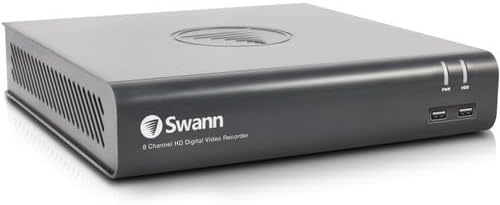
Image: Front view of the Swann 8 Channel DVR Security Recorder. The device is a compact, dark grey rectangular unit with the "Swann 8 Channel HD Digital Video Recorder" logo on the front. It features two USB ports and indicator lights on the right side of the front panel.
Package Contents
Verify that all items listed below are included in your package:
- DVR 4575 8 Channel DVR with 1TB Hard Drive
- Ethernet Cable
- HDMI Cable
- Power Adapter & Splitter
- Mouse
- Mounting Screws & Plugs
- Quick Start Guide
- Theft Deterrent Stickers
Setup
1. Connecting the DVR
- Connect Cameras: Attach your security cameras to the BNC video input ports on the back of the DVR. The DVR supports up to 8 channels.
- Connect to Display: Use the provided HDMI cable to connect the DVR's HDMI output port to your monitor or TV. Alternatively, use a VGA cable for VGA output.
- Connect Network: Connect an Ethernet cable from the DVR's RJ45 port to your router or network switch for internet access and remote viewing.
- Connect USB Devices: Plug the included mouse into one of the USB 2.0 ports. Additional USB devices, such as a USB flash drive for backup, can be connected to the USB 2.0 or USB 3.0 ports.
- Power On: Connect the power adapter to the DVR's power input and then plug it into a power outlet. The DVR will power on automatically.
2. Initial Configuration
Upon first power-on, the DVR will guide you through an initial setup wizard. This typically includes:
- Setting up a secure password.
- Configuring date and time settings.
- Network settings (DHCP is usually recommended for automatic IP assignment).
- Hard drive formatting (if prompted).
Refer to the included Quick Start Guide for detailed steps on the initial setup wizard.
Operating Instructions
Local Operation
Navigate the DVR's on-screen menu using the connected mouse. Key functions include:
- Live View: Displays real-time video feeds from all connected cameras.
- Playback: Access recorded footage stored on the 1TB hard drive. You can search by date, time, and event.
- Recording Settings: Configure continuous recording, motion-detection recording, or scheduled recording. The DVR supports recording resolution up to 3MP.
- Alarm Settings: Set up alerts for motion detection, video loss, or other events. The DVR features controllable motion-activated red & blue flashing lights, spotlights & sirens for deterrence.
- Backup: Export recorded footage to a USB flash drive.
Remote Operation (Swann Security App)
The Swann Security App allows for remote viewing and control of your DVR system from compatible smartphones and tablets (iOS, Android, 4G/5G). The app is also compatible with HomeSafe View and View 24/7.
- Download App: Download the "Swann Security App" from your device's app store.
- Account Creation: Create a Swann Security account and log in.
- Add Device: Follow the in-app instructions to add your DVR by scanning the QR code or manually entering the device ID.
- Remote Viewing: Once connected, you can view live feeds, play back recordings, and receive push notifications for events.
Maintenance
- Hard Drive Management: The 1TB hard drive can store up to 1 year of recording. Ensure the hard drive is not full. The DVR typically overwrites the oldest footage when the drive is full.
- Firmware Updates: Periodically check the Swann website or the DVR's system settings for available firmware updates to ensure optimal performance and security.
- Cleaning: Keep the DVR unit clean and free from dust. Use a soft, dry cloth. Do not use liquid cleaners. Ensure ventilation openings are not blocked.
- Environmental Conditions: Operate the DVR within recommended temperature and humidity ranges to prevent damage.
Troubleshooting
| Problem | Possible Cause | Solution |
|---|---|---|
| No video output on monitor. | Loose HDMI/VGA cable; incorrect input selected on monitor; DVR not powered on. | Check cable connections; ensure monitor is set to correct input (HDMI/VGA); verify DVR power indicator is on. |
| Cannot connect to DVR remotely. | No internet connection; incorrect network settings; app not configured correctly. | Verify DVR has internet access; check network settings (DHCP/Static IP); re-add device in Swann Security App. |
| No recording. | Hard drive full or faulty; recording schedule not set; camera not connected. | Check hard drive status and format if necessary; configure recording schedule; ensure cameras are properly connected. |
| Poor video quality. | Camera resolution settings; cable issues; lighting conditions. | Adjust camera resolution settings (up to 1080p display resolution, 3MP recording resolution); check cable integrity; ensure adequate lighting. |
Specifications
| Feature | Detail |
|---|---|
| Model Number | SRDVR-84580G |
| Video Input | 8 channels |
| Video Output | VGA, HDMI |
| Display Resolution | Up to 1080p |
| Audio Input | RCA x 1 |
| Audio Output | RCA x 1 |
| Recording Resolution | Up to 3MP |
| Included Hard Drive Size | 1TB (1000 GB) |
| Network Interface | RJ45 x 1 |
| USB Interface | USB 2.0 x 2, USB 3.0 x 1 |
| Computer Operating System Support | Windows, Mac OS |
| Smartphone App | Swann Security App (also HomeSafe View, View 24/7) |
| Handheld Device Support | iOS, Android, 4G/5G Smartphones & Tablets |
| Product Dimensions (L x W x H) | 9.05" x 8.3" x 1.9" (230mm x 210mm x 47mm) |
| Connectivity Technology | Ethernet, HDMI, USB, VGA |
| Manufacturer | Swann Communications USA |
| Date First Available | September 25, 2023 |
Warranty and Support
Warranty Information
This product comes with a 12-month warranty from the date of purchase. Please retain your proof of purchase for warranty claims. The warranty covers defects in materials and workmanship under normal use.
Customer Support
For technical assistance, troubleshooting, or warranty inquiries, please visit the official Swann support website or contact their customer service. You can find more information and resources on the Swann Store on Amazon.