1. Introduction
The Avantree Audikast 4 is a versatile 2-in-1 TV audio transmitter designed to provide wireless audio to headphones and hearing aids. It supports both Bluetooth 5.4 and Auracast technologies, offering stable, low-latency, and high-definition audio transmission. This device allows for private listening or shared audio experiences from your TV or other audio sources.

The Avantree Audikast 4 transmitter, showing its compact design and external antenna for enhanced range.
2. Package Contents
- Avantree Audikast 4 Transmitter
- USB-C Power Cable
- Optical Audio Cable
- AUX 3.5mm Audio Cable
3. Setup Guide
3.1 Connecting to Power
- Connect the provided USB-C power cable to the USB-C port on the Audikast 4.
- Plug the other end of the USB-C cable into a 5V/1A USB power adapter (not included) or a powered USB port on your TV or computer.
- Slide the ON/OFF switch on the side of the Audikast 4 to the 'ON' position.
3.2 Connecting to Audio Source (TV/PC)
The Audikast 4 supports Optical (Digital) and AUX (Analog) audio inputs. Choose the appropriate cable based on your audio source's available output port.
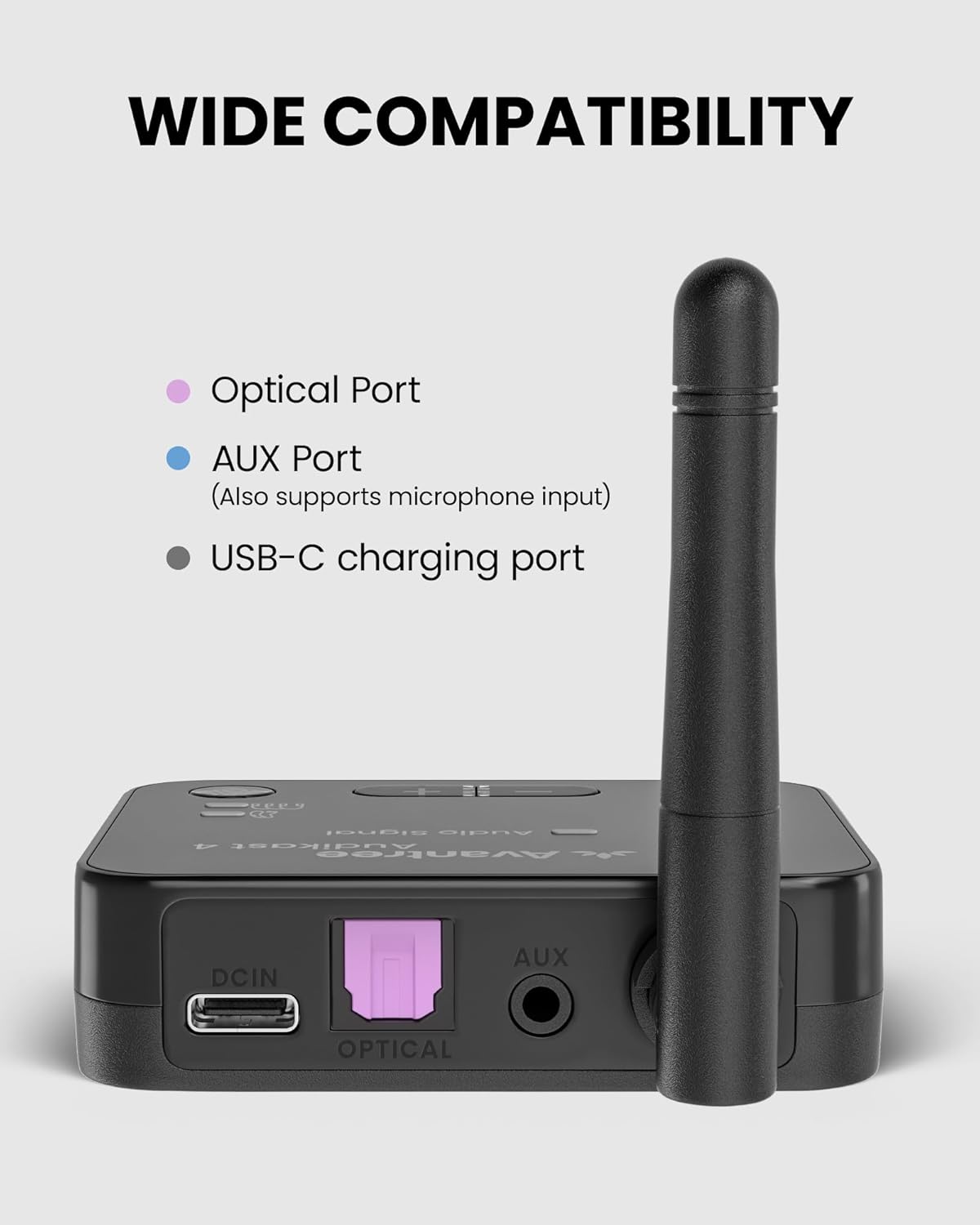
The back panel of the Audikast 4, detailing the Optical audio input, AUX audio input (also supporting microphone), and USB-C power/charging port.
Using Optical Audio (Recommended for Digital Audio)
- Connect one end of the Optical audio cable to the 'OPTICAL' port on the Audikast 4.
- Connect the other end to the 'OPTICAL OUT' or 'DIGITAL AUDIO OUT' port on your TV or audio source.
- Ensure your TV's audio output settings are configured to 'PCM' or 'Stereo' (not Dolby/DTS).
Using AUX Audio (for Analog Audio)
- Connect one end of the AUX 3.5mm audio cable to the 'AUX' port on the Audikast 4.
- Connect the other end to the 'AUDIO OUT' or 'HEADPHONE OUT' port on your TV or audio source.
4. Operating Instructions

A detailed view of the Audikast 4's top panel, indicating the LED indicators for hearing aids and headphones, Auracast button, volume adjustment, Classic Bluetooth button, and ON/OFF switch.
4.1 Bluetooth Mode Pairing (for Headphones)
This mode is for connecting standard Bluetooth headphones for private listening.
- Ensure the Audikast 4 is powered on and connected to your audio source.
- Press the Classic Bluetooth button (marked with a Bluetooth icon) on the Audikast 4. The corresponding LED indicator will flash rapidly, indicating pairing mode.
- Put your Bluetooth headphones into pairing mode (refer to your headphone's manual for specific instructions).
- Place the headphones close to the Audikast 4. Once connected, the LED indicator for headphones on the Audikast 4 will turn solid.
- To connect a second pair of Bluetooth headphones, repeat steps 2-4. Both headphone LEDs will be solid when two devices are connected.

An illustration of the Audikast 4 in use, allowing a user to listen to TV audio privately with Bluetooth headphones.
4.2 Auracast Mode Pairing (for Hearing Aids & Multiple Listeners)
Auracast allows broadcasting audio to multiple compatible devices simultaneously, including Auracast-enabled hearing aids and headphones.
- Ensure the Audikast 4 is powered on and connected to your audio source.
- Press the Auracast button (marked with a broadcast icon) on the Audikast 4. The corresponding LED indicator will flash rapidly.
- Put your Auracast-enabled hearing aids or headphones into pairing/broadcast receiving mode (refer to their respective manuals).
- Place the receiving devices close to the Audikast 4. Once connected, the LED indicator for hearing aids on the Audikast 4 will turn solid.
- Multiple Auracast devices can connect to the Audikast 4 simultaneously.

This diagram explains the two primary listening modes: Bluetooth for direct headphone connection and Auracast for broadcasting to multiple devices including hearing aids.

An example scenario demonstrating the Audikast 4's ability to broadcast audio to multiple listeners simultaneously, suitable for group viewing or public spaces.
Compatible Auracast Hearing Aids:
- GN Danalogic Extend
- Jabra Enhance Pro 20 / 30, Enhance Select 500
- ReSound Nexia / Viviva / Savi / Enzo IA
- Beltone Envision / Serene
- Starkey Edge AI (requires Samsung S20+ / Pixel 7 or newer for pairing)
Note: Devices not listed may not be compatible with Auracast mode.
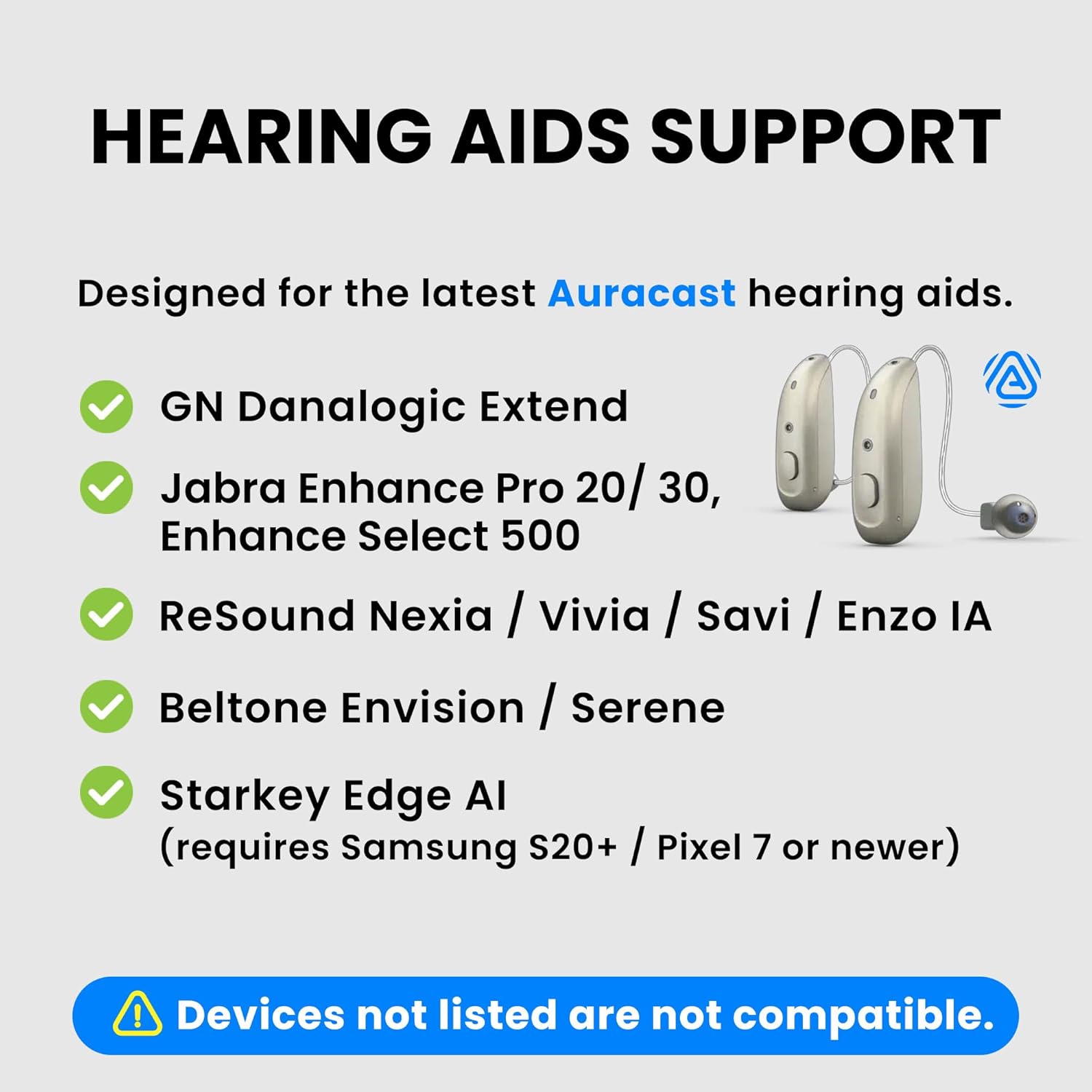
A visual guide to hearing aid models compatible with the Audikast 4's Auracast feature, including specific pairing requirements.
4.3 Volume Adjustment
Use the physical + and - buttons on the top of the Audikast 4 to adjust the audio volume for connected devices.
5. Maintenance
5.1 Firmware Updates
The Audikast 4 supports USB-C firmware updates (DFU) to ensure compatibility with the latest Bluetooth and Auracast standards. Visit the Avantree support website for the latest firmware and instructions.
5.2 Cleaning
Wipe the device with a soft, dry cloth. Avoid using harsh chemicals or abrasive materials.
6. Troubleshooting
6.1 No Audio Output
- Check Power: Ensure the Audikast 4 is powered on and the ON/OFF switch is in the 'ON' position.
- Check Audio Input: Verify the audio cable (Optical or AUX) is securely connected to both the Audikast 4 and your TV/audio source.
- TV Audio Settings: For Optical input, ensure your TV's audio output is set to 'PCM' or 'Stereo' and not Dolby/DTS.
- Device Paired: Confirm your headphones/hearing aids are successfully paired and connected to the Audikast 4 (LEDs should be solid).
- Volume Levels: Adjust the volume on both the Audikast 4 and your receiving device.
6.2 Pairing Issues
- Pairing Mode: Ensure both the Audikast 4 and your receiving device are in pairing mode.
- Proximity: Keep devices close during pairing (within 1 meter).
- Clear Previous Connections: If issues persist, try clearing previous pairing history on both the Audikast 4 (by holding the volume buttons for 5 seconds) and your receiving device.
- Auracast Compatibility: For Auracast, ensure your hearing aids/headphones are specifically Auracast-enabled and listed as compatible.
6.3 Short Range or Intermittent Connection
- Line of Sight: Ensure there are no major obstructions (walls, large furniture) between the Audikast 4 and your receiving device.
- Interference: Keep the Audikast 4 away from other wireless devices (Wi-Fi routers, microwaves) that may cause interference.
- Device Placement: Position the Audikast 4 in an open area for optimal signal transmission.
7. Specifications
- Model: BTTC-480
- Product Dimensions: 2.7 x 2.9 x 2.6 inches (6.86 x 7.37 x 6.6 cm)
- Item Weight: 5.5 ounces (156 grams)
- Connectivity Technologies: Bluetooth 5.4, Auracast
- Audio Codecs: aptX Adaptive, aptX HD, SBC
- Input Ports: Optical, AUX (3.5mm)
- Power Source: USB-C Powered (5V/1A)
- Special Features: Next-Gen Bluetooth, Auracast Hearing Aid & Multi-Listener Compatible, Firmware Upgradable, Smart Display & Volume Knob

An image highlighting the Qualcomm chipset inside the Audikast 4, indicating support for aptX Adaptive, Qualcomm technology, and Bluetooth 5.4.
8. Safety Information
Please read and follow these safety guidelines to ensure proper use and prevent damage to the device or injury.
- Avoid using near other wireless devices to prevent interference.
- Keep the device away from heat sources and moisture.
- Do not attempt to disassemble, repair, or modify the device.
- Do not dispose of the device in regular trash; follow local regulations for electronic waste disposal.
9. Warranty and Support
Avantree products come with a manufacturer's warranty. For detailed warranty information, product registration, or technical support, please visit the official Avantree support website or contact their customer service team. You can find contact information on the Avantree website or in the product packaging.