
1. Product Overview
This manual provides detailed instructions for the original Xsarius remote control, designed for seamless operation with Xsarius Q1, Q2, Q3, and Q4 TV boxes. It features an ergonomic design, infrared connectivity, and a dedicated TV programming function, allowing you to control basic functions of your television.
1.1 What's in the Box
- 1 x Original Xsarius Q1/Q2/Q3/Q4 Remote Control with TV Programming Function
Note: Batteries are not included.

Figure 1.1: Front view of the Xsarius remote control, displaying its ergonomic design and button layout.
2. Setup
2.1 Battery Installation
- Locate the battery compartment cover on the back of the remote control.
- Slide the cover downwards or press the latch to open it.
- Insert two AAA batteries (not included), ensuring the positive (+) and negative (-) terminals align correctly with the markings inside the compartment.
- Close the battery compartment cover securely until it clicks into place.
2.2 Initial Setup and TV Programming Function
The remote control is pre-programmed to work with Xsarius Q1/Q2/Q3/Q4 devices. For the TV programming function, follow these general steps. Specific programming codes or learning procedures may vary; refer to your TV's manual if needed.
- Entering Programming Mode: Press and hold the 'SET' button on the remote until the red LED indicator lights up steadily.
- Code Entry (if applicable): If your TV brand has a specific code, enter the 3 or 4-digit code using the number buttons. The LED should blink and then turn off if successful.
- Auto Search (if applicable): If you don't have a code, point the remote at your TV and repeatedly press the 'TV/AV' button (or a similar channel up/down button) until your TV turns off. This indicates the correct code has been found.
- Saving the Setting: Once your TV responds, press the 'SET' button again to save the setting. The LED should turn off.
- Testing: Test the TV control buttons (Power, Volume, TV/AV) to ensure they function correctly with your television.
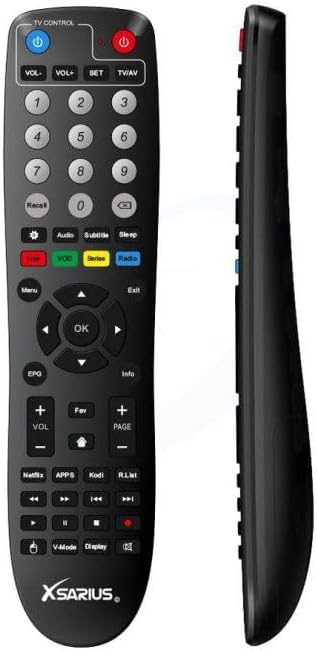
Figure 2.1: Side view of the Xsarius remote control, illustrating its ergonomic design for comfortable grip.
3. Operating the Remote Control
3.1 Button Functions
The remote control features a comprehensive set of buttons for controlling your Xsarius TV box and basic TV functions. Below is a general overview of common button functions:
- TV CONTROL (Blue Button): Switches the remote's control mode to your TV.
- POWER (Red Button): Turns the Xsarius device ON/OFF.
- VOL+/-: Adjusts the volume.
- SET: Used for programming the TV control function.
- TV/AV: Switches TV input source.
- Number Buttons (0-9): For direct channel selection or code entry.
- Recall: Recalls the last viewed channel.
- LIVE, VOD, SERIES, RADIO (Colored Buttons): Quick access to specific content categories.
- Menu: Opens the main menu.
- Exit: Exits the current menu or screen.
- Navigation (Up/Down/Left/Right Arrows): Navigates through menus and options.
- OK: Confirms selection.
- EPG: Accesses the Electronic Program Guide.
- Info: Displays program information.
- CH+/- (PAGE+/-): Changes channels or navigates pages.
- Fav: Accesses favorite channels list.
- Audio: Selects audio tracks.
- Subtitle: Toggles subtitles.
- R.List: Accesses recording list.
- Media Control Buttons (Play, Pause, Stop, Rewind, Fast Forward, Record): Controls media playback.
4. Maintenance
4.1 Cleaning
To clean the remote control, gently wipe its surface with a soft, dry cloth. For stubborn dirt, slightly dampen the cloth with water or a mild, non-abrasive cleaner. Do not use harsh chemicals or abrasive materials, as they may damage the remote's finish or internal components.
4.2 Storage
When not in use for extended periods, store the remote control in a cool, dry place away from direct sunlight and extreme temperatures. Remove the batteries if the remote will not be used for several weeks or months to prevent battery leakage and potential damage.
5. Troubleshooting
5.1 Common Issues and Solutions
- Remote not responding:
- Check if the batteries are inserted correctly with the correct polarity.
- Replace old or depleted batteries with new ones.
- Ensure there are no obstructions between the remote and the Xsarius device/TV.
- Make sure you are within the effective operating range (up to 10 meters).
- TV Programming Function not working:
- Repeat the programming steps carefully (Section 2.2).
- Ensure the remote is pointed directly at the TV's IR sensor during programming.
- Try different programming codes for your TV brand if available.
- Some older or less common TV models may not be fully compatible with the programming function.
- Buttons are sticky or unresponsive:
- Clean the remote control as described in Section 4.1.
- Avoid spilling liquids on the remote.
6. Specifications
| Brand | Xsarius |
| Model Number | 8418519817989 |
| Color | Black |
| Product Type | Remote Control for TV Box |
| Connectivity Technology | Infrared |
| Maximum Range | 10 meters (33 feet) |
| Controller Type | Button Control |
| Special Feature | Ergonomic |
| Compatible Devices | Xsarius Q1, Q2, Q3, Q4 |
| Number of Buttons | 3 (This seems to be an error in the source data, as the image clearly shows many more buttons. This refers to the number of programmable buttons for TV control, or a general miscount. The remote has many more functional buttons.) |
| Item Dimensions | Approximately 9.84 inches (length) |
7. Warranty and Support
7.1 Warranty Information
Specific warranty information for this product is not available in the provided data. Please refer to the retailer or manufacturer's website for details regarding warranty coverage.
7.2 Customer Support
For further assistance or technical support, please contact the retailer or the official Xsarius customer service channels. Contact information is typically available on the product packaging or the manufacturer's official website.


